
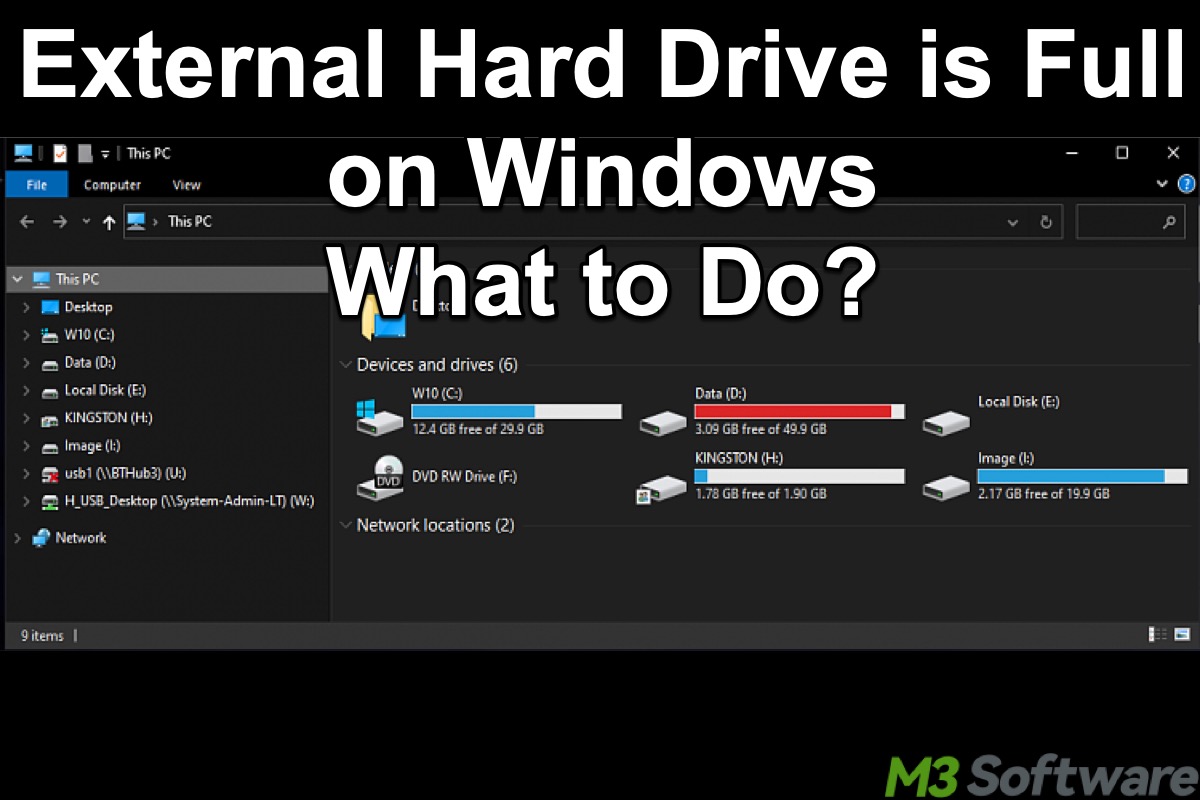
If your external hard drive is full, first check what is using the space. Delete or move unnecessary large files and empty the Recycle Bin. If the reported usage doesn't match your files, check for hidden files, partition issues, or file-system errors. Back up important data before formatting the drive.
Before trying any fixes, check the diagnostic table below to identify your specific scenario and go directly to the corresponding solution. There's no need to try every fix.
| What you see | Possible Reason | Fix |
| Files roughly equal the used space | Drive is genuinely full | Find, move or delete unnecessary large files |
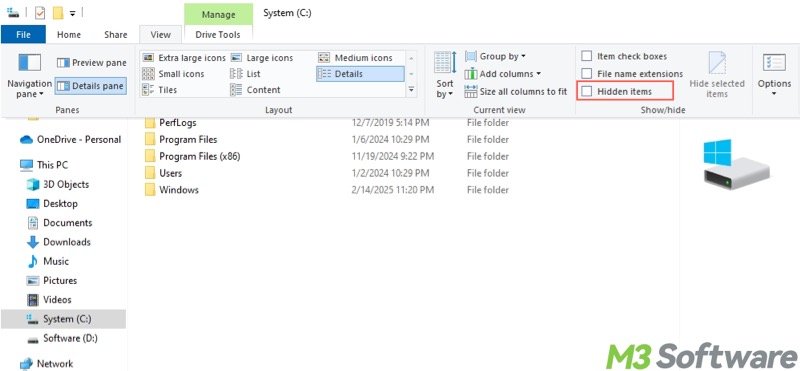
| Drive is full but visible files are small | Hidden/system files, Recycle Bin, file-system issue | Reveal hidden files, empty recycle bin and fix file-system issue |
| Space remains but a large file won't copy | File-system/file-size restriction | Check the drive's file system. Change the file system if necessary |
| Capacity behaves abnormally | File-system corruption or storage issue | Back up data and format the disk if needed |
The following buttons can help you share this post easily!
Check What Is Using the External Drive Space Most
To check what is taking up your external drive storage, I prefer Windows 11's built-in tool - Settings. Here's howto:
Step 1. Connect my external USB hard drive Kingston DataTraveler 3.0 to my Windows 11 PC. This drive is formatted by NTFS file system.

Step 2. Click Start > open Settings. Or press Win + I to open Settings.
Step 3. Go to System > Storage.

Step 4. Tap Advanced storage settings under Local Disk (C:) > select Storage used on other drives.

Step 5. Choose my external drive “Personal Files (E:)”. It has 28.7 GB in total; 17.9 GB used and 10.7 GB free.

Windows 11 then displays my E drive storage usage by categories, including Other 17.8GB, System & reserved 90.9 MB, Pictures 328 KB. The others (installed app, videos, music, documents…) are all 0 bytes.
See, there is an important limitation in Storage settings: Storage settings doesn't provide a detailed folder-by-folder analysis of an external drive like TreeSize, WinDirStat or iBoysoft DiskGeeker for Windows. Here I'd like to share with you how to use iBoysoft DiskGeeker for Windows to visually analyze your external drive with a folder-level map if needed.
Step 1. Download, install and launch iBoysoft DiskGeeker for Windows (version 2.0).
Step 2. Click “Optimize tools” in the AI disk space optimization section.

Step 3. Click “Specific folder analysis”.

Step 4. Hit “External disk” > choose drive E:\.

Step 5. The entire E: drive will be analyzed almost instantly, with the results displayed visually as a directory map.

Since I don't have many files on E: and rarely organize them into folders, the folder structure isn't particularly useful in my case. The visual view, however, makes it much easier to spot what's taking up space. I can immediately see that the macOS Tahoe 26 installer ISO is the largest file on my E: drive.
Step 6. After the external drive space analysis, drag and drop the files to the blue circle in the center to delete them.
Find, Move or Delete Unnecessary Large Files
If the files roughly equal the used space, the most straightforward solution to fix external drive full isue is to find, move or delete unnecessary large files.
How to Use File Explorer to Find and Delete Unnecessary Large Files
Step 1. Type File Explorer in the search bar > open File Explorer.

Step 2. Choose my external drive - Personal Files (E:) > switch to Details view and manually inspect folders and file size. Here I can see the large file is my macOS Tahoe 26 installer ISO image file, reaching to 18,077,228 KB. But File Explorer doesn't natively calculate folder sizes in a convenient sortable list.

Step 3. Move large files to other drives. Or delete them if they're not useful.
Windows 11's built-in Storage settings can show how an external drive's space is distributed across file categories, but it doesn't provide a detailed folder-level storage map. Meanwhile, it doesn't let you set up scan filters to fast-scan your drive.
How to Use iBoysoft DiskGeeker for Windows to Quickly Find/Delete Large Files
Faster option for locating large files: A disk-space analyzer can show which folders and files occupy the most space in a rapid speed. iBoysoft DiskGeeker for Windows provides this view with fast search speed (thanks to its advanced scan filters) and a visual folder-level storage map.
iBoysoft DiskGeeker for Windows lets you set scan filters, such as excluded file extensions and a minimum file size, to quickly find large files on your external hard drive. It's particularly useful for external drives containing large amounts of data. Its intuitive directory-structure view also provides a visual breakdown of folder sizes, system partitions, and user folders, so you can easily identify what's taking up the most space.
Not sure whether a large file is safe to delete? The built-in AI can analyze the file and provide a straightforward recommendation on whether it's safe to remove, helping you free up space with greater confidence.
Here's how to search for large files on external hard drive through iBoysoft DiskGeeker for Windows:
- Download, install, and launch iBoysoft DiskGeeker for Windows.
- Tap on the "Search for large files" button in the "Optimize tools" module from the “AI disk space optimization” section.

- Select Personal Files (E:) drive for large files search. Click the “Advanced settings” option at the lower left corner to automatically set the scan filter, like ignore file extension list, minimum file size for scan. After that, tap Confirm > click “Scan for large files”.

- Select the unnecessary large files to clean up. There are 2 large files in my drive E, up to 17.83 GB in total. Here I manually select the macOS Tahoe 26 installer ISO file to free up space. As for the macOS 27 ISO file, I still need it and keep it this time. Then, tap “Clean selected files” in the lower right corner to delete the large file on Windows 11.



Change File System Format to Unlock File Size Restriction
You receive a “disk full” or “not enough space” error while copying a file even though the drive appears to have available capacity? If the external drive has plenty of free space but a file larger than 4 GB won't copy, the drive is very likely formatted as FAT32. FAT32 has a maximum individual file size of 4 GB minus 1 byte.
In this case, you can convert the file system from FAT32 to NTFS. My external drive is already formatted as NTFS, so I can't demonstrate the process on my own drive. However, if your drive is formatted as FAT32, you can follow the steps below to convert it to NTFS.
Step 1. Back up important data first because filesystem operations always carry some risk. There are many ways to back up your external drive data. If you want a most simple yet highly effective way, iBoysoft DiskGeeker for Windows' Disk Clone feature can be your silver bullet, helping you quickly clone a partition, a disk, system disk, added/changed data, and a partition to a BitLocker-encrypted one.

Step 2. Open Terminal (Admin) or Command Prompt (Admin) and run:
convert E: /fs:ntfs
Replace E: with the external drive's actual letter. For example, if the drive is D:, use:
convert D: /fs:ntfs
Step 3. Once converted to NTFS, files larger than 4 GB can be stored normally.
Last Resort: Format the Drive to Regain Lost Space
Suppose the external hard drive is full, but you find out that the total size of the files stored on the drive doesn't account for the full drive space, formatting the drive will help regain the lost space, as formatting erases all data, including hidden files taking up a significant amount of space.
It also rebuilds the file system, eliminating any file system errors or partitions that might be misreporting the free space.
Note: Formatting will erase all files and data on the drive, so backing up the important files is extremely essential.
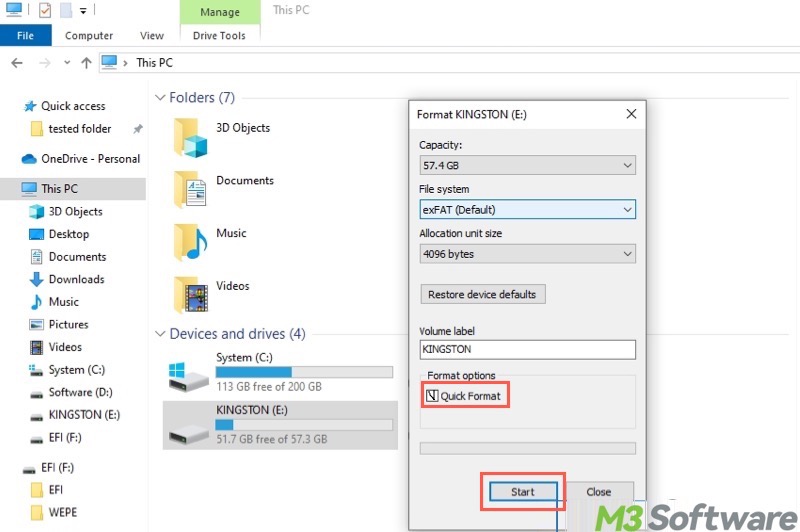
Here's how to format through File Explorer:
- Double-click This PC or My Computer on the Desktop to open File Explorer.
- Right-click on the target external hard drive and choose Format.
- Choose the file system, select Quick Format, and click the OK button.
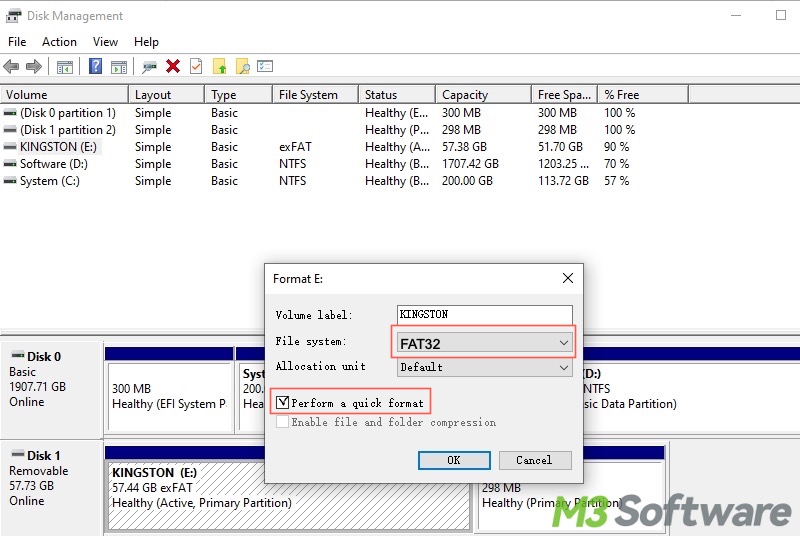
How to format through Disk Management:
- Right-click on the Start menu button or press the Windows+X keys on the keyboard to choose Disk Management.
- Right-click on the target external hard drive and select Format.
- Choose the file system and tick "Perform a quick format."
- Tap on the OK button to format.
Optimize an HDD after freeing space—not as a way to create storage
Microsoft describes defragmentation as reorganizing fragmented file clusters primarily to improve file-access performance. Its documentation does provide a /x operation for free-space consolidation, but normal defragmentation is not a practical general-purpose technique for making a full drive meaningfully less full.
Meanwhile, traditional defragmentation is designed for HDDs. SSDs should not be treated like HDDs for traditional defragmentation. You'd better remove or move data first; optimize only afterward if appropriate.
Here's how (if you still need defragmentation):
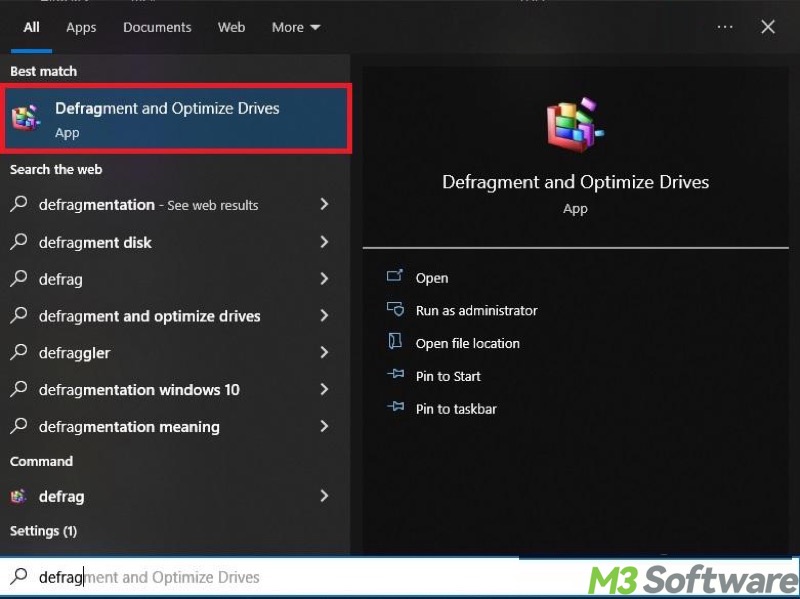
- Press the Windows+S keys on your keyboard to launch the Windows search box.
- Search for Defragment and Optimize Drives.
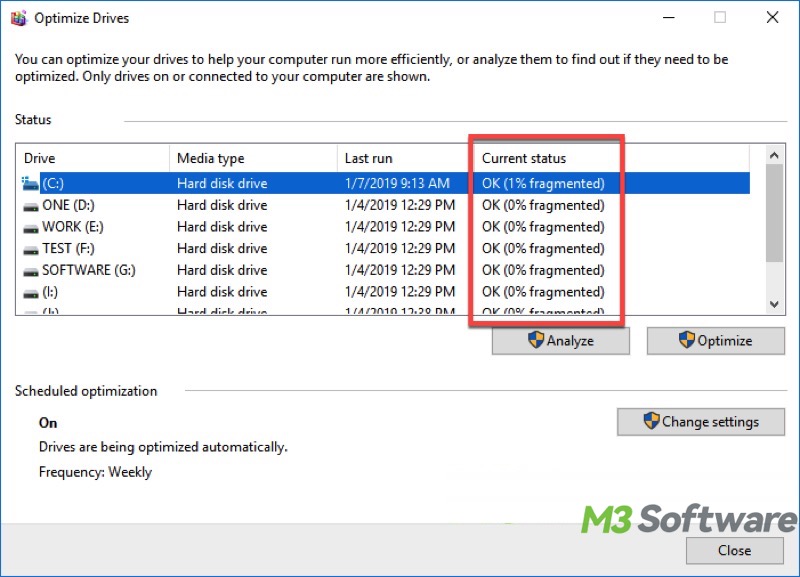
- Select the target external hard drive.
- Tap on the Analyze or Optimize button.
Do you find this post helpful? You can share this article with your friends!
FAQs
- Q1. Why does my external hard drive say it's full when it isn't?
-
A
If the visible files don't account for the amount of space being used, possible causes include hidden files, system files, restore-point data, backup data, filesystem errors, or corrupted storage information.
- Q2. Why is my external hard drive full but there are no files?
-
A
Files may exist but be hidden from normal File Explorer views. Windows or other applications can also create hidden folders on removable drives.
Enable Hidden items in File Explorer first. Avoid randomly deleting unfamiliar system folders, because some may have been created by Windows or backup software.
- Q3. Can I use Disk Cleanup or Storage Sense to clear my external drive space?
-
A
Microsoft's current storage guidance focuses Disk Cleanup and Storage Sense primarily on Windows/system storage. Microsoft explicitly states that Storage Sense works only on the system drive, and recommends Windows' 'Storage used on other drives' interface for other drives. You'd better use other workarounds to clear your external hard drive on Windows PC.
- Q4. Can the Recycle Bin take up space on an external hard drive?
-
A
Yes. Windows can maintain Recycle Bin data on connected drives. As a result, deleting a large amount of data does not always immediately return all of that capacity as free space.
Emptying the Recycle Bin may recover the storage.