





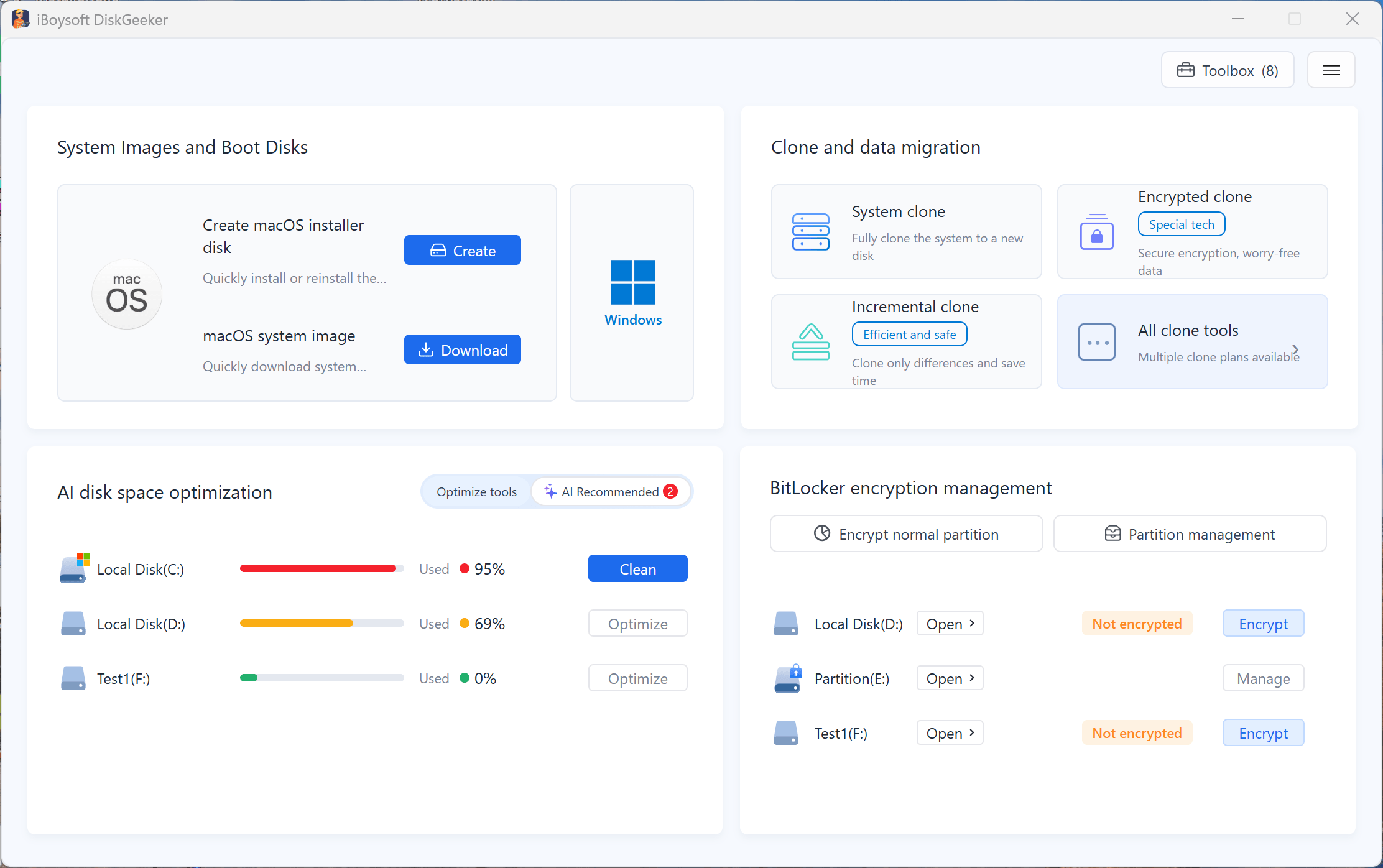
iBoysoft DiskGeeker for Windows interface

Discover All Features

Explore the features of the all-in-one disk manager and find what meets your needs.
Brand-new
Disk Space Cleanup & Management: Smartly clean up the system drive (C drive), locate large files on partitions, manage partition and folder space, and get AI insights into what files are and whether they can be deleted.
OS Image Download: Download Windows (11-7) and macOS (Tahoe - Snow Leopard) images for clean installations, upgrades, virtual machines, or creating bootable USB installers.
Bootable USB Installer Creation: Quickly create Windows and macOS bootable USB installers with simple clicks, no complicated steps required. Hassle-free for every tech newbie.
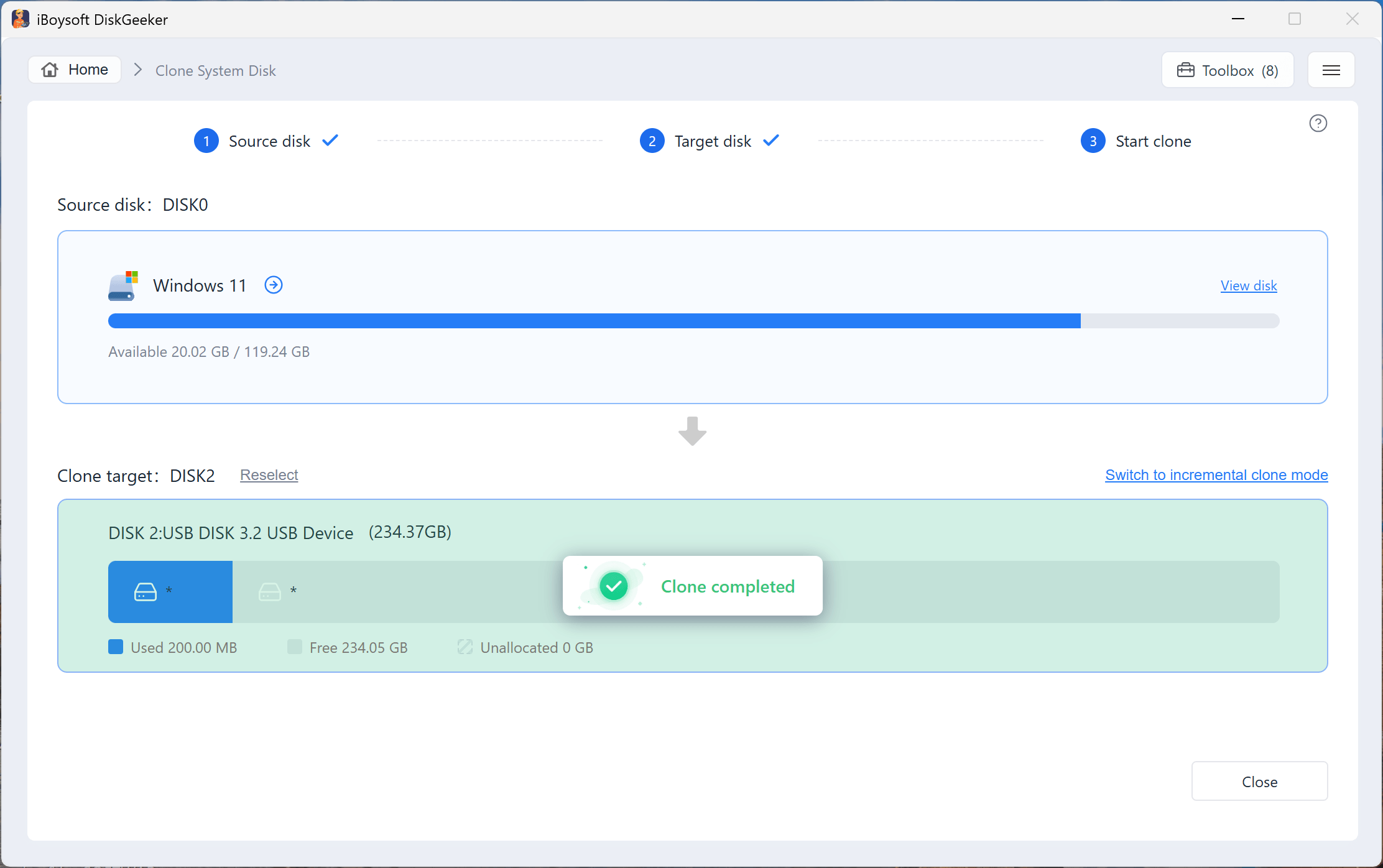
Disk Clone: Create an exact copy of the system partition, specific partition, or hard drive for storage device upgrade or data backup.
BitLocker Drive Encryption & Management: Enable the missing BitLocker drive encryption in Windows Home editions for data protection and simplify BitLocker drive management.
Secure Data Wipe: Wipe all contents on a disk or partition, shred a single file or folder, and erase leftovers on a partition's available space with internationally certified methods.
Disk Speed Test: Measure the read & write speed of a partition or disk to help you verify and monitor your PC or hard drive performance.
Partition Resize: Shrink or extend a partition size without losing data to maximize disk space usage and improve computer performance.
Lost Partition Recovery: Scan and restore accidentally lost or deleted partitions on hard drives to make them accessible again.
Create PE Boot Disks: Create a customized Windows PE environment with essential tools, or export PE boot disk as an ISO, enjoying more flexibility with Windows PE.
Smartly Clean Up System Drive & Manage Disk SpaceBrand-new
This Windows cleaner uses deep scanning, intelligent selection, and AI analysis to help you reclaim storage thoroughly and efficiently. It scans your system drive (C drive) for junk files (including system cache, logs, temp files, app cache, etc.), large files, personal files, and apps, then auto-selects safe system clutter for one-click cleanup.
It also analyzes space usage on partitions and folders with AI explanations to learn what files are and whether they can be safely deleted, and locates large files on partitions, making disk space management and cleanup faster and smarter.
Download Windows & macOS Images Quickly & Safely
This disk management tool lets you directly download Windows ISO files, including Windows 11, 10, 8.1, 8, and 7 ISO files, for clean system installation, system recovery or upgrade, bootable USB installer creation, etc.
It also allows you to securely download macOS DMG and ISO files, from macOS 26 Tahoe to Mac OS X 10.6 Snow Leopard for macOS virtual machine setup, bootable USB installer creation, and more on PCs and Macs.
Create Windows & macOS Bootable USB Installers with Clicks Only
iBoysoft DiskGeeker for Windows makes creating a Windows or macOS bootable USB installer effortless. Instead of dealing with complicated and time-consuming steps, you can complete the entire process in just a few clicks.
With clear on-screen instructions guiding you every step of the way, even beginners can create a fully functional bootable USB drive quickly and smoothly — it's truly as easy as ABC.
One-to-one Disk Clone in Security, Stability & Fast Speed
This disk clone software helps you make a true copy of the OS partition, a specific partition, or an entire hard drive onto another one. With it, you can:
✓ Clone a bootable copy of the system partition
✓ Restore data from the cloned system partition to the current system
✓ Clone a system partition or another partition into a BitLocker-encrypted one to block ransomware and malware attacks
✓ Perform an incremental partition clone to reduce cloning time
✓ Clone a partition or disk into a VHD for a virtual machine or portable backup
✓ Clone an old (even with bad sectors) or corrupted HDD to a new SSD for an upgrade or data recovery
Secure Data Wipe Blocks Secret Files from Accidental Leakage
The exposure of out-of-date or useless confidential, personal, and business files would be a great danger. iBoysoft DiskGeeker for Windows supports you to wipe a hard disk drive, a particular partition, and the available space of a partition in a secure, irrecoverable, thorough way.
This file shredder even enables you to completely erase a specific file or folder on a disk without affecting any other data. The world-certified data erasing methods this software adopts can meet your different requirements for data wipe.
Re-available BitLocker Encryption Protects Data Security
The Microsoft BitLocker drive encryption feature is not available on Windows Home editions, putting your private files on hard drives at risk. iBoysoft DiskGeeker for Windows permits BitLocker drive encryption on Windows 11 Home, Windows 10 Home, Windows 8 Home, Windows 7 Home, and Windows 7 Professional editions.
With this Windows security tool, you can easily encrypt NTFS, exFAT, and FAT32 partitions and hard disks using BitLocker drive encryption. It also attaches lite features to help you manage all your BitLocker-encrypted drives in handy.
Disk Speed Test Measures Actual Read-write Performance of Drives
This disk manager is also an easy-to-operate disk speed tester that supports quickly measuring and certifying a partition, disk, and computer performance. It has four disk speed test modes for your choice, including the sequential read, sequential read & write, random read, or random read & write modes.
Besides, it displays the read and write speed of disks in rate curves to help you view the benchmark result visually. With this HDD disk speed testing tool, you can have an accurate and overall learning of your disk performance.
Partition Resize Maximizes Disk Space Usage
This free partition manager enables you to securely shrink or extend NTFS partitions to fix low disk space issues, improve computer performance, and better manage disk space. It won't destroy any data on the partition or corrupt the file format of the partition.
With this disk manager, you can feel free to resize partitions on any USB flash drives, HDDs, SSDs, SD cards, and other storage devices, making the most of the space on them.
Partition Recovery Renders Accidental Lost Partitions Re-accessible
iBoysoft DiskGeeker gives you a hand to scan, find, and restore mistakenly deleted or lost partitions on disks. The recovered partitions can be accessed as long as they were not RAW partitions before.
This lost partition recovery software also allows you to search for and recover deleted or lost BitLocker-encrypted partitions on a hard disk drive, USB drive, or other devices with a few clicks.
Create a PE Boot Disk for System Repair and Data Recovery
A Windows PE boot disk lets you boot a PC into a lightweight Windows environment without starting the installed Windows system.
With iBoysoft DiskGeeker for Windows, you can create a customized Windows PE environment by adding the tools you need for system maintenance and data recovery. Besides, it allows you to export the PE boot disk as an ISO file, giving you more flexible ways to create, save, reuse, and deploy a Windows PE boot environment.
Create a Windows PE boot disk

How to Use iBoysoft DiskGeeker for Windows?

1. Download & Install
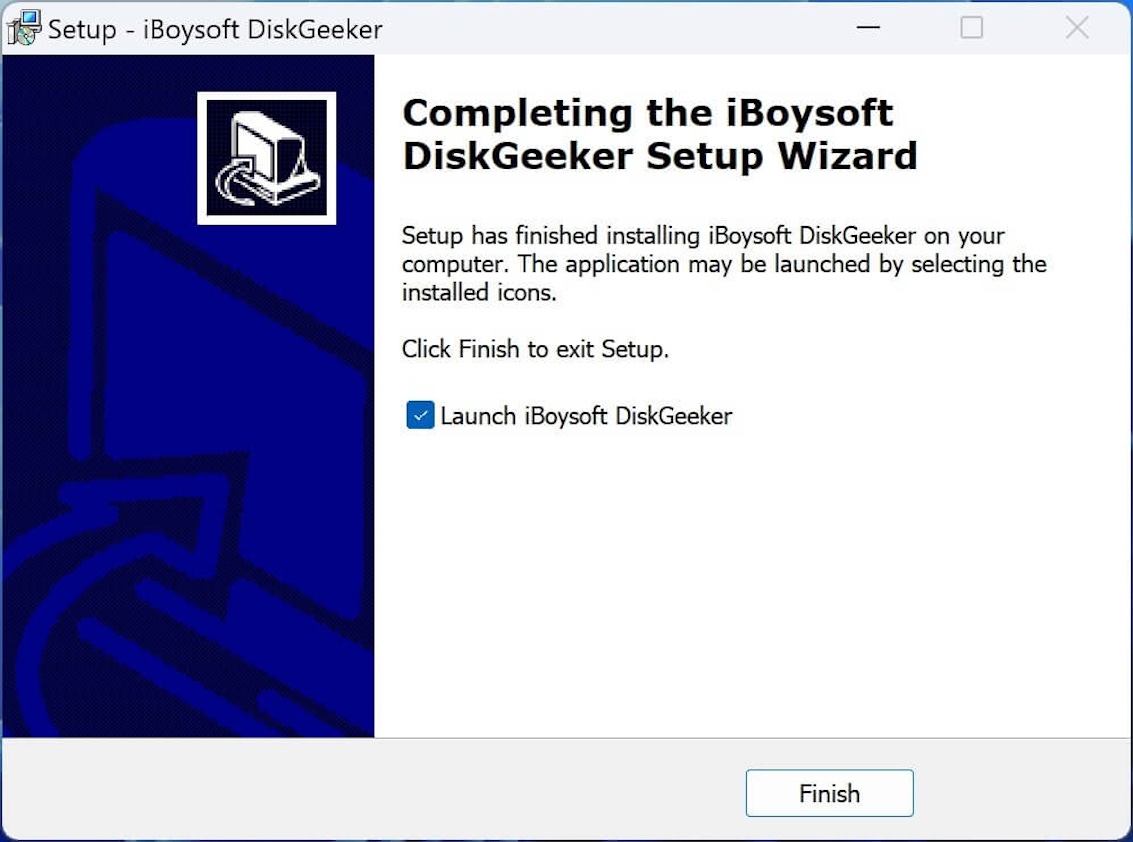
Free download and follow the on-screen instructions to install iBoysoft DiskGeeker for Windows on your PC.
2. Choose a Function
Connect your external hard drives or other storage devices to your Windows computer and choose the features you want to use.
3. Complete
Finish hard drive management and maintenance with the functions in this disk manager.
install use finish

Best Free Disk Management Tool

iBoysoft DiskGeeker for Windows

iBoysoft DiskGeeker is a versatile disk management tool for users with multiple hard drives and storage devices. This tool makes it easier to manage HDDs, SSDs, USB flash drives, SD cards, and other disks from one place.

As a multifunctional Windows disk manager, iBoysoft DiskGeeker offers: bootable USB installer creation, OS image downloads, one-to-one disk/partition cloning, AI-powered disk space optimization, BitLocker encryption for Windows Home, handy BitLocker disk management, secure data erasure, partition resizing, lost partition recovery, and Windows PE boot disk creation.

Download iBoysoft DiskGeeker for Windows to manage, optimize, and protect your disks with ease!
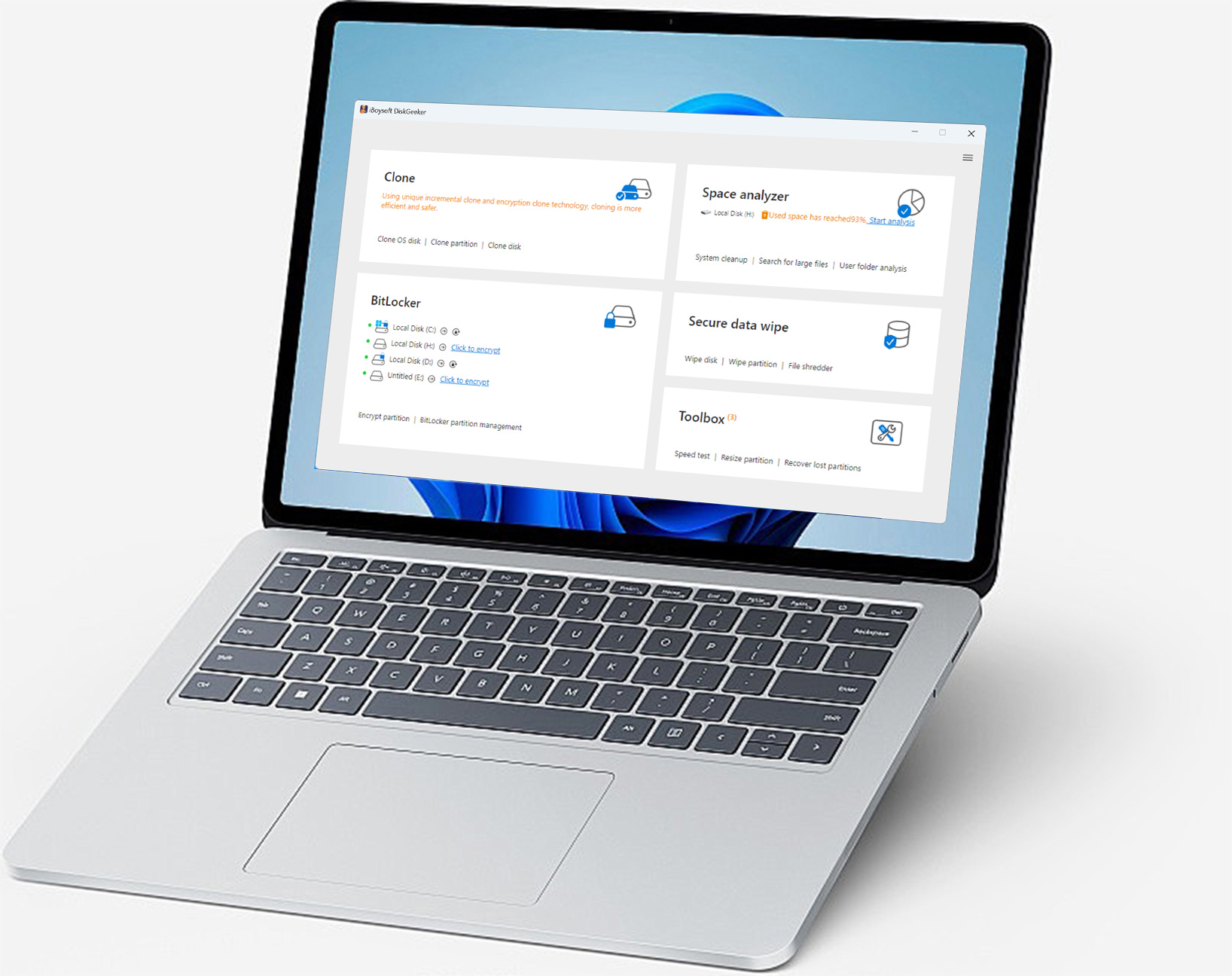
Windows 11-7 & Windows Server 2022-2008
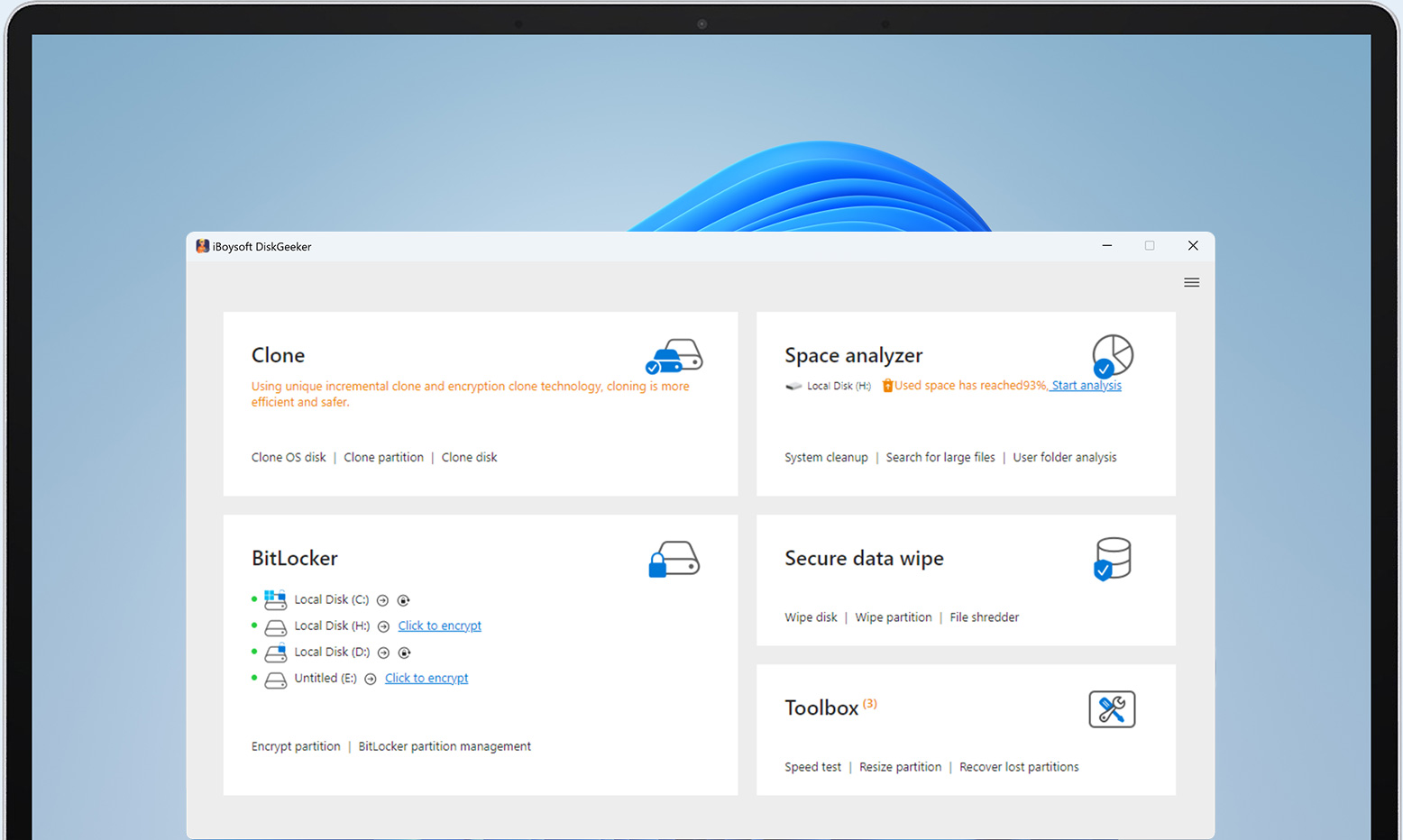
iBoysoft DiskGeeker disk management interface

Technical Specifications

Supported Operating Systems:

Windows 11/10/8.1/8/7

Windows Server 2022/2019/2016/2012/2008


Supported File Systems:

NTFS, FAT32, exFAT


Hardware Requirements:

Disk Space: 10MB minimum space for iBoysoft DiskGeeker installation

CPU: x64

Storage Devices: HDDs, SSDs, USB drives, pen drives, flash drives, memory cards,

SD cards, CF cards, etc.


Select the Version Tailored to You

Free Edition

  • Clone hard drives (< 2TB)
  • Clone partitions (< 500GB)
  • System clone (< 120GB)
  • Restore system
  • Incremental partition clone
  • Incremental system clone
  • BitLocker clone
  • Download Windows image & create a bootable installer
  • Download macOS image & create a bootable installer
  • Encrypt drive as BitLocker (< 16GB)
  • Encrypt system drive as BitLocker
  • Backup/query/lock/unlock/open BitLocker drives
  • Rollback BitLocker encryption (≤ 1MB/s)
  • Bind BitLocker unlock to this PC
  • System cleanup (Scan only)
  • Search large files
  • Analyze drive space
  • Analyze files with AI (3 times/day)
  • Erase hard drives, partitions, files, free space
  • Hard drive speed test
  • Resize partitions
  • Recover lost partitions
  • Create Windows PE boot disk
  • Support Windows server

Basic Edition

  • Clone hard drives (< 4TB)
  • Clone partitions (≤ 2TB)
  • System clone (≤ 500GB)
  • Restore system (≤ 500GB)
  • Incremental partition clone (≤ 2TB)
  • Incremental system clone (≤ 500GB)
  • BitLocker Clone
  • Download Windows image & create a bootable installer
  • Download macOS image & create a bootable installer
  • Encrypt drive as BitLocker (Unlimited)
  • Encrypt system drive as BitLocker
  • Backup/query/lock/unlock/open BitLocker drives
  • Rollback BitLocker encryption (Unlimited)
  • Bind BitLocker unlock to this PC
  • System cleanup
  • Search large files
  • Analyze drive space
  • Analyze files with AI (60 times/day)
  • Erase hard drives, partitions, files, free space
  • Hard drive speed test
  • Resize partitions
  • Recover lost partitions
  • Create Windows PE boot disk
  • Support Windows server

US$19.95 (excl. VAT)

1-year subscription

Professional Edition

  • Clone hard drives (Unlimited)
  • Clone partitions (Unlimited)
  • System clone (Unlimited)
  • Restore system (Unlimited)
  • Incremental partition clone (Unlimited)
  • Incremental system clone (Unlimited)
  • BitLocker clone
  • Download Windows image & create a bootable installer
  • Download macOS image & create a bootable installer
  • Encrypt drive as BitLocker (Unlimited)
  • Encrypt system drive as BitLocker
  • Backup/query/lock/unlock/open BitLocker drives
  • Rollback BitLocker encryption (Unlimited)
  • Bind BitLocker unlock to this PC
  • System cleanup
  • Search large files
  • Analyze drive space
  • Analyze files with AI (Unlimited)
  • Erase hard drives, partitions, files, free space
  • Hard drive speed test
  • Resize partitions
  • Recover lost partitions
  • Create Windows PE boot disk
  • Support Windows server

US$69.95 (excl. VAT)

1-year subscription
iBoysoft DiskGeeker for Windows FAQs

Q:
How long will it take to clone a disk?
It depends on the amount of data on your source disk. The more files on it, the longer the time our disk cloning software will take for disk cloning.
Q:
Is iBoysoft DiskGeeker for Windows safe and reliable?
Definitely yes. iBoysoft DiskGeeker for Windows is a 100% safe and reliable disk manager for Windows.
Q:
Why can't I delete files from the scanned results in Space Analyze?
You need to drag and drop the files you want to delete into the Trash Bin area at the bottom of the app's window first and then click Delete. If the files can't be removed, check if they are still in use or read-only.
Q:
Will the data on the destination disk be erased after starting the disk clone?
Yes, once you start a disk clone, the data on the destination drive will be erased immediately to re-initialize and reformat the source disk to the same format as the destination disk. Canceling the ongoing disk cloning process won't revert the erased data. So, back up your necessary files on the destination disk in advance.
Q:
Can I recover the data on the disk after it is wiped?
No. iBoysoft DiskGeeker adopts internationally acknowledged data erasure technologies to completely eradicate your unwanted private, secret, non-disclosure business documents, videos, and other types of files. No data recovery software and techniques in the world can restore them.
Q:
How long will it take to test disk speed?
It depends on the speed test mode you choose. Usually, the sequential read and sequential read-write modes only take a short time to complete a disk speed test, but random read and random read-write modes take a relatively longer time.