iBoysoft DiskGeeker for Windows Help - Speed Test
Overview of Speed Test
Speed Test is a function used to test the read & write speed of system partitions, non-system partitions, and the whole disks. It tests the disk speed by directly reading & writing the hard drive sector or reading & writing files to the tested partition or drive through the file system.
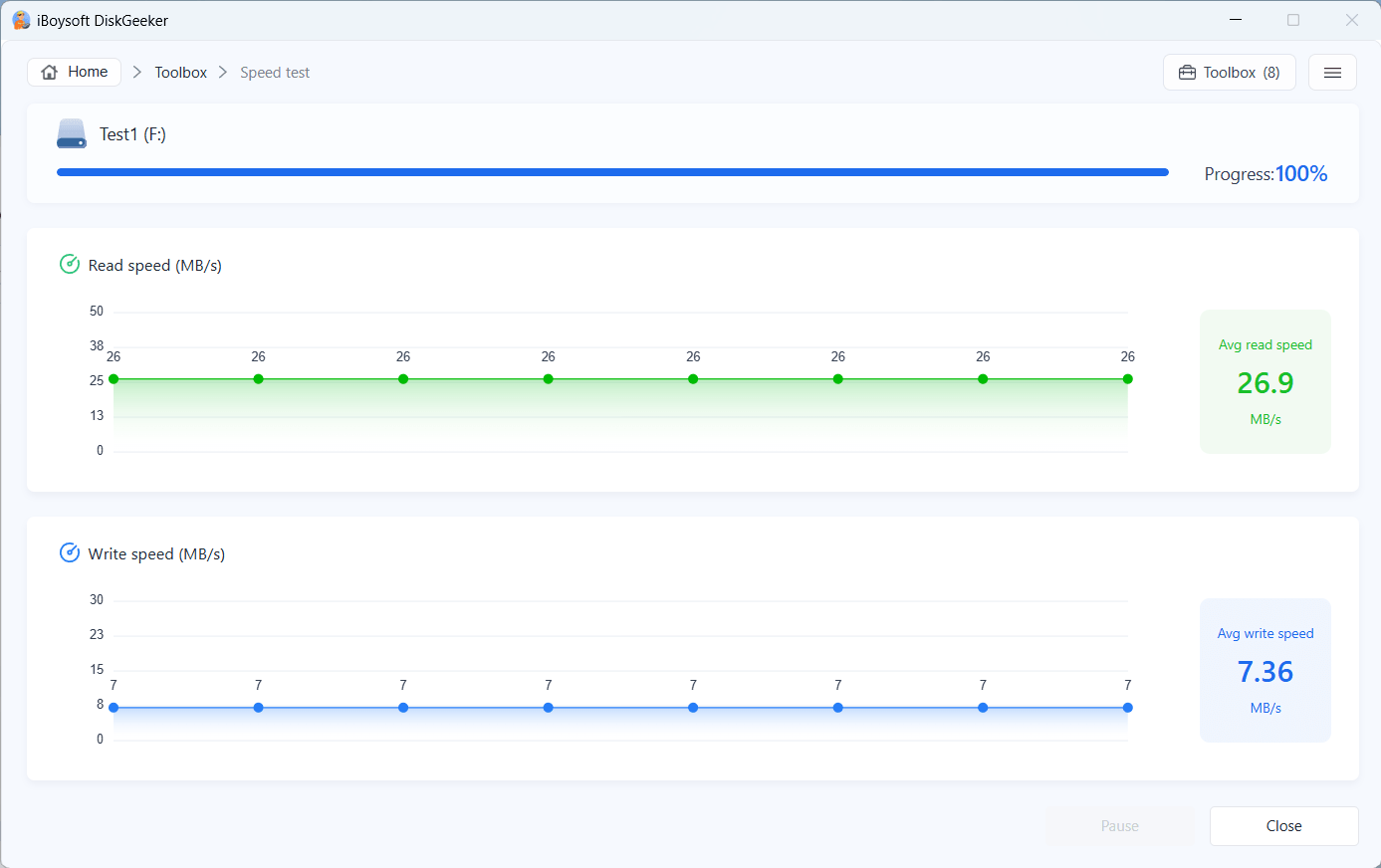
The read-write speed of the tested partitions or disks will be present in a visual and intuitive rate curve table, allowing users to view the speed test results easily and clearly.
For non-system partitions and entire disks:
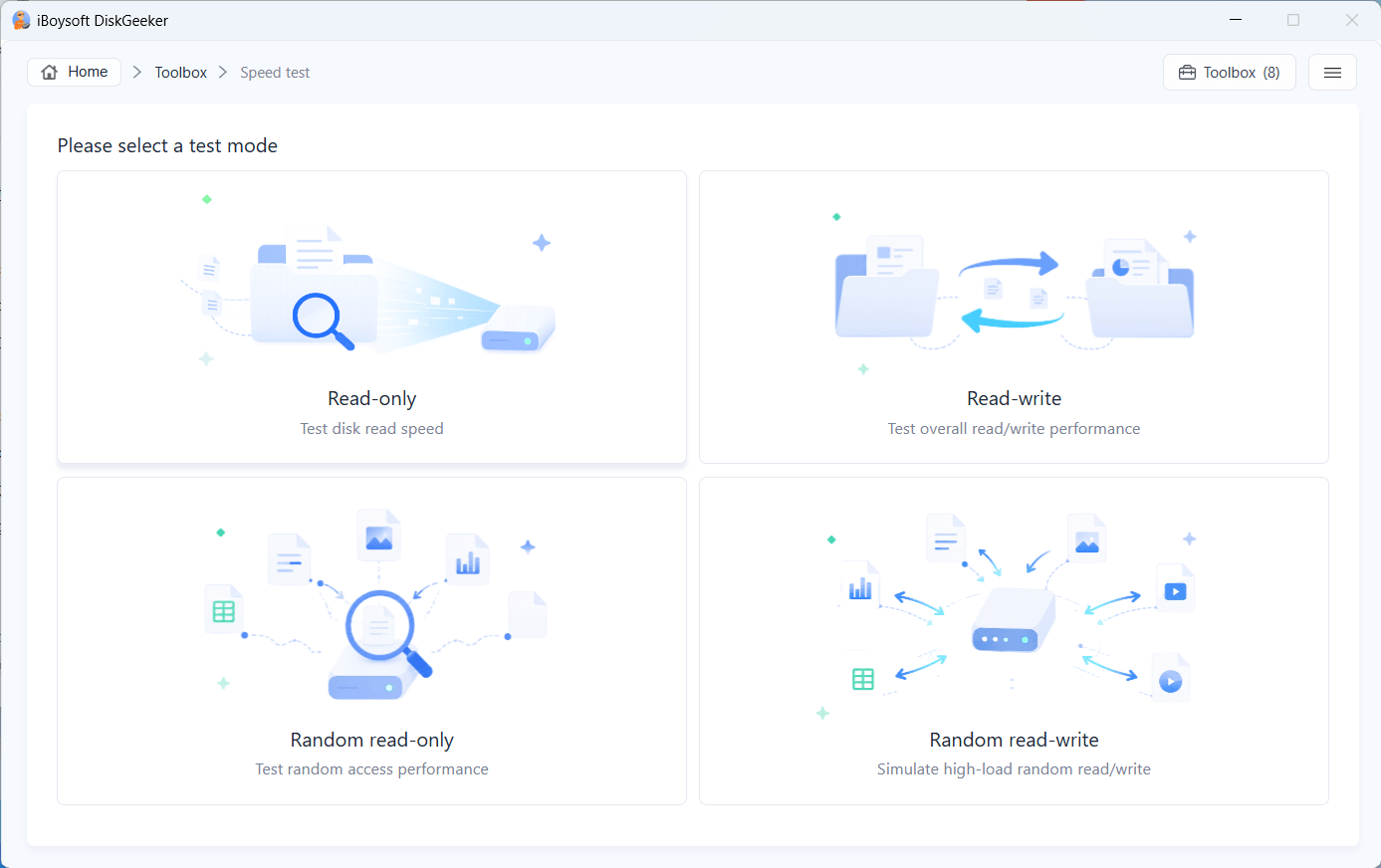
There are four speed-test modes:
- ✓ Read-only: Read data on a test area of a partition or disk from the beginning to the end. It takes little on the disk's seek time.
- ✓ Read-write: Read and write data on a test area of a partition or disk from start to end. It spends little on the disk's seek time.
- ✓ Random read-only: Read data randomly on a partition or entire disk. It takes a relatively long time on the disk's seek time.
- ✓ Random read-write: Read and write data randomly on a partition or entire disk. It takes a relatively long on the hard drive's seek time.
For the system partition: only read-write and random read-write are available.
For BitLocker-encrypted partitions: only read-only and random read-only are available.
Supported hard disk type: Master Boot Record(MBR) disks and Generative Pre-Trained Transformer(GPT) disks.
How to Test a System Partition?
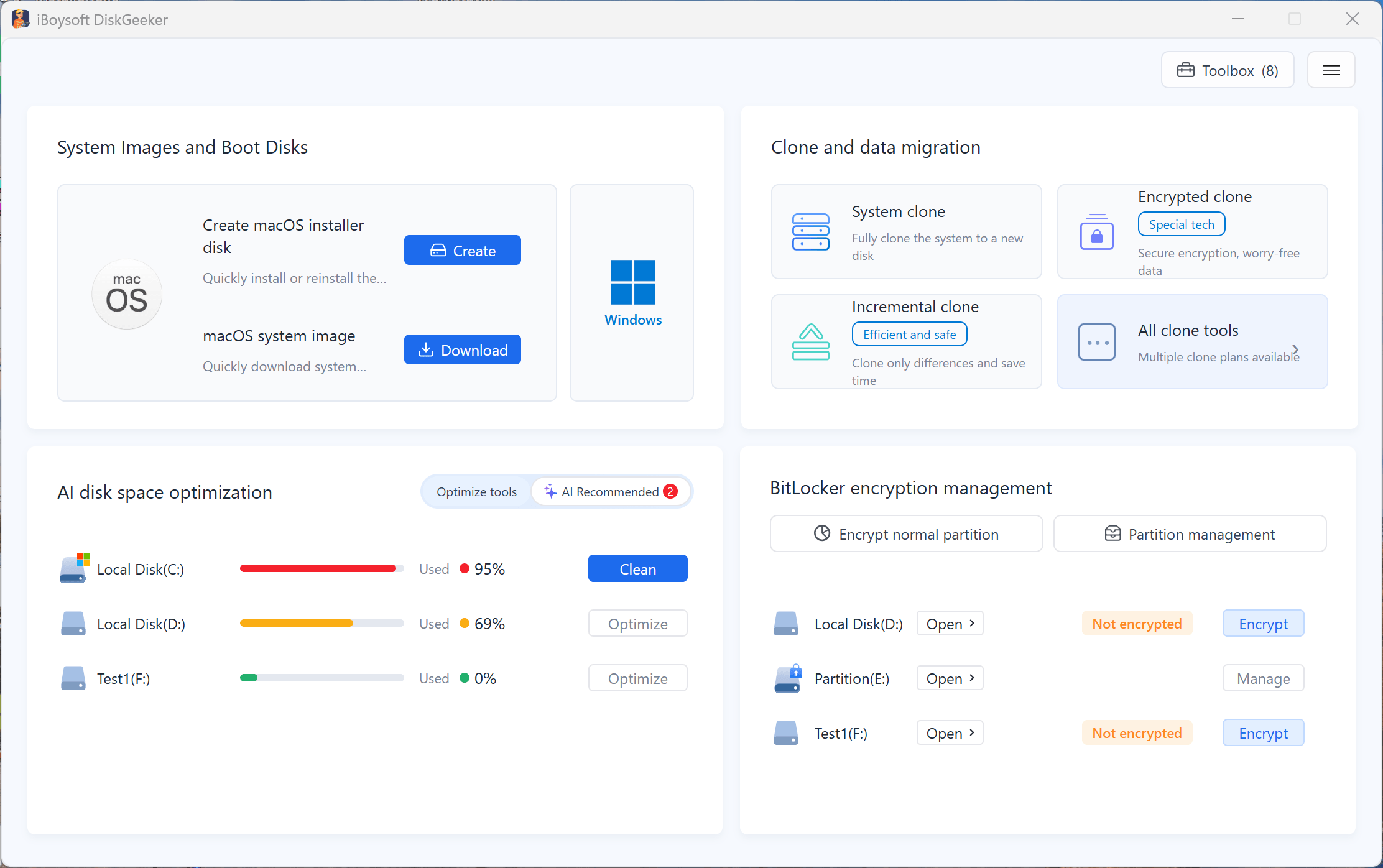
Step 1: Click "Toolbox" in the upper right corner of the app's home page.
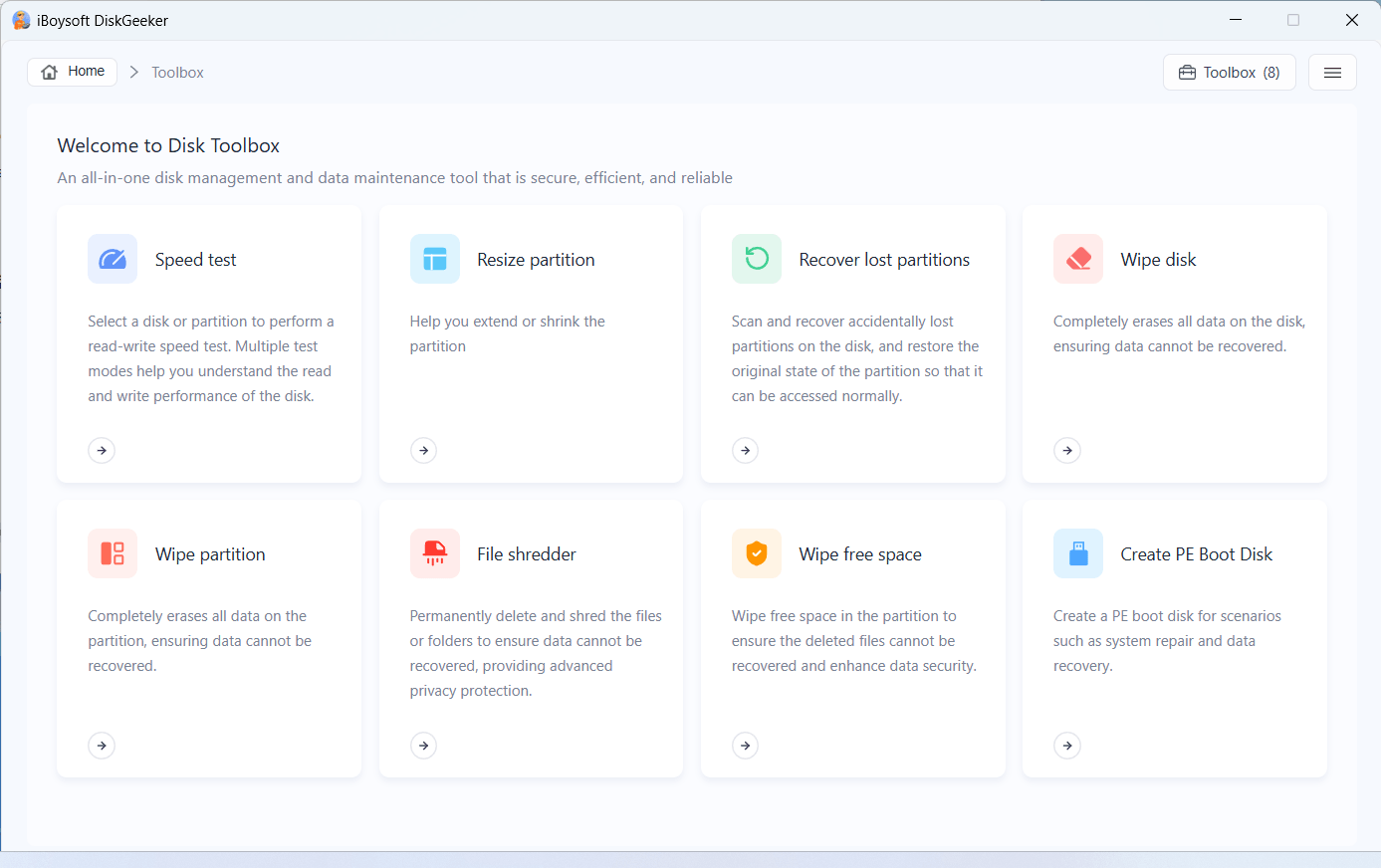
Step 2: Click "Speed test."
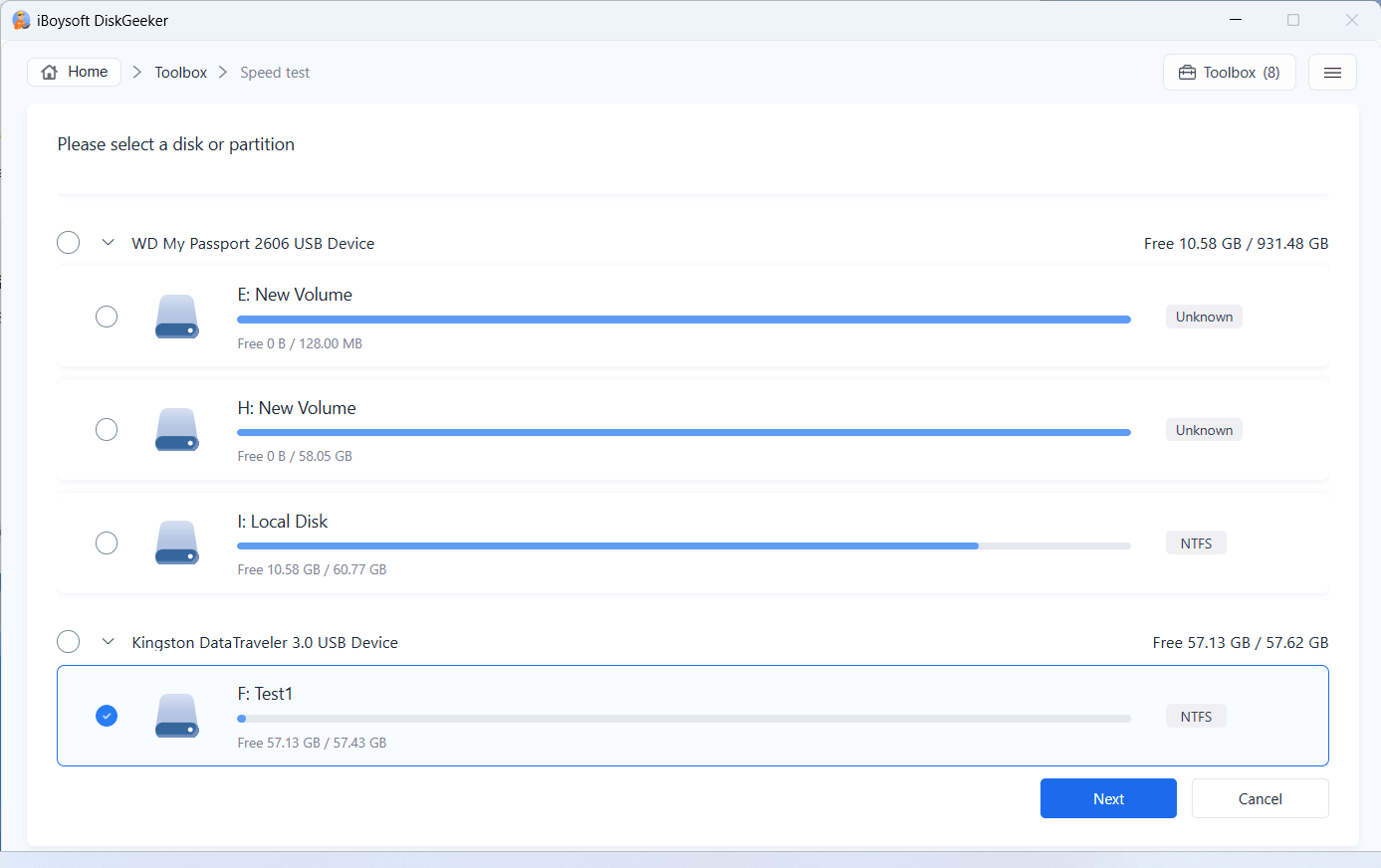
This software will list all partitions and disks along with their file systems and sizes.
Step 2: Select the system partition and click "Next."
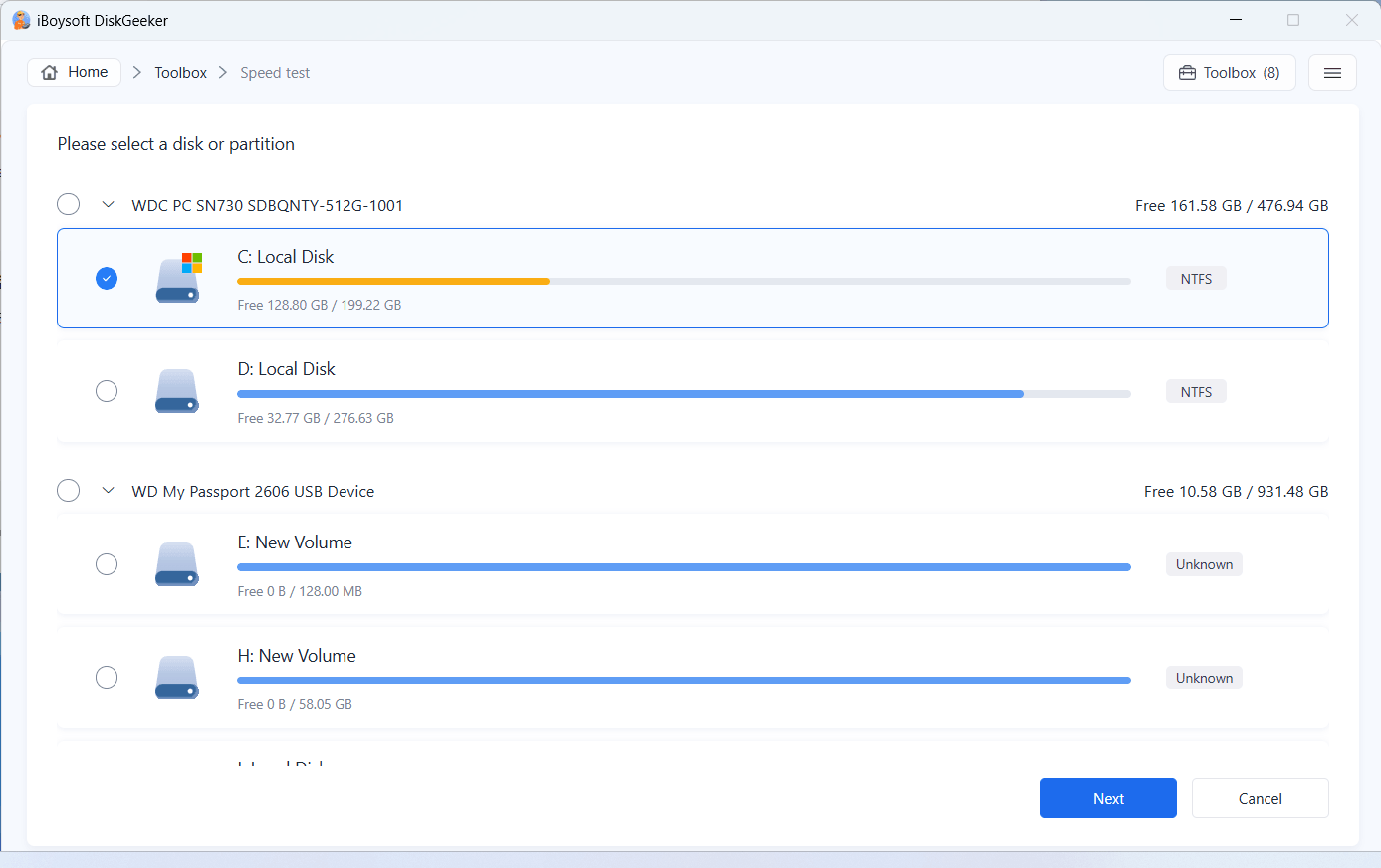
System partition is special as you consistently write data onto it since your PC boots up. Thus, the way to test the speed of a system partition is through the file system to read and write files, and the available space on the system partition should be over 10GB. During the speed test, 5 GB of data will be written to the system partition and once the test is completed, it will be immediately deleted.
Step 3: Choose a speed test mode you like.
Note:
⚠️ Only read-write and random read-write are available for a system partition.
⚠️ Only read-only and random read-only are available for BitLocker-encrypted system partitions.
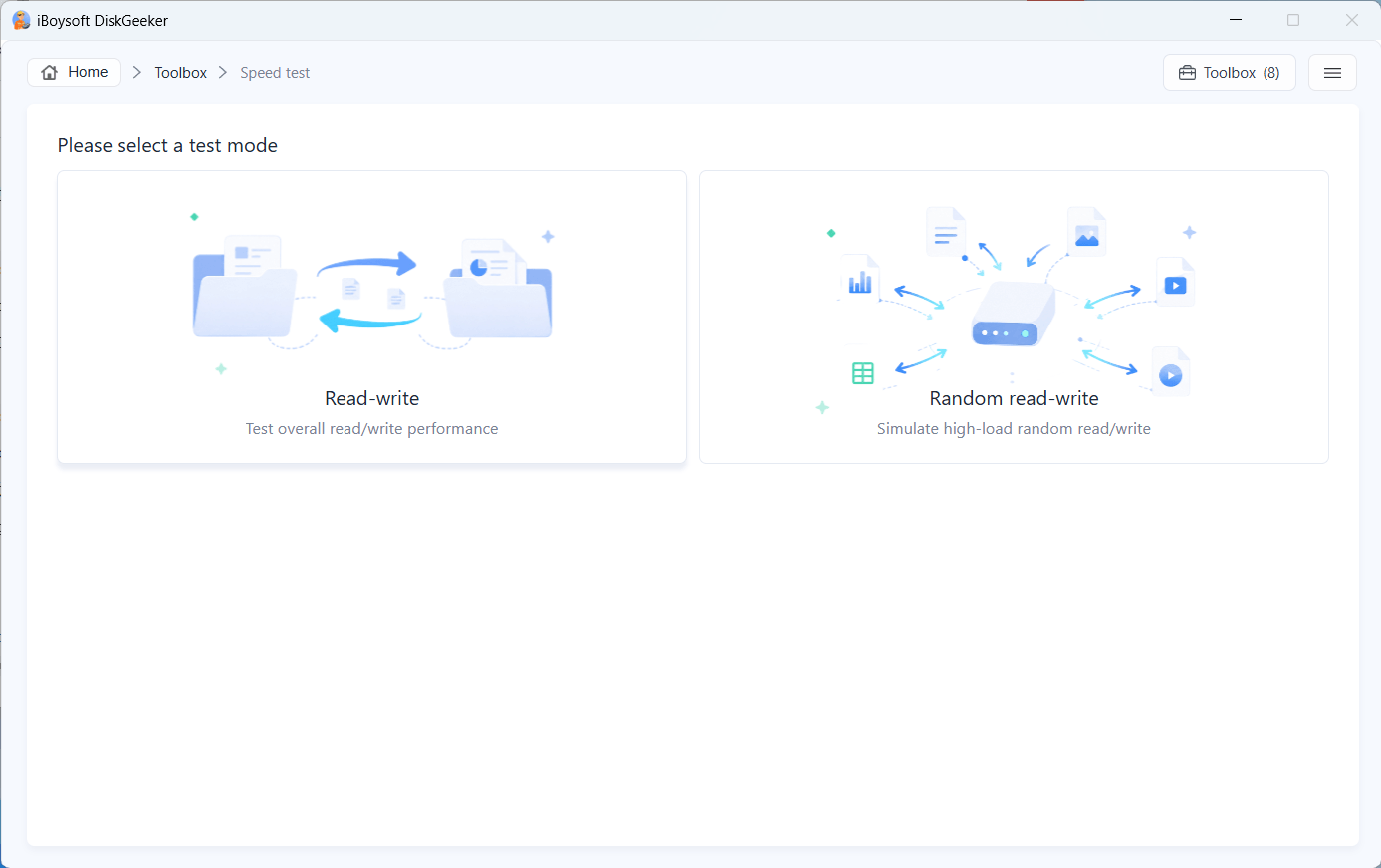
After you choose the preferred mode, the speed test begins. If you select the read-write mode, the software will test the write speed first, then the read speed.
Step 4: Wait for the speed test to end.
Step 5: View the speed test results.
The speed test results are visually displayed in the form of a graph, and you can see the read and write speeds of the system partition clearly.
How to Test a Non-system Partition?
Step 1: Click "Toolbox" > "Speed test."
Step 2: Select the non-system partition you want to test and click "Next."
Step 3: Select a test mode you prefer.
You can choose from read-only, read-write, random read-only, and random read-write modes.
If you choose read-write or random read-write mode to test the write speed of targeted partition, the test area will be locked to keep the data unmodified. Once the speed test ends, the test area will be unlocked automatically.
If the lock process fails, the software tests the write speed of the partition by writing files through the file system.
For the sake of data security, the software only supports read-only and random read-only for BitLocker-encrypted partitions.
Step 4: Wait for the speed test to end.
Step 5: View the speed test results.
How to Test a Disk Speed?
Step 1: Click "Toolbox" > "Speed test."
Step 2: Select a whole disk you want to test and click "Next."
The Speed test feature only does not support the system disk speed test since the system disk is read and written frequently, and any extra large number of writing moves might cause corruption to its data.
Step 3: Choose a speed test mode you want.
You have four modes to choose: read-only, read-write, random read-only, and random read-write.
If you choose read-write and random read-write mode, the disk will go offline to avoid the data being modified. When speed test finishes, the disk goes on-line automatically.
Step 4: Wait for the speed test to end.
Sped 5: View the speed test results.
FAQ
1. What to do if I select a wrong partition or disk in "Speed test"?
When you select a wrong partition or disk, just click "Close" on the left bottom, and then you'll be brought to the Toolbox window. You can start the speed test of the targeted partition or disk again: click "Speed test" > select the partition or disk you want to test > select a speed test mode > wait for the speed test to finish > view the speed test results.
2. Can I use iBoysoft DiskGeeker for Windows to test the speed of my BitLocker-encrypted C drive (system drive)?
Yes, you can. You can test the speed of the BitLocker-encrypted C drive in read-write mode and random read-write mode.
3. Why does my drive disconnect from my PC when I test its speed?
When you select read-write and random read-write mode, the drive disconnects itself from your computer to ensure the data on it unmodified. At the moment the speed test completes, the drive will connect your machine automatically.
4. Will my data lose when my drive goes off-line in speed test?
Your data won't be lost or modified when the drive goes off-line. Actually, the off-line state of your drive keeps your files and folders safe and intact as expected.