iBoysoft DiskGeeker for Windows Help Document
Help Document
- Overview
- Supported Operating Systems
- Supported File Systems
- Supported Storage Devices
- How to Download & Install iBoysoft DiskGeeker for Windows?
- How to Activate iBoysoft DiskGeeker for Windows?
- How to Clean System Drive (C Drive), Find Large Files, and Manage Disk Space?
- How to Clone an OS Disk, Partition, or Disk?
- How to Download Windows/macOS Image & Create a Bootable USB Installer
- How to Encrypt a Partition with BitLocker on Windows Home Editions?
- How to Manage BitLocker Drives?
- How to Securely Wipe Data on a Disk, Partition, or Partition's Free Space?
- How to Wipe a Specific File or Folder?
- How to Test a Partition or Disk Speed?
- How to Resize a Partition?
- How to Recover a Lost Partition?
- How to Create a Windows PE Boot Disk?
- FAQ
Overview
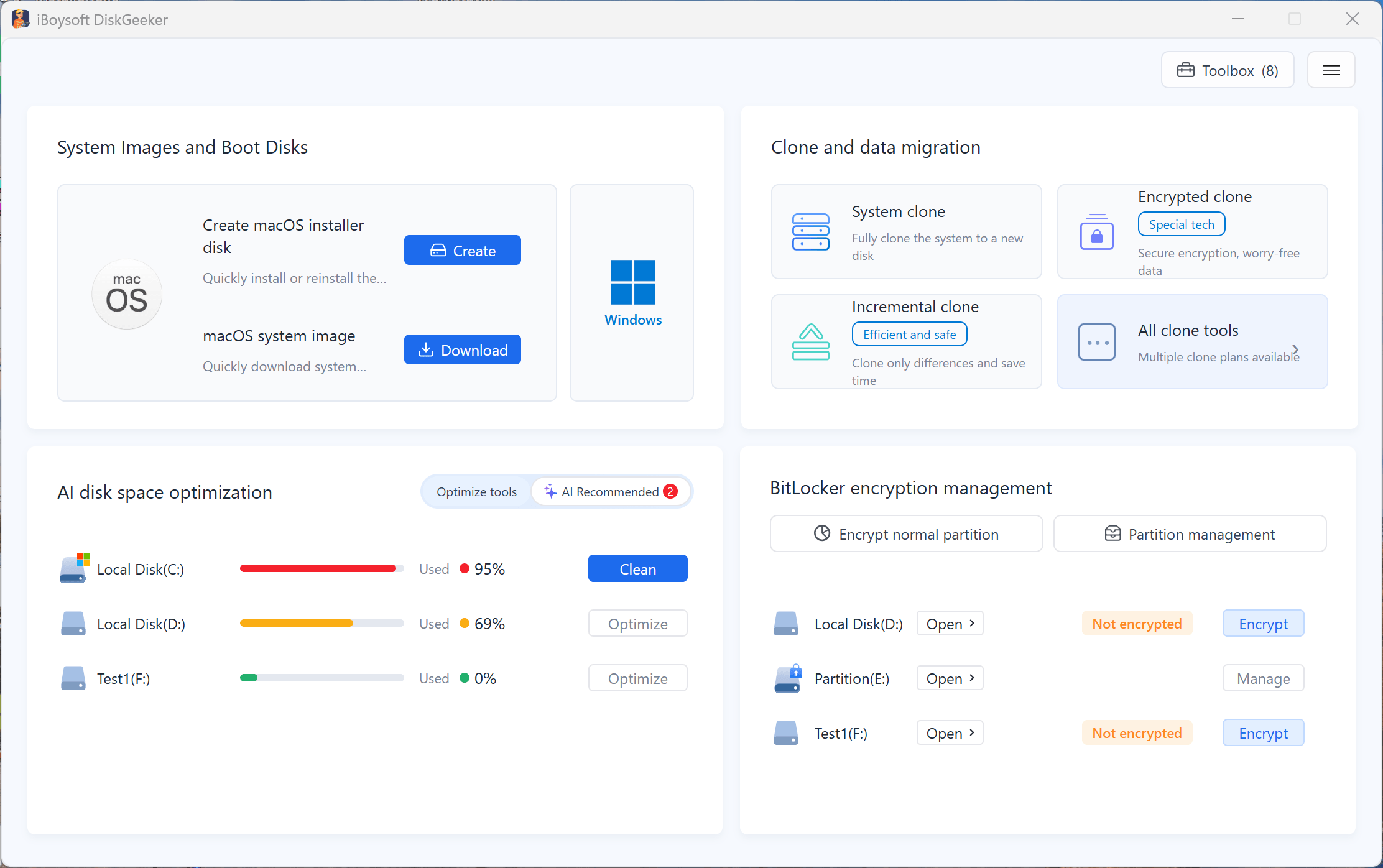
iBoysoft DiskGeeker is an all-in-one Windows disk manager. It features smart system cleanup, AI-driven disk space management, partition/disk cloning, system migration, system restoration, Windows and macOS OS image download, bootable USB installer creation, BitLocker encryption, BitLocker-encrypted drive management, secure data erasure, disk speed test, partition resizing, lost partition recovery, Windows PE boot disk creation, and more.
This disk management tool helps you take over and maintain your PC and external HDDs, SSDs, USB flash drives, SD cards, and other storage devices in one place.
Supported Operating Systems
Windows 11, Windows 10, Windows 8.1, Windows 8, Windows 7 (64-bit processors)
Windows Server 2022, Windows Server 2019, Windows Server 2016, Windows Server 2012, Windows Server 2008 (64-bit processors)
Supported File Systems
NTFS, FAT32 and exFAT file systems.
Supported Storage Devices
Hard disk drives (HDDs), solid state drives (SSDs), USB flash drives, pen drives, flash drives, memory cards, SD cards, CF cards, and other storage devices. (formatted with MBR & GPT)
How to Download and Install iBoysoft DiskGeeker for Windows?
Step 1: Free download iBoysoft DiskGeeker for Windows from https://www.m3datarecovery.com/download/
Step 2: Double-click the installer to open it.
Step 3: Follow the on-screen instructions to finish installing iBoysoft DiskGeeker for Windows on your PC.
Step 4: iBoysoft DiskGeeker for Windows will be automatically opened.
How to Activate iBoysoft DiskGeeker for Windows?
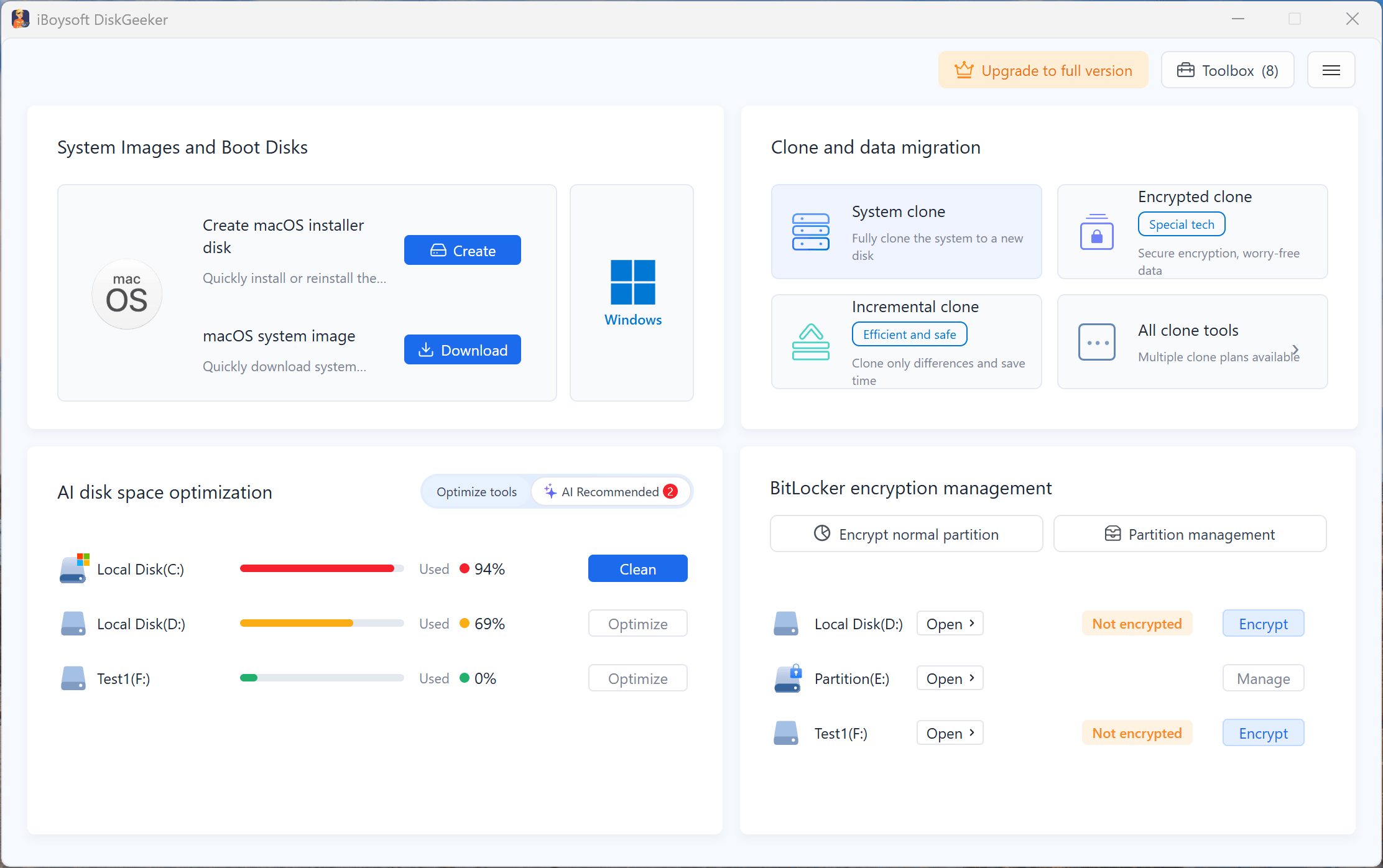
Basic features in iBoysoft DiskGeeker for Windows are free for all users. If you need to exprience the enhanced functions, please purchase a yearly subscription from our online store or in the app.
Step 1: Click "Upgrade to full version" in the upper-right corner and purchase a subscription.
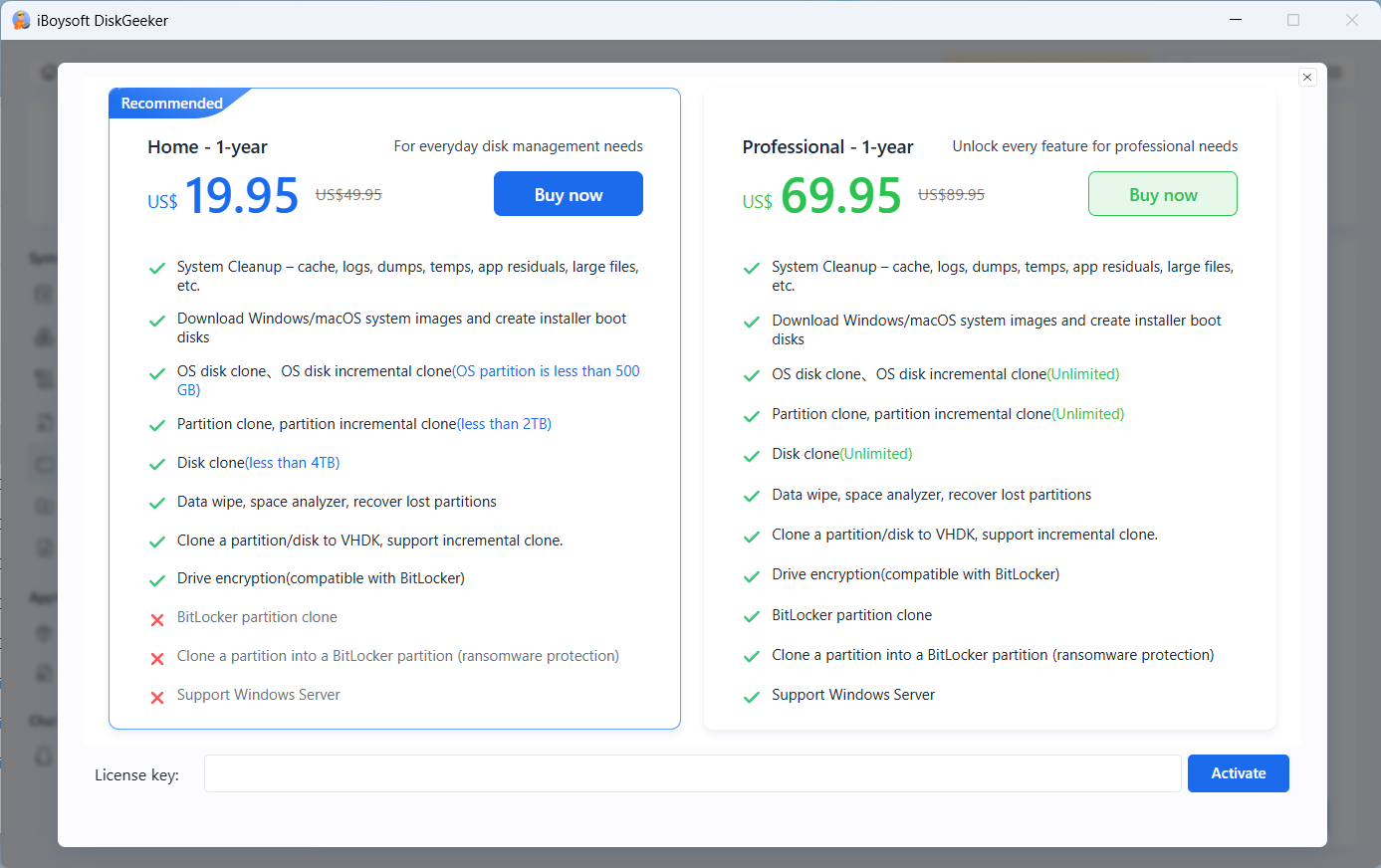
Step 2: Copy the license key from your order confirmation email.
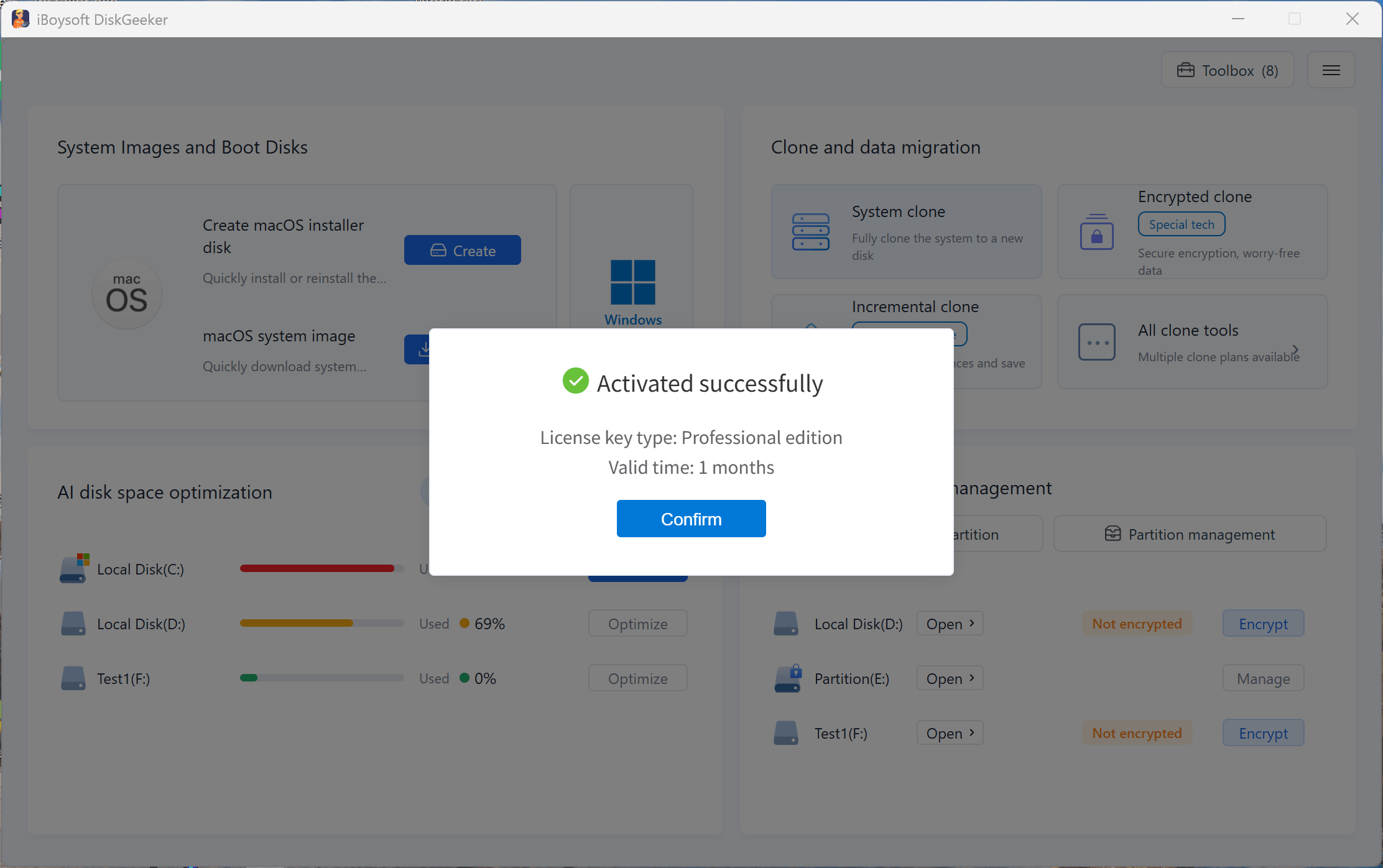
Step 3: Paste the license key and click "Activate."
How to Clean System Drive (C Drive), Find Large Files, and Manage Disk Space?
The AI disk space optimization feature helps you clean up the system disk (C drive), scan large files across disk partitions, and analyze and manage space usage on the system partition, other partitions, the user folder, or any specific folder. It is designed to speed up a PC and optimize the storage space of connected external hard disks.
- Clean up the system drive (C drive)
- Optimize a partition storage usage
- Search for large files on a partition
- Manage the space usage of the system partition, user folder, or a specific folder
Clean up the system disk (C drive)
Find and auto-select junk files from the system disk for one-click deletion to quickly boost PC performance, including system cache, system components, system logs and dumps, system temporary files, App cache, and residuals of previously uninstalled apps.
Also, it scans personal files, large files, and apps for customizable management and space optimization.
With AI-driven technology, it can identify and smartly select those you can delete safely while keeping essential files.
Step 1: Click "Clean" next to Local Disk (C:).
The software will immediately scan your C drive and find system junk files, large files, and other files that it recommends you clean up.
Step 2: Wait for the scan process to complete.
How long the scan takes depends on how much data is stored on your C drive. The more data, the longer it will take.
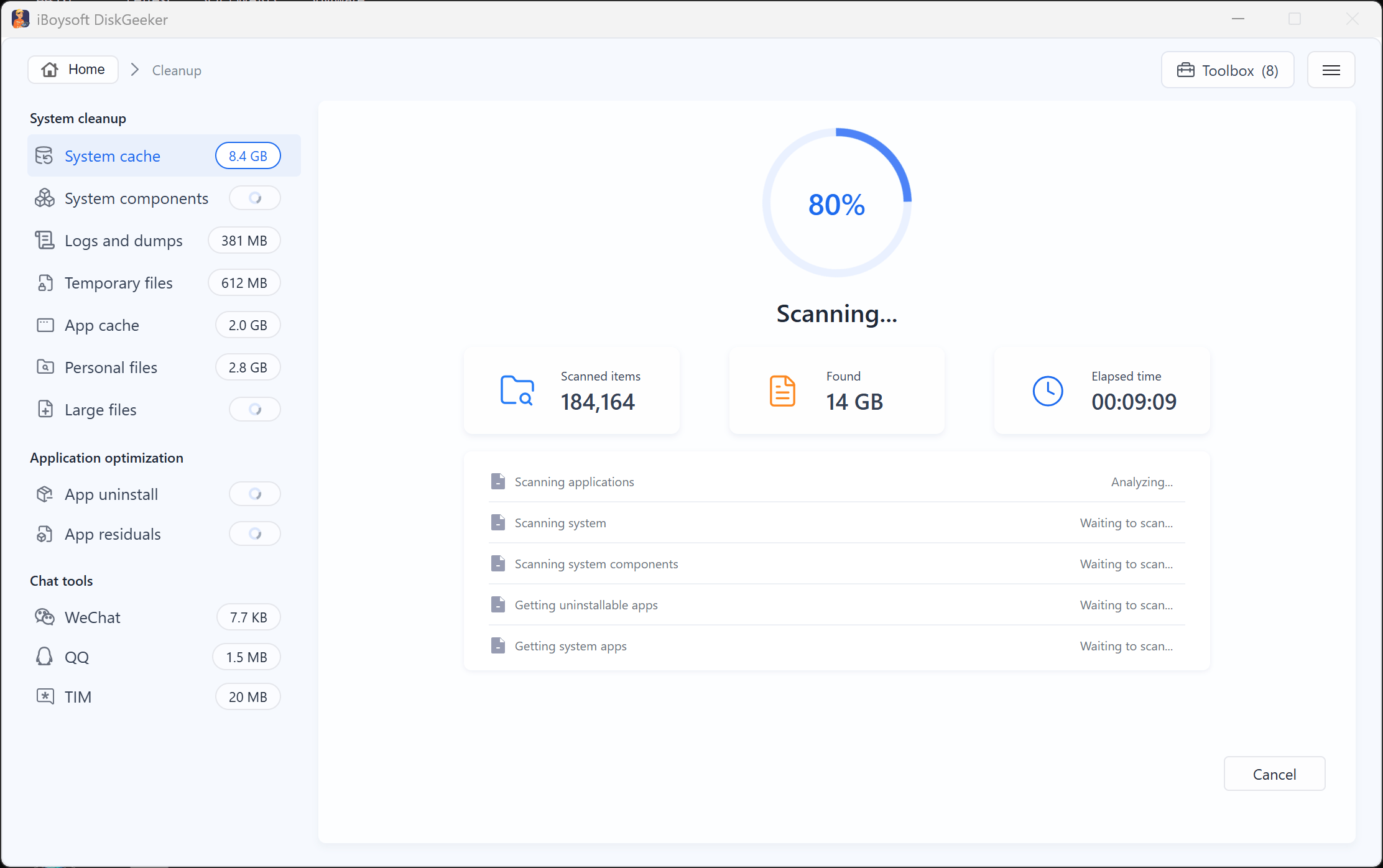
Step 3: Check the scanning results by category.
The files listed by the software are those it recommends cleaning up.
System cache, old system components, logs and dumps, temporary files, app cache, Recycle Bin data, app leftovers, and chat app cache are considered junk files and are selected by default, allowing you to remove them all at once.
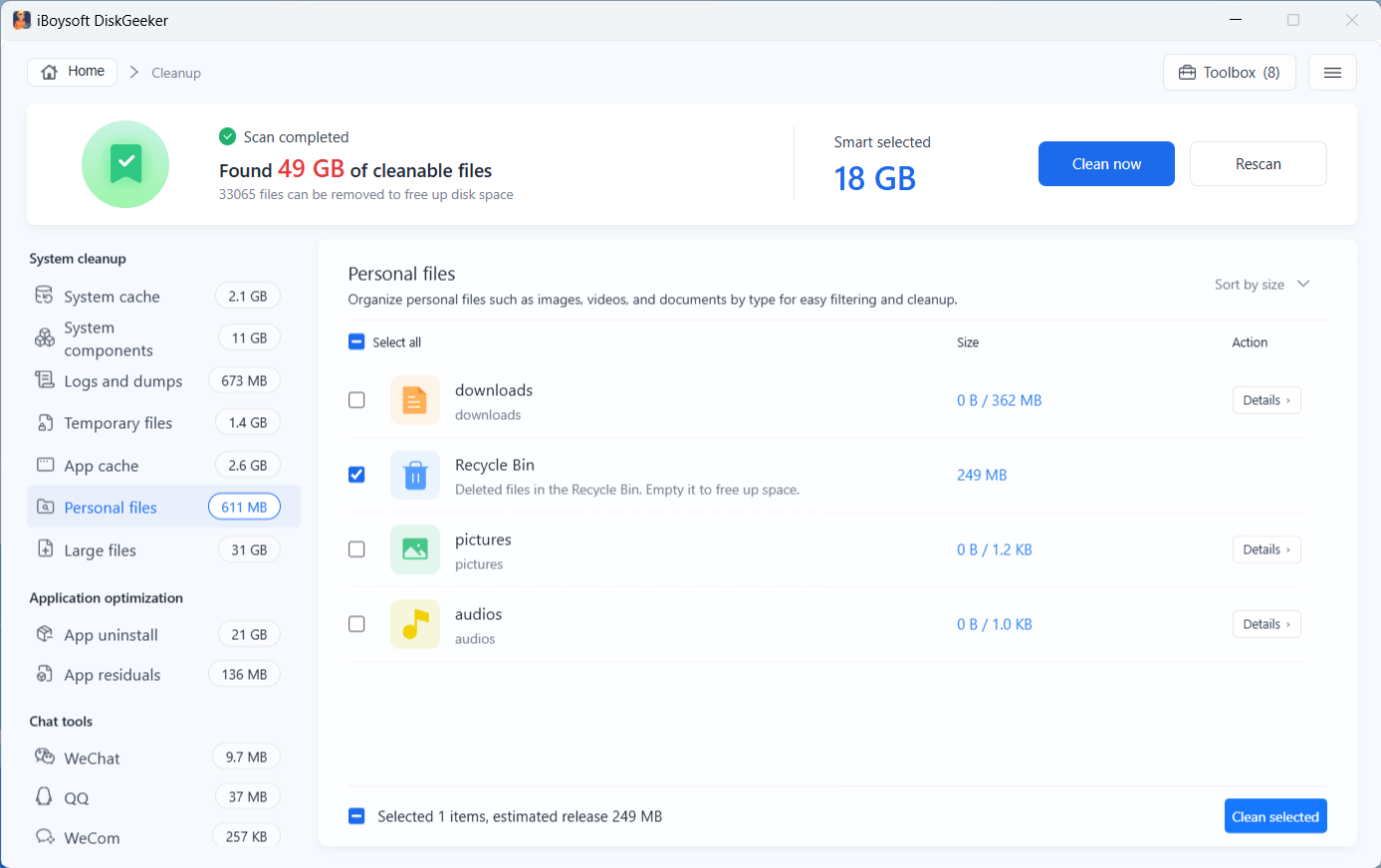
Personal files, such as downloads, pictures, audio files, large files, apps, and chat records, are treated as sensitive data and are not selected by default. You can review these files and manually select the ones you want to delete.
Click a category in the left sidebar to view its files. Then, click Details next to a file type to review the individual items and select the ones you want to delete.
Deleted files are hard to recover, so make sure you know what you want to delete before taking action.
System cache: Temporary cache files are generated while the system runs, including system update cache, security scan cache, system component cache, thumbnail cache, and system runtime cache.
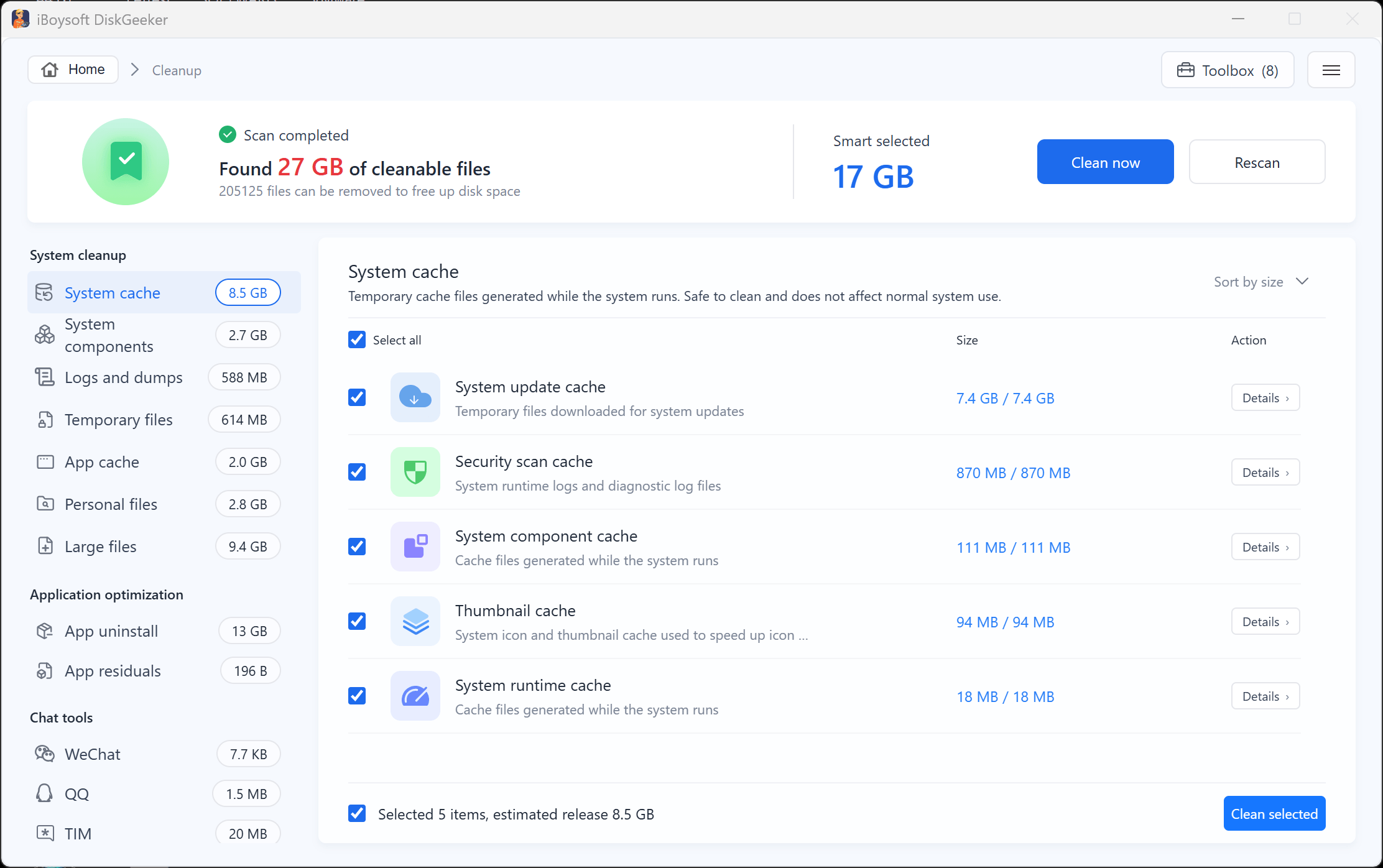
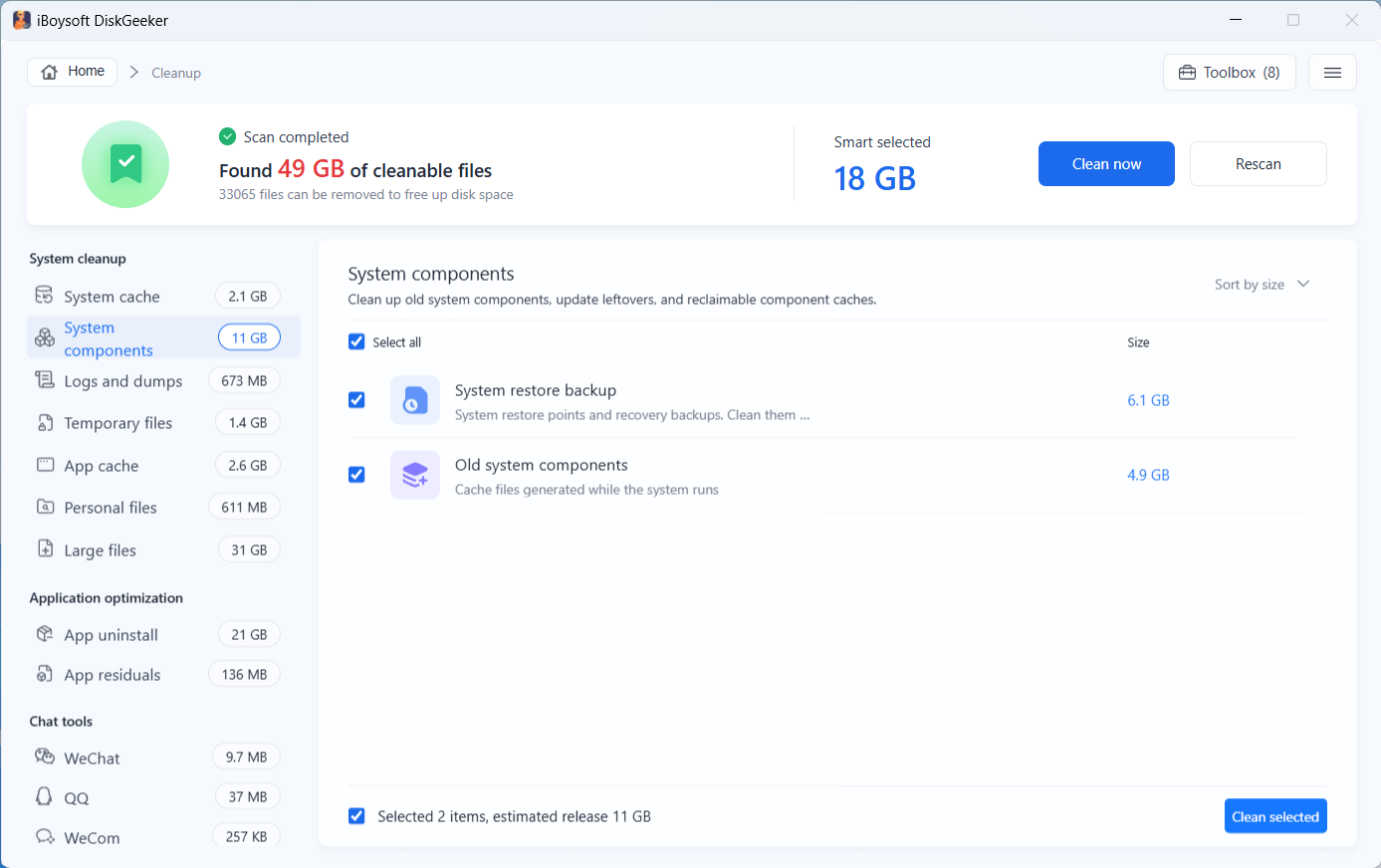
System components: Old system components, update leftovers, and reclaimable component caches.
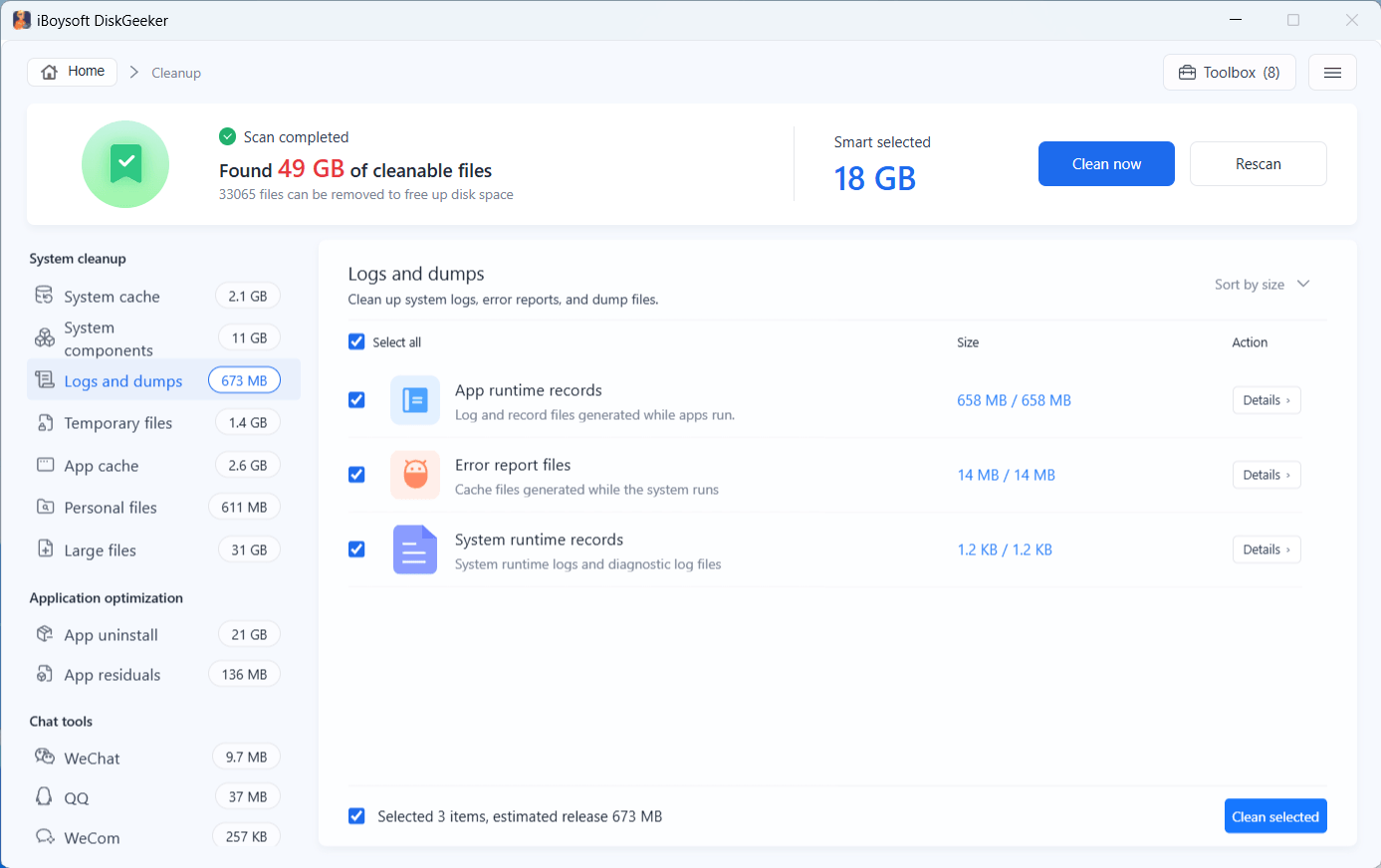
Logs and dumps: System logs, error reports, and dump files.
Temporary files: Temporary files are generated while the system runs and while apps and files are used.
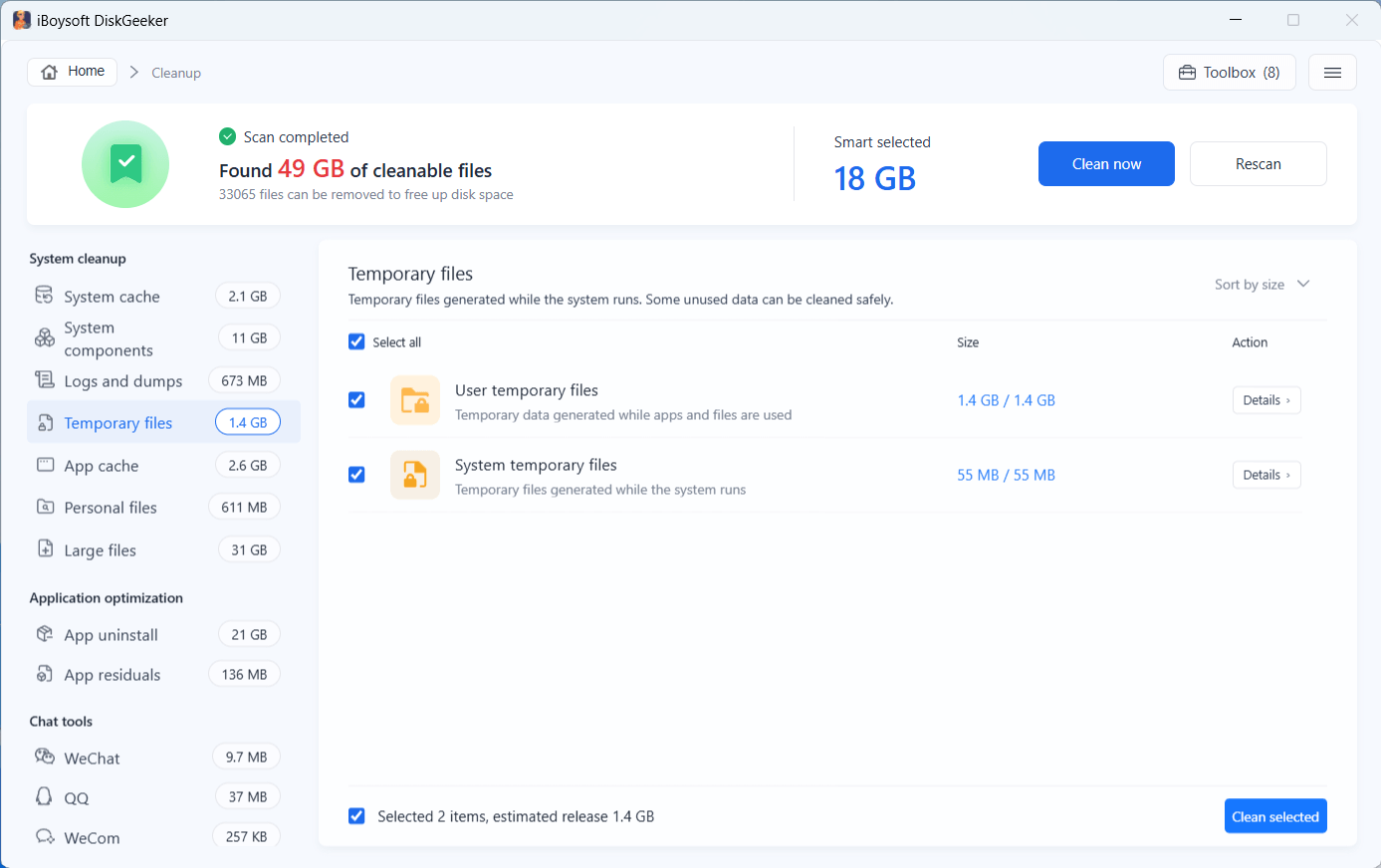
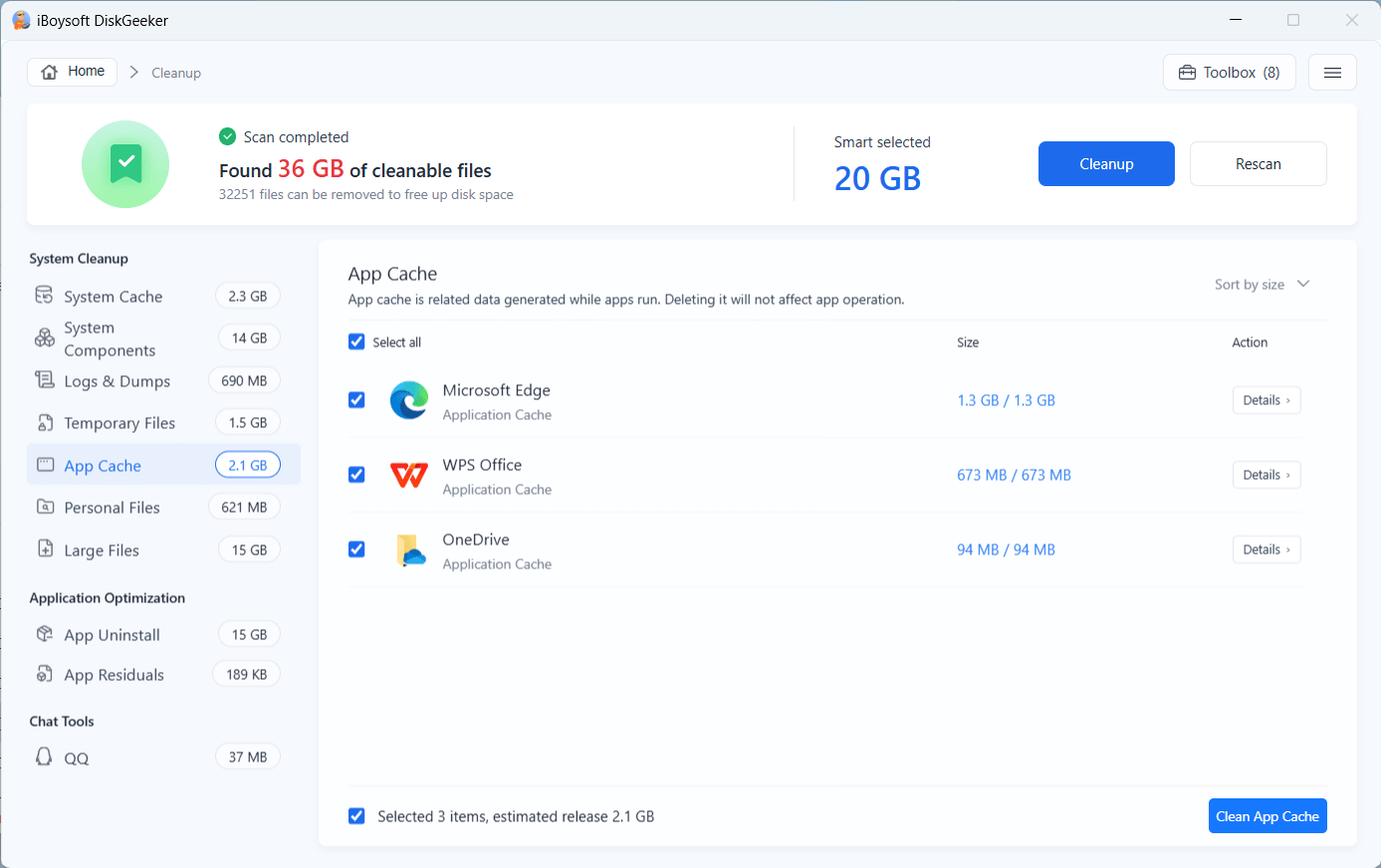
App cache: Cache data generated by apps.
Personal files: The categorized personal files, such as pictures, audio, documents, videos, Recycle Bin data, etc.
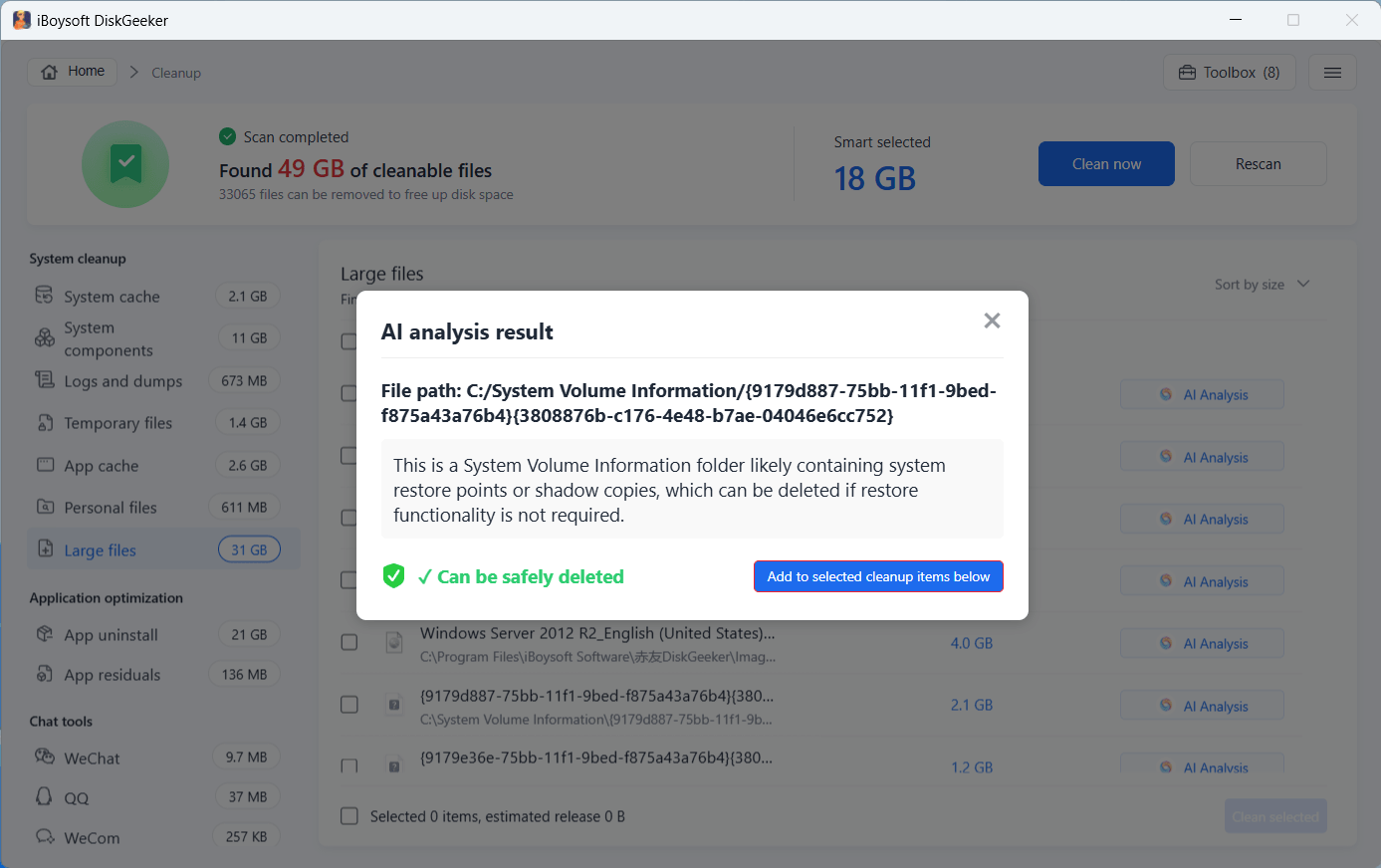
Large files: Files that use a lot of space. You can click the AI Analysis button to analyze whether you can delete the large file.
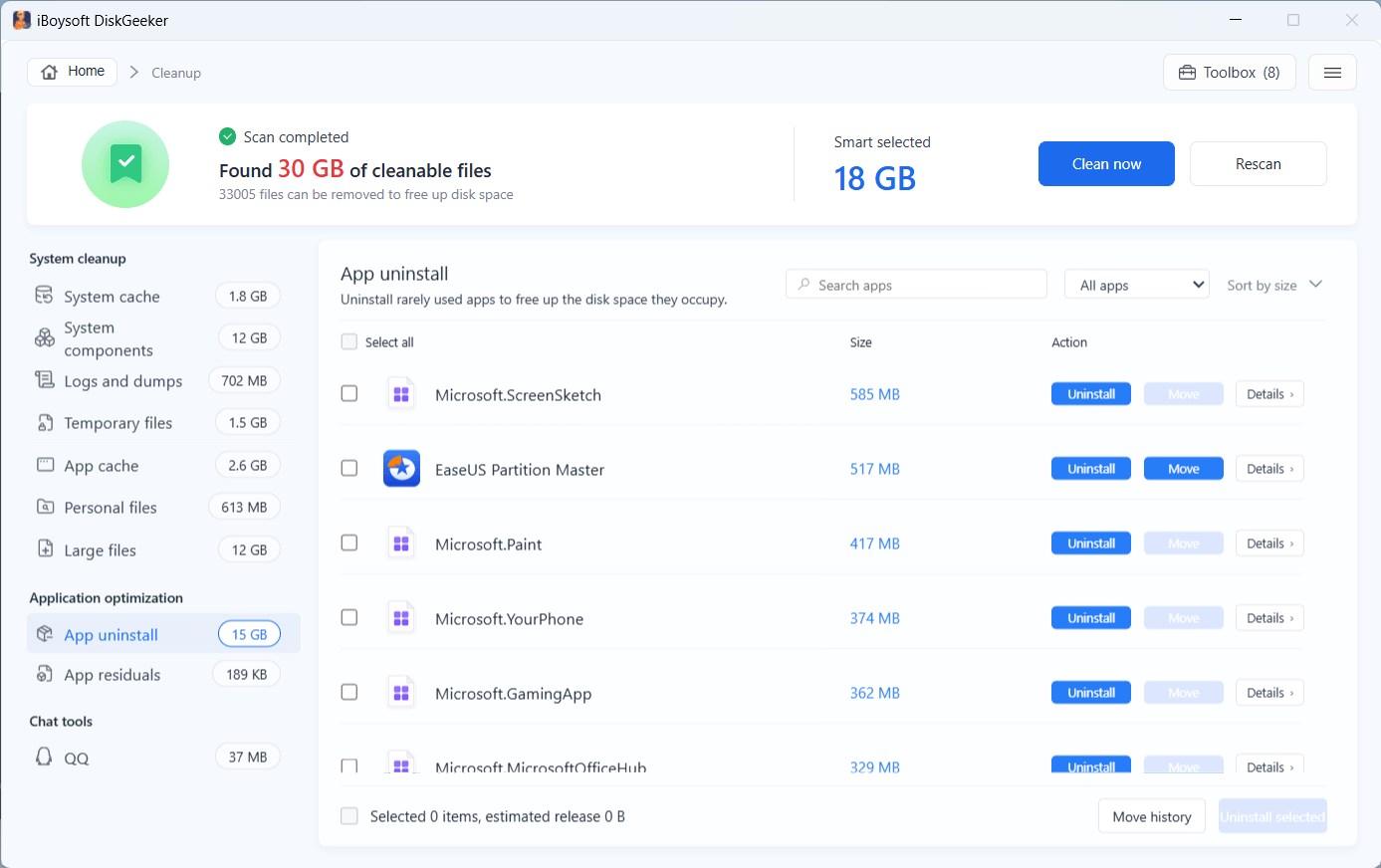
App uninstall: All system and normal (installed third-party) apps. You can click the drop-down menu to show only system apps or only normal apps.
If you don't want to uninstall some third-party apps, you can click "Move" to move them to another local partition. Third-party apps can't be moved to the C drive or an external drive. System apps can only be uninstalled but can't be moved.
By default, all the app-related files are scanned, including cache files, program files, and data files. You can click Details to check them.
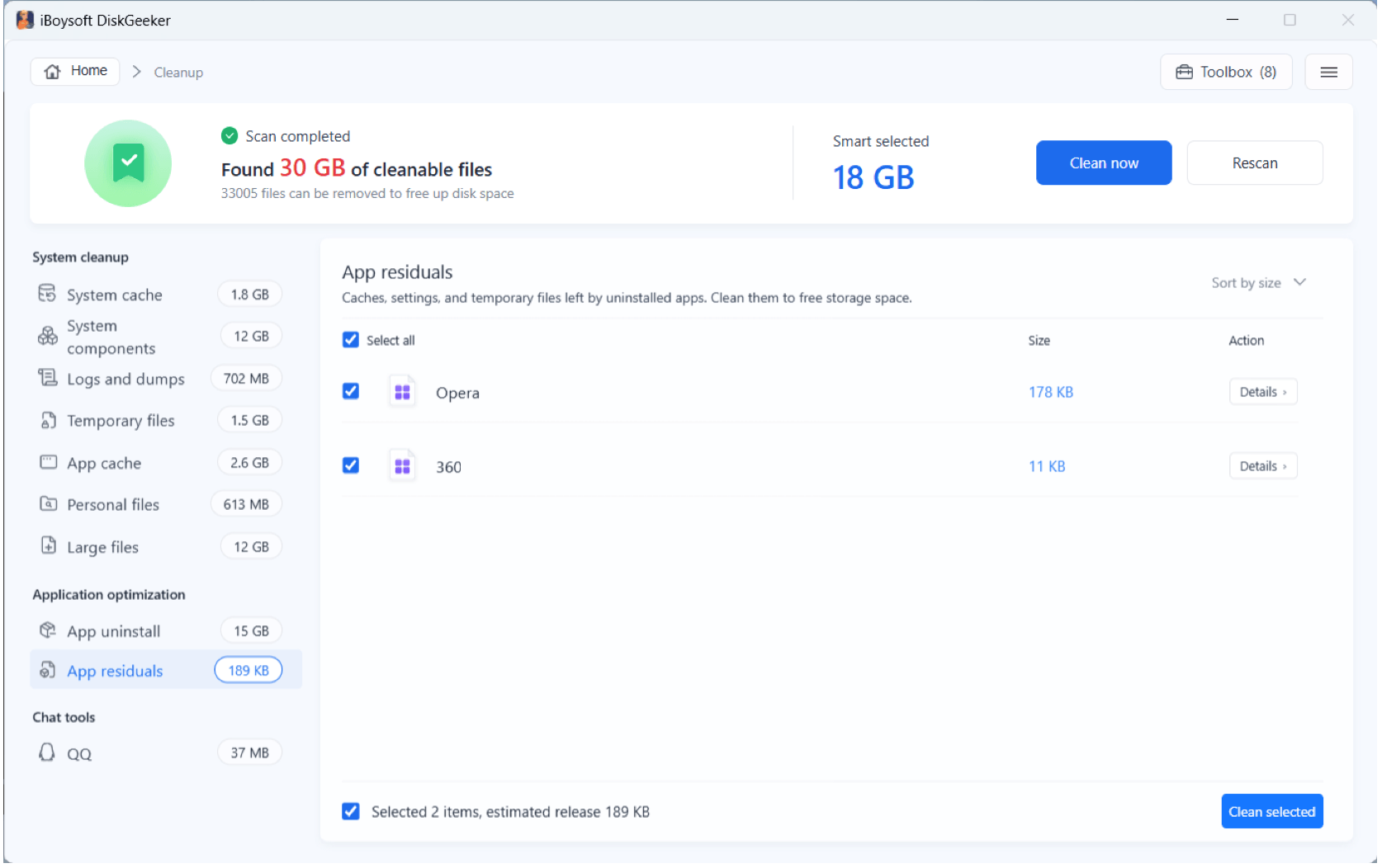
App residuals: Caches, settings, and temporary files left by previously uninstalled apps.
Chat tools: Cache files generated by chat tools.
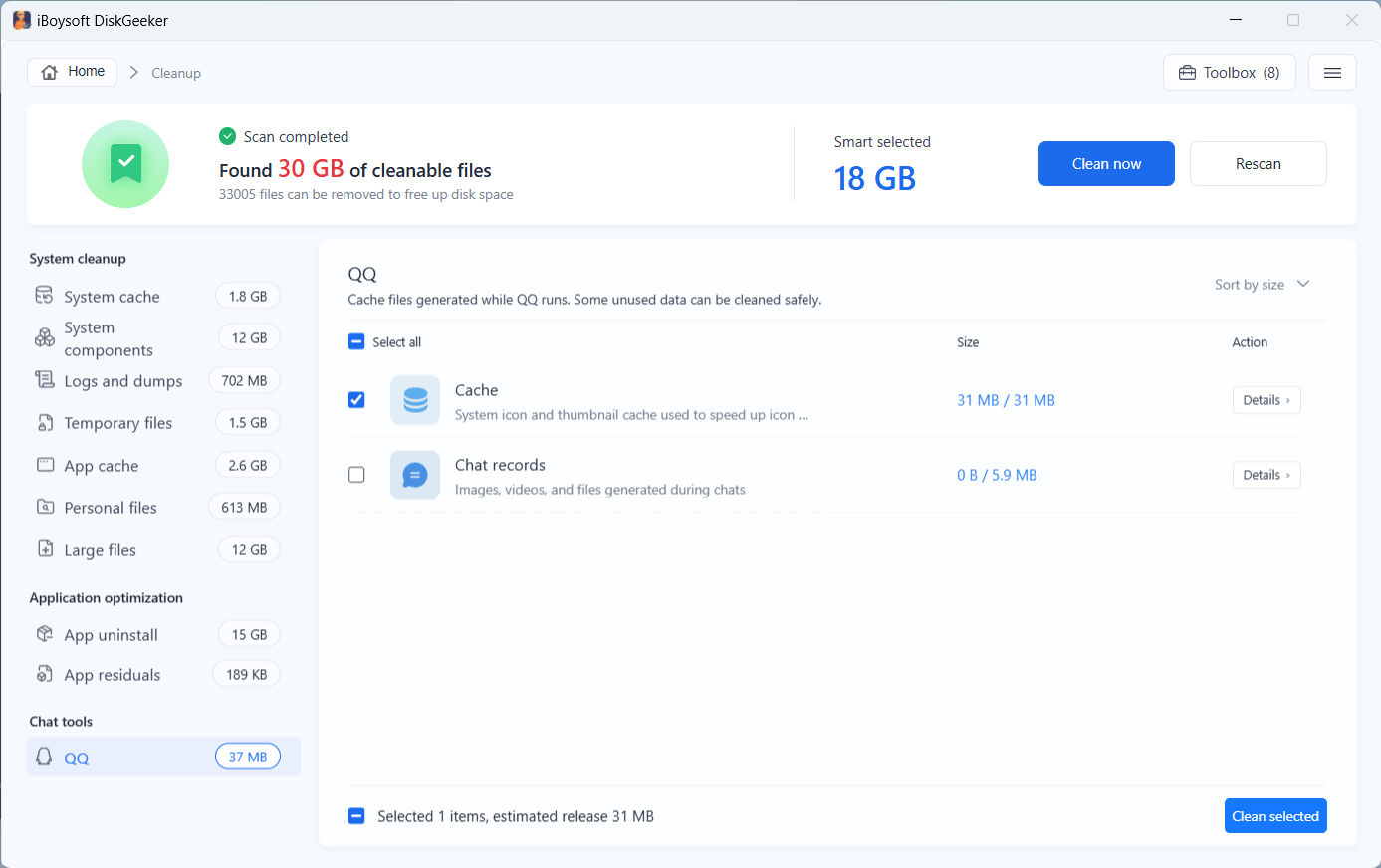
You can click "Details" next to each category of cleanable files to view what are selected.
Step 4: After confirmation, click "Cleanup" to delete all the selected files in each category at once.
If the selected files contain sensitive files, you'll see the "Back up before cleaning" option. Tick it and select a location to back up the data in case of data loss.
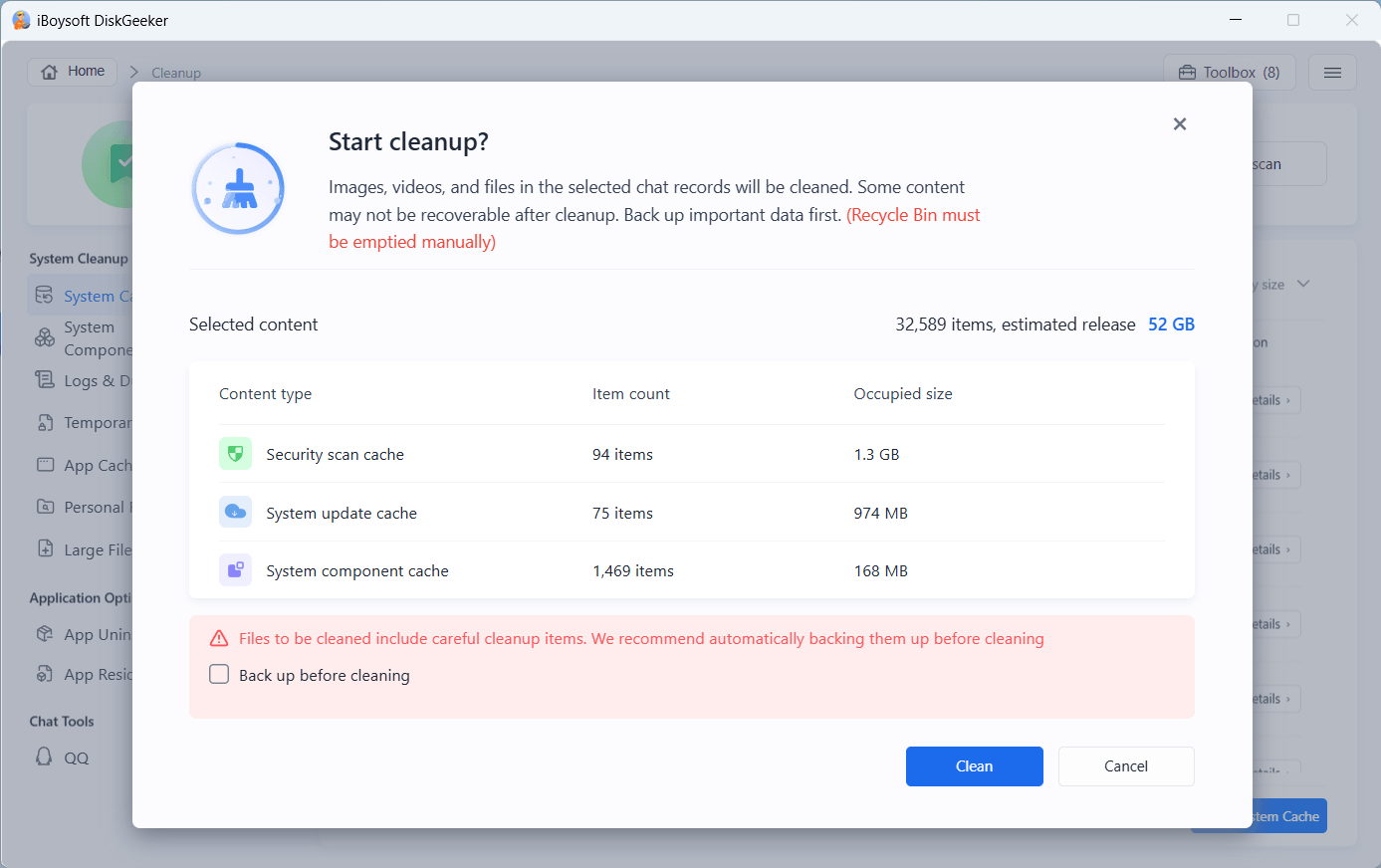
Also, you can remove the files by category by clicking "Clean selected" on each category page.
Optimize a partition storage usage
You can manage the space usage of a specific partition. With visualized results, you can see exactly what is taking up your partition space and optimize space more conveniently.
Step 1: Click "Optimize" next to a partition you want in the AI disk space optimization module.
Step 2: Wait for the space analysis process to finish.
Step 3: Check the scanned results.
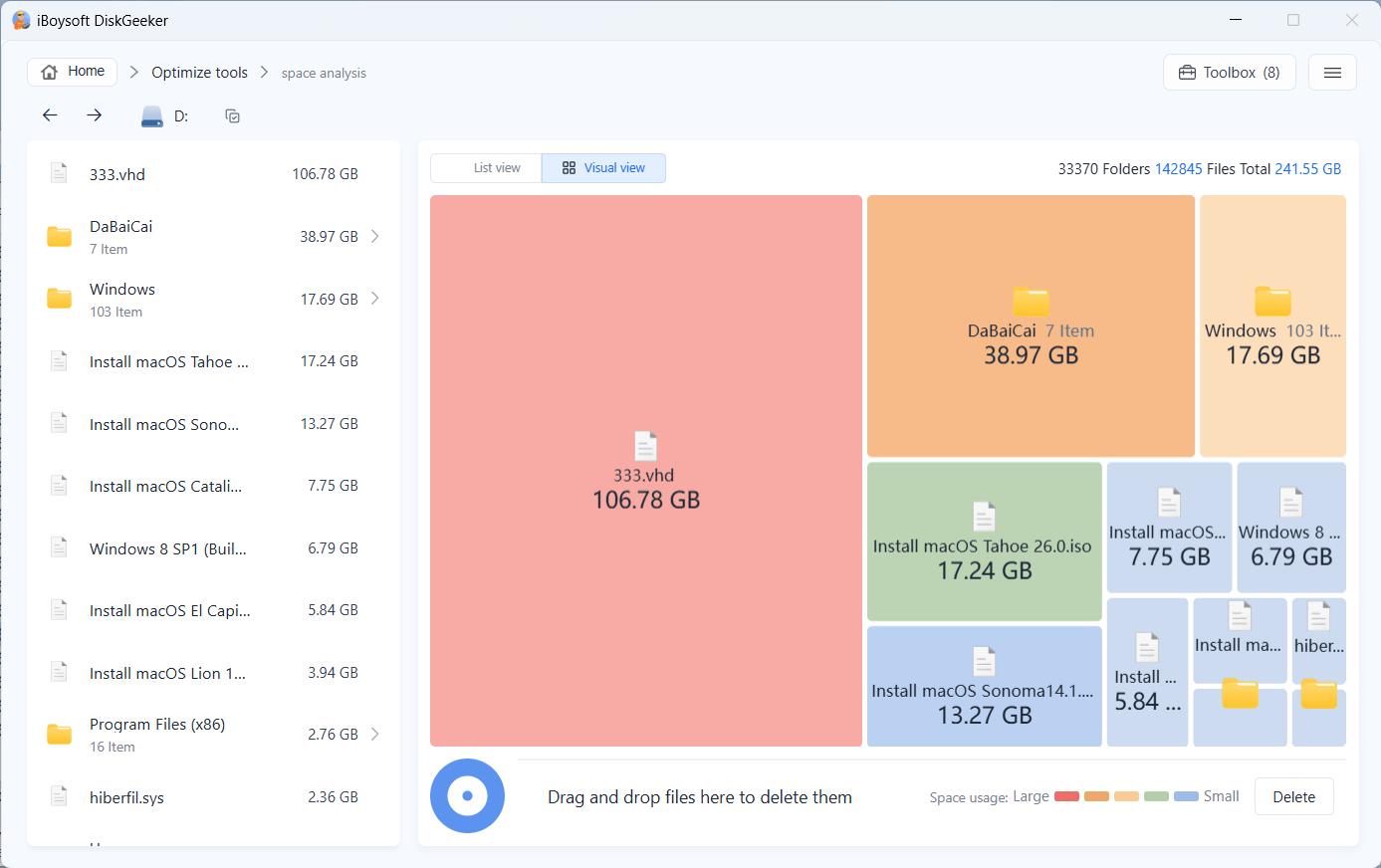
By default, it shows the results in visual mode. If you prefer to check the file by list, click "List view" on the top.
In each mode, when your cursor move over a file or folder, a spinning ball shows up. You can click it to open the AI analysis and learn what the file or folder is and whether you can delete it.
In visual mode, the left and right views are the same level directories, and the right view is a visual presentation of the files in the left view.
The color of the folder indicates the space usage condition. You can refer to the explanation at the bottom of the window.
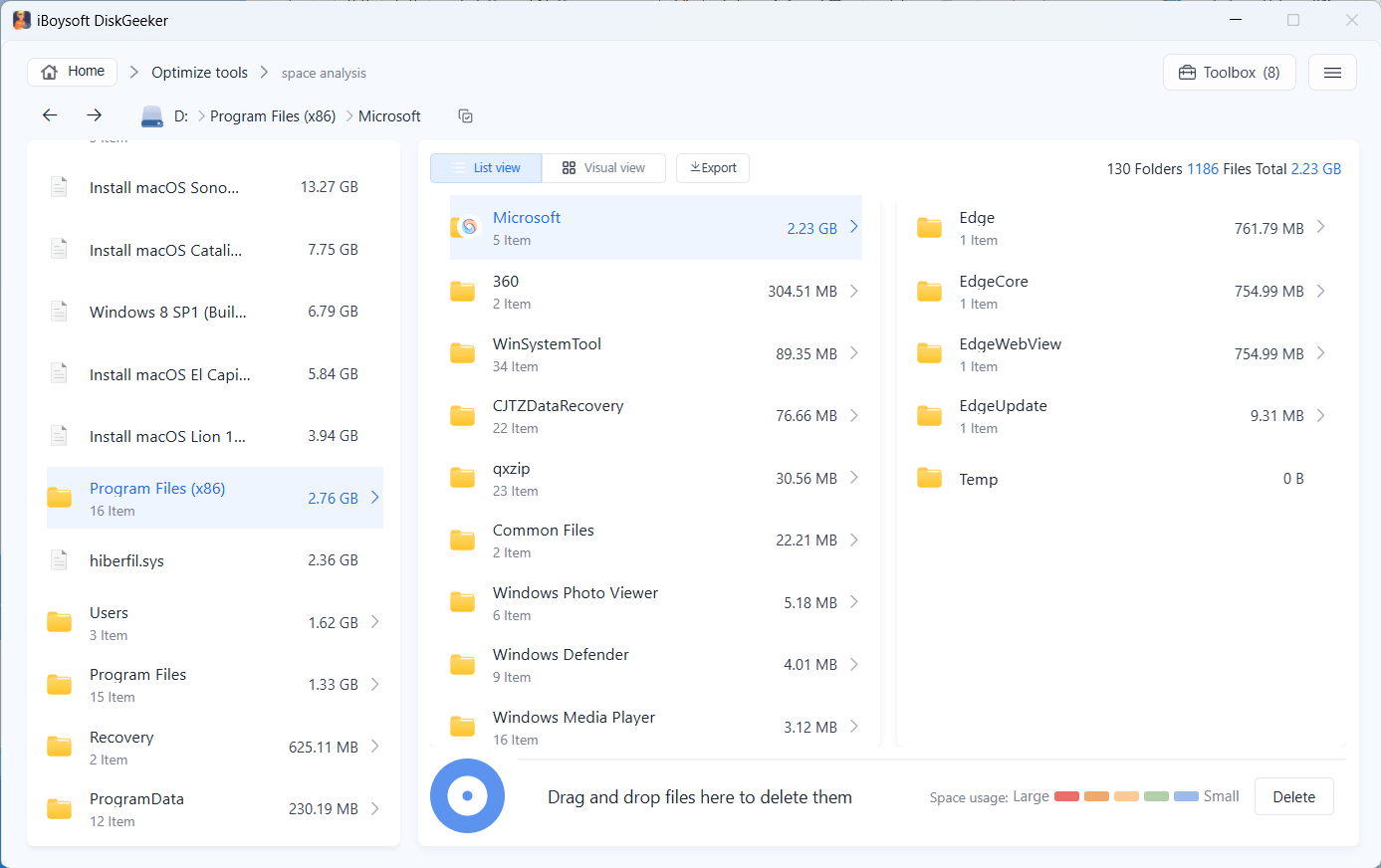
In list mode, the software displays the preceding and following directories of the current path (there are three directory levels). When there are fewer than three levels of directory structure, it displays all path structures.
Step 4: Select your unwanted files and drag and drop them to the Trash Bin at the bottom of the window (a blue circle).
This is to collect all the files you prepare to delete, and the Trash Bin will show the total size of these files.
If you regret moving a certain file to the blue Trash Bin, open the Trash Bin and then click the Remove button next to the file to move it out of there.
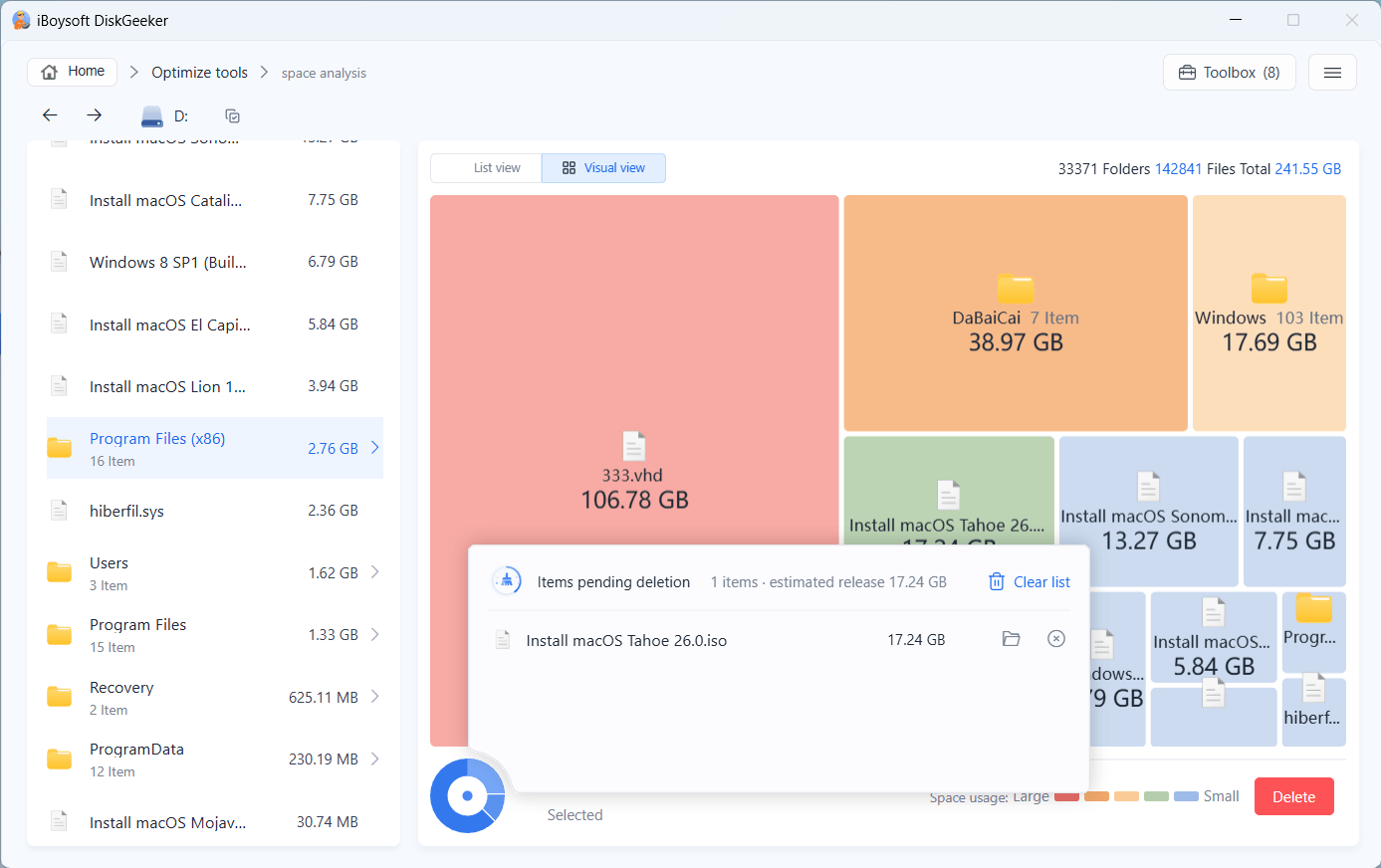
Step 5: Click "Delete" > "Confirm deletion" to permanently remove the files from your PC.
A prompt will appear if the deletion is successful. Remember to refresh that folder to show the latest state.
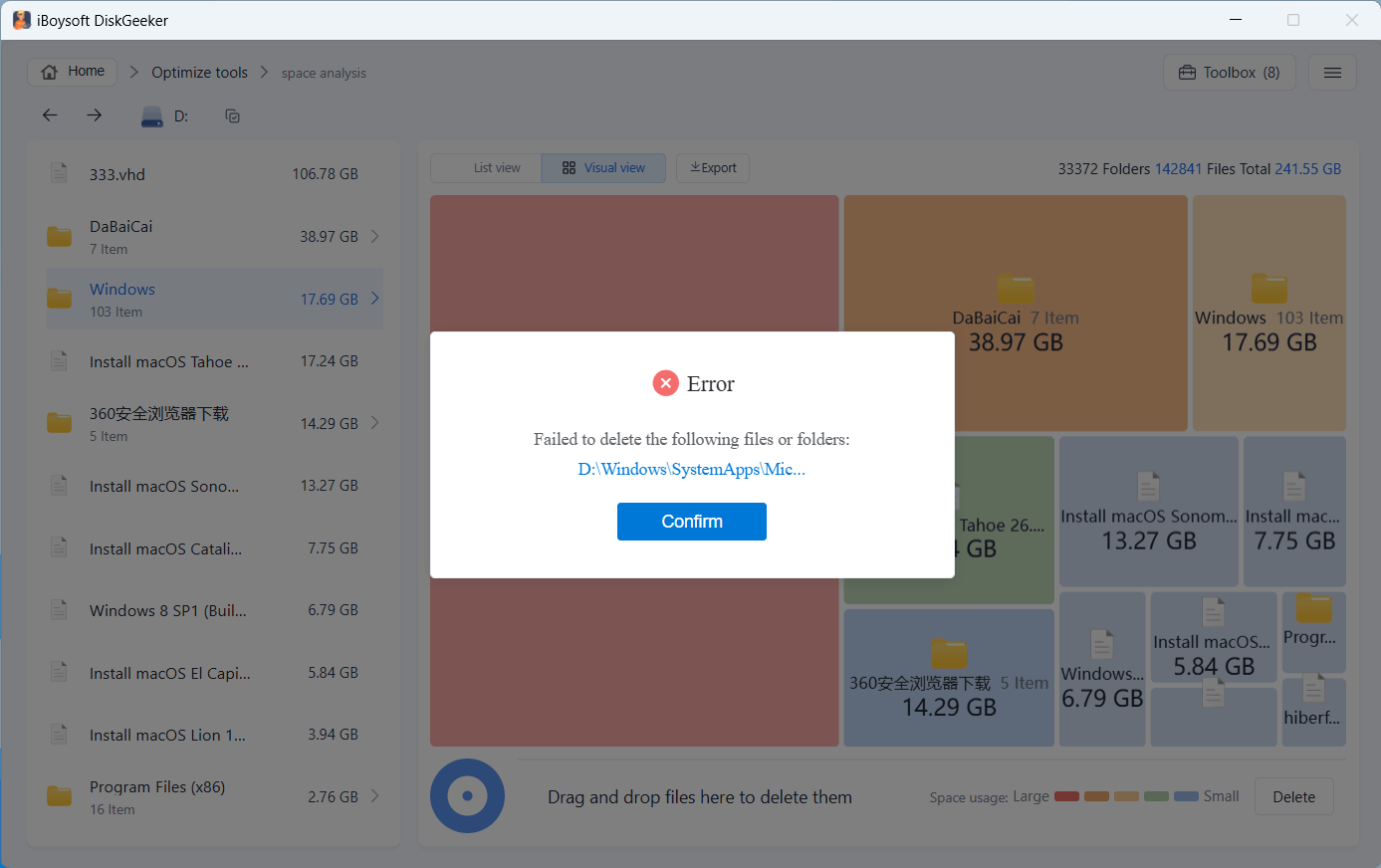
Also, it will notify you when a deletion failure happens. You can click the file path on the pop-up to open the file and find the reasons. Usually, a read-only file and file being used cannot be deleted.
Search for large files on a partition
Analyze large files on partitions to optimize disk space usage and make room for incoming files.
Step 1: Click "Optimize tools" from the AI disk space optimization module > "Search for large files."
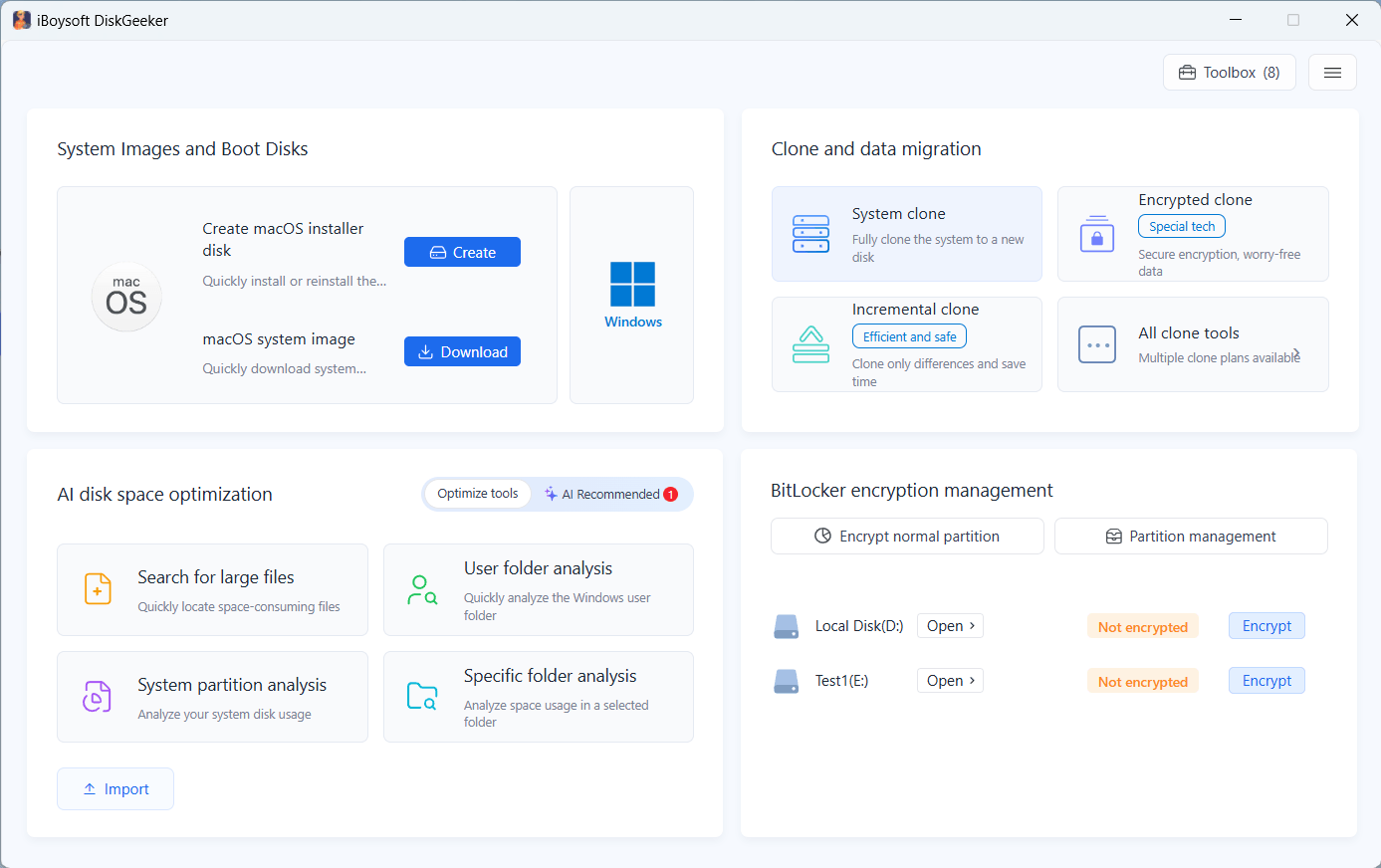
Step 2: Select a partition.
For the initial large file search, you need to go to "Advanced settings" at the bottom left corner to set the minimum file size for scanning. By default, the minimum file size for scanning is 50 MB. You can change it and also add the file extension to prevent the tool from searching for certain files.
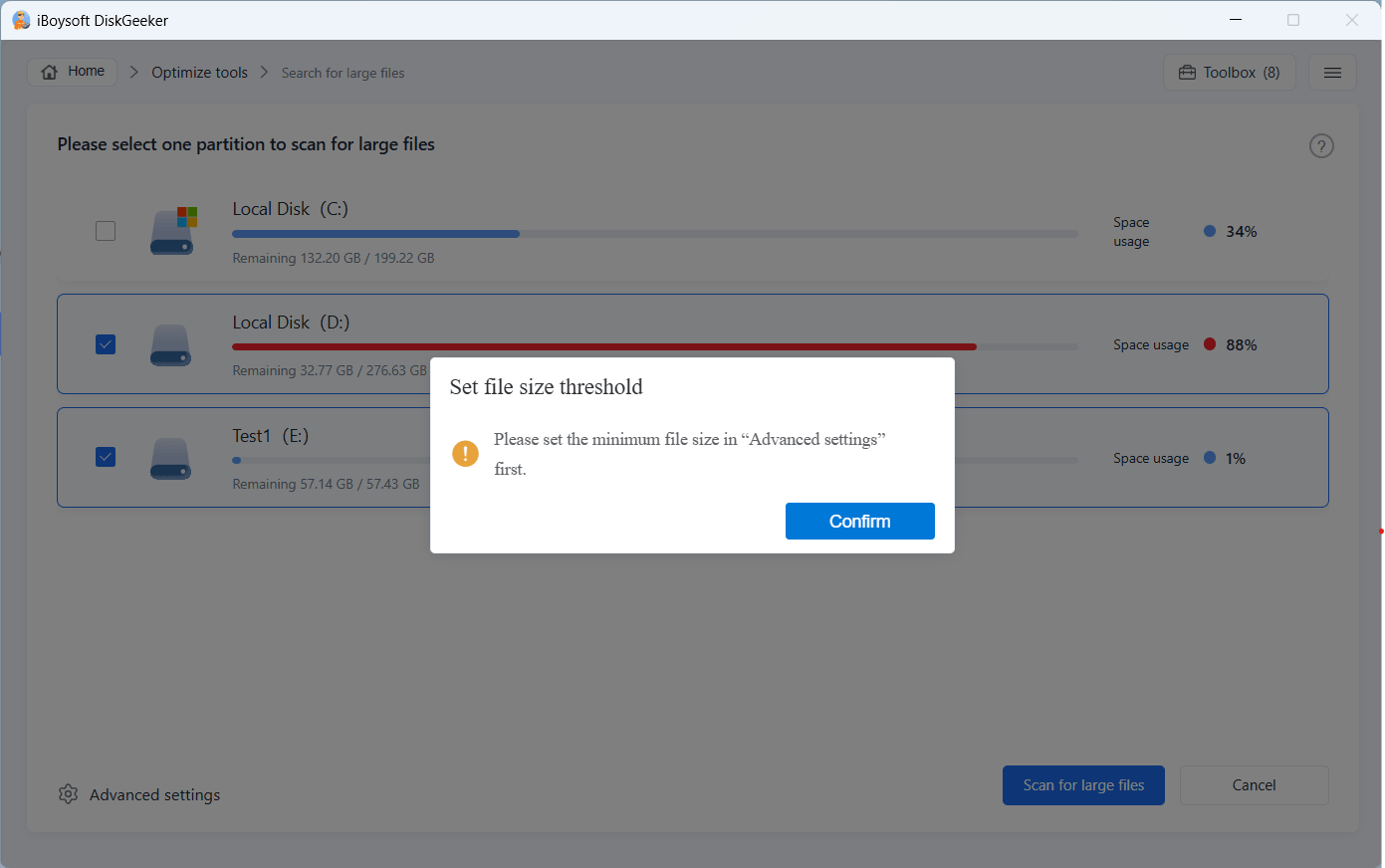
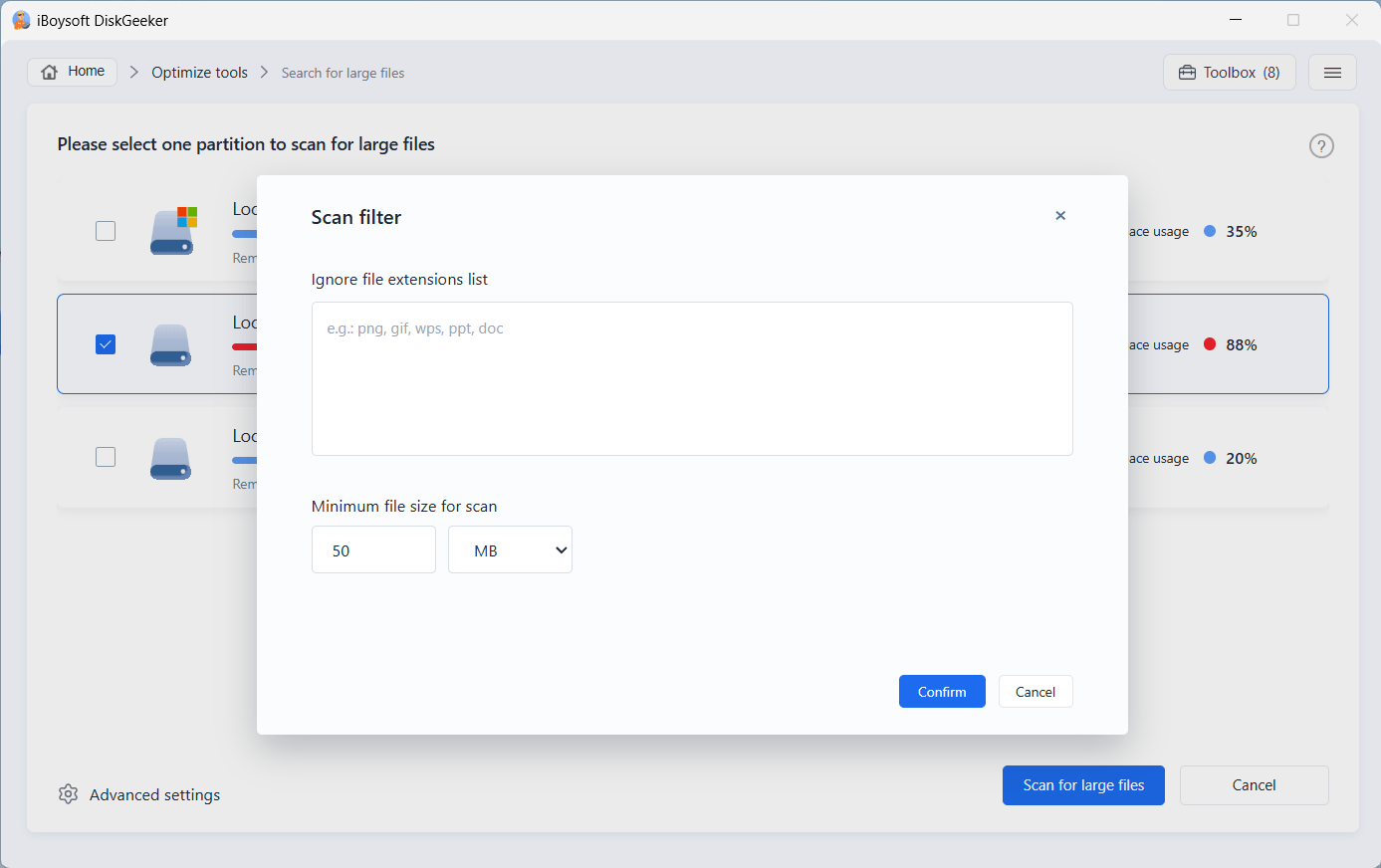
Step 3: Click "Search for large files" to start scanning.
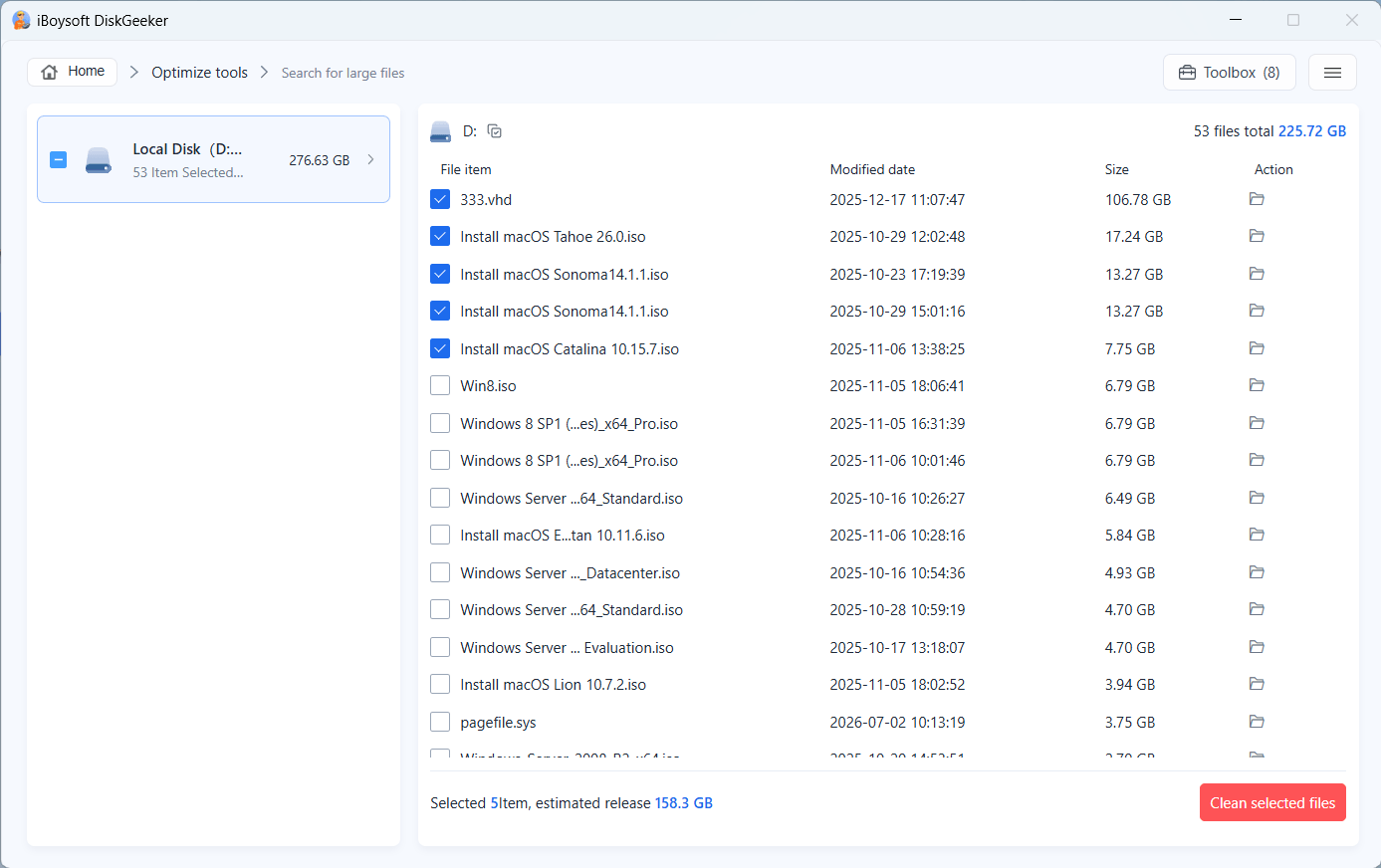
Step 4: Click the folder icon next to the file you want to delete to view it in the original folder, choose the one you want to delete, and click "Clean selected files."
Manage the space usage of the system partition, user folder, or a specific folder
Analyzing the space usage of your system partition, user directory, or a specific folder by displaying all files to help you manage space more conveniently.
Step 1: Click "Optimize tools" and select a space analysis feature you want.
User folder analysis: Analyze the storage usage of the current user folder.
System partition analysis: Analyze the storage usage of the system partition.
Specific folder analysis: Analyze the storage usage of any folder you choose.
Step 2: Wait for iBoysoft DiskGeeker for Windows to automatically analyze the files in the selected location.
It will take a relatively long time to scan the files in the system partition and user folder, as it stores a huge amount of your data.
Step 3: Check the scanned results by clicking the listed folders.
The scanned results can be displayed in two modes: visual view and list view.
In visual mode, the left and right views are at the same level of directories, and the right view is a visual presentation of the files in the left view.
In list mode, the software displays the preceding and following directory levels of the current path (there are three directories). When there are fewer than three levels of directory structure, it displays all path structures.
In each mode, when your cursor move over a file or folder, a spinning ball shows up. You can click it to open the AI analysis and learn what the file or folder is and whether you can delete it.
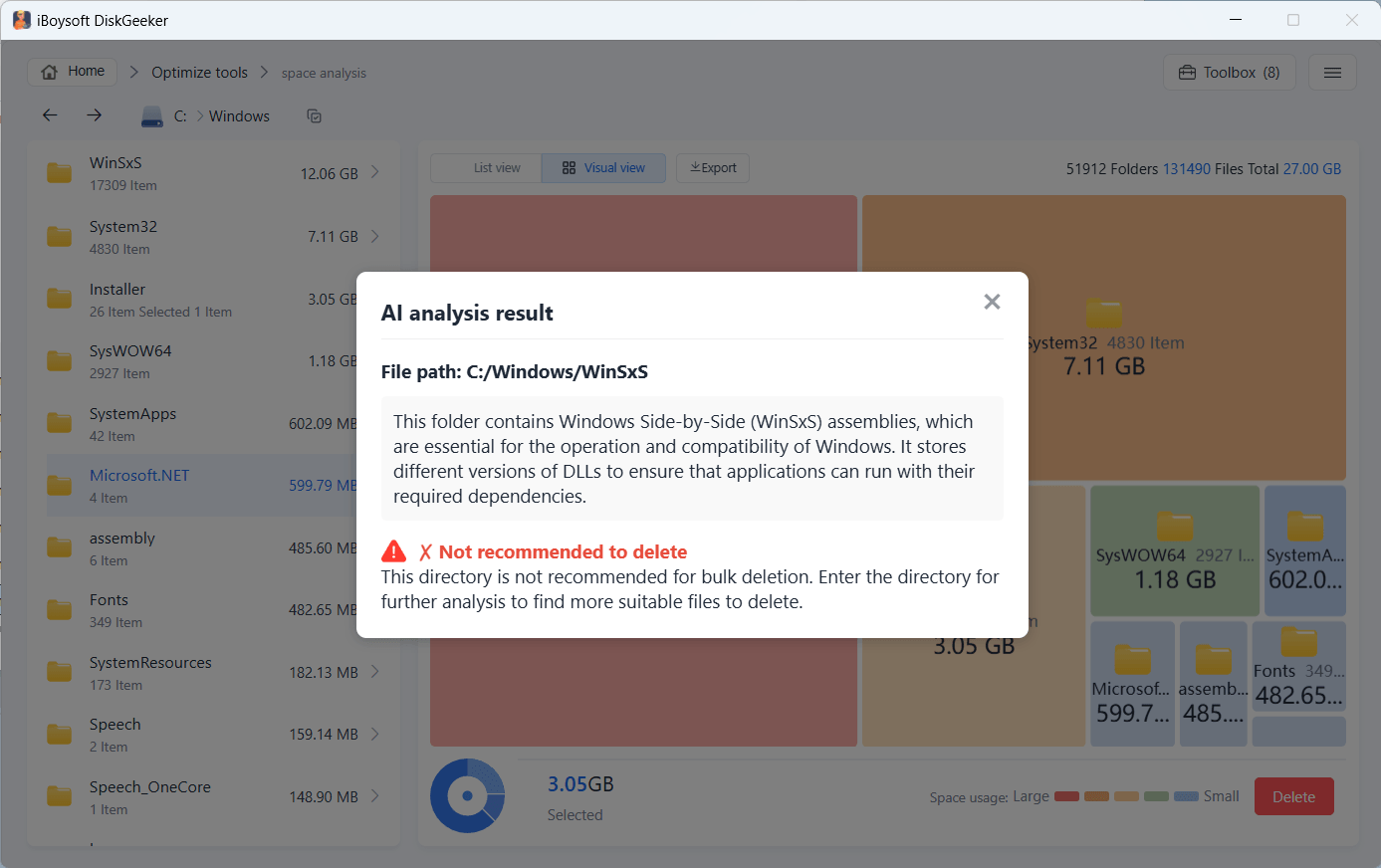
Step 4: Select your unwanted files and drag and drop them to the Trash Bin at the bottom of the window (a blue circle).
This is to collect all the files you prepare to delete, and the Trash Bin will show the total size of these files.
If you regret moving a certain file to the blue Trash Bin, you can click on the Trash Bin and then click the Remove button next to the file to move it out of there.
Step 5: Click "Delete" to permanently remove the files you put in the blue Trash Bin.
A prompt will appear if the deletion is successful. Remember to refresh that folder to show the latest state.
Also, it will notify you when a deletion failure happens. You can click the file path on the pop-up to open the file and find the reasons. Usually, a read-only file and file being used cannot be deleted.
Learn more about iBoysoft DiskGeeker for Windows's AI Disk Space Optimization
How to Clone a System Disk, Partition, or Disk?
The Clone feature in iBoysoft DiskGeeker works to make a one-to-one copy of an OS disk, a non-system partition, or an entire disk to another.
⚠️ Warning: Cloning will erase all contents on the destination disk, so back up your essential files before starting. Or else, you'll face irrecoverable data loss.
Quick Navigation:
- Clone a system disk
- Restore the cloned system disk to the current system
- Clone an partition
- Clone a disk
- Incremental clone a partition
- Encryption clone a partition
Clone a system disk
This is to help you make a bootable system copy on a hard drive for system migration, storage device upgrade, system file backup, or system restoration (with iBoysoft DiskGeeker for Windows).
Step 1: Click "System clone" from the Clone and data migration module. Or, you can click "All clone tools" > "Clone System Disk."
Step 2: Check the source disk shown in the Source disk section.
In the Source disk section, the software automatically lists the system partition it found and also show the system version and the partition condition.
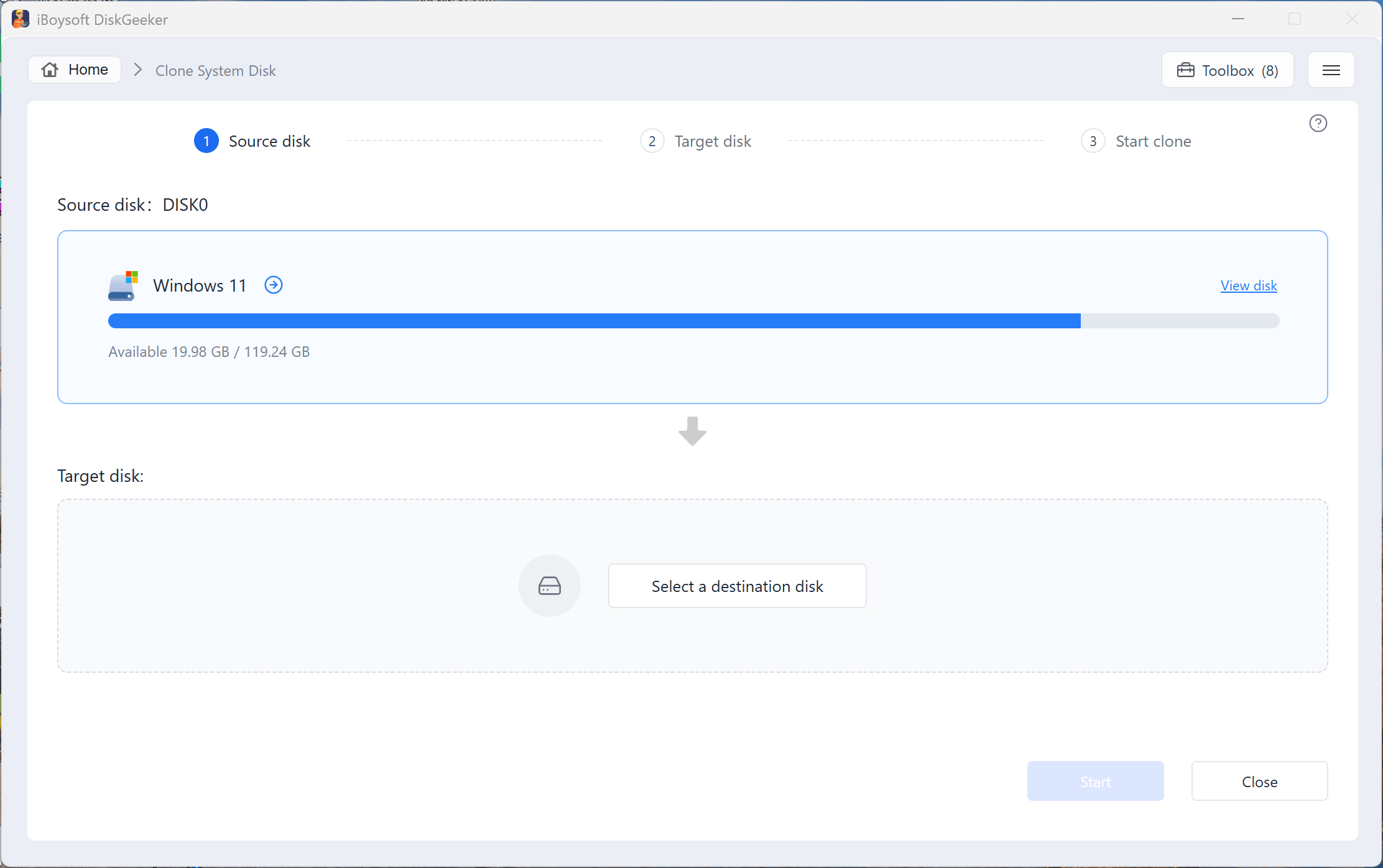
You can click "View disk" to check the distribution of the disk where the system partition resides, so to verify if the system partition is selected correctly. Here, the selected system partition will be circled in yellow.
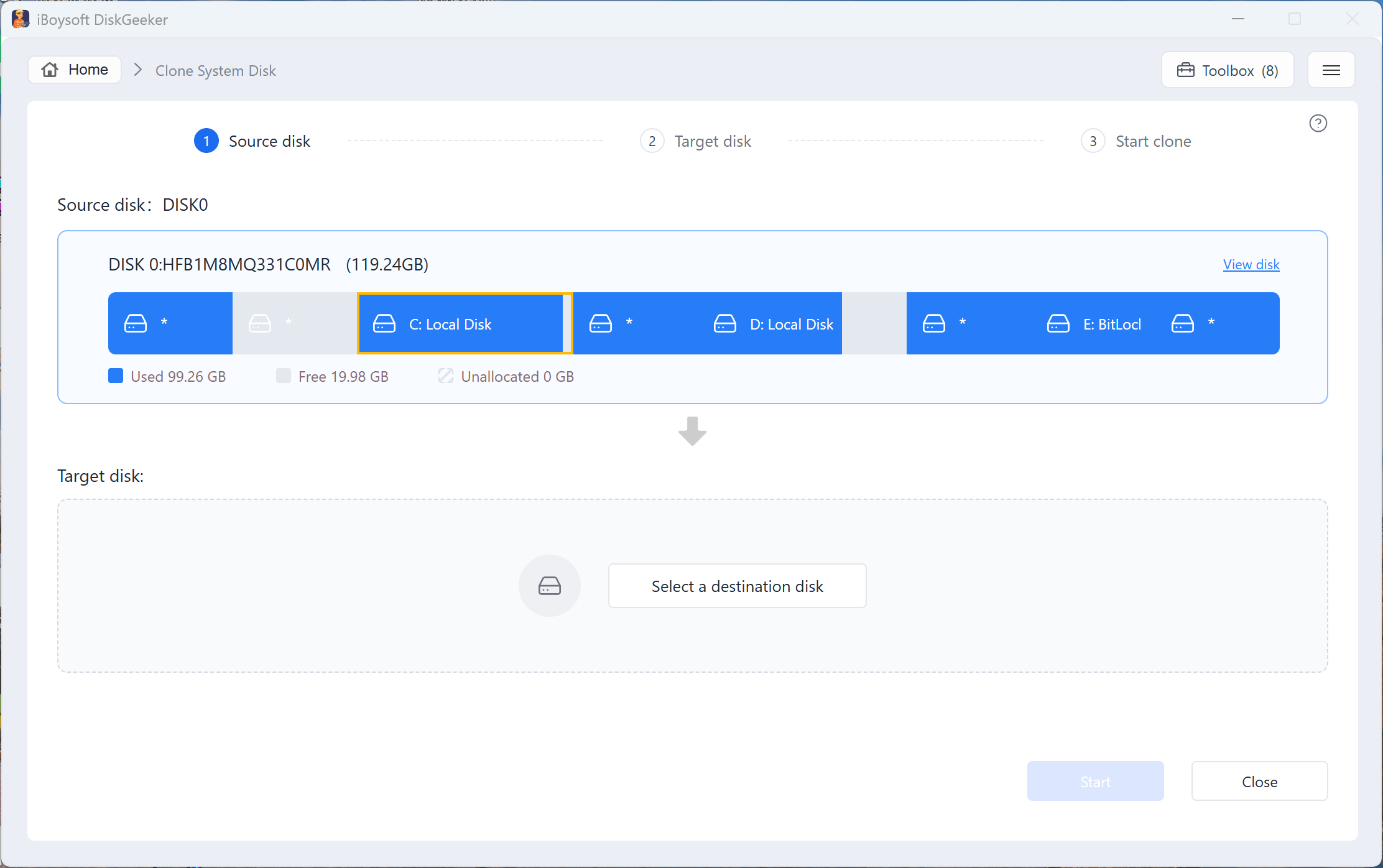
Note: If the BOOT and SYSTEM partitions in your system are separated (that are the C drive and the EFI system partition in Disk Management), even if the Source OS disk section only shows the BOOT partition, both the BOOT and SYSTEM partitions will be cloned to the target disk to guarantee the cloned system partition bootable.
Step 3: Choose the destination disk. Click on the "Select a destination disk" button and you'll see a list of available target disks.
The storage capacity of the destination disk must be larger than the source disk's. Or else, the one-to-one disk clone will fail. For example, the source disk is 200GB, so the destination disk must be larger than 200 GB.
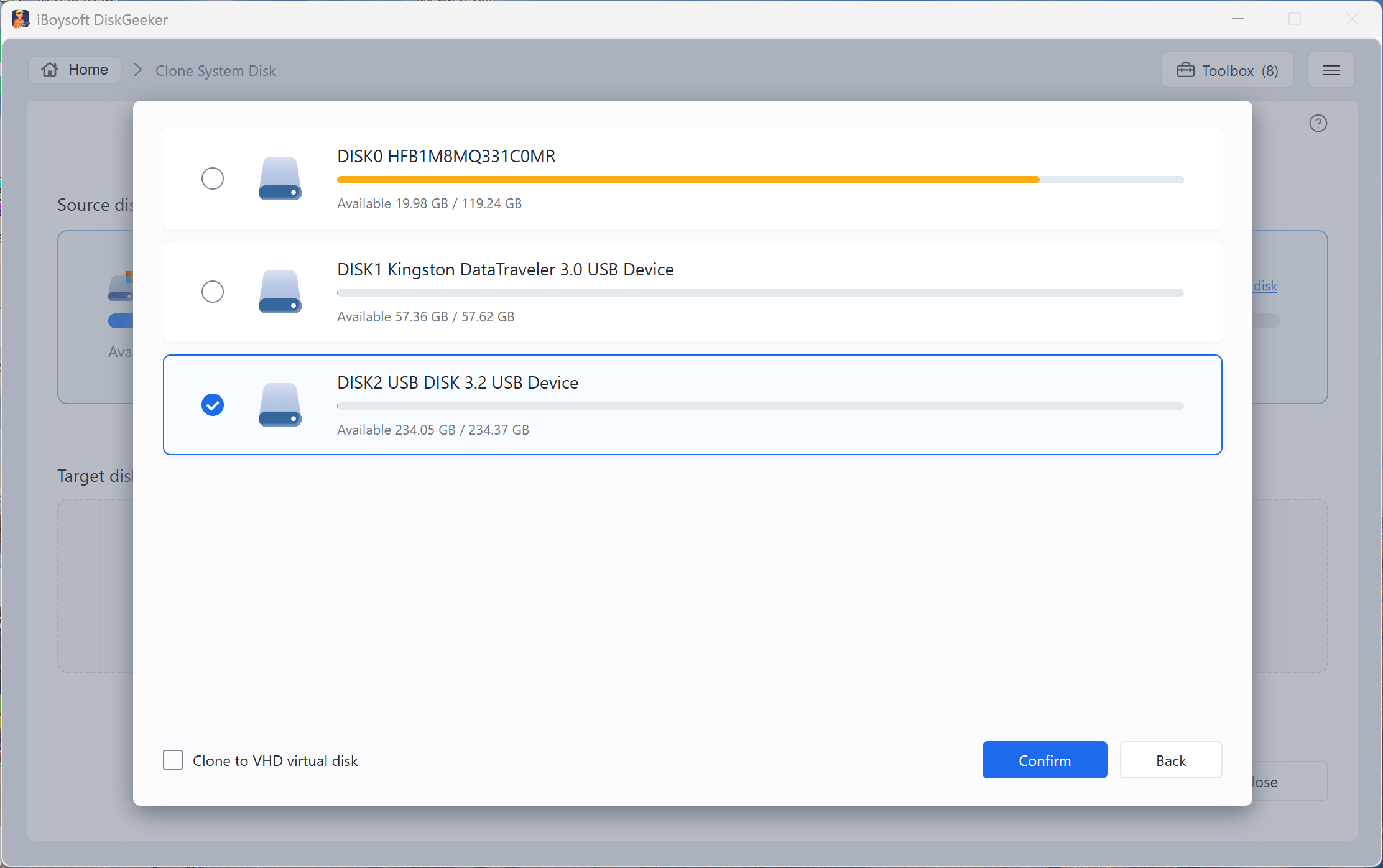
Option 1. Clone system drive to a VHD virtual disk
This allows you to clone the system drive data to a virtual disk as a file, making backup management more convenient.
iBoysoft ensures that the source system disk is cloned into a valid VHD/VHDX file, but cannot guarantee that it will boot in every virtual machine environment.
① Check "Clone to VHD virtual disk."
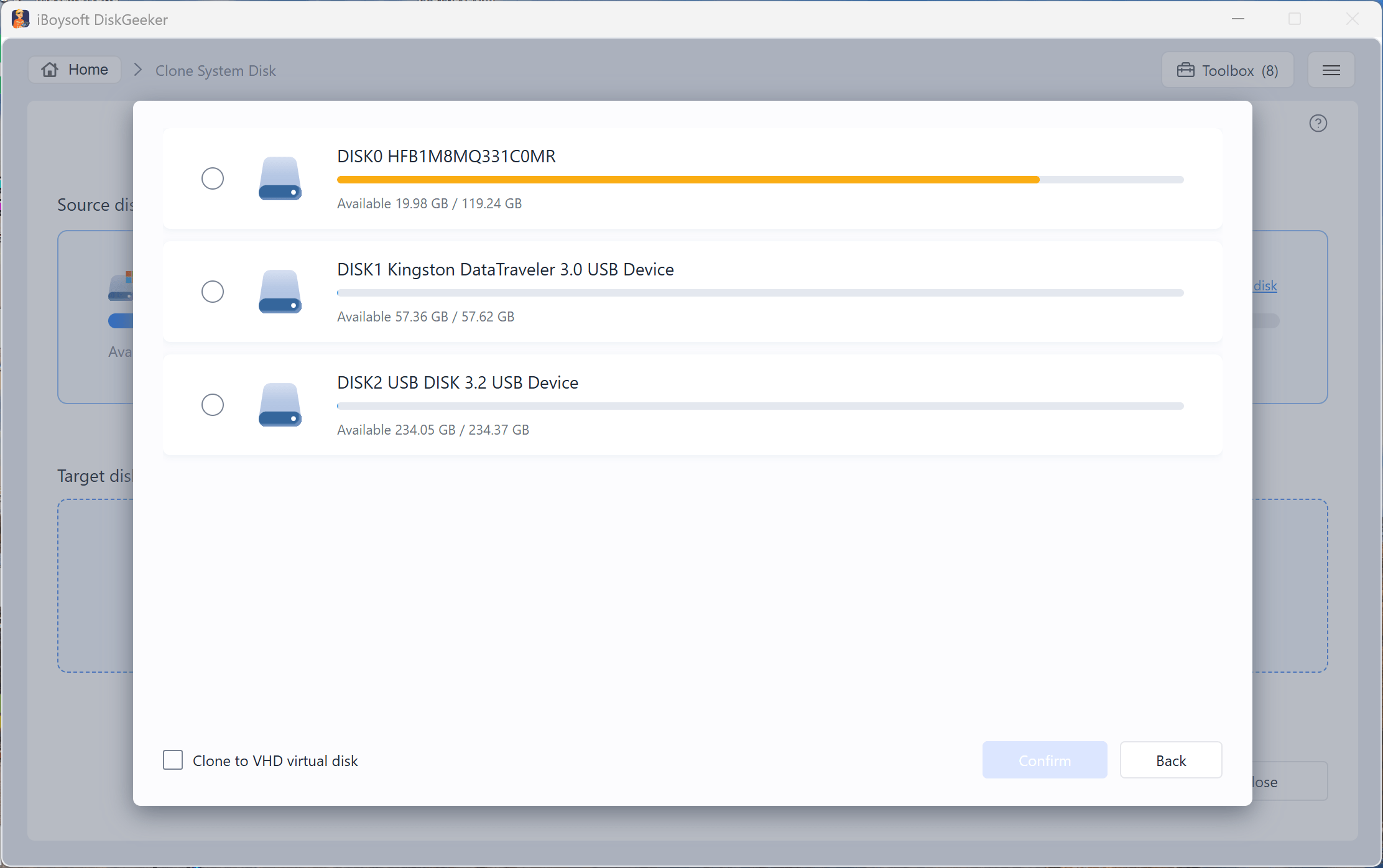
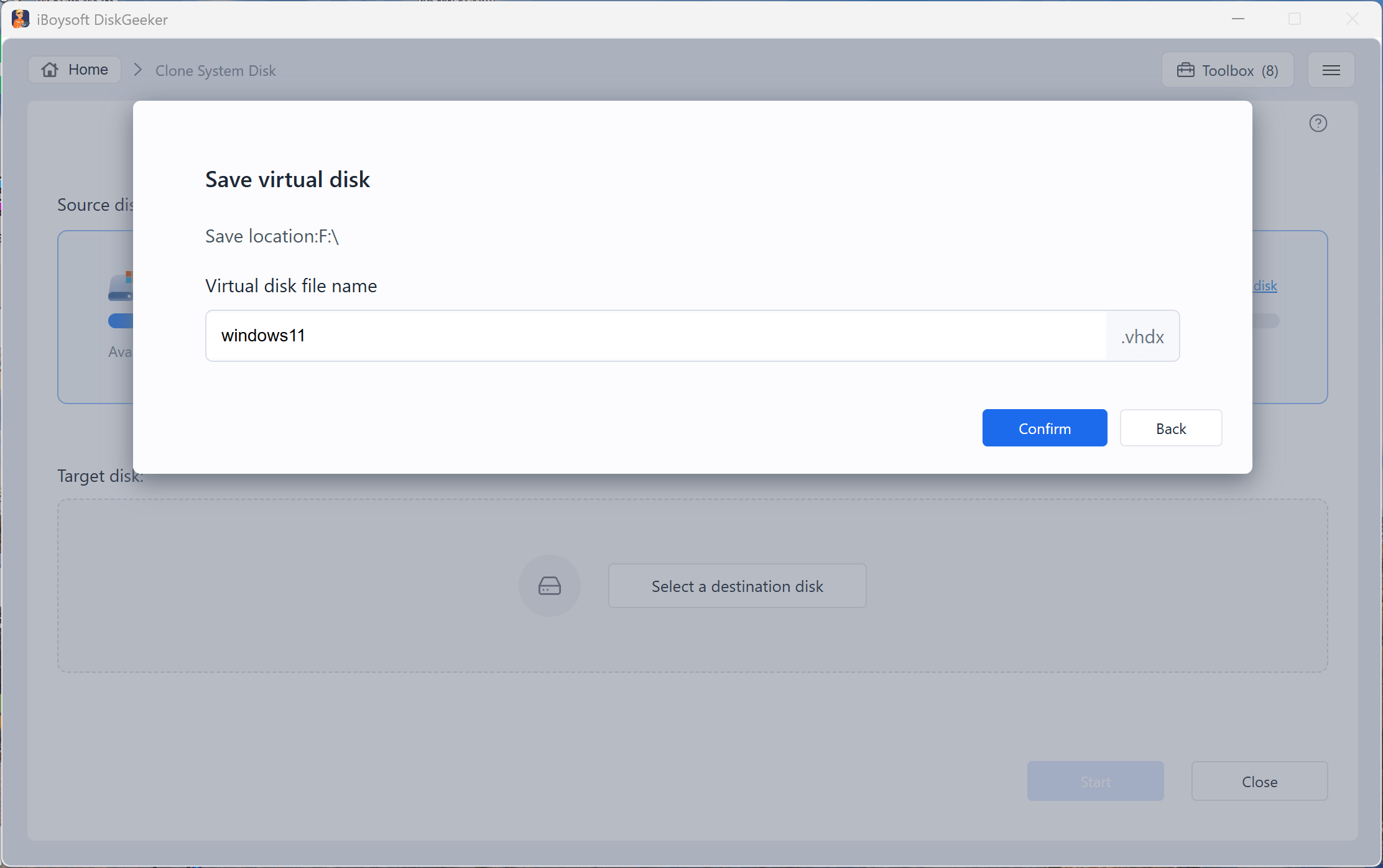
② Select a folder where you want to save the cloned system disk and click Confirm.
③ Enter a name for the virtual disk file and click "Confirm."
🔔 You can clone the OS disk as a BitLocker-encrypted VHD virtual disk. To do so, tick the "Clone to a BitLocker-encrypted partition" option. Then, you'll be asked to set a password.
🔔 If you worry that the bad sectors on the source partition interrupt the cloning process, check the "Ignore bad sectors" option.
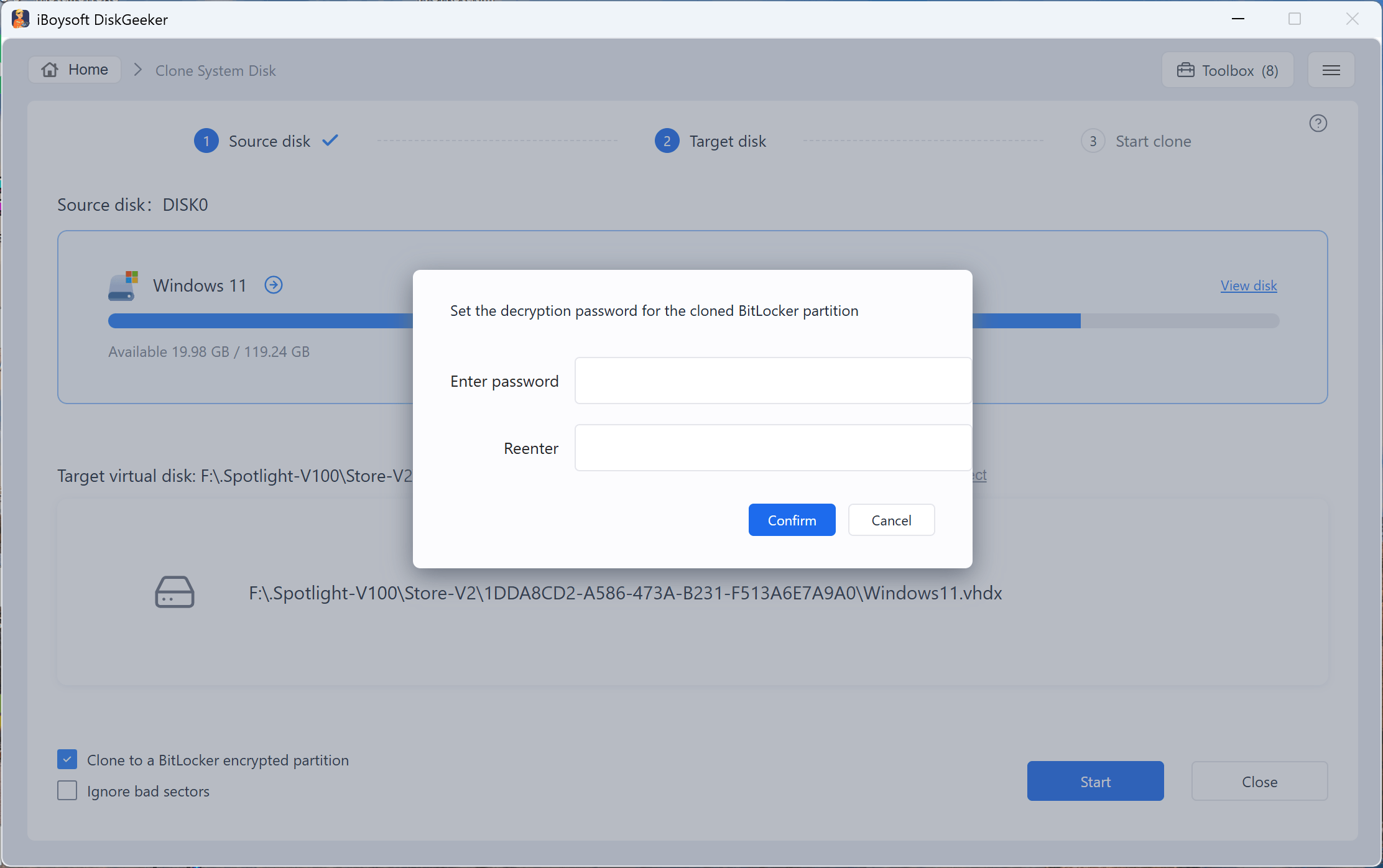
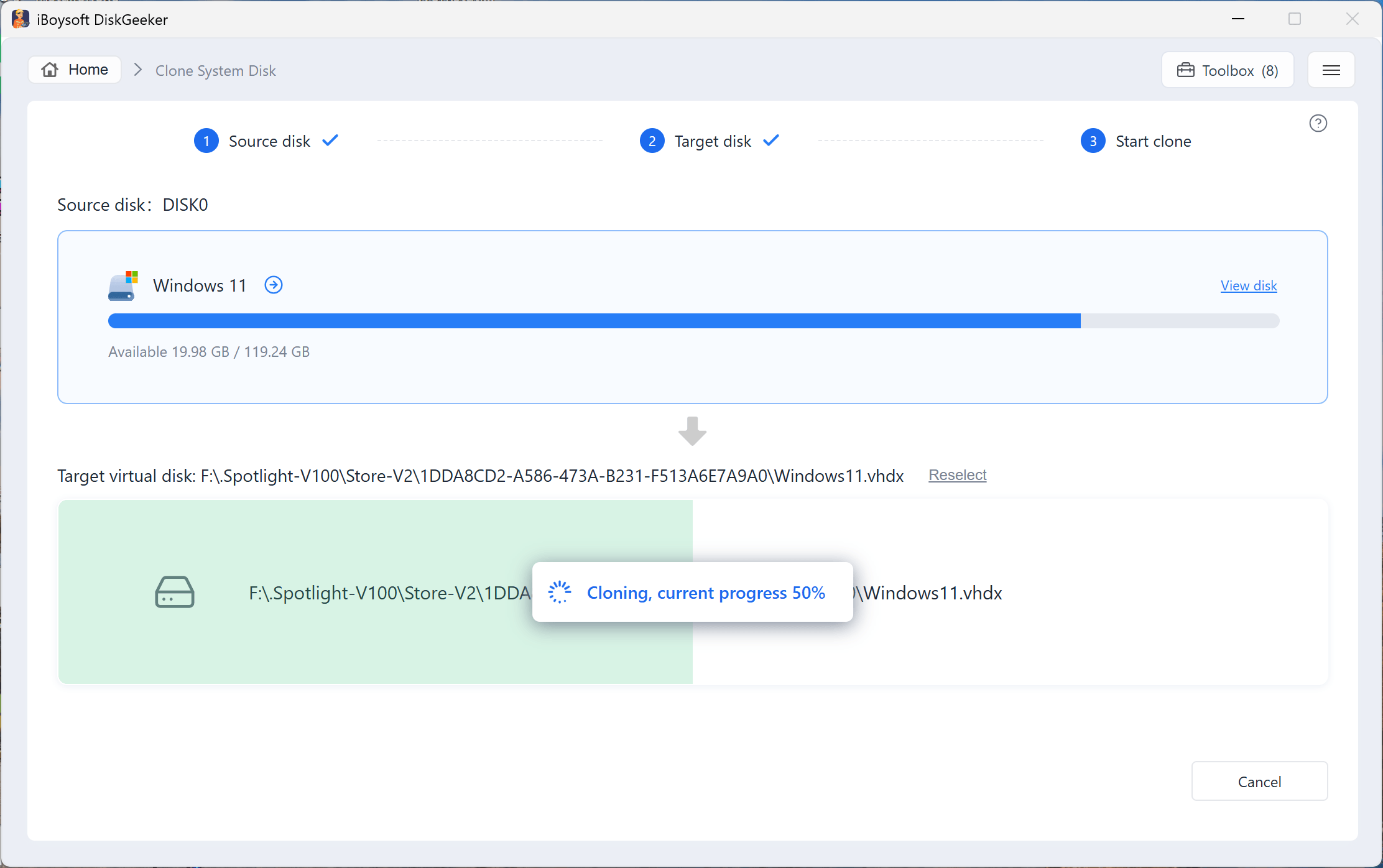
④ Click "Start," confirm in the prompt, and wait for the process to finish.
Option 2. Clone system disk to a physical hard disk
① Select a connected disk as the destination and click "Confirm."
🔔 You can clone the OS disk as a BitLocker-encrypted one. To do so, tick the "Clone to a BitLocker-encrypted partition" option. Then, you'll be asked to set a password.
🔔 If you worry that the bad sectors on the source partition interrupt the cloning process, check the "Ignore bad sectors" option.
② Click "Start" and confirm in the prompt.
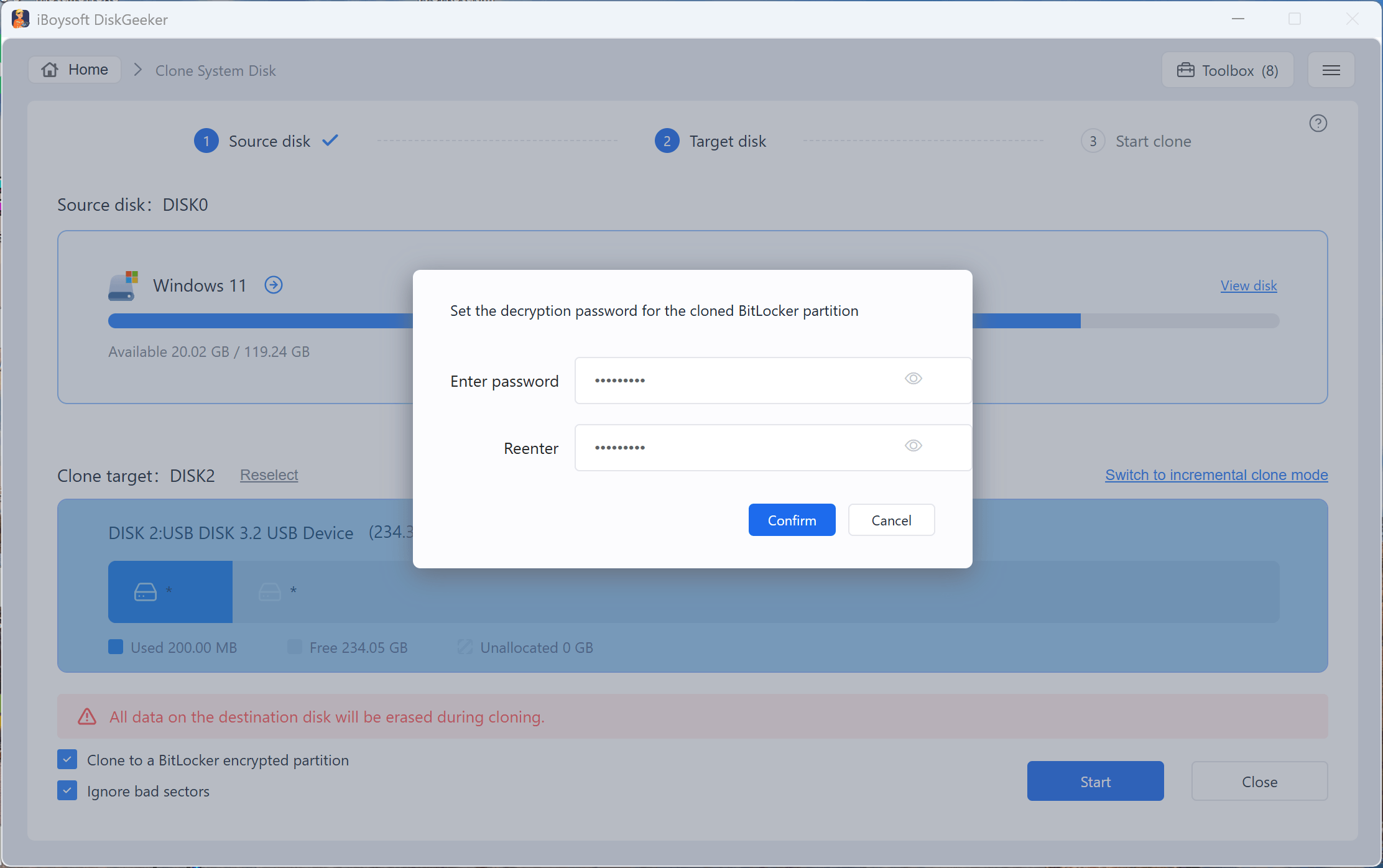
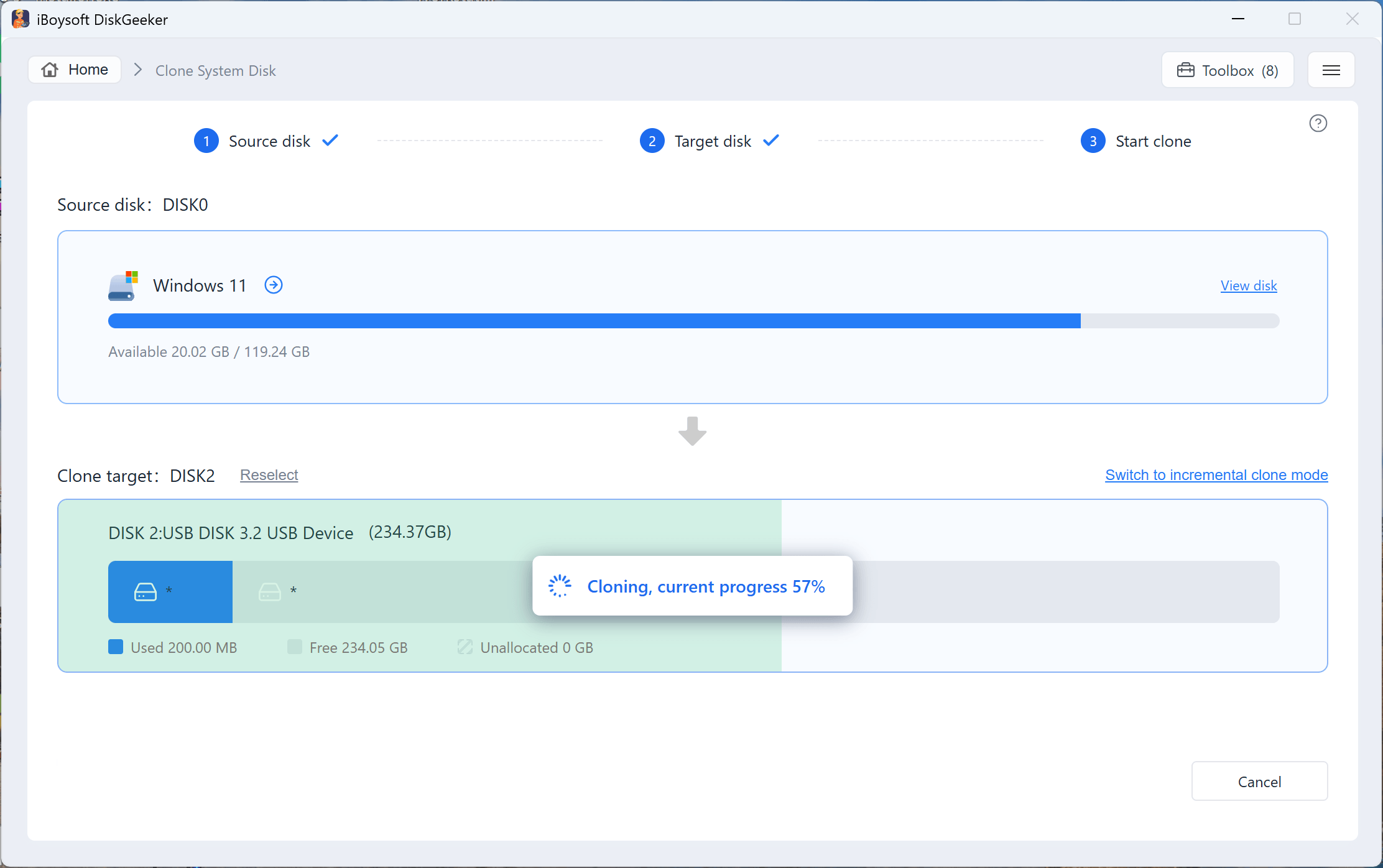
Step 4: Wait for the cloning process to complete.
When cloning starts, the disk distribution map of the target disk will be displayed as a visual progress bar.
Tips:
• You can cancel the system partition cloning task at any time during the process.
• You can conduct incremental system cloning (or called incremental backup) but not in the Clone System Disk module. Switch to the "Incremental clone" module after finishing a system partition clone, and then choose your system partition as the source partition and the cloned system partition on the destination disk as the target partition.
Restore the cloned system disk to the current system
After cloned the system drive, you can use it to restore the system data from the cloned system disk to the current system drive in Windows PE environment.
The restoration process is also a cloning process. You should set the cloned system disk as the source disk and your system drive (local C drive) as the target disk.
Step 1: Connect the cloned system drive to the PC.
Step 2: Enter Windows PE environment. (Learn how to create a Windows PE boot disk >>)
Step 3: Launch iBoysoft DiskGeeker for Windows.
Step 4: Click "All clone tools" from the Clone and data migration section.
Step 5: Select "Partition clone."
Step 6: Choose the cloned system drive as the source disk.
Step 7: Select the local C drive as the target.
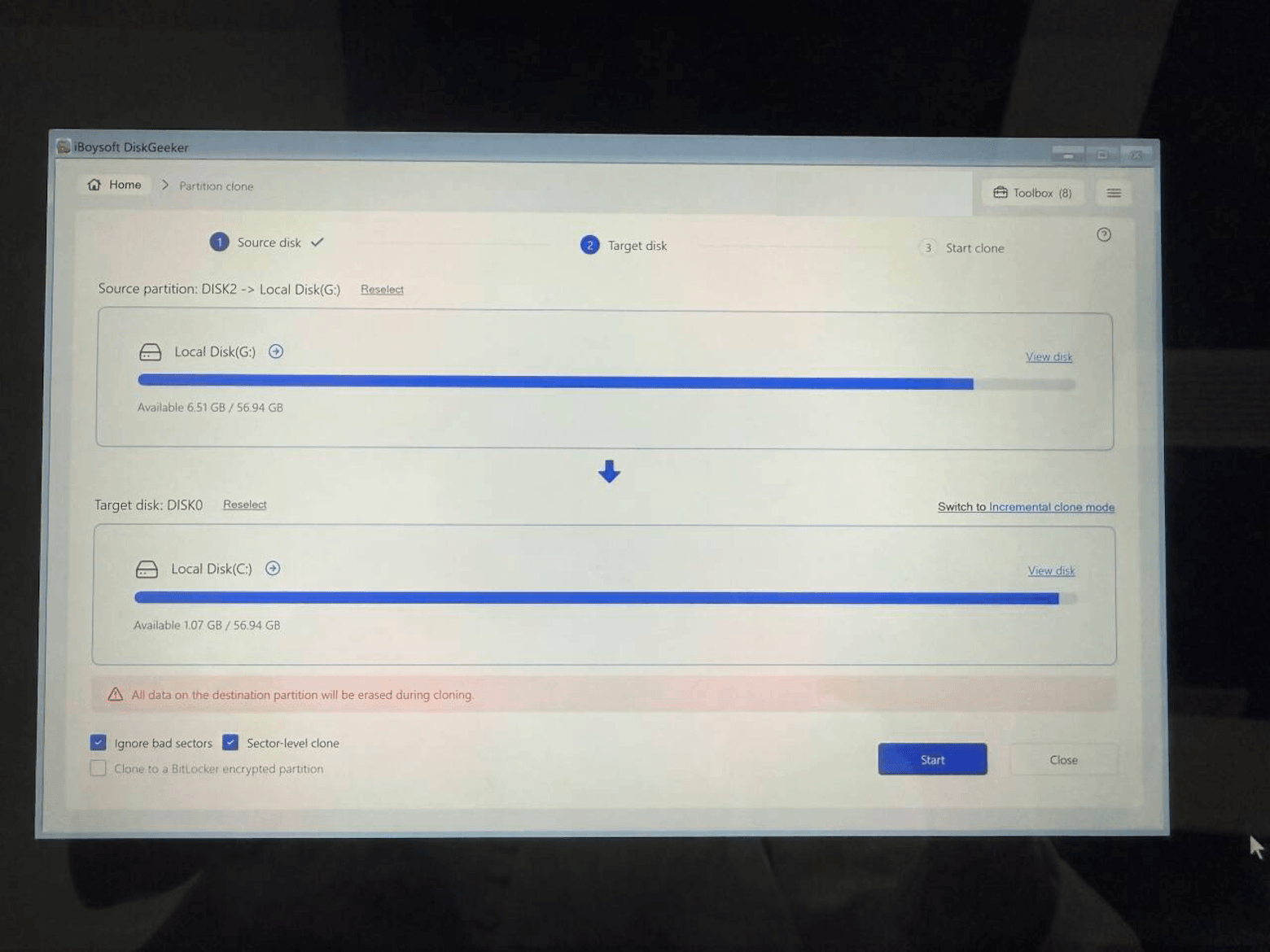
Step 8: Click "Start."
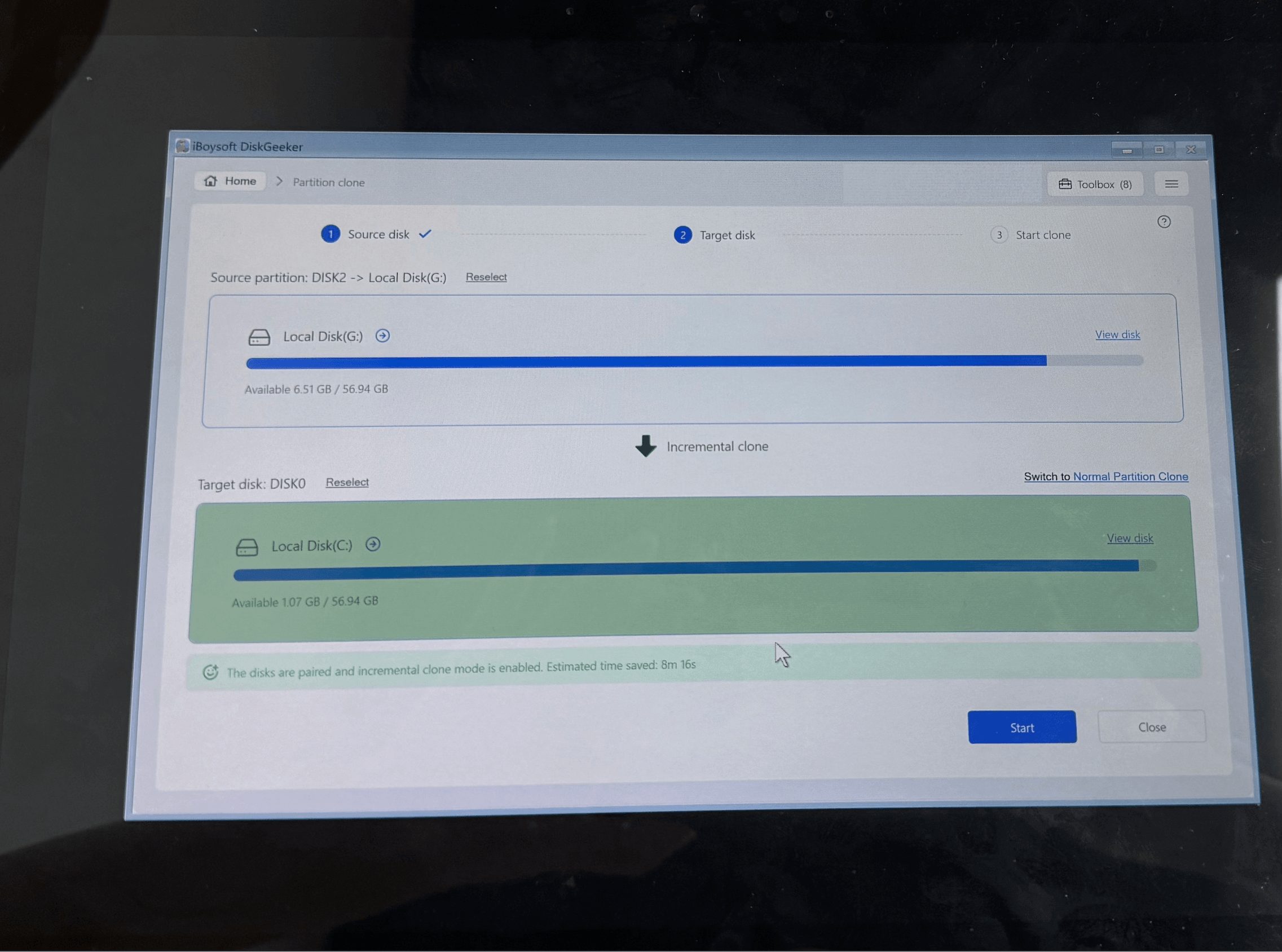
This tool also supports incremental cloning when restoring system data to ensure a fast restoration.
Clone a partition
Partition clone helps you create a copy of any partition (including a BitLocker-encrypted partition) so as to make an exact backup.
Only allocated partitions with over 500 MB in size can be cloned.
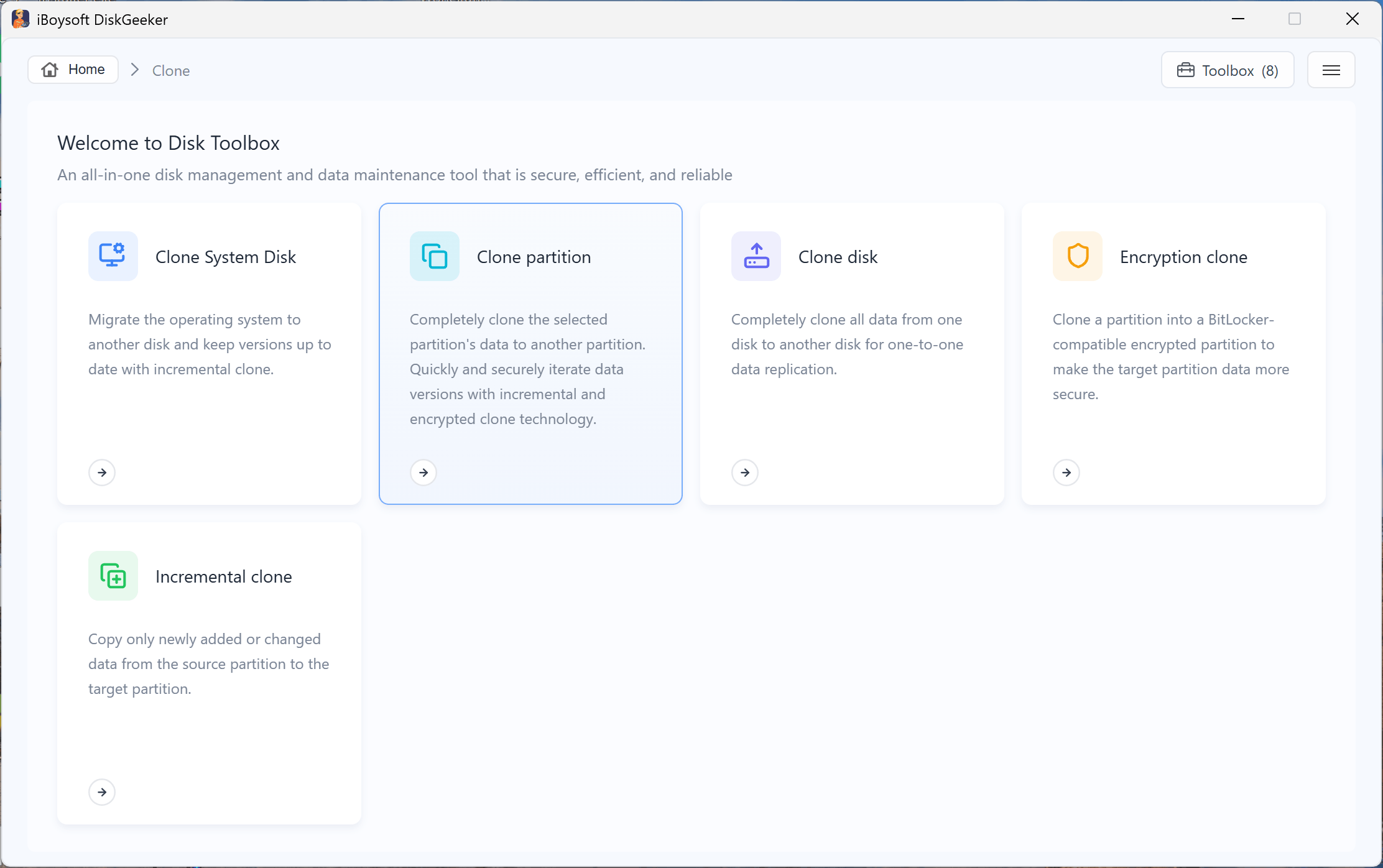
Step 1: Click "All clone tools" from the Clone and data migration module > "Clone partition."
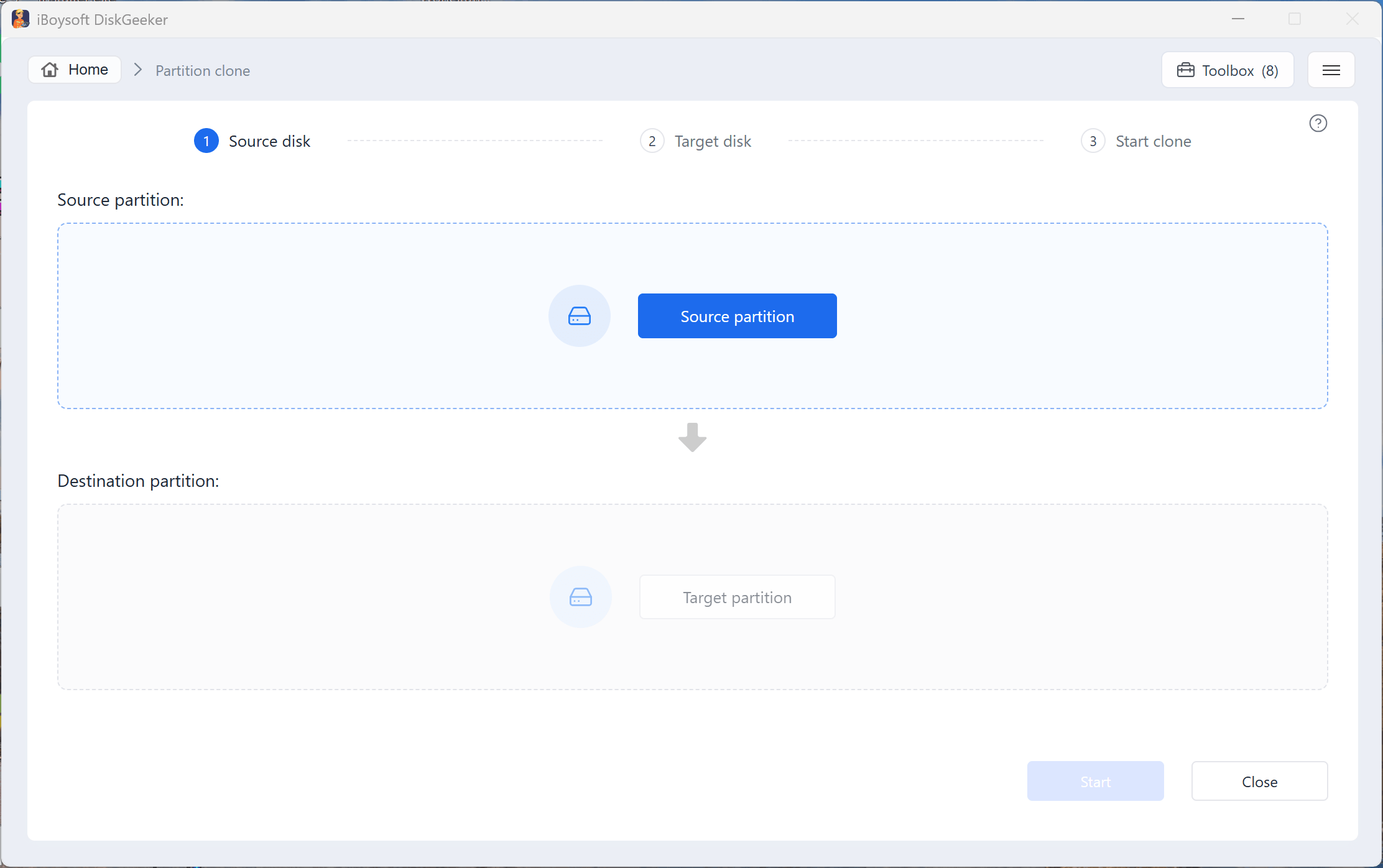
Step 2: Click "Source partition" to choose the partition you want to clone.
You are allowed to choose a BitLocker-encrypted partition as the source partition.
After selecting the source partition, you'll see the basic info of the partition, such as partition label, drive letter, total capacity, available space, etc. You can click "View disk" to view the disk condition where the selected partition resides. The selected partition will be cricled in yellow here.
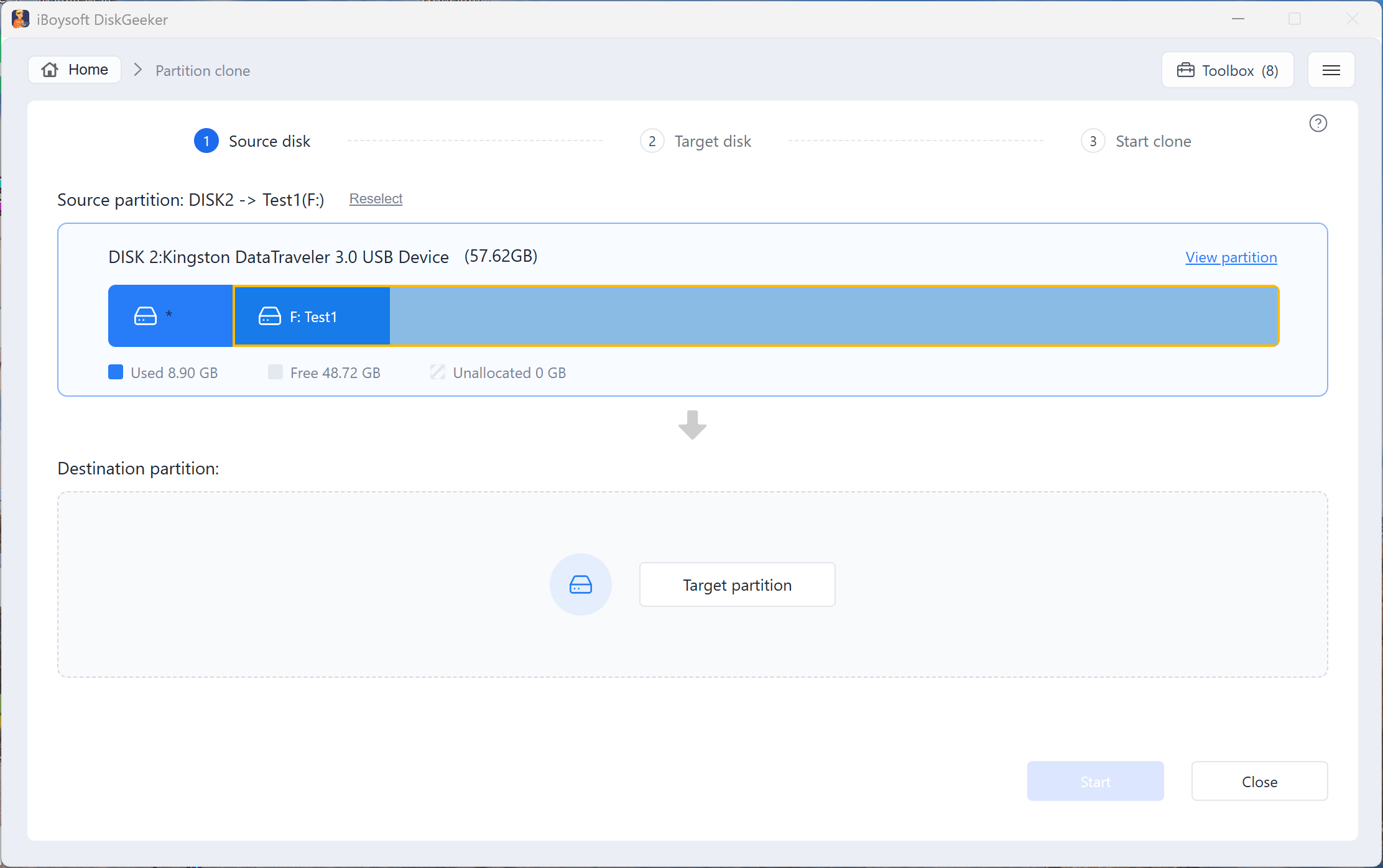
If you want to change the source partition, click the "Reselect."
Step 3: Click "Target partition" and select your destination partition from the list.
The Target partition button is available only after you choose the source partition.
Step 4: Set up your cloning preferences.
• Ignore bad sectors: bypass the bad sectors on the source partition to prevent the cloning process from being interrupted by them.
• Sector-level clone: exactly clones all existing data on the source partition and all available space to the target partition. The sector-level clone mode considers all space of the source partition, including the available space, as valid data storage space.
• Clone to a BitLocker encrypted partition: clone the partition to be a BitLocker-encrypted one.
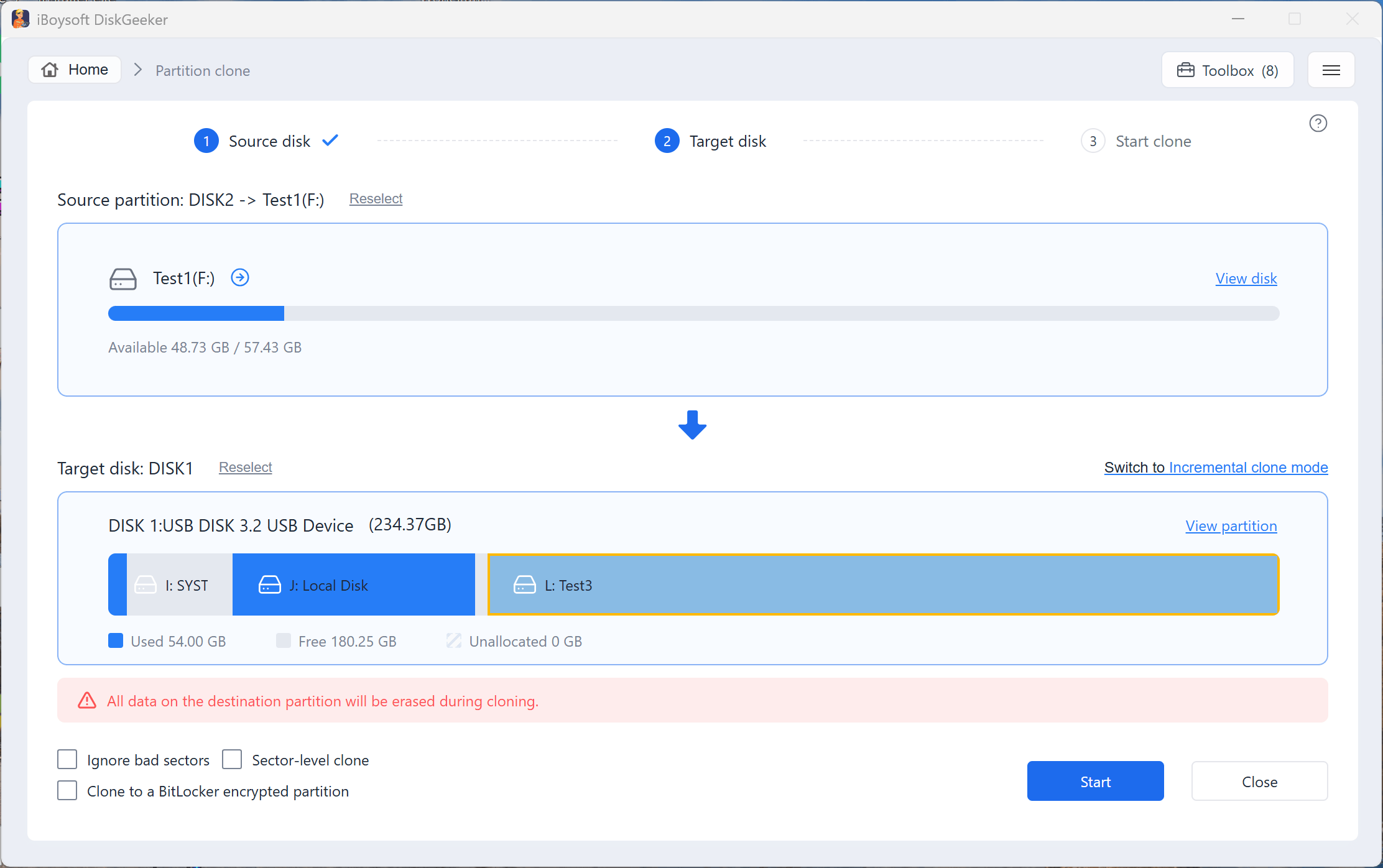
Note: Partition clone in iBoysoft DiskGeeker contains two modes - full clone and incremental clone.
After choosing the target partition, you are in full clone mode by default. Full clone enables you to copy all data from the source partition to the target partition one by one.
If you've completed a full clone on the selected source and target partitions, you'll automatically enter the incremental clone mode. You can click the "Switch to Full clone mode" button to change to the full clone mode if you'd like.
Step 5: Click "Start" > "Confirm."
The full clone usually takes a relatively long time, especially if you select "Sector-level clone."
Step 6: Wait for the cloning to end.
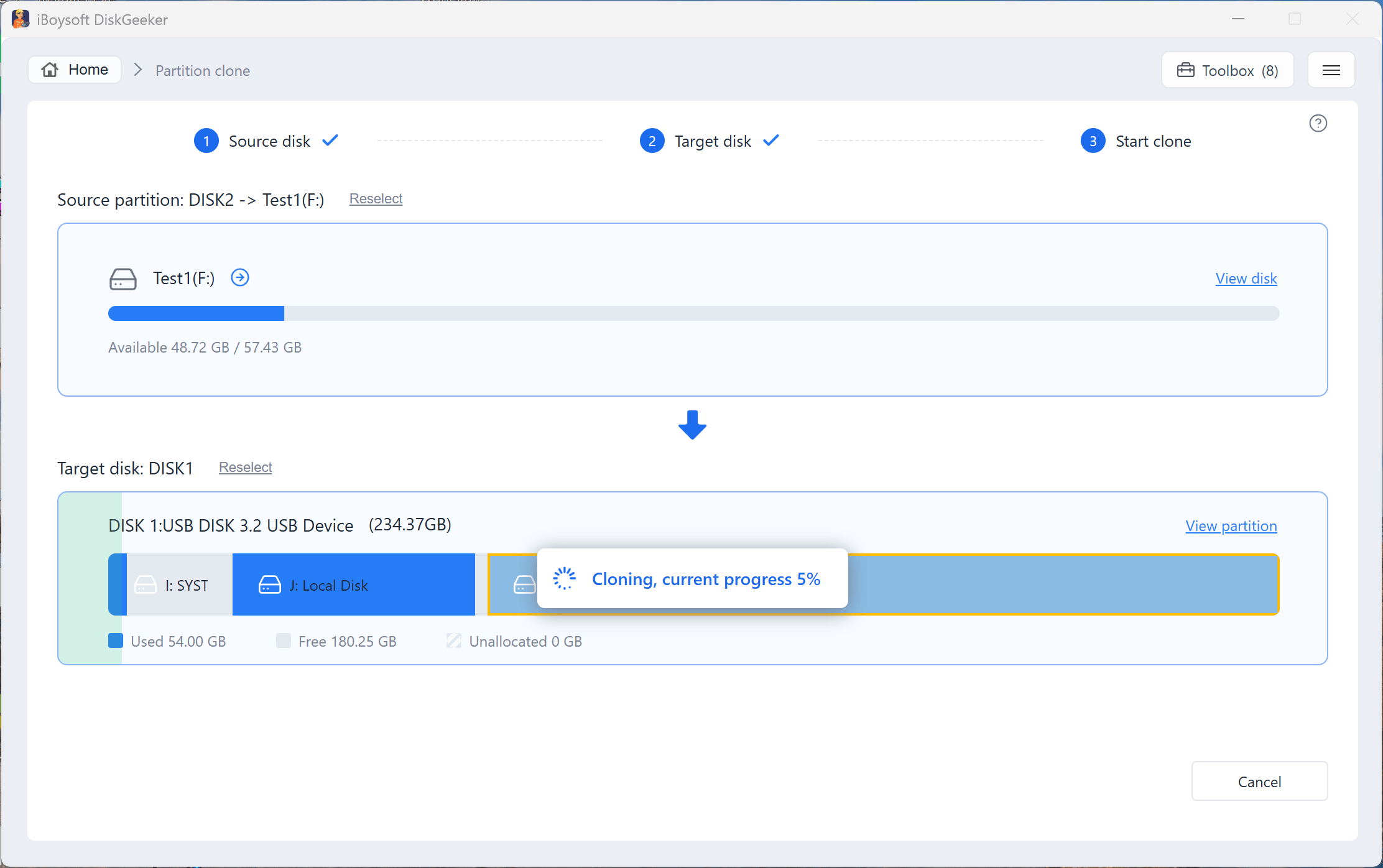
Clone a disk:
Disk clone makes an exact copy of all partition information and data on each partition on the target disk to a destination disk with the same sectors.
It also allows you to clone a disk with some partitions excluded.
Step 1: Click "All clone tools" from the Clone and data migration module > "Clone disk."
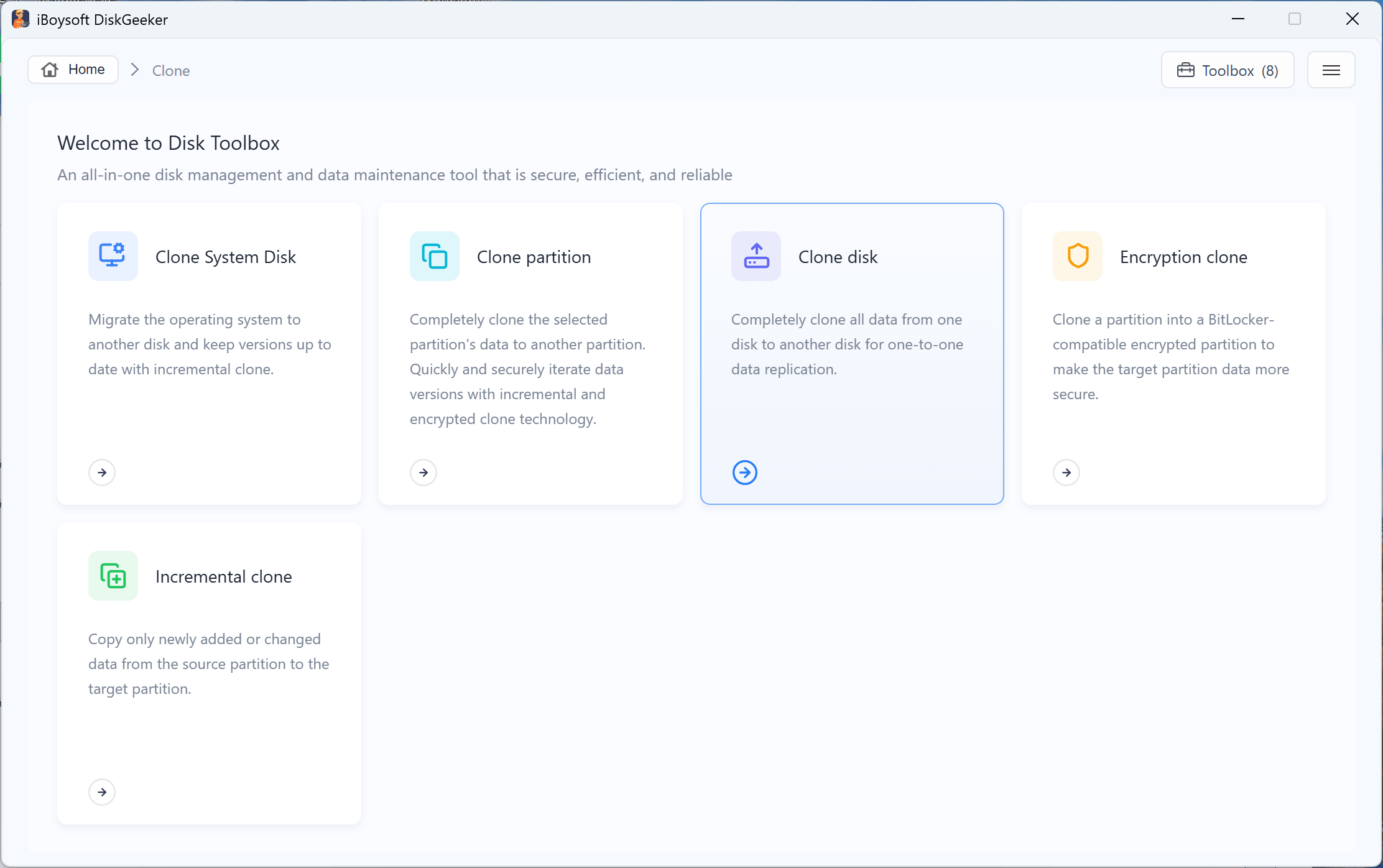
Step 2: Click "Source disk" to choose the source disk from the list.
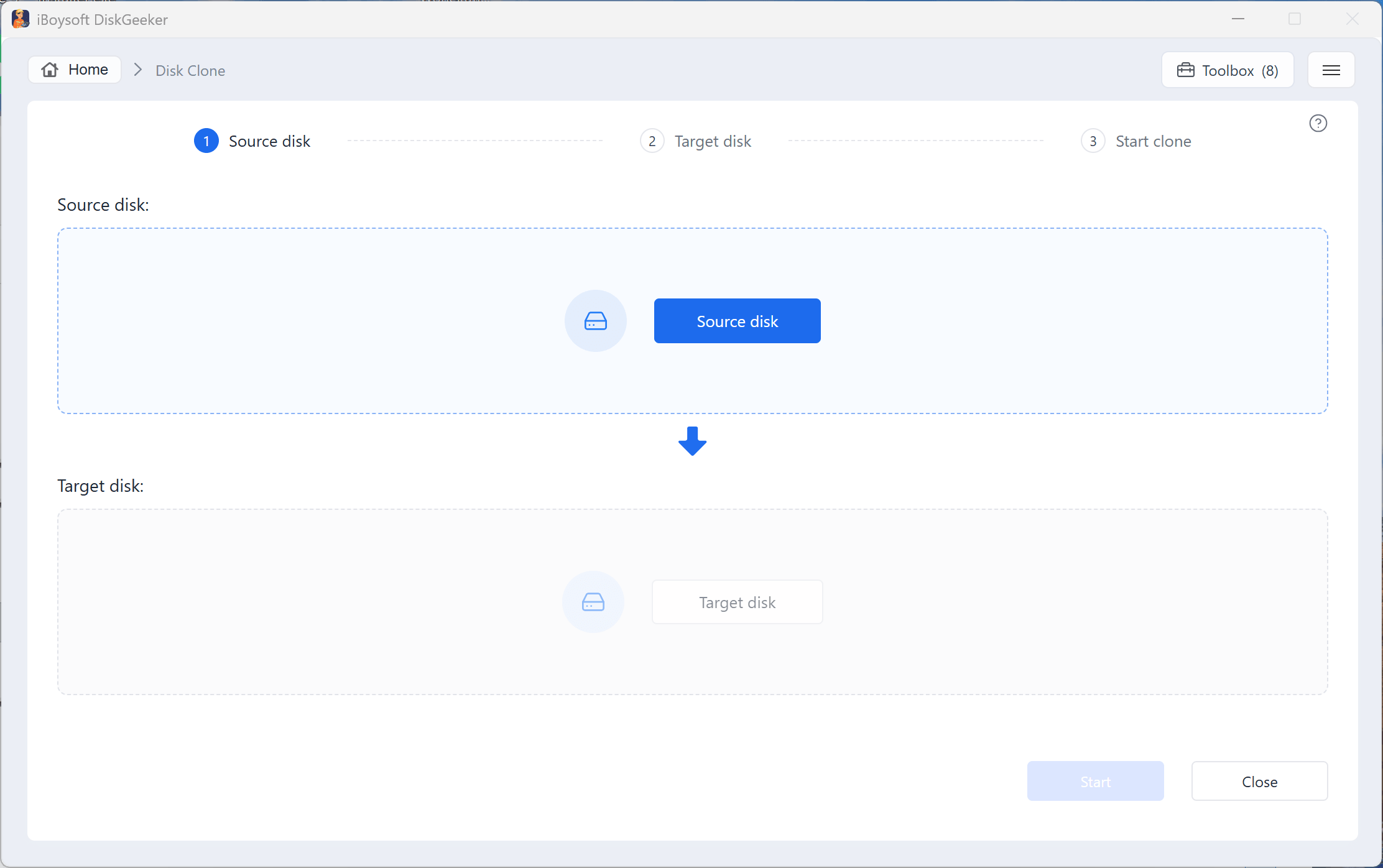
The selected source disk will be listed in the Source disk section. You can see all its partitions and their basic info here, including total storage, used storage, available storage, unallocated space, and more.
If you want to reselect the source disk, click on the selected source disk to reload the disk list and then reselect one.
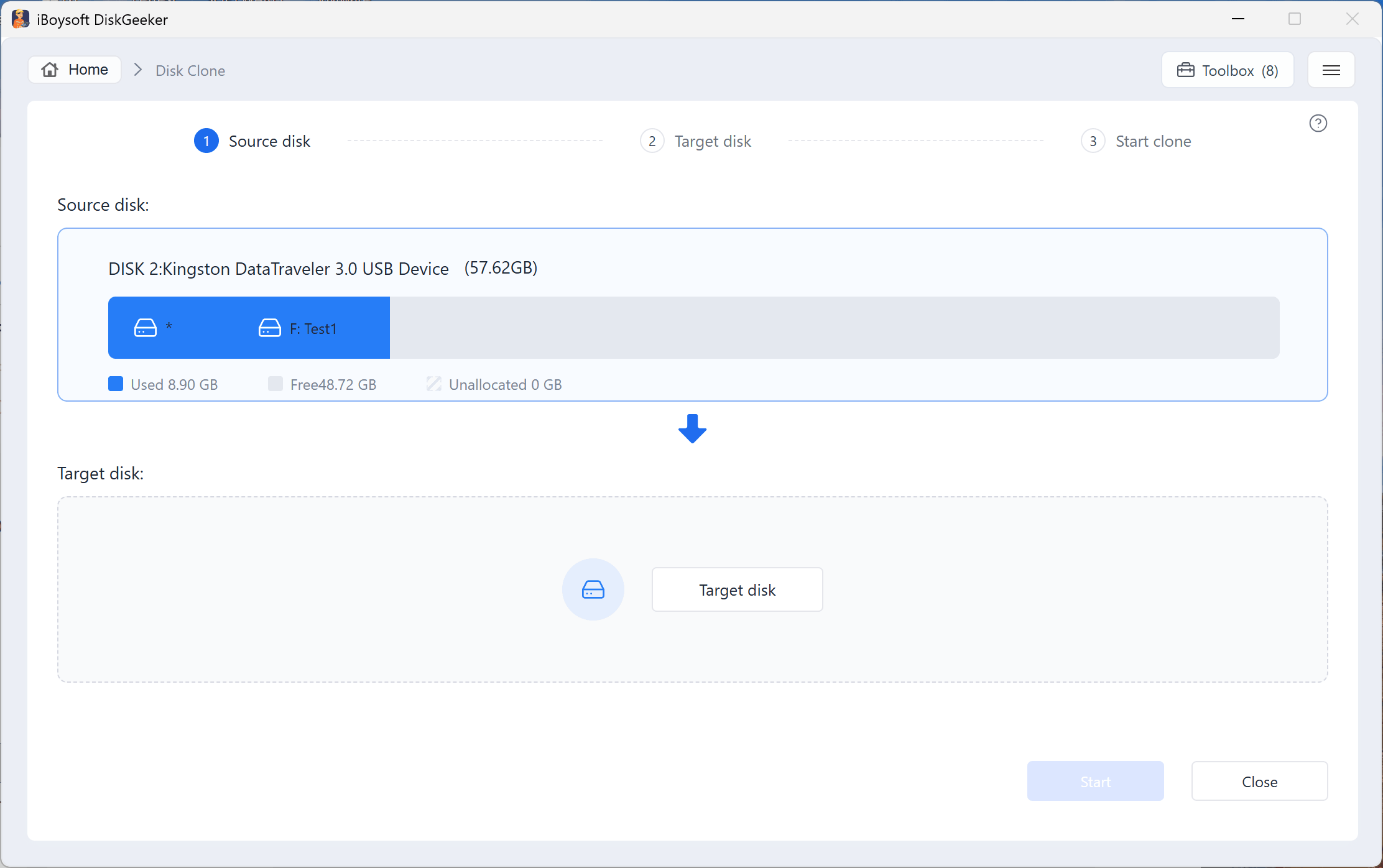
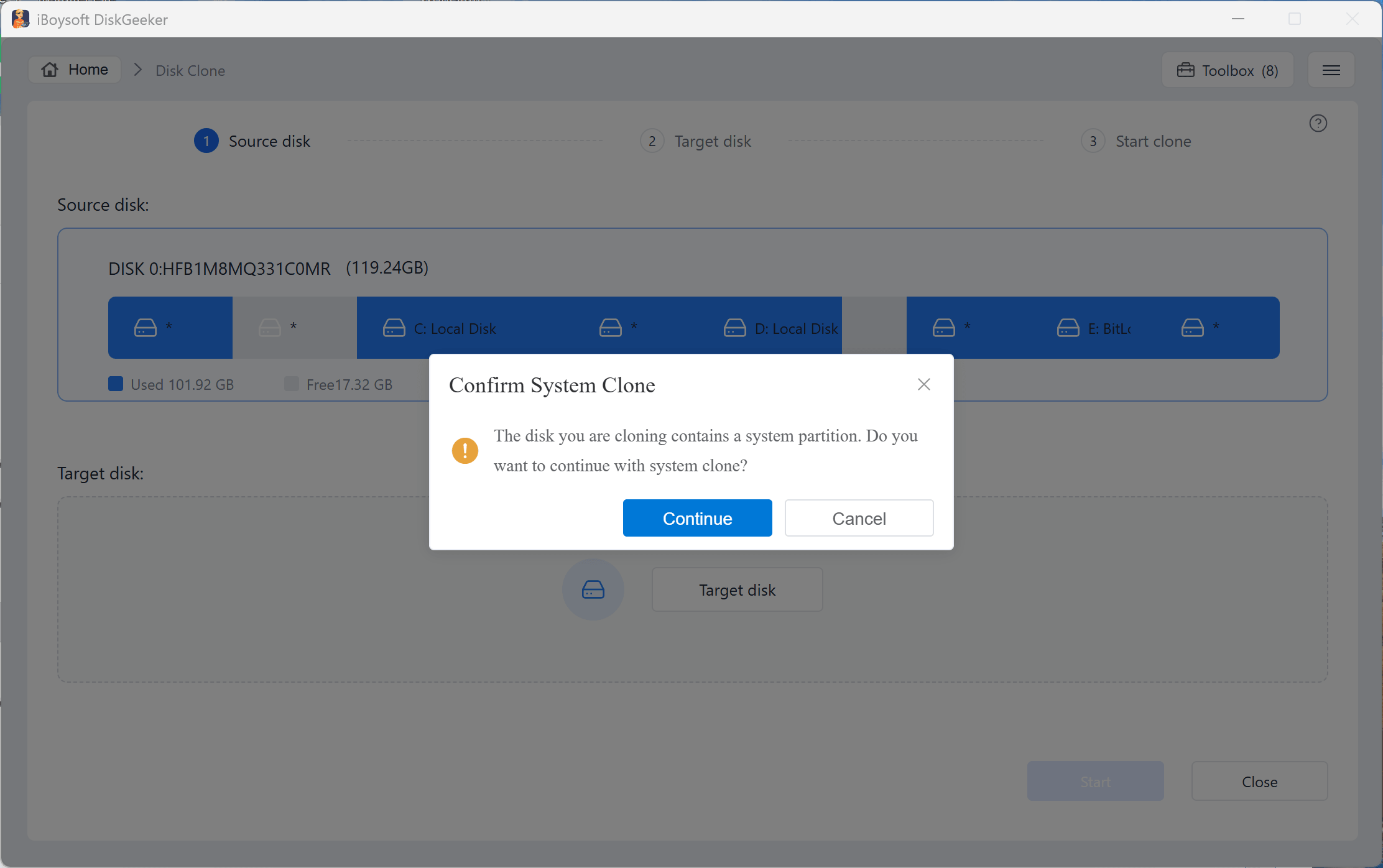
Note: You'll see the confirmation message below if you choose a hard drive containing Windows OS. As it describes, if you need to clone an OS disk as a bootable system disk, click "Yes" to switch to the OS disk clone mode. If not, click "No" to continue.
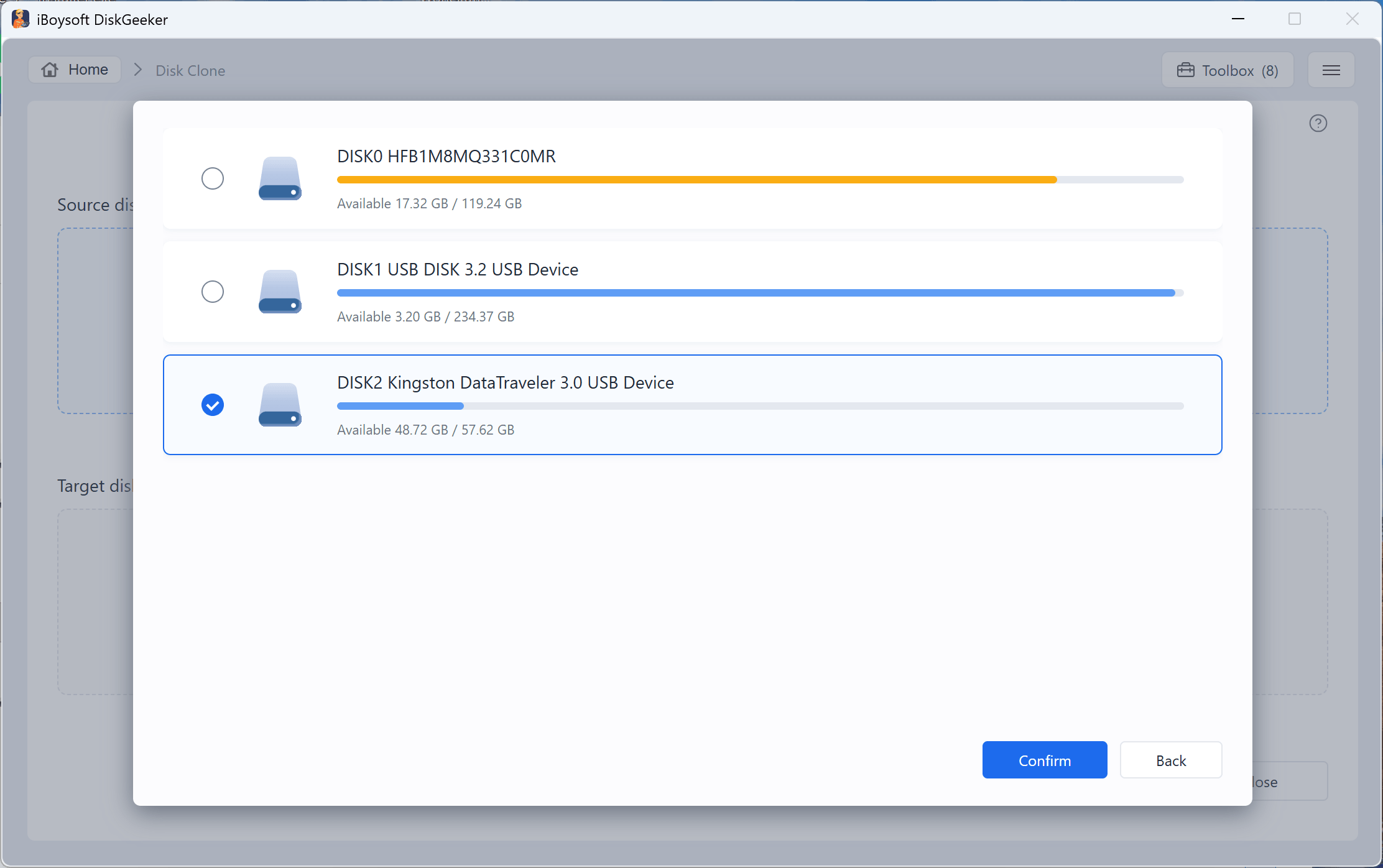
Step 3: Click "Target disk" to select the destination disk.
The storage capacity of the target disk must be larger than the source disk's.
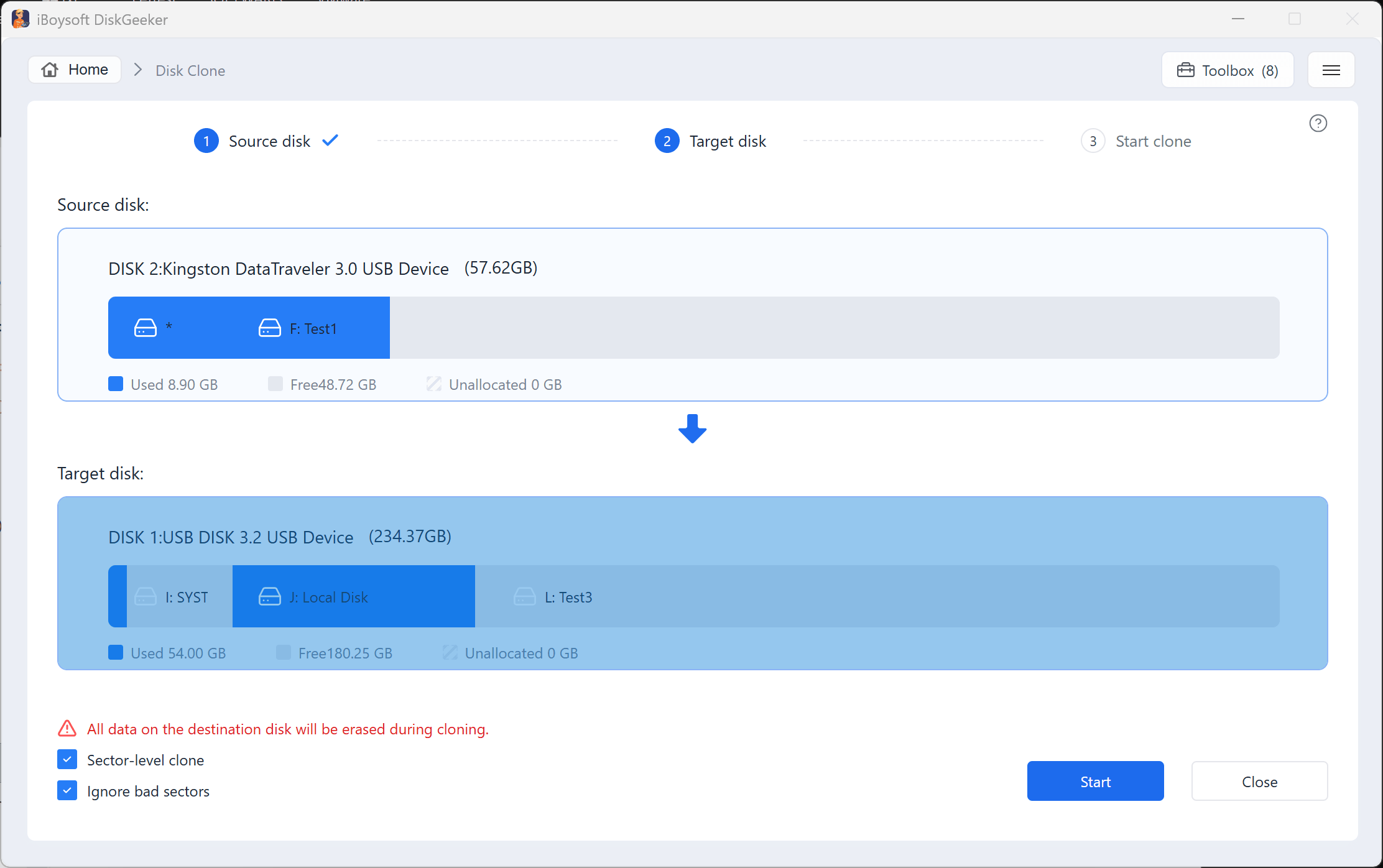
Step 4: Confirm the target disk and your settings.
If you want to make a 1:1 copy of the source disk rather than only copy the files, check "Sector-level clone." A sector-level clone will take longer time than a normal full clone.
If you don't want the bad sectors on the source disk to interrupt the cloning process, choose "Ignore bad sectors."
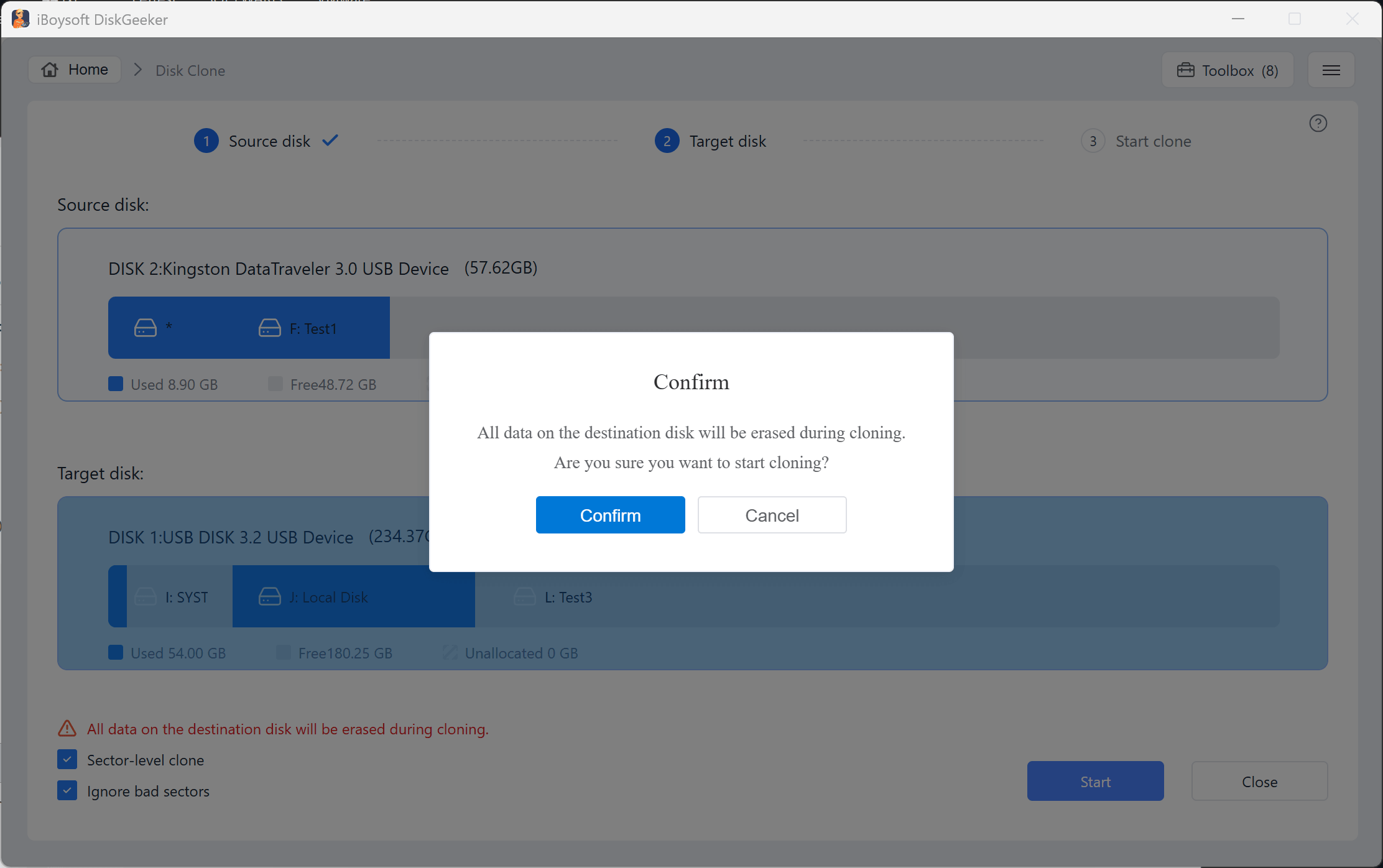
Step 5: Click "Start" > "Confirm" to start a disk clone.
Step 6: Wait for the disk clone to finish.
Incremental clone a partition
The exclusive incremental clone feature compares the data on the source partition and the target partition first. It then syncs only the inconsistent parts of the data between the source partition and the target partition, which saves a lot of time consumed by full disk cloning.
Incremental clone only applies to clone an NTFS partition.
Step 1: Click "Incremental clone" from the Clone and data migration module. Or, click "All clone tools" > "Incremental clone."
Step 2: Choose the source partition.
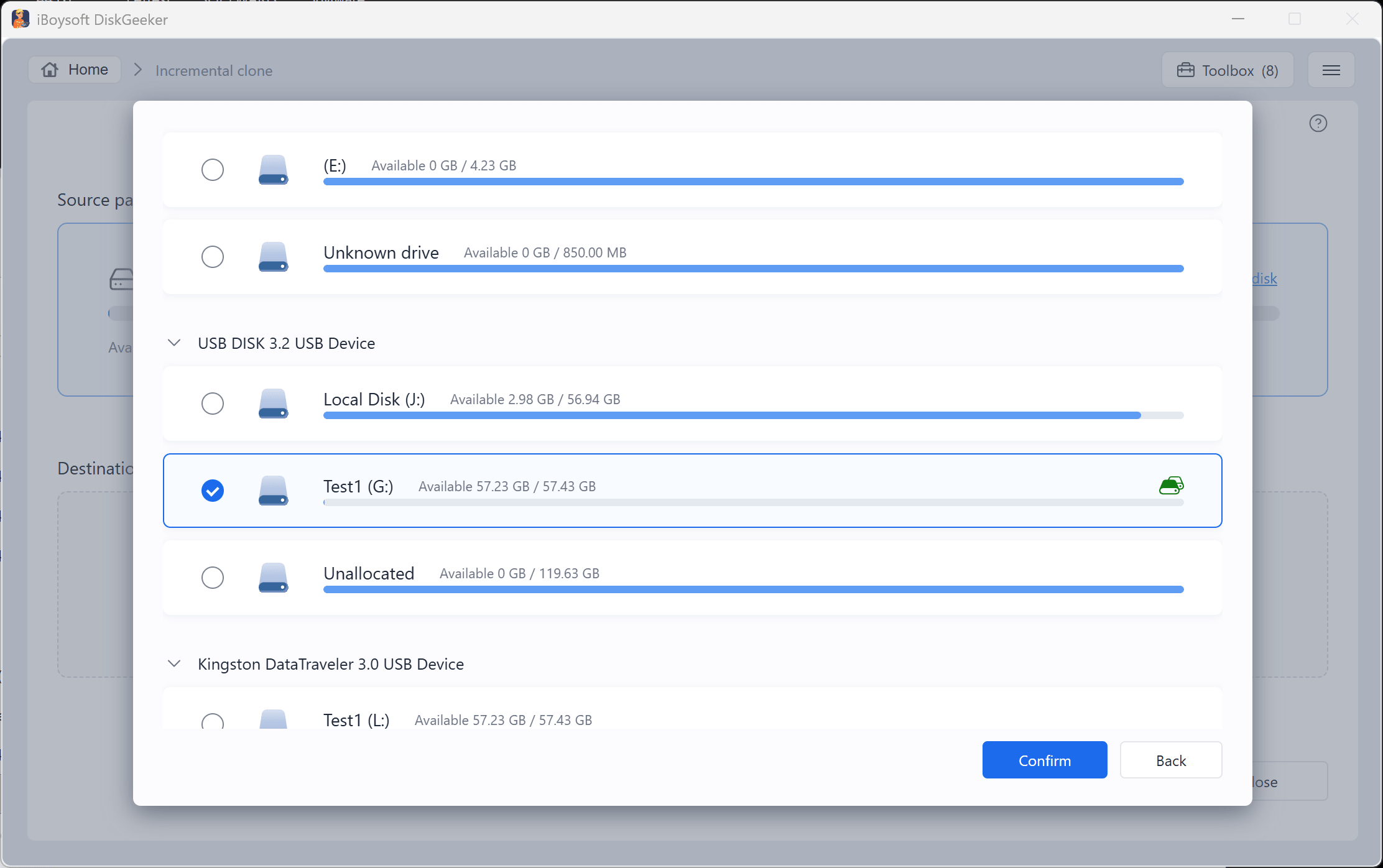
Step 3: Click "Target partition" to select your destination partition.
In the list, you will see that the partition is marked with a disk icon, and that is your target partition.
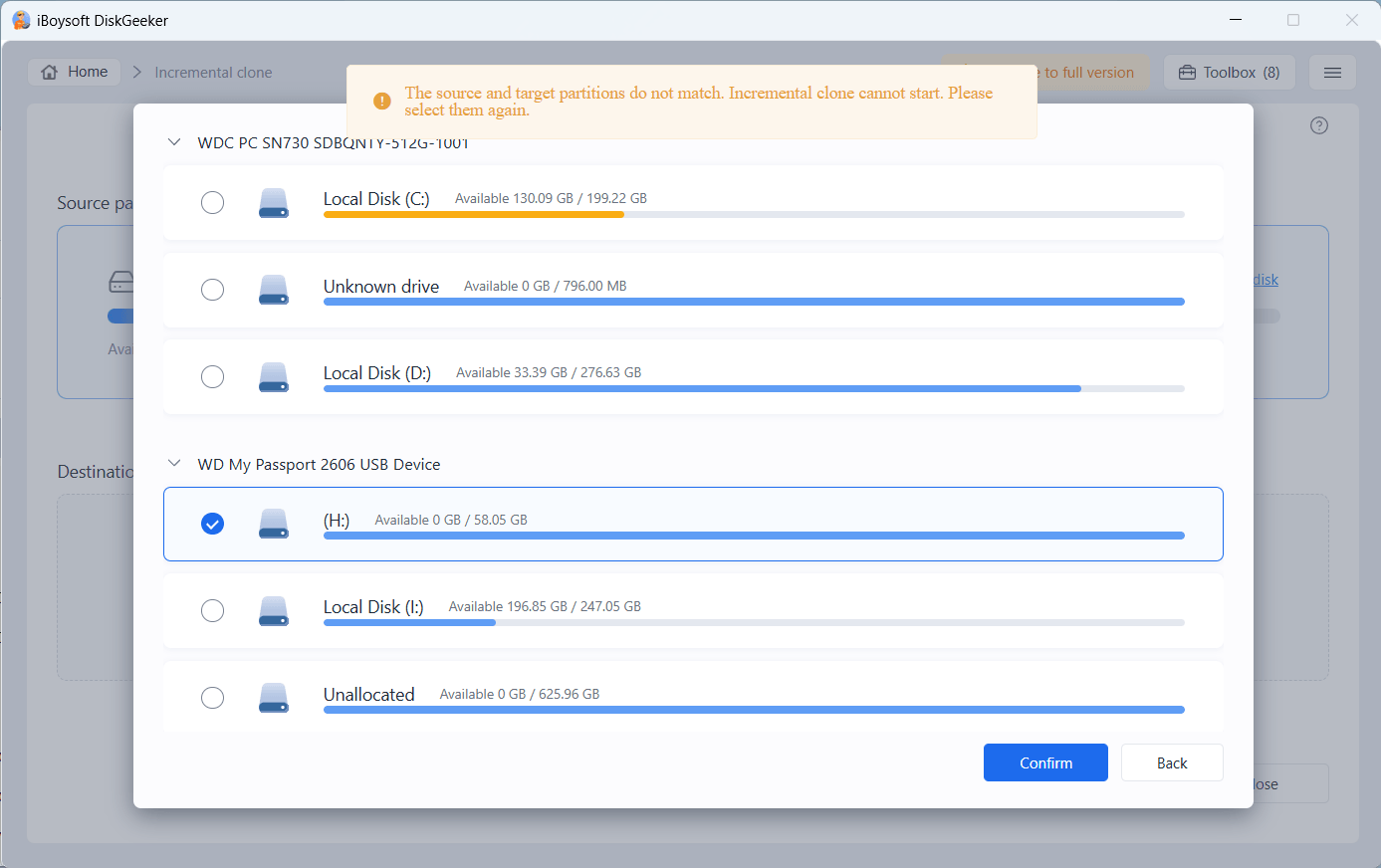
If the destination partition doesn't match the source partition (in other words, it is not the cloned one of the source partition), the incremental clone won't start.
Step 4: Click "Start" and wait for the incremental clone to complete.
Encryption clone a partition
Encryption clone enables you clone the source partition to be a BitLocker-encrypted for data protection and avoid ransomware attacks.
You can clone a source partition as a BitLocker partition with full clone mode but can't do that with the incremental clone.
Step 1: Click "Encrypted clone" from the Clone and data migratition module. Or, click "All clone tools" > "Encryption clone."
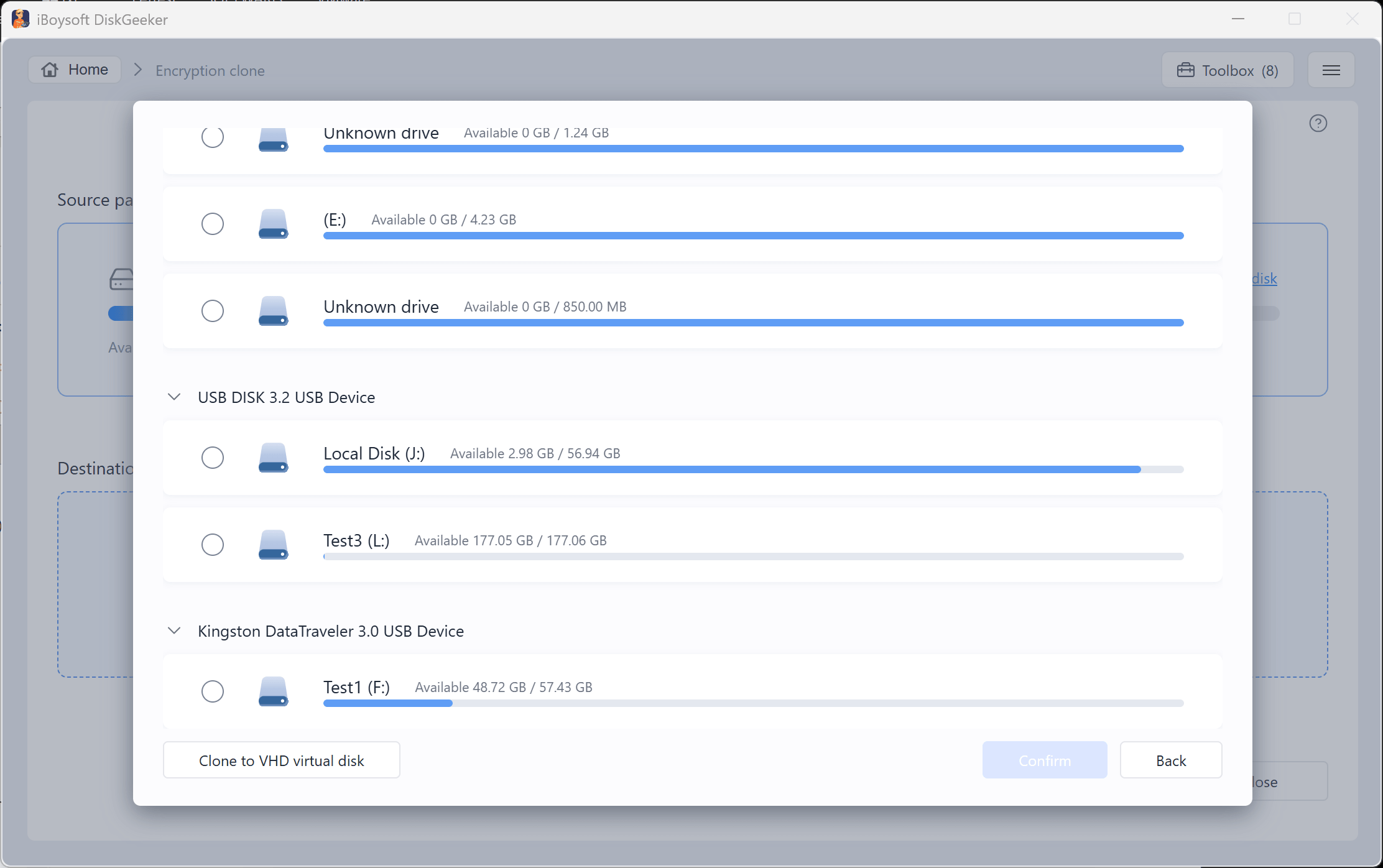
Step 2: Select a source disk and a target disk.
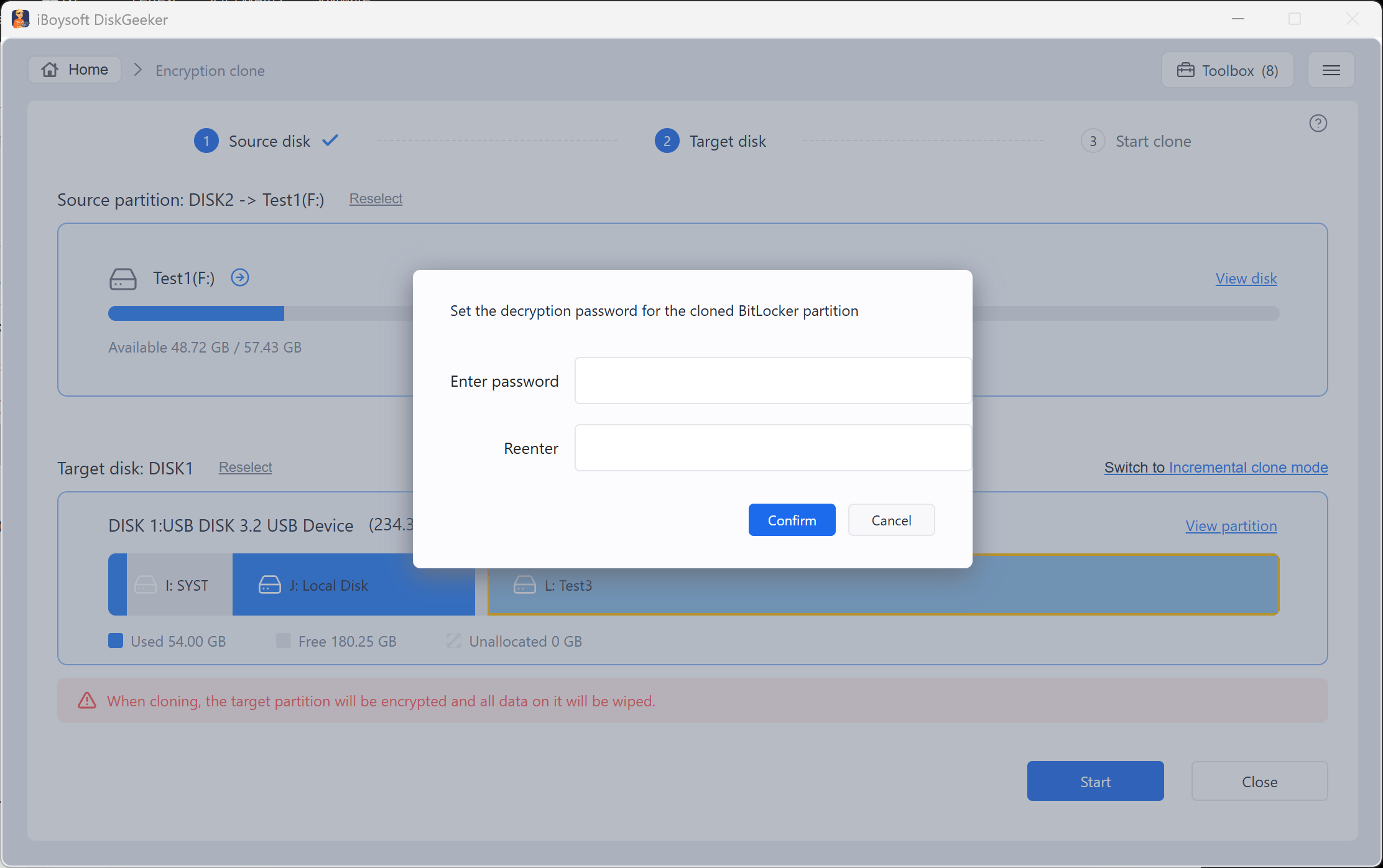
Step 3: Enter a password on the prompt and confirm it.
Step 4: Click "Start" and make a confirmation.
Step 6: Wait for the cloning process to finish.
Learn more about iBoysoft DiskGeeker for Windows's Clone feature
How to Download macOS or Windows Images & Create Bootable USB Installers
"Download and create boot disk" in iBoysoft DiskGeeker for Windows allows you to create macOS and Windows bootable USB installers and download macOS DMG files, macOS ISO files, and Windows ISO files.
macOS versions we supported for creating a bootable USB installer and downloading:
macOS 27 Golden Gate, macOS 26 Tahoe, 15 Sequoia, 14 Sonoma, 13 Ventura, 12 Monterey, 11 Big Sur, 10.15 Catalina, 10.14 Mojave, 10.13 High Sierra, 10.12 Sierra
OS X 10.11 El Capitan, 10.10 Yosemite, 10.9 Mavericks, 10.8 Mountain Lion, 10.7 Lion
Mac OS X 10.6 Snow Leopard
Windows versions we supported for creating a bootable USB installer and downloading:
Windows 11 (24H2, 23H2, 22H2, 21H2)
Windows 10 (22H2, 21H2, 21H1, 20H2, 2004, 1909, 1903, 1809, 1803, 1709, 1703)
Windows Server (2025, 2022, 2019, 2016, 2012 R2, 2008 R2)
Windows 8 (SP1)
Windows 7 (SP1)
Quick Navigation:
- Create a macOS Bootable USB Installer
- Download a macOS System Image (DMG & ISO)
- Create a Windows Bootable USB Installer
- Download a Windows System Image (ISO)
Create a macOS Bootable USB Installer
This lets you create a macOS bootable USB installer on a Windows PC to install or reinstall macOS on a Mac when the Mac won't turn on or is not working properly.
Step 1: Prepare an external hard drive or USB drive with at least 32 GB of free space and connect it to your PC.
All data on the drive will be erased when you create a bootable installer. So, back up data on it in advance.
Step 2: Click "Create" next to "Create macOS installer disk" on the System Images and Boot Disks module.
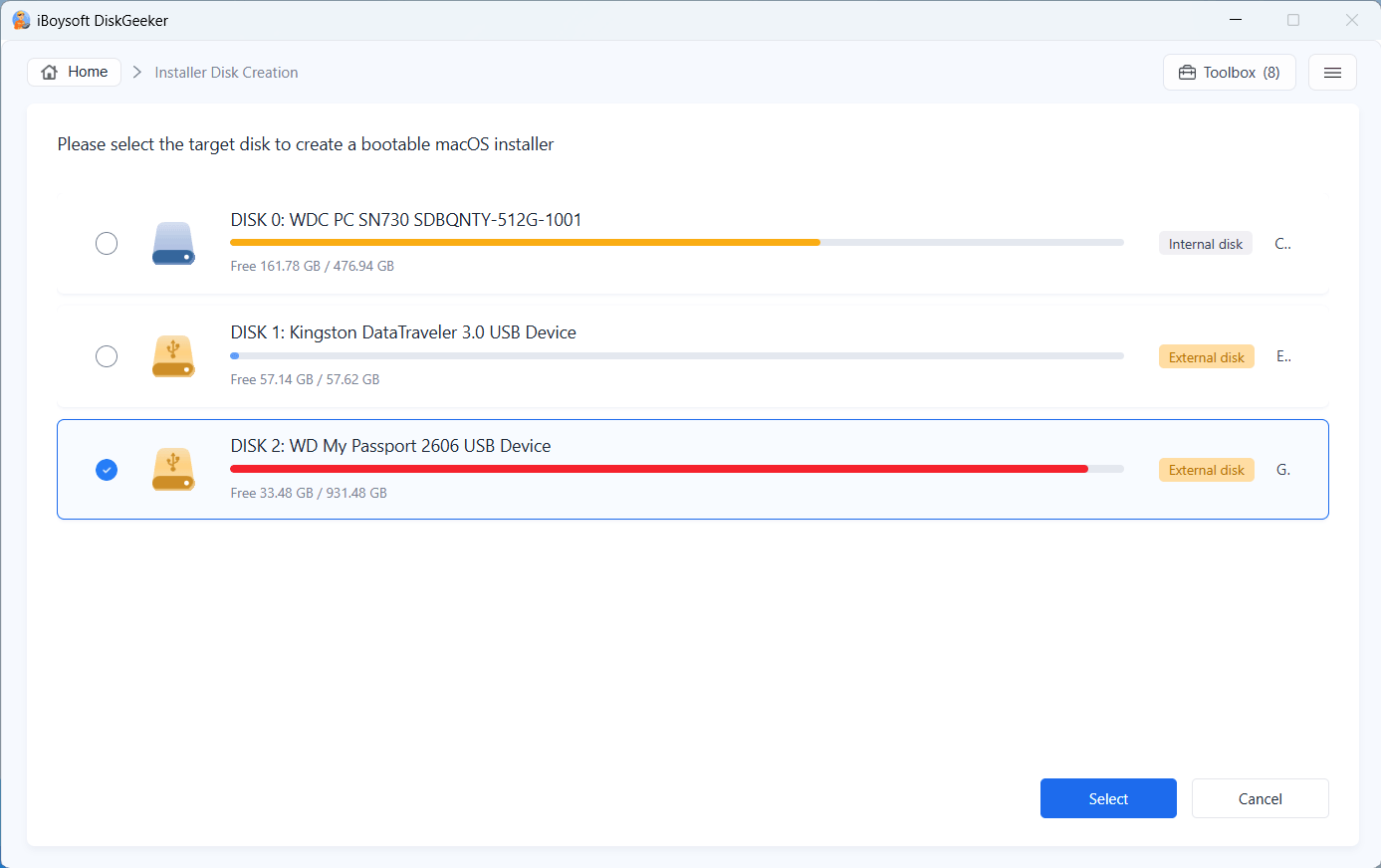
Step 3: Select the target disk and click "Select."
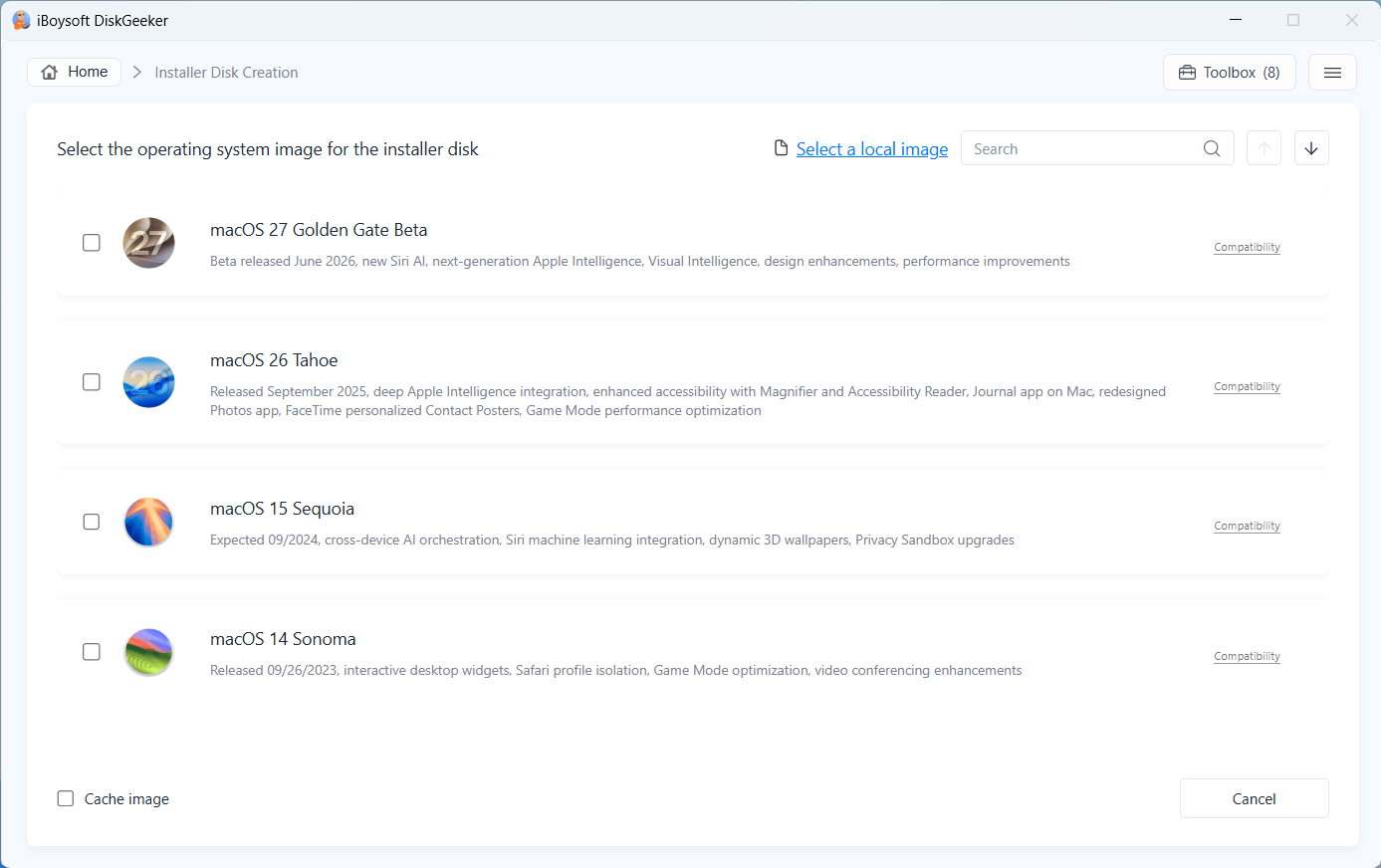
Step 4: Choose a desired macOS version and click "Create installer disk."
The tool will start downloading the Windows ISO file immediately. Once downloaded, it will automatically begin creating the bootable USB installer.
During the process, keep your internet connection well and ensure your computer is connected to the power source.
⚠️ Note:
• The bootable USB installer creation consists of two phases: downloading the macOS image and creating a bootable installer.
• By default, the macOS image will be downloaded to the same place where this tool is located. If you need to save it to a different destination, check "Cache image" and choose your desired location.
• The macOS image file can't be stored on the disk you'll use for the bootable disk.
• If you've ever paused a downloading process, check "Cache image" and find the folder where the interrupted macOS image is stored. This tool will automatically detect it and continue finishing the download.
• If you have a macOS image, you can click the Select a local image button in the upper-right corner. Then, select and upload it to directly start the bootable USB creation.
• If you see the error saying "Not enough disk space," it means the storage of the location you chose is insufficient. Please click "Cache image" to change to a different one.
Download a macOS System Image (DMG & ISO)
This tool enables you to directly download macOS in DMG and ISO formats (from the latest macOS 26 Tahoe to the old Mac OS X 10.6 Snow Leopard).
Step 1: Click "Download" next to macOS system image on the System Images and Boot Disks module.
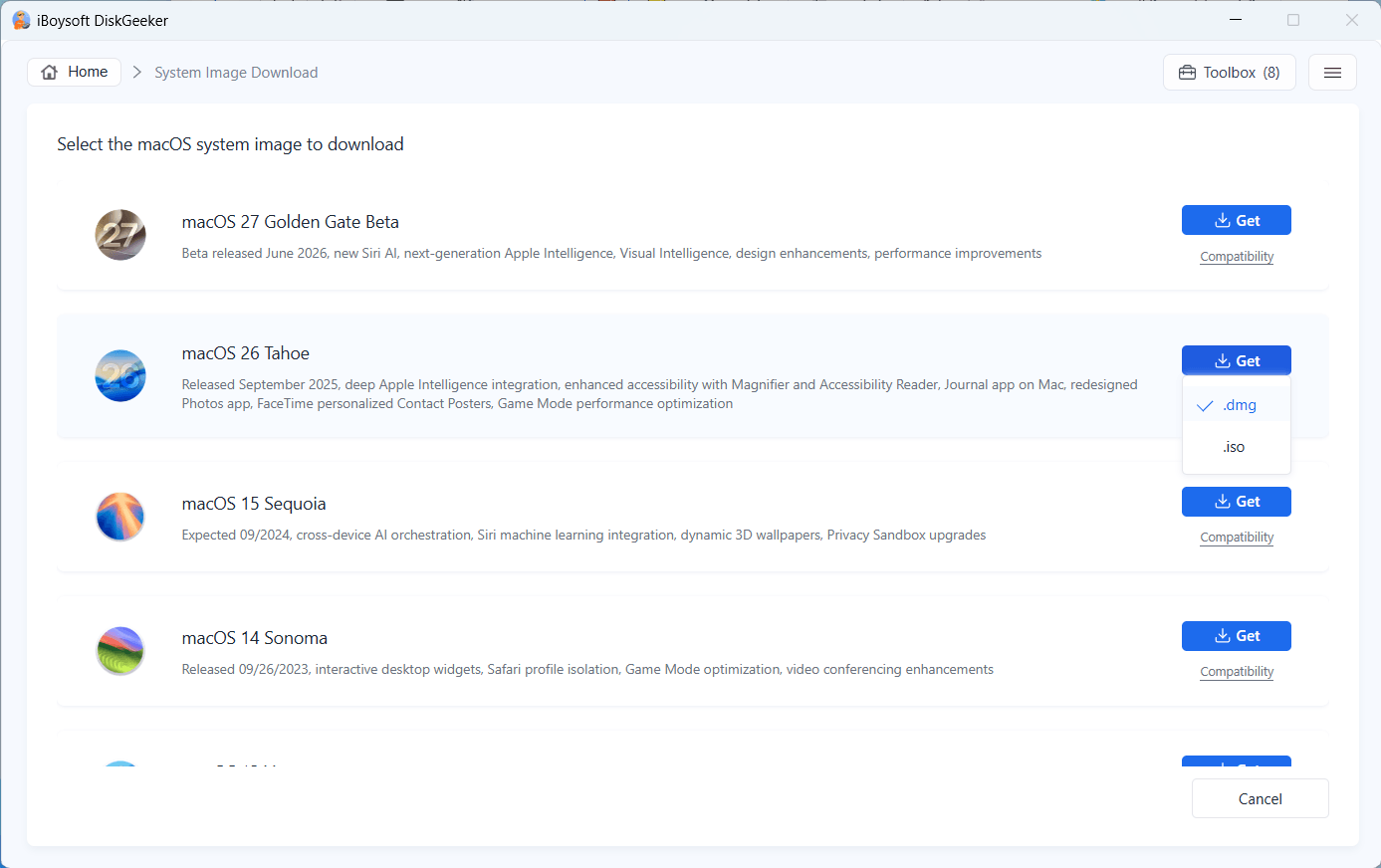
Step 2: Scroll down to find your desired macOS version and move your cursor to "Get."
Step 3: Select which format you want, DMG or ISO.
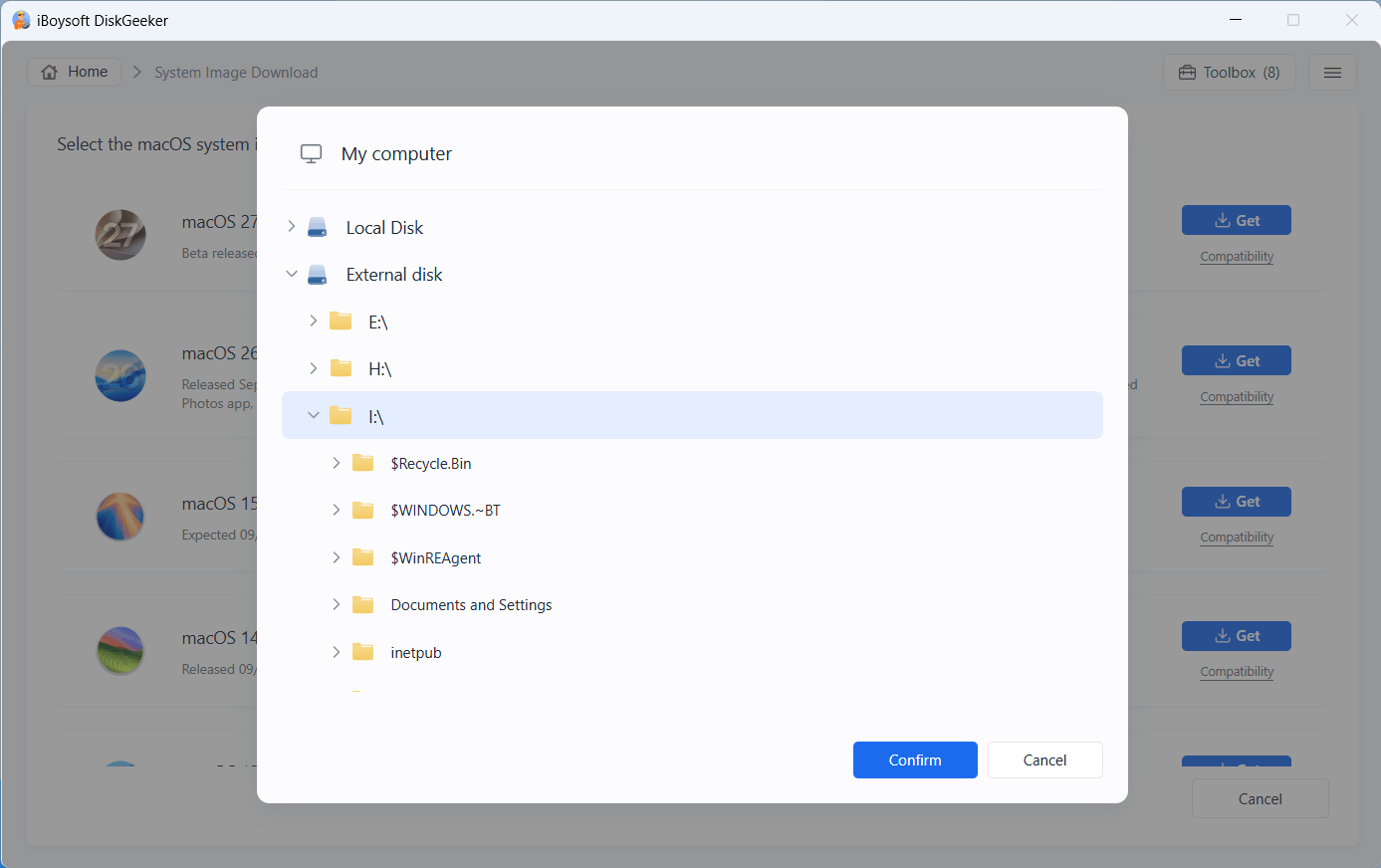
Step 4: Choose a destination to save this macOS image and click "Confirm."
Step 5: Wait for the process to complete.
Create a Windows Bootable USB Installer
This feature lets you create a bootable USB installer for Windows 11, 10, 8, 7, and Windows Server 2025, 2022, 2019, 2016, 2012 R2, and 2008 R2 in different languages, system architectures, and system editions.
Step 1: Prepare an external hard drive or USB drive with at least 32 GB of free space and connect it to your computer.
All data on the drive will be erased when you create a bootable installer. So, back up data on it in advance.
Step 2: Move your cursor to Windows on the System Images and Boot Disks module and click "Create."
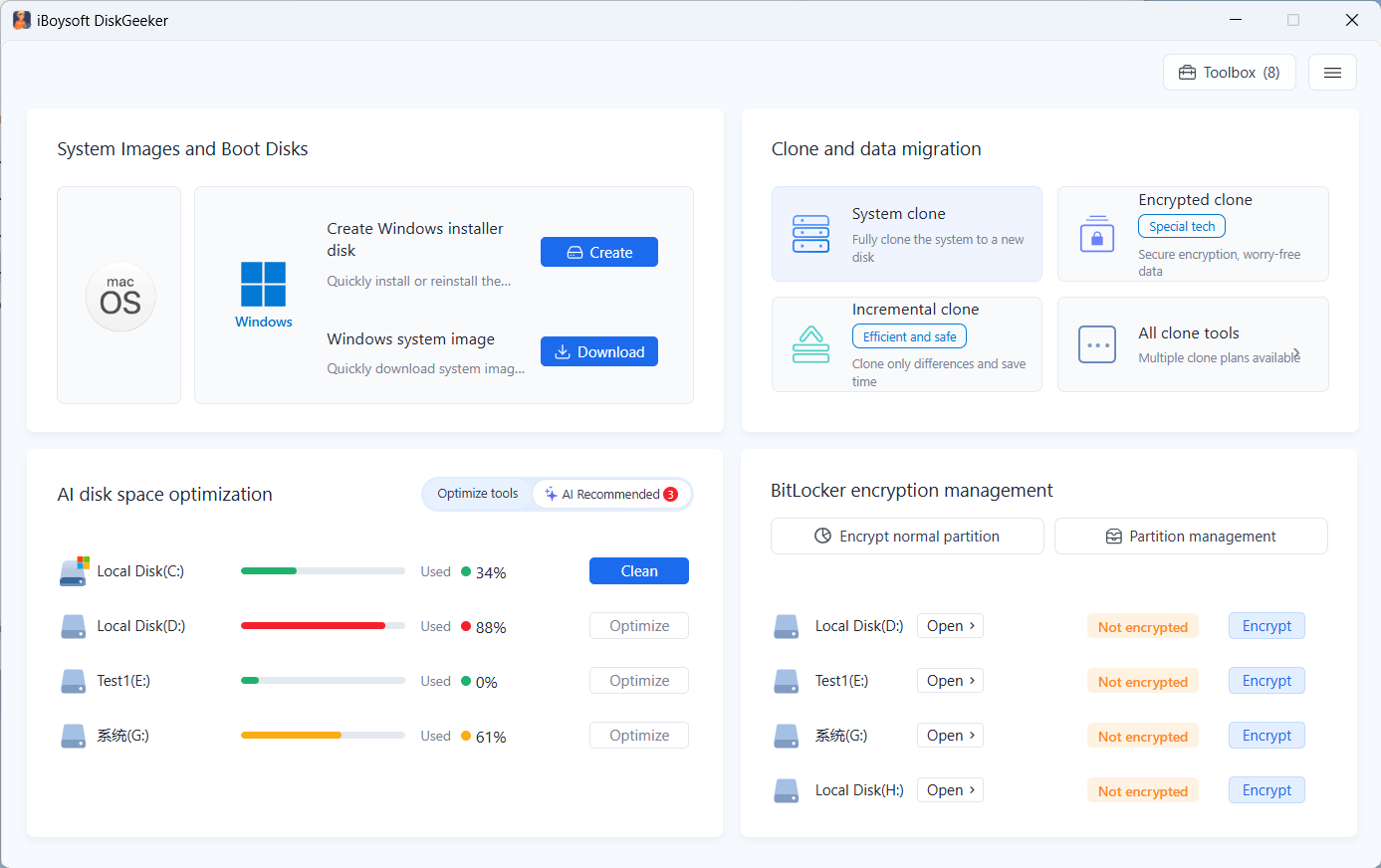
Step 3: Choose the target disk from the list and click "Select."
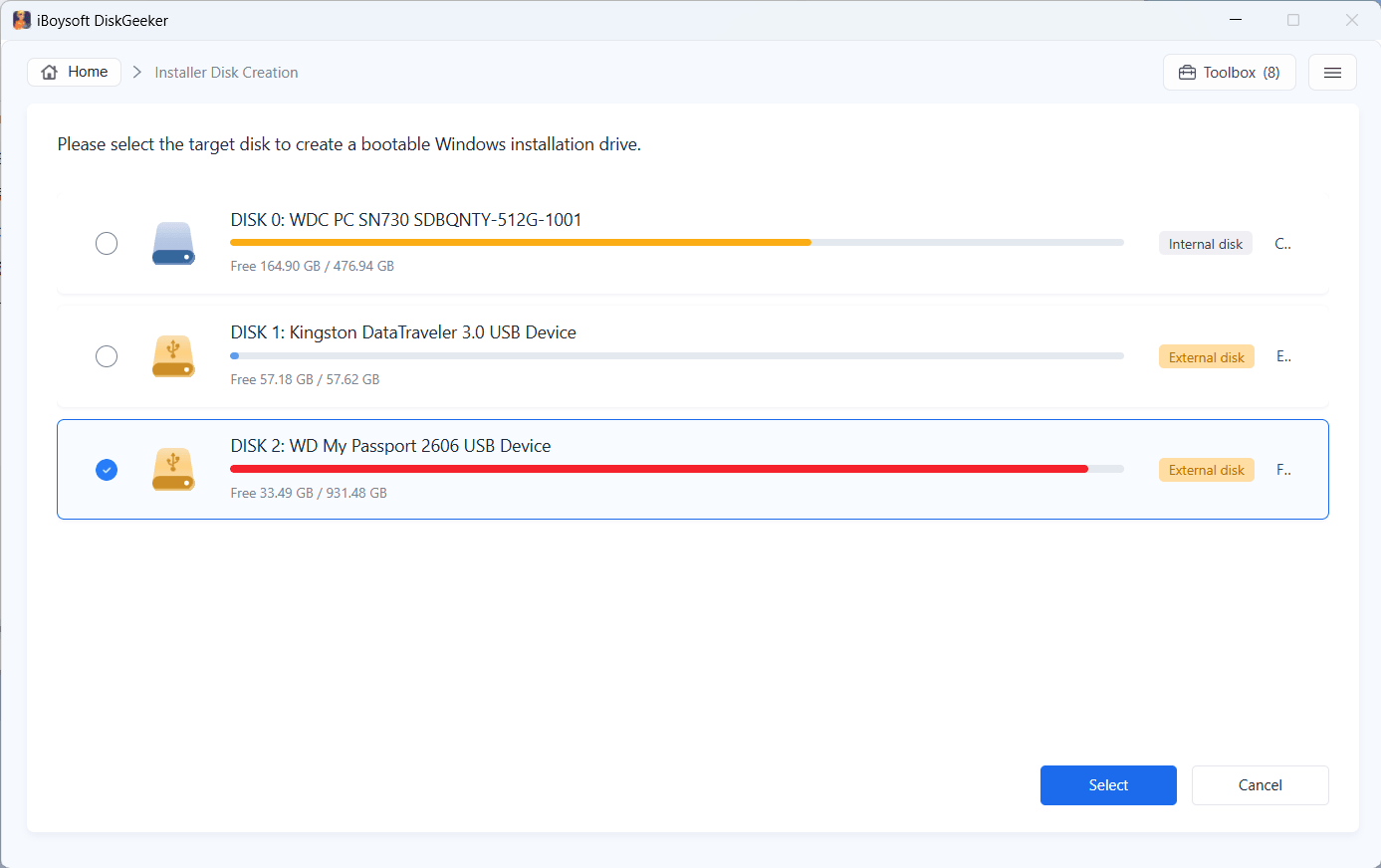
Step 4: Click "Start creating installation disk" on the desired Windows version to expand its detailed info.
By default, it shows the detailed info of Windows 11.
Step 5: Select your desired major update, language, system architecture, and system version for the target Windows.
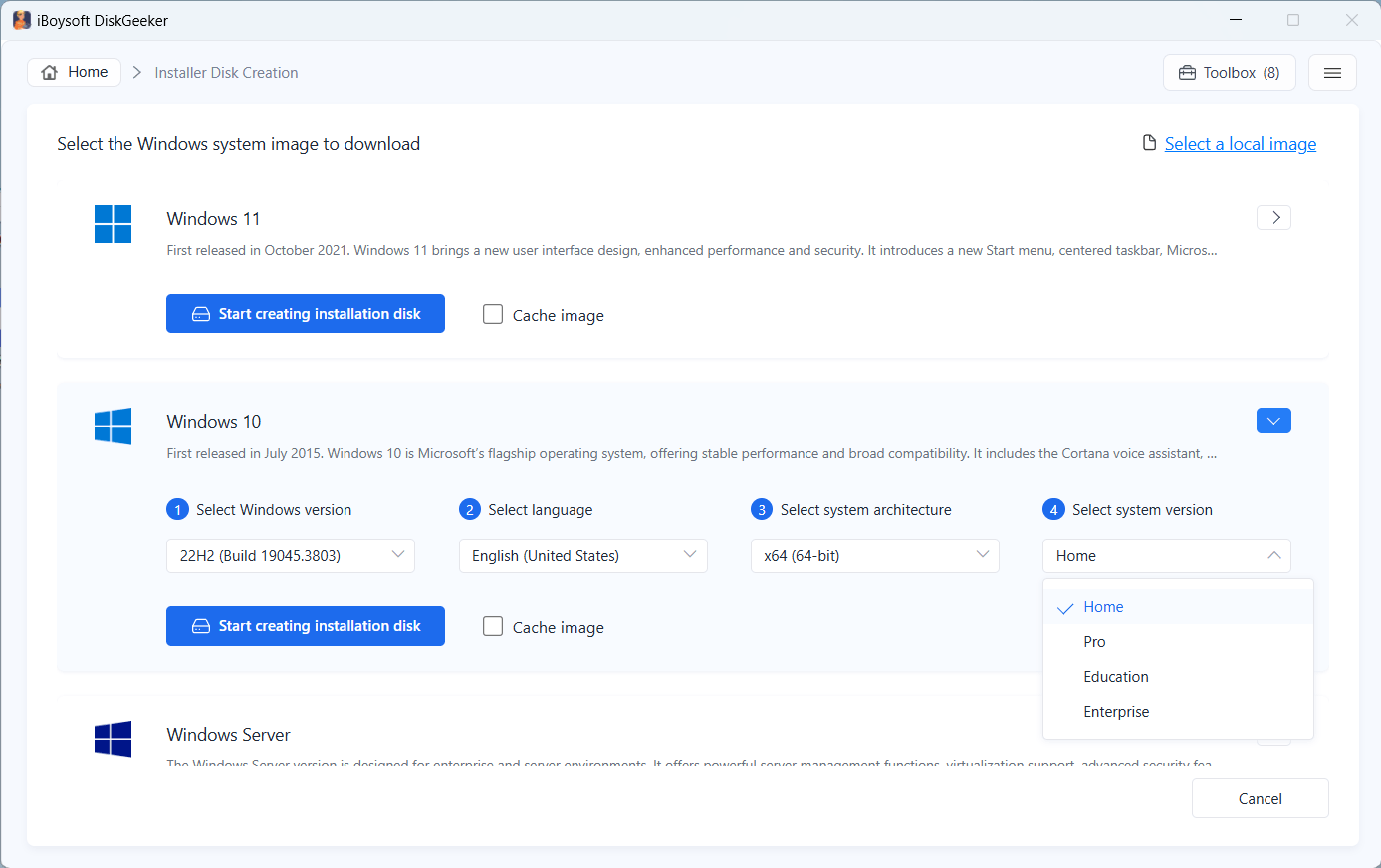
⚠️ Note:
• The bootable USB installer creation consists of two phases: downloading the Windows image and creating a bootable installer.
• By default, the Windows image will be downloaded to the same place where this tool is located. If you need to save it to a different destination, check "Cache image" and choose your desired location.
• The Windows image file can't be stored on the disk you'll use for the bootable disk.
• If you've ever paused a downloading process, check "Cache image" and find the folder where the interrupted OS image is stored. This tool will automatically detect it and continue finishing the download.
• If you have an complete Windows ISO, you can click the Select a local image button in the upper-right corner. Then, select and upload it to directly start the bootable USB creation.
Step 6: Click "Start creating installation disk" > "Yes."
The tool will start downloading the Windows ISO file immediately. Once downloaded, it will automatically begin creating the bootable USB installer.
⚠️ Note:
If you see the error saying "Not enough disk space," it means the storage of the location you choose is insufficient. Please try another partition or disk.
Download a Windows System Image (ISO)
The Download Windows system image function gives you an entrance to directly download the complete Windows ISO files.
Ensure the location you'll store the ISO file has enough free space before starting. If you need to download the Windows image to an external disk, connect it to your PC.
Step 1: Move your cursor on the Windows icon in the System Images and Boot Disks module and click "Download."
Step 2: Choose your desired Windows, including selecting its Windows version, language, system architecture, and system version.
By default, it expand the details of Windows 11. If you need other versions, click the arrow next to it to show the details and select the Windows version, language, system architecture, and system version.
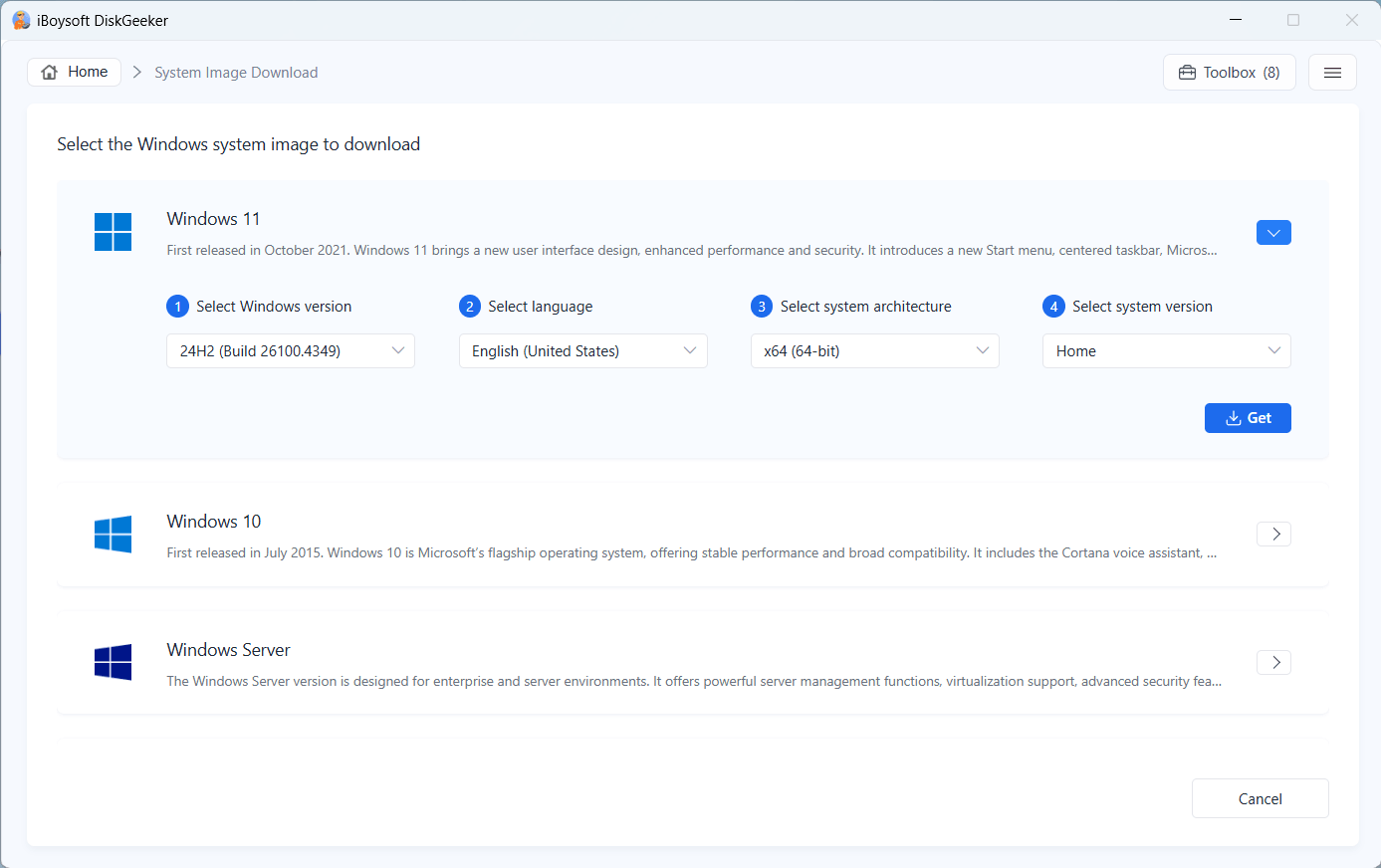
Step 3: Click "Get" and select a location.
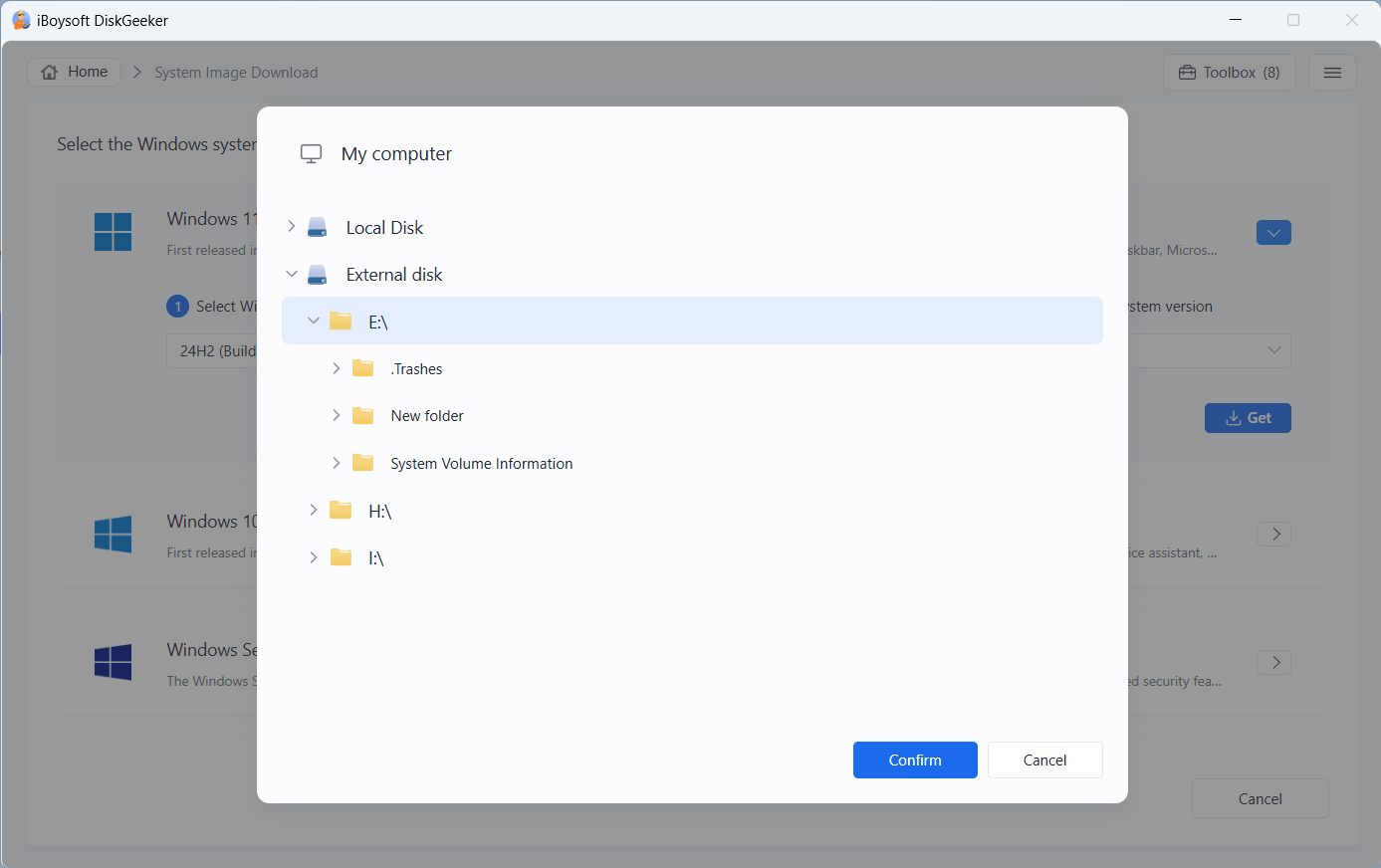
Step 4: Wait for the downloading process to complete.
How long the system image takes to download depends on your internet condition. During the process, ensure your computer is connected to the power source.
How to Encrypt a Partition with BitLocker in Windows Home Editions?
This drive manager enables the missing full BitLocker drive encryption in Windows 11/10/8.1/8/7 Home editions and Windows 7 Professional edition.
It allows you to encrypt NTFS, exFAT, and FAT32 partitions with BitLocker drive encryption. It also supports encrypting the system partition with BitLocker encryption.
Step 1: Click the "Encrypt" button next to the partition from the BitLocker encryption management module. Or, you can click "Encrypt normal partition," choose your target partition, and click "Next."
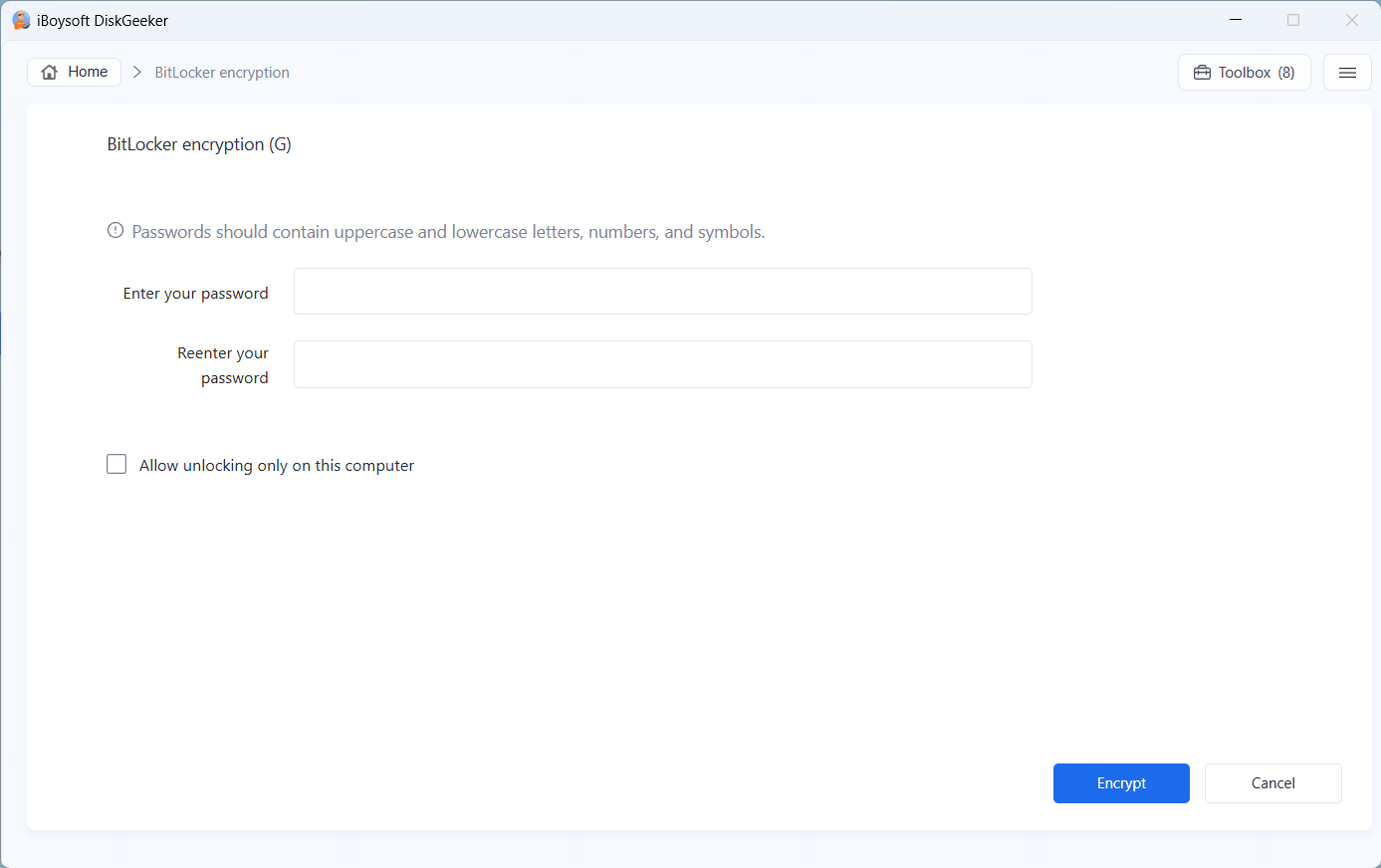
Step 2: Enter a password and click "Encrypt."
Your password should between 6 to 47 characters and contain at least one letter or figure.
If you want your encrypted drive can only be unlocked on this computer, check "Allow unlocking only on this computer."
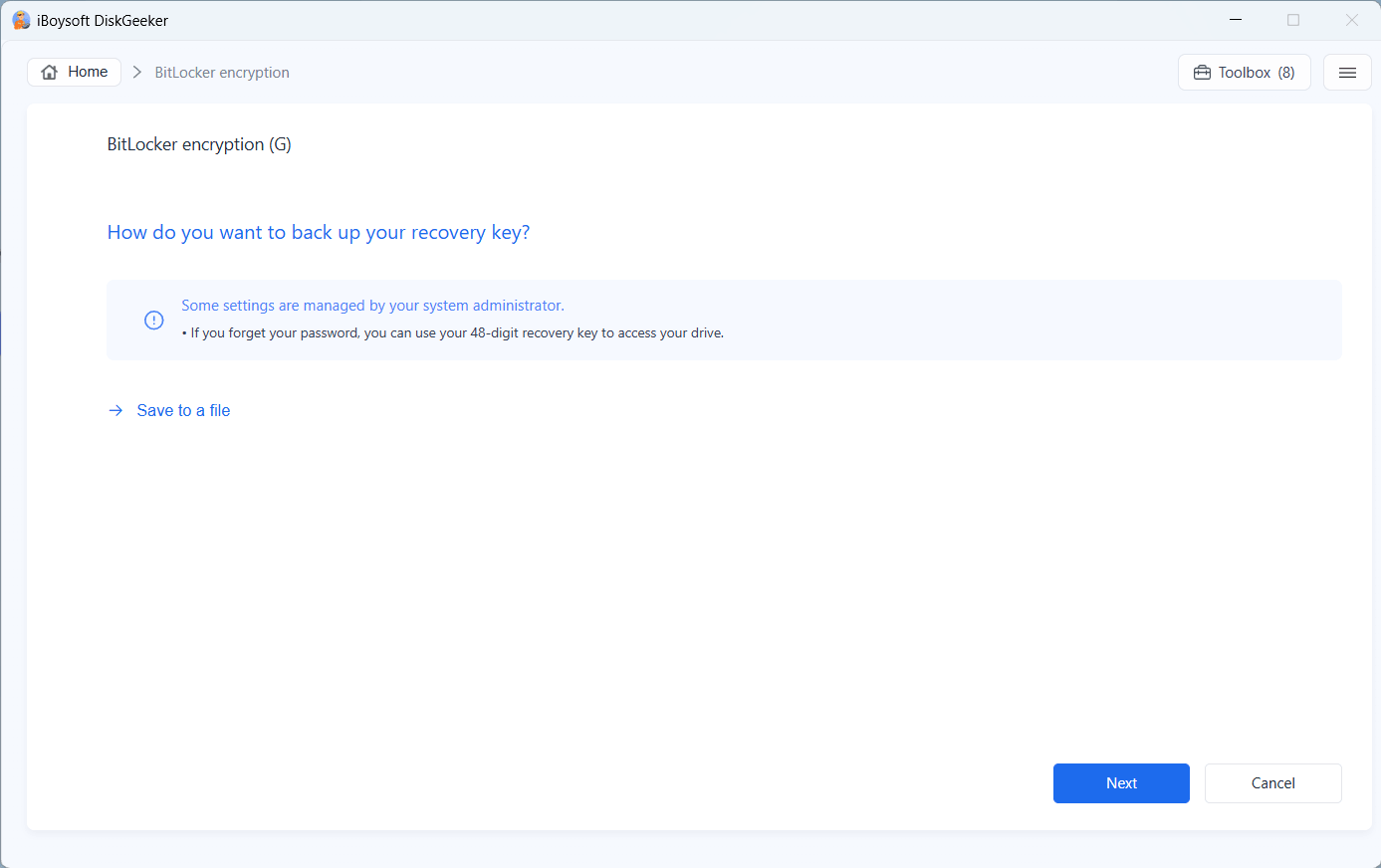
Step 3: Save your recovery key and click "Next."
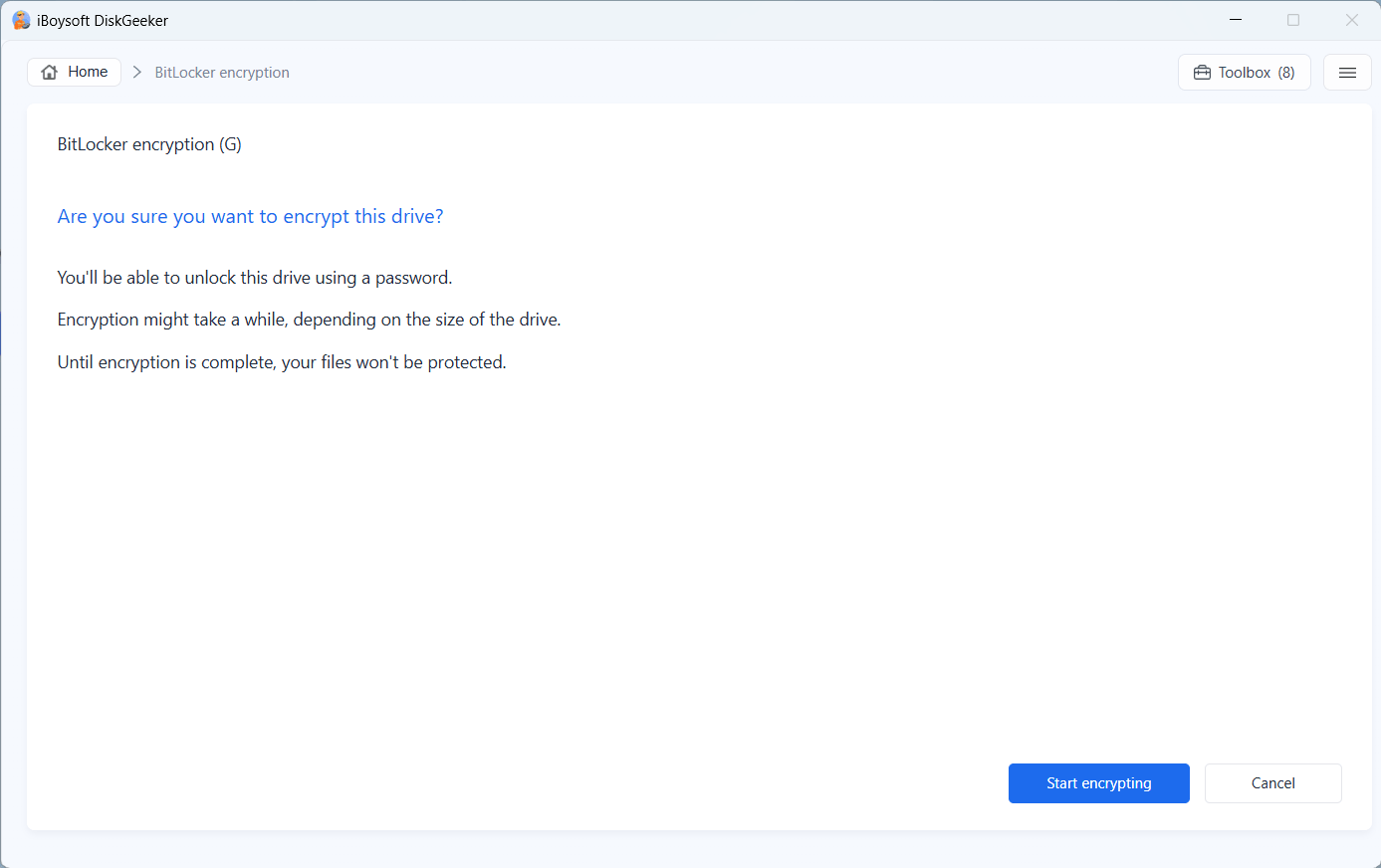
Step 4: Click "Start encrypting" if you are ready.
Tips:
• Confirm if you want to start the encryption, and once the encryption begins, you cannot cancel it.
• The target partition will be locked before encryption to prevent data inconsistency resulting in encryption errors. If the software can't lock the partition, the encryption will fail. Please contact with: [email protected].
• If your PC powers off or the target disk is ejected suddenly, you can relaunch iBoysoft DiskGeeker and resume the encryption or rollback the drive to the original state in "Partition management."
#1. Click "Partition management" from the BitLocker encryption management module.
#2. Click "Resume" next to the partition to continue encryption. Or, click "Roll back encryption" to restore your partition to the original state.
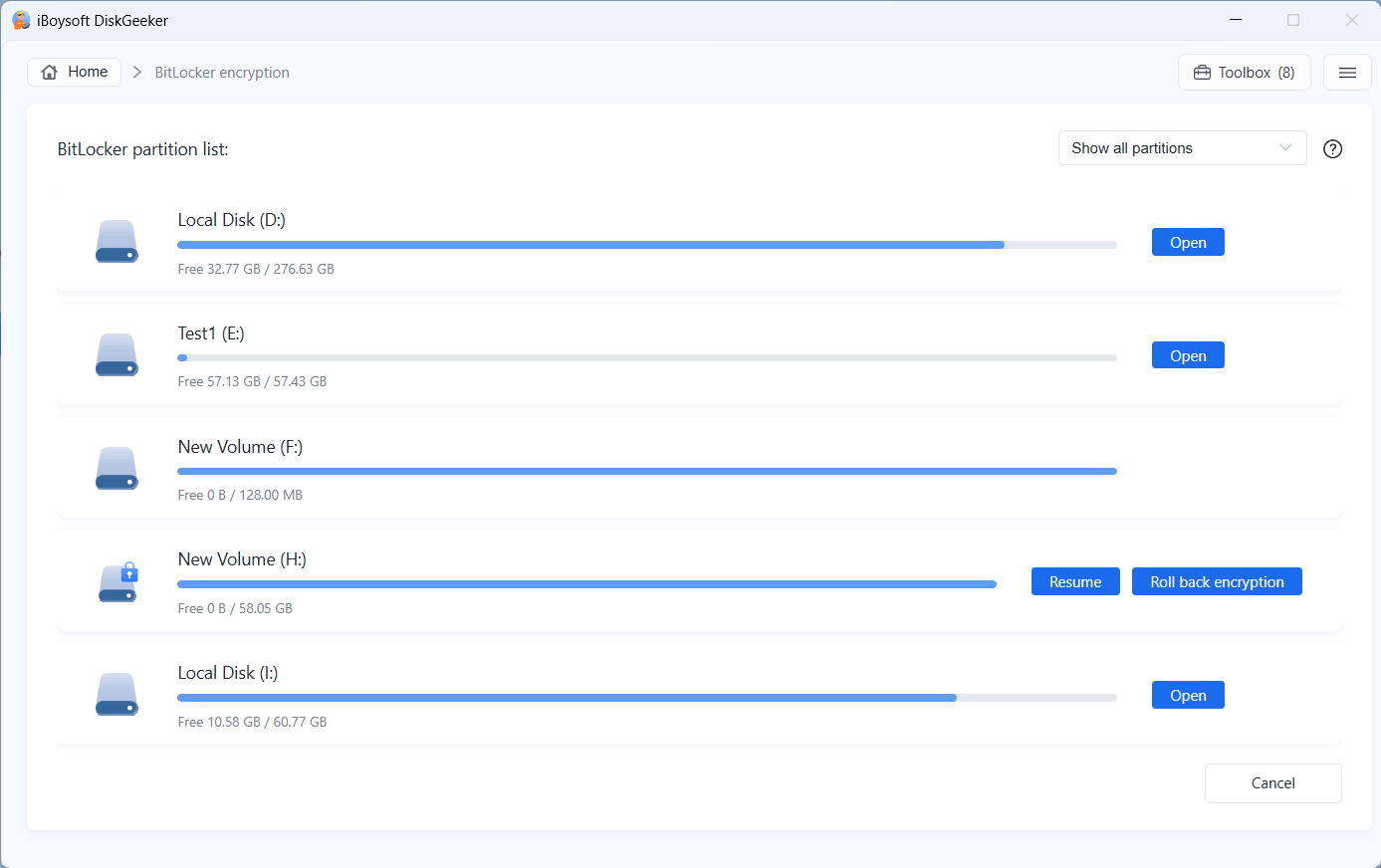
Step 5: Complete BitLocker encryption.
After encryption, the partition is in an unlocked state. You can access and write to it.
You don't need other third-party software to unlock and access the BitLocker-encrypted partitions every time you connect them to your PC as iBoysoft DiskGeeker can help you manage them.
How to Manage BitLocker Drives?
"Partition management" in BitLocker encryption management module contains following features:
Resume: resume an uncompleted BitLocker encryption.
Roll back encryption: restore the partition to the original state when the encryption is interrupted.
Change disk password: change the password of the BitLocker-encrypted drive. You should unlock the drive first before using this feature.
Back up recovery key: back up the recovery key of the BitLocker-encrypted drive. You should unlock the drive first before using this feature.
View recovery key: view and copy the recovery key of the BitLocker-encrypted drive. You should unlock the drive first before using this feature.
Turn off BitLocker: turn off BitLocker encryption for the BitLocker-encrypted drive. You should unlock the drive first before using this feature.
Allow unlocking only on this computer: only unlock the BitLocker-encrypted drive with password or recovery key on this computer
Lock: lock a BitLocker encrypted partition to make it inaccessible.
Unlock: enter the BitLocker password to unlock the partition and make it in an accessible state.
Open: directly open a partition on your PC.
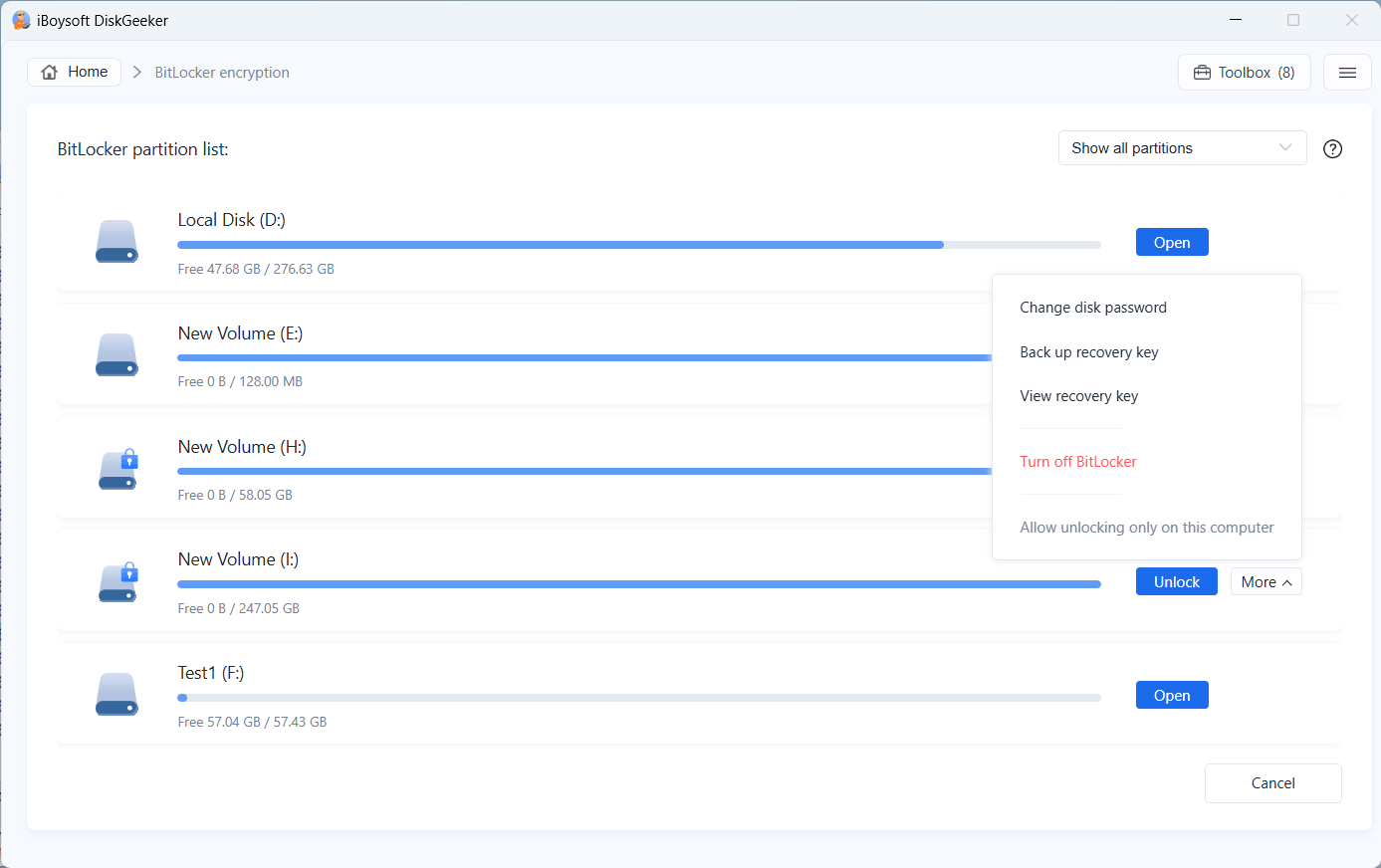
Click the option box on the upper right corner, you can choose to show all partitions, only show encrypted partitions, and only show unencrypted partitions.
Learn more about iBoysoft DiskGeeker for Windows's BitLocker feature
How to Securely Wipe Data on a Disk, Partition, or Partition's Free Space?
This disk manager enables you to securely wipe the secret and private data you no longer use and make it unrecoverable. You can wipe data on a disk, partition, or free space of a partition.
Step 1: Click "Toolbox" on the upper right corner and then select a desired wiping mode.
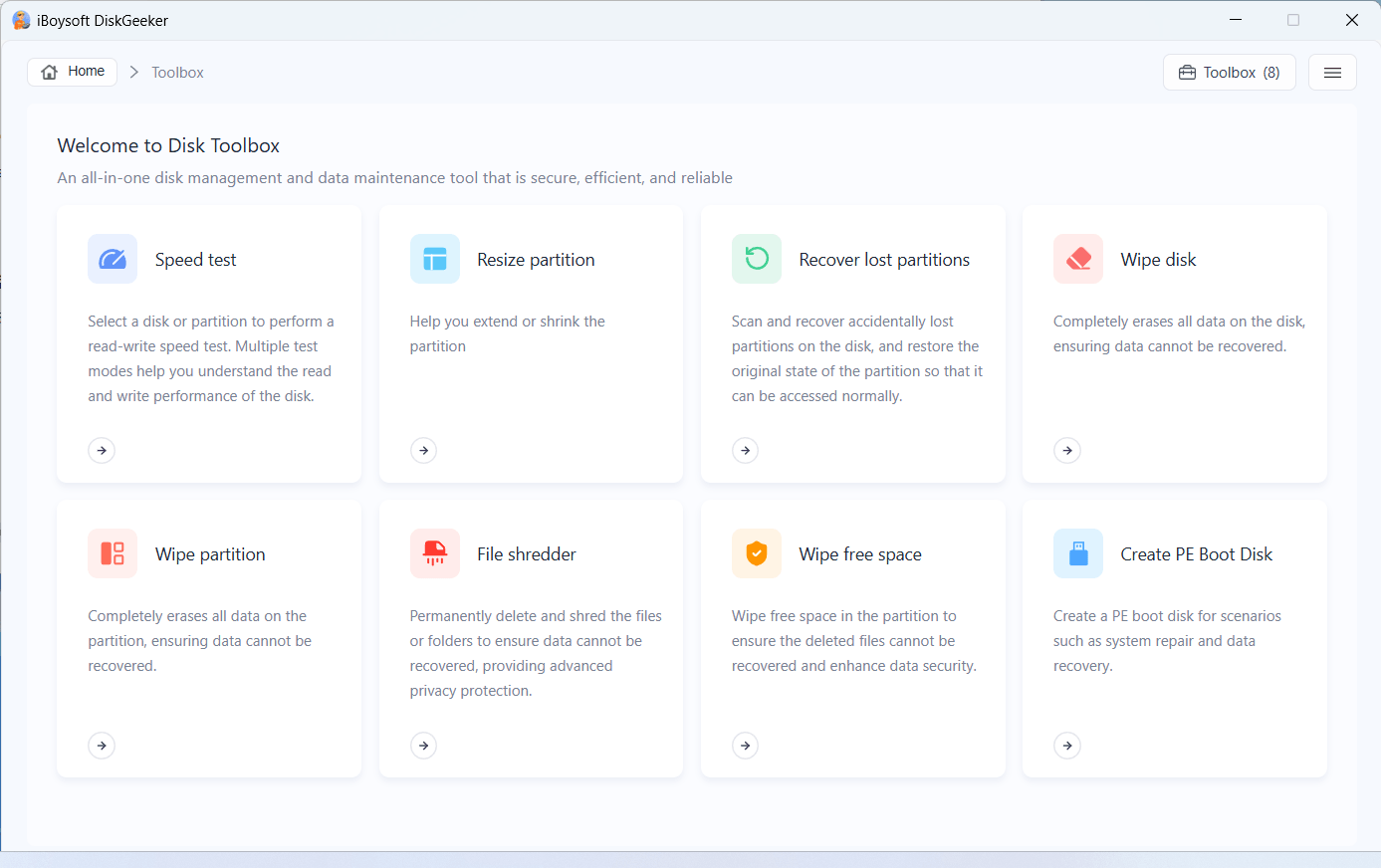
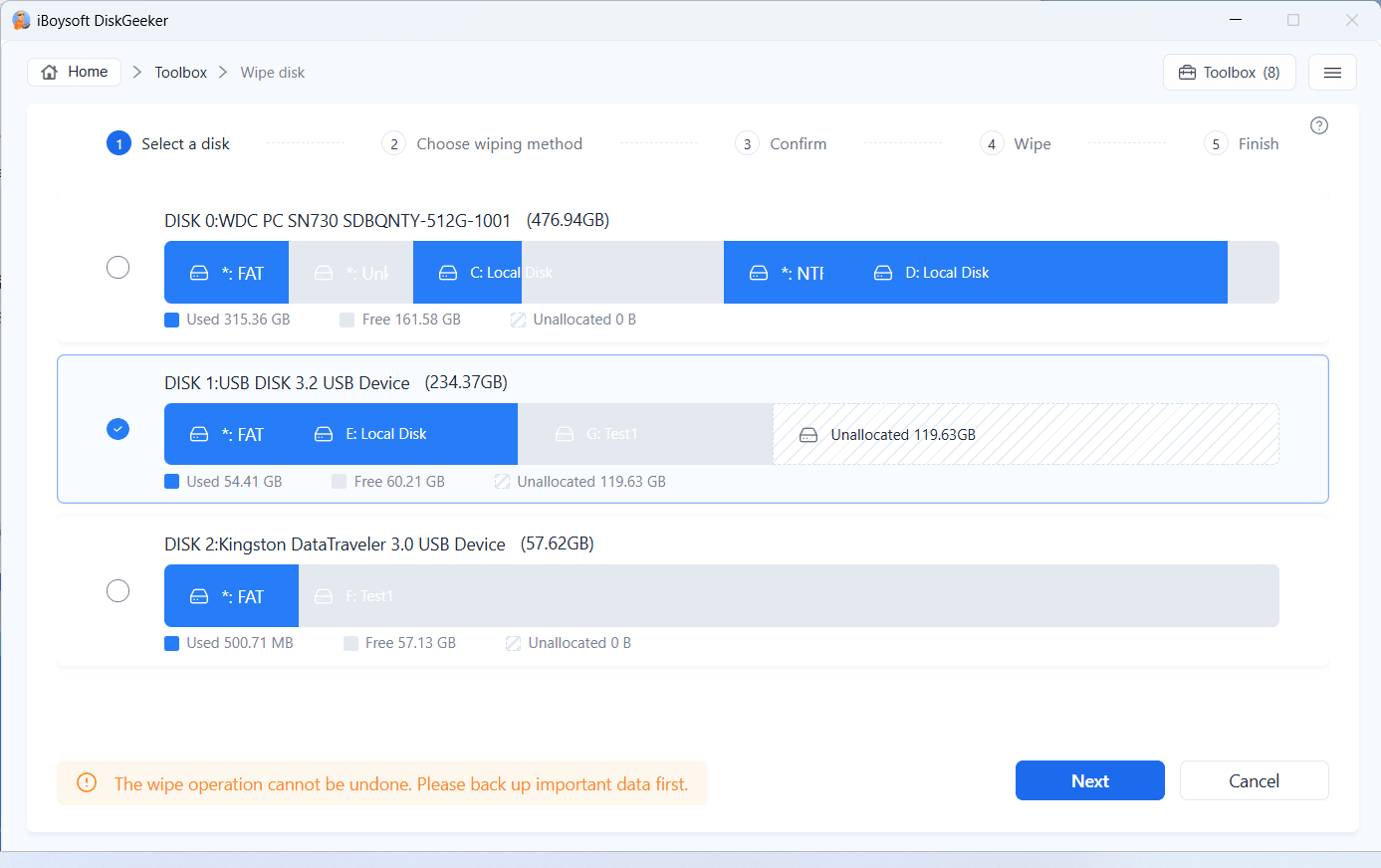
Wipe disk: Wipe all sectors of the entire disk according to the specified algorithm, and the data cannot be recovered.
Wipe partition: Wipe all sectors of the entire partition with the specified algorithm, and the data cannot be recovered. It does not affect the data on the other partitions on the disk.
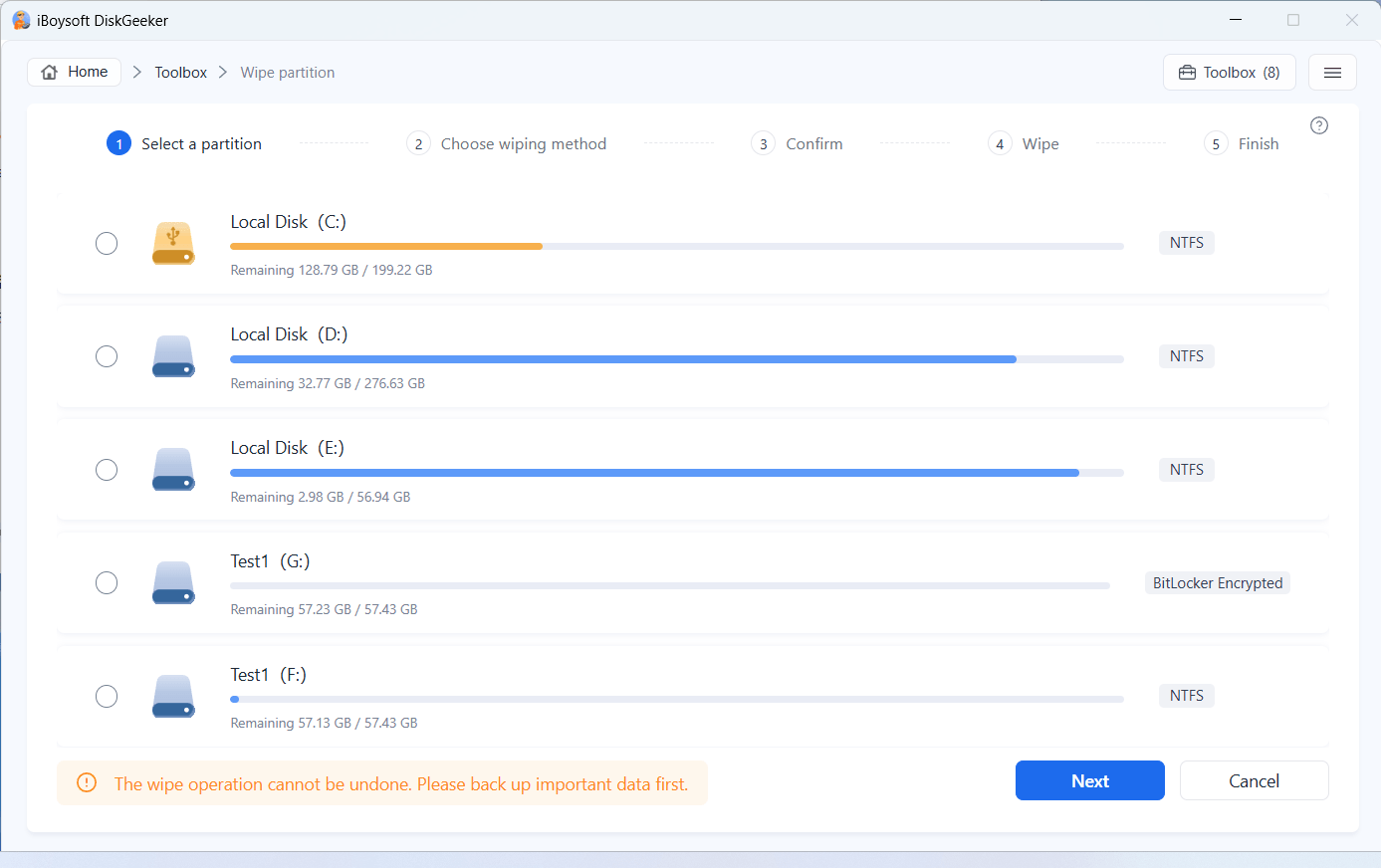
Wipe free space: Wipe the data traces and leftovers in the free space of the specified partition. It will completely erase the remaining information of all deleted data in the available space and make it unrecoverable. It only wipes the information on the free space of the partition and won't affect the data on the used space of the partition.
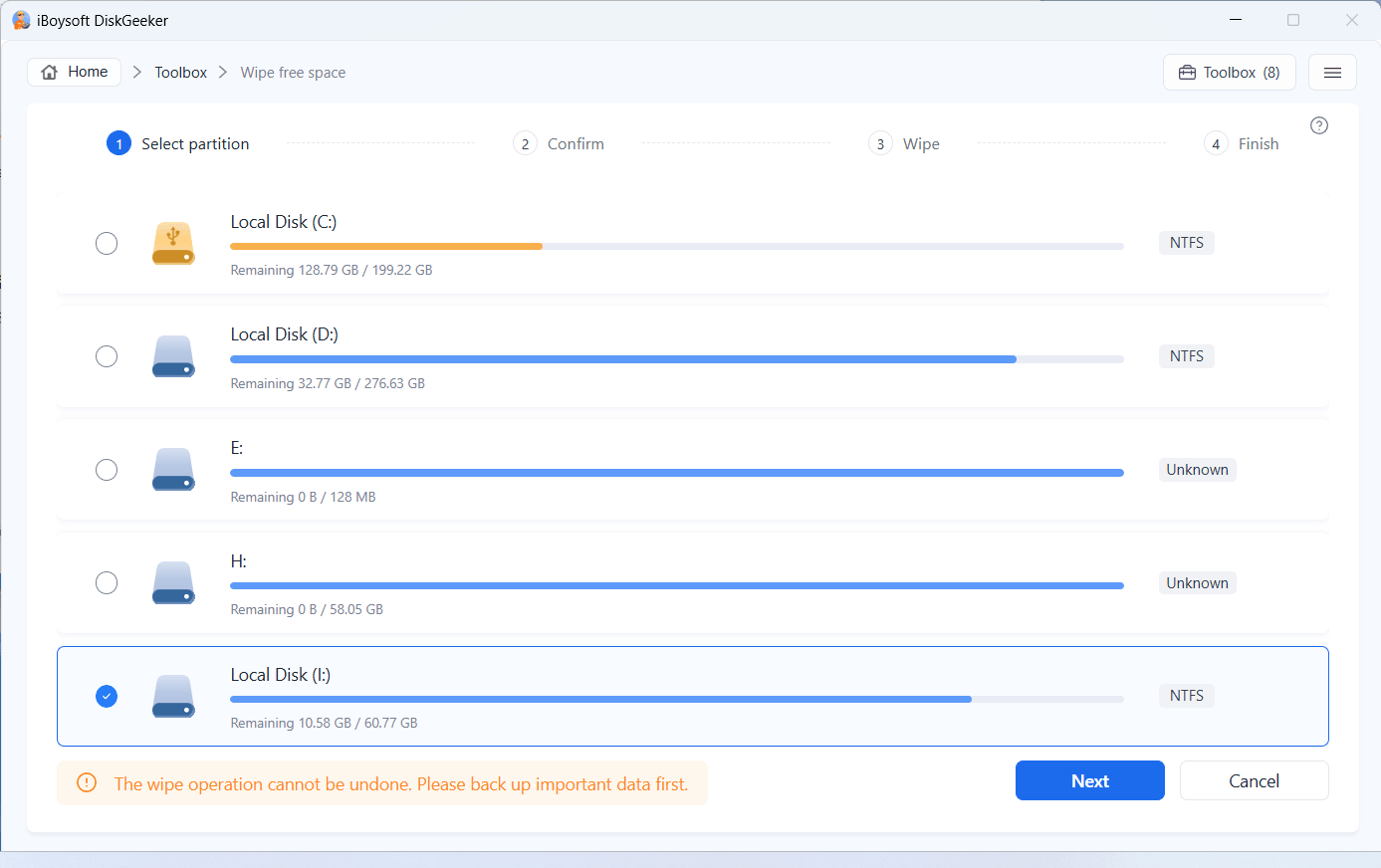
Step 2: Select the disk, partition, or free space you want to wipe.
Step 3: Choose a wiping method and click "Next."
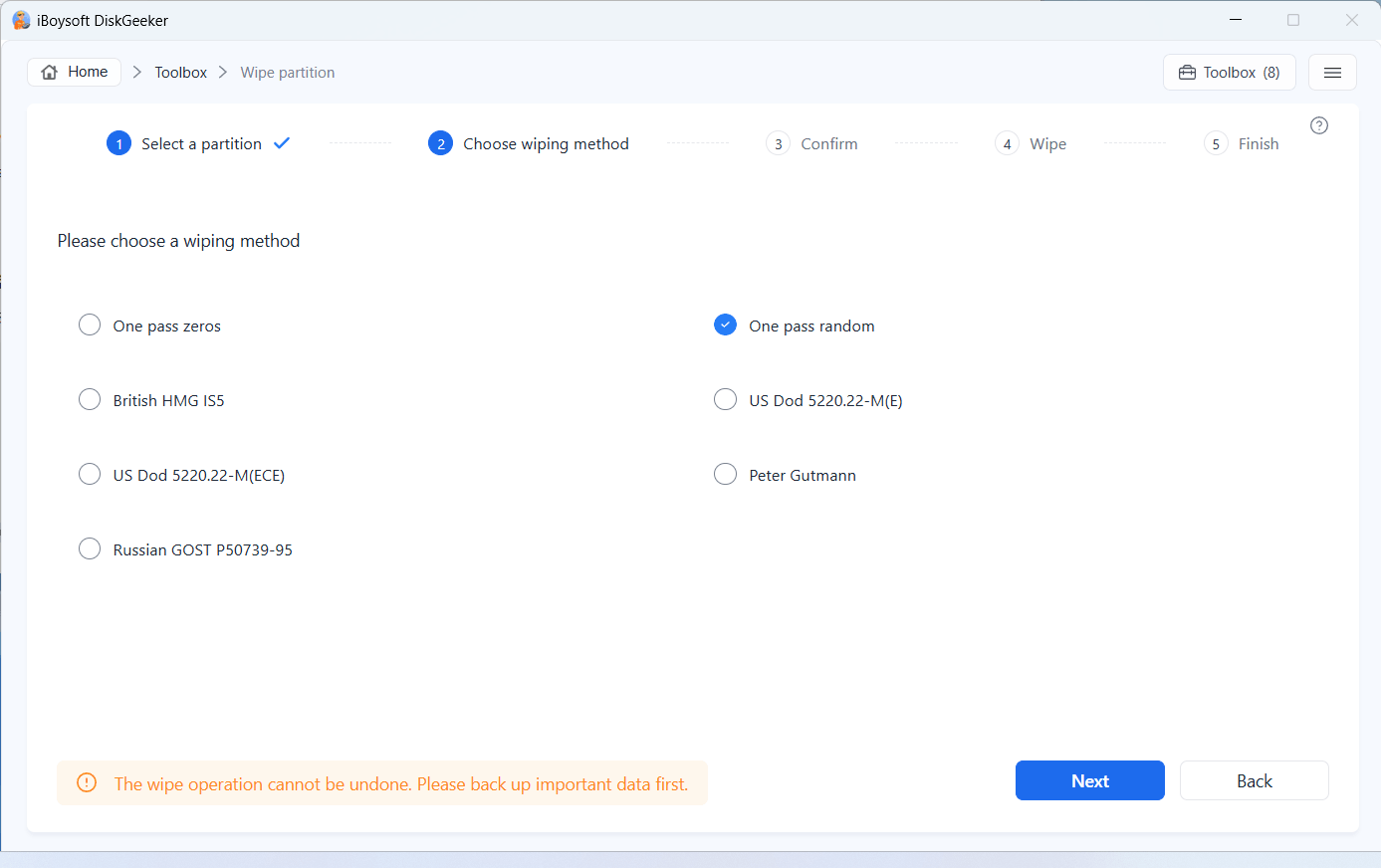
Step 4: Confirm the disk, partition, or free space you want to wipe and click "Next."
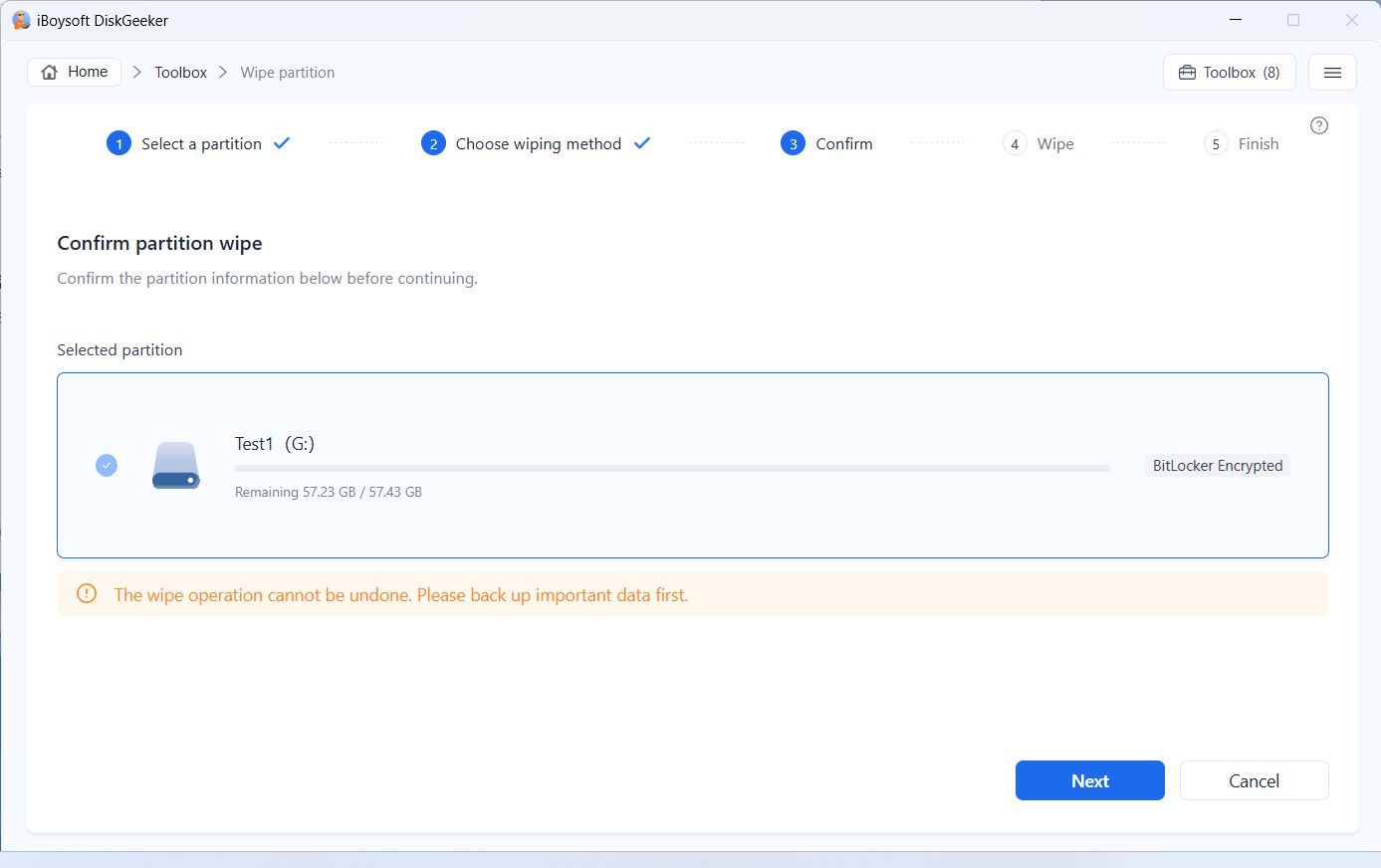
Note: You'll see the "Clear indexes" option at the bottom when wiping free space. Check it to clear the properties of the deleted or lost files on the free space, including their names, locations on the disk, and others, to completely wipe them.
For free space wiping, you don't need to choose a wiping method.
Step 5: Click "Wipe" on the confirmation window to start wiping data.
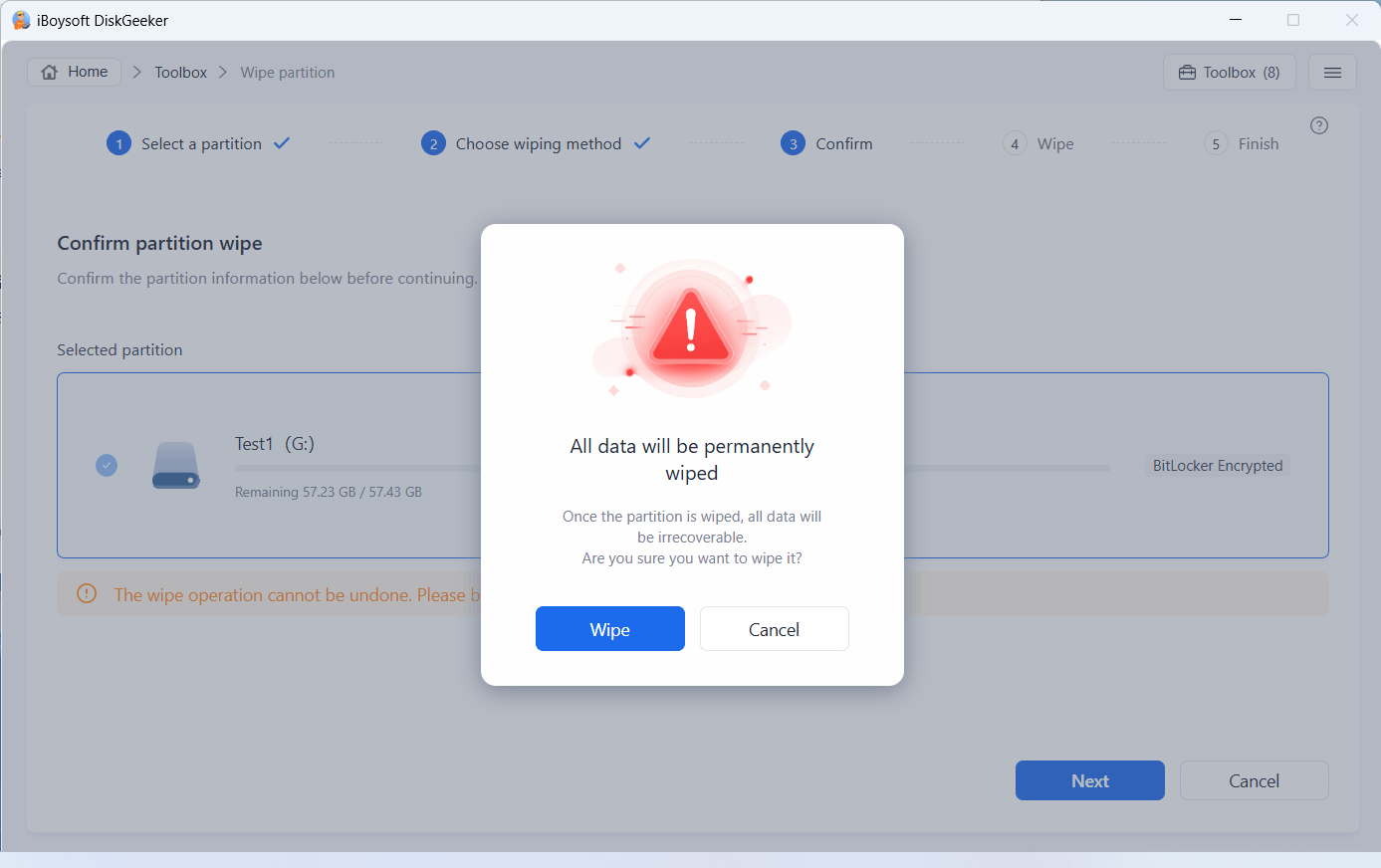
Step 6: Wait for the secure data wipe process to complete.
How to Wipe a Specific File or Folder?
You can also shred a specified file or folder without affecting other files on your PC or a disk.
Step 1: Click on the "Toolbox" module and then select "File shredder."
Step 2: Click the add button (+) to add your unwanted file or folder.
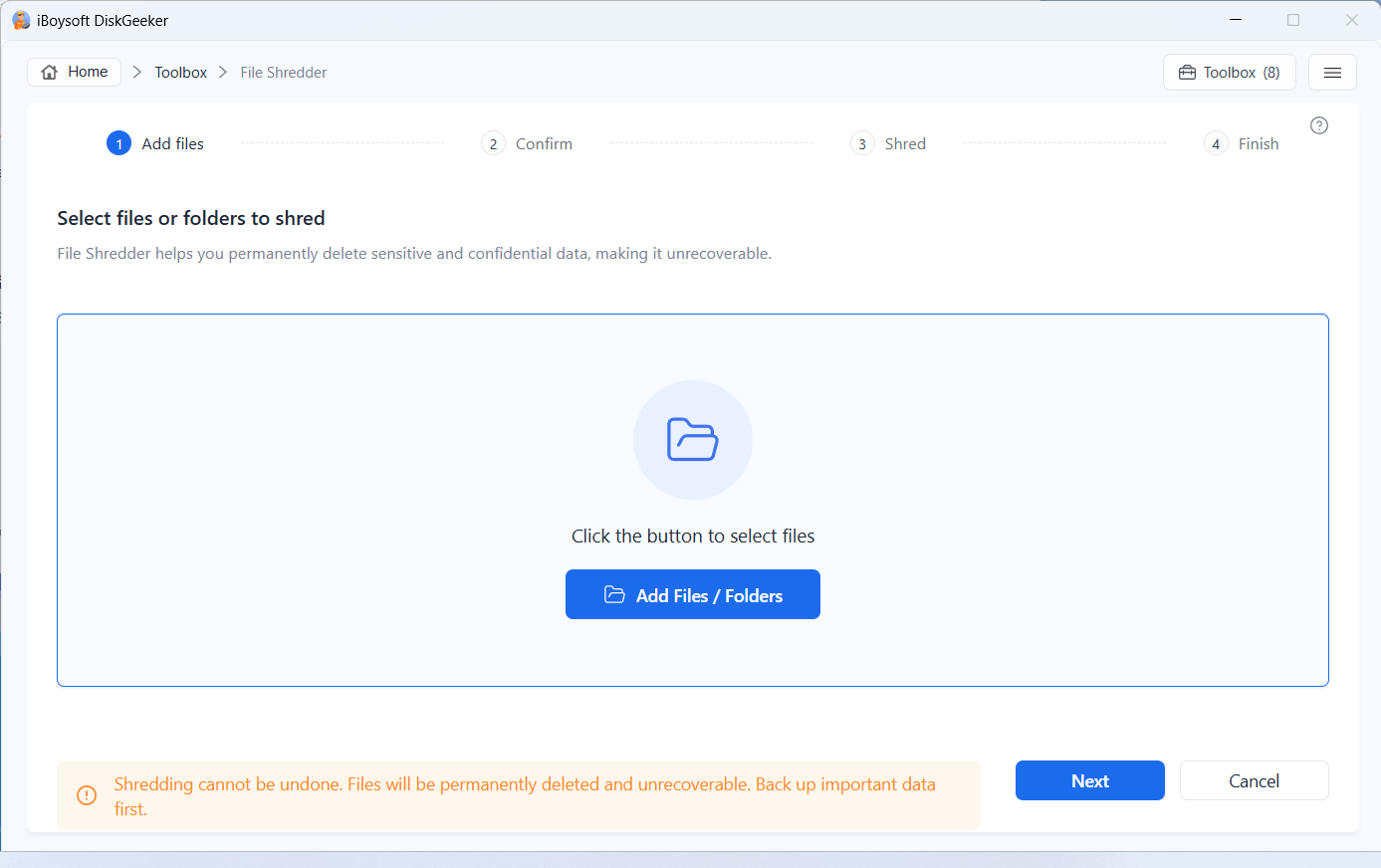
On the popup, tick in the file or folder you no longer use and click "Yes" to add it.
Check "Clear indexes" if you want to wipe the properties of this file or folder on the disk so as to completely erase it including its file name, location on the disk, or other metadata.
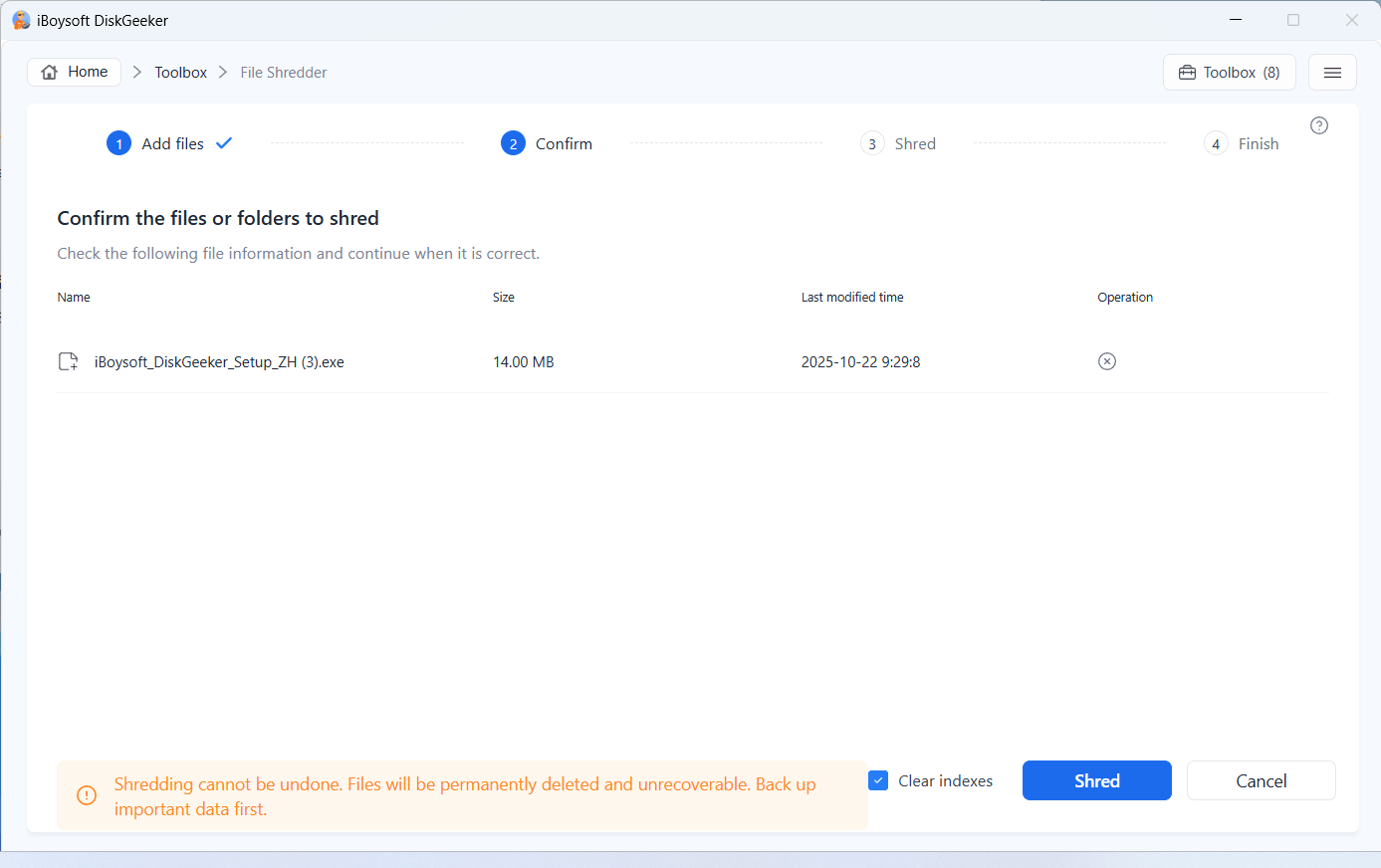
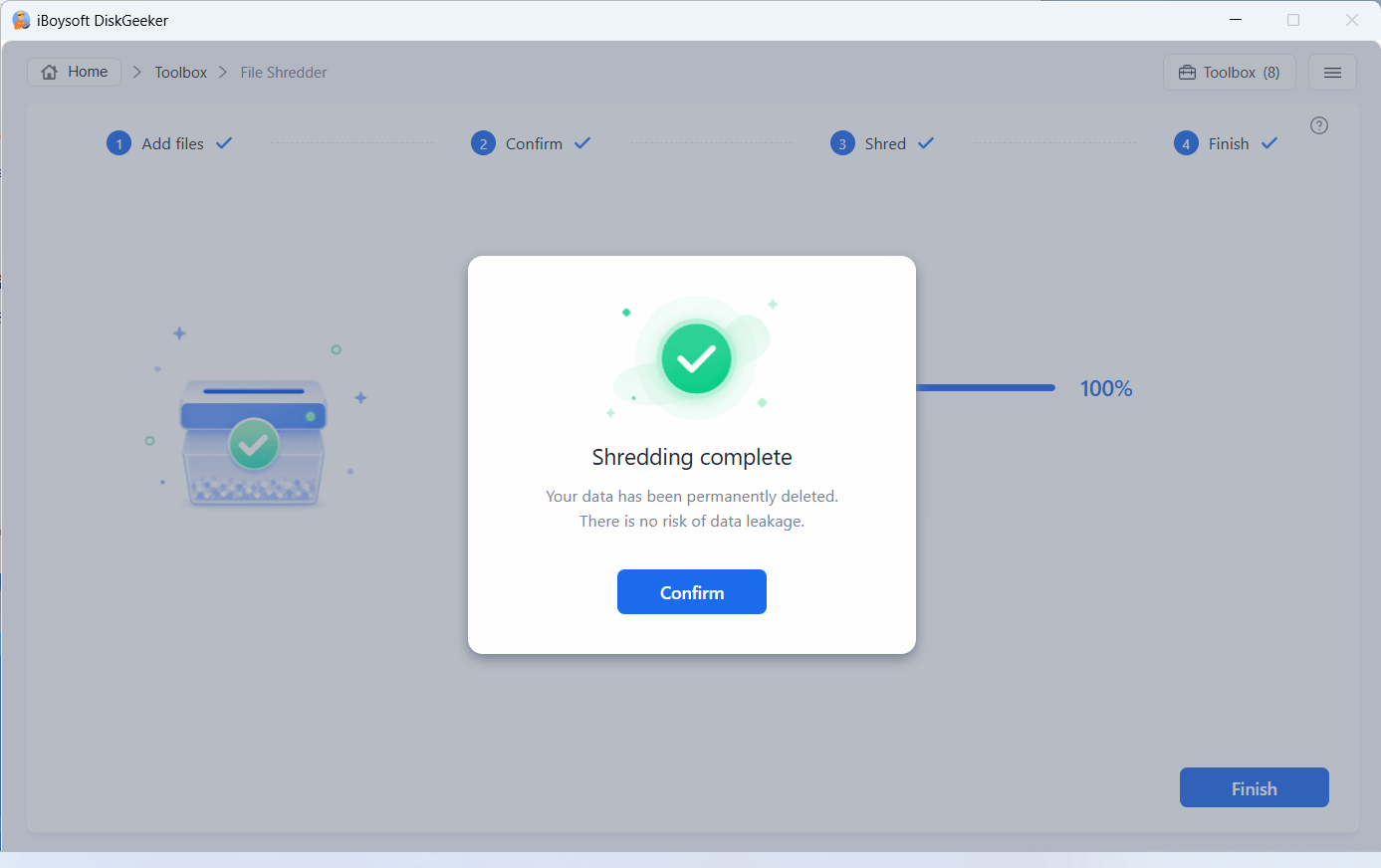
Step 3: Confirm the file or folder you add and click "Shred."
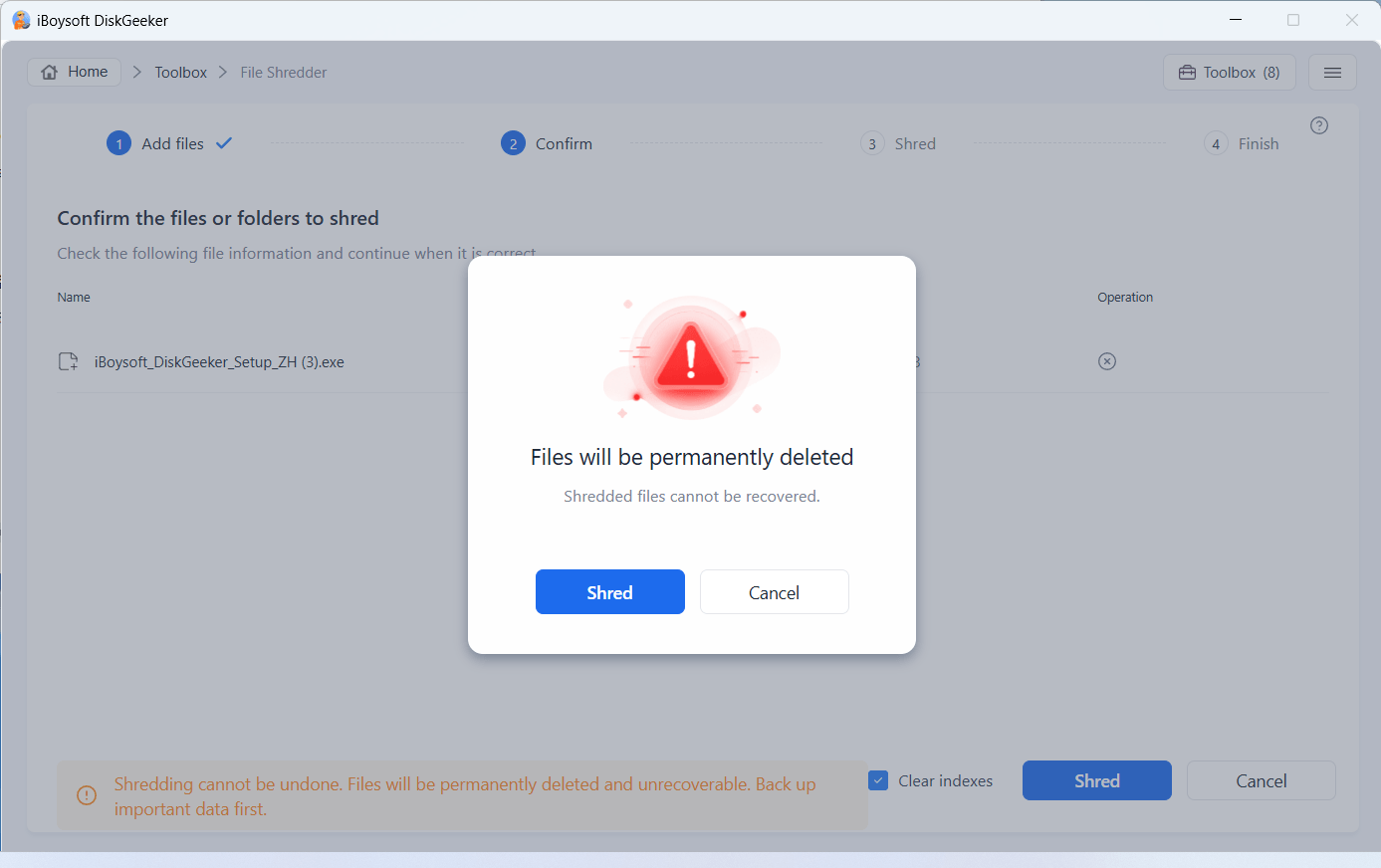
Step 4: Wait for the file or folder to be shredded.
Learn more about iBoysoft DiskGeeker for Windows's Secure Data Wipe
How to Test a Partition or Disk Speed?
This Windows drive manager supports testing the read and write speed of a system partition, non-system partition, and whole disk via direct reading and writing hard disk sector and reading and writing files through the file system.
Step 1: Click "Toolbox" > "Speed test."
Step 2: Select a partition or whole disk you want to test and click "Next."
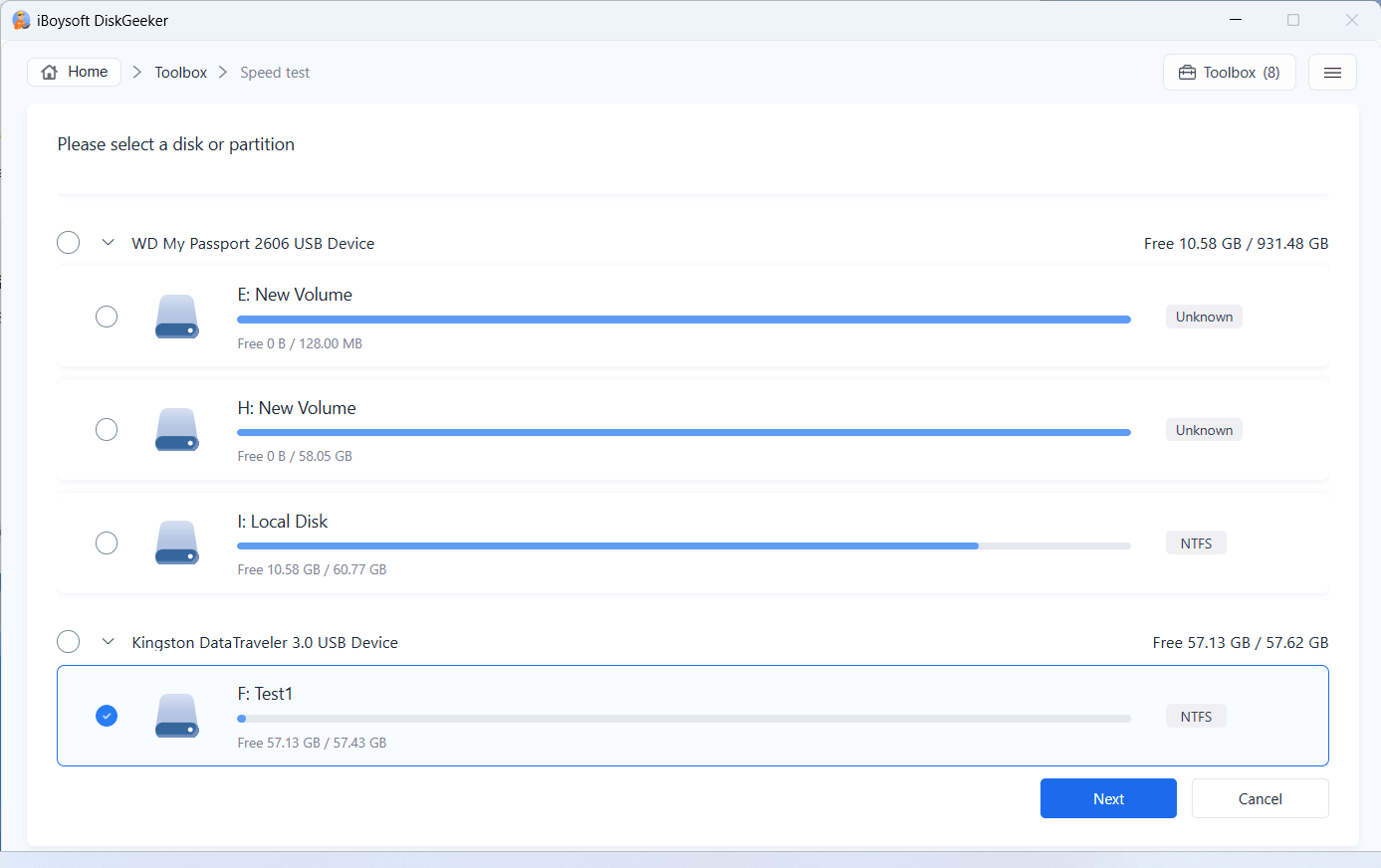
Note: System partition is special as you consistently write data onto it since your PC boots up. Thus, the way to test the speed of a system partition is through reading and writing files through the file system, and the available space on the system partition should be over 10 GB. During the speed test, 5 GB of data will be written to the system partition and once the test is completed, it will be immediately deleted.
Step 3: Choose a speed test mode you want.
There are four speed-test modes for partitions and entire disks.
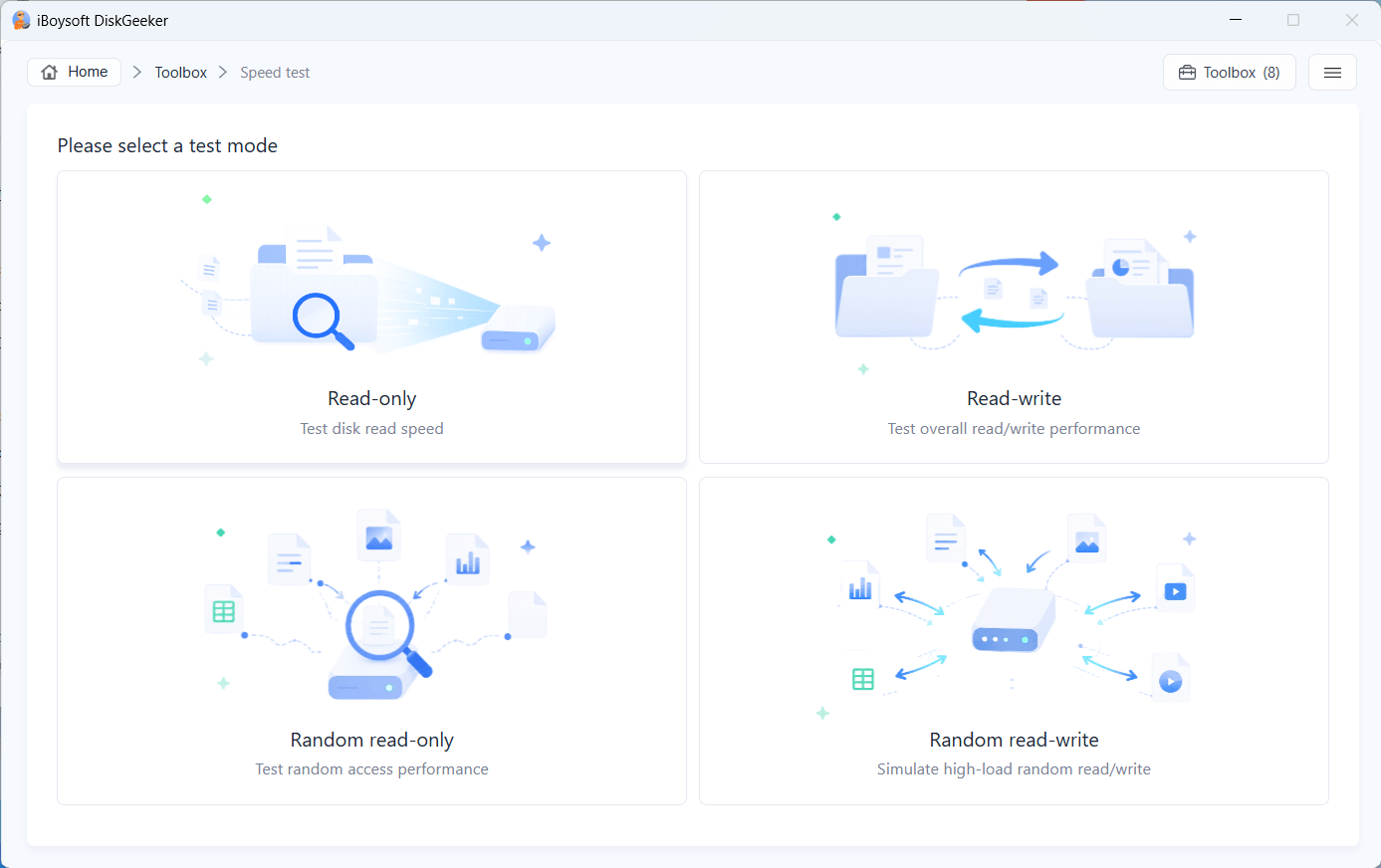
Read-only: Read data on the test area of a partition or disk from the beginning to the end. It takes little on the disk's seek time.
Read-write: Read and write data on a test area of a partition or disk from start to end. It spends little on the disk's seek time.
Random read-only: Randomly read data on a partition or entire disk. It takes a relatively long time on the disk's seek time.
Random read-write: Randomly read and write data on a partition or entire disk. It takes a relatively long on the hard drive's seek time.
Note:
1. Only read-write and random read-write modes are available for a system partition.
2. Only read-only and random read-only modes are available for BitLocker-encrypted partitions.
Step 4: Wait for the speed test to end.
If you choose "Read-write" or "Random read-write," iBoysoft DiskGeeker will test the write speed of the partition or disk first, then the read speed.
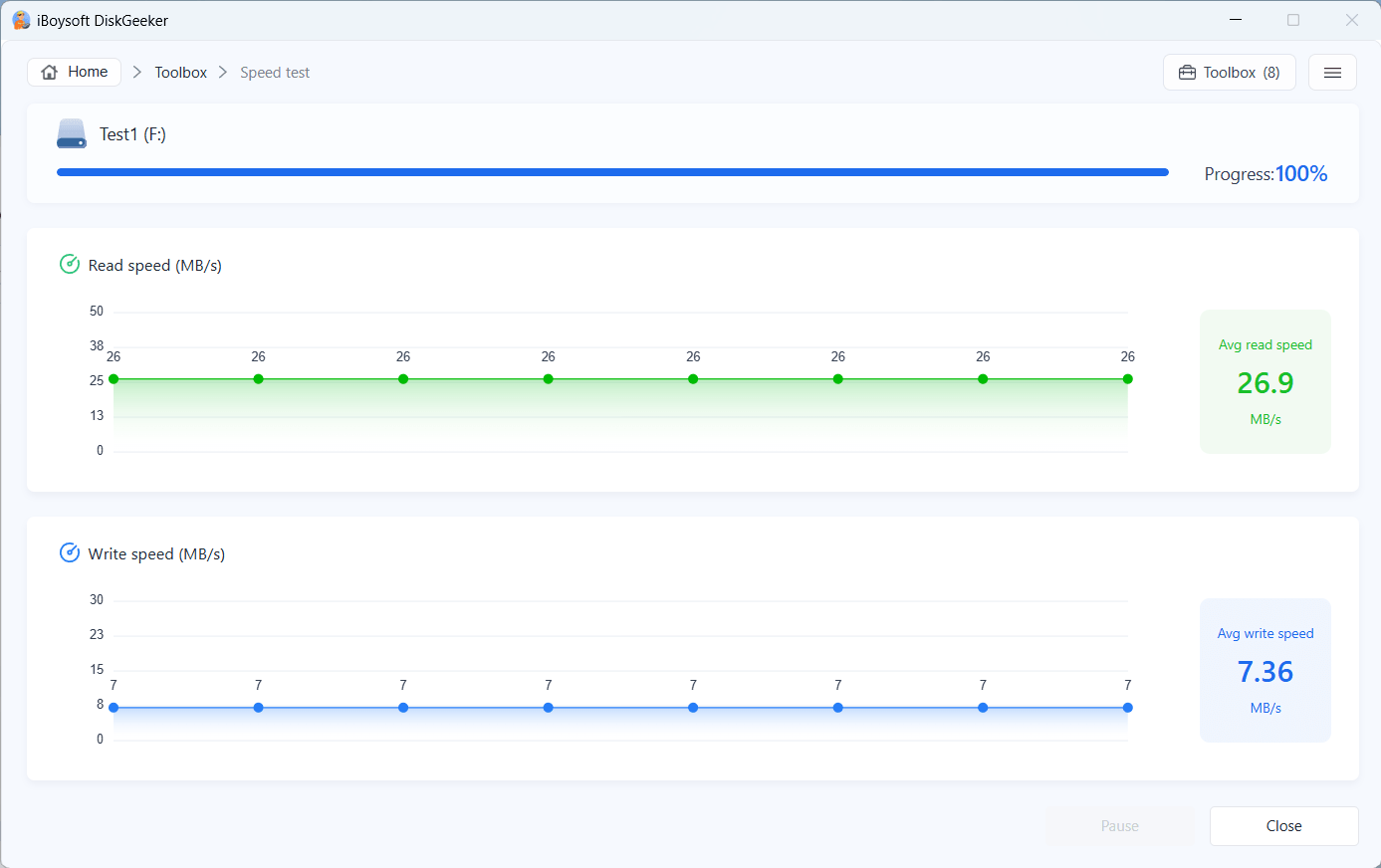
Step 5: View the speed test results.
The speed test results are visually displayed in the form of a graph, and you can see the read and write speeds clearly.
Learn more about iBoysoft DiskGeeker for Windows's Disk Speed Test
How to Resize a Partition?
This disk manager allows you to resize an NTFS partition, including shrinking and extending it on a Windows computer, except for a BitLocker encrypted partition.
Step 1: Click "Toolbox" > "Resize partition."
Step 2: Select an NTFS partition you want to resize and click "Resize partition."
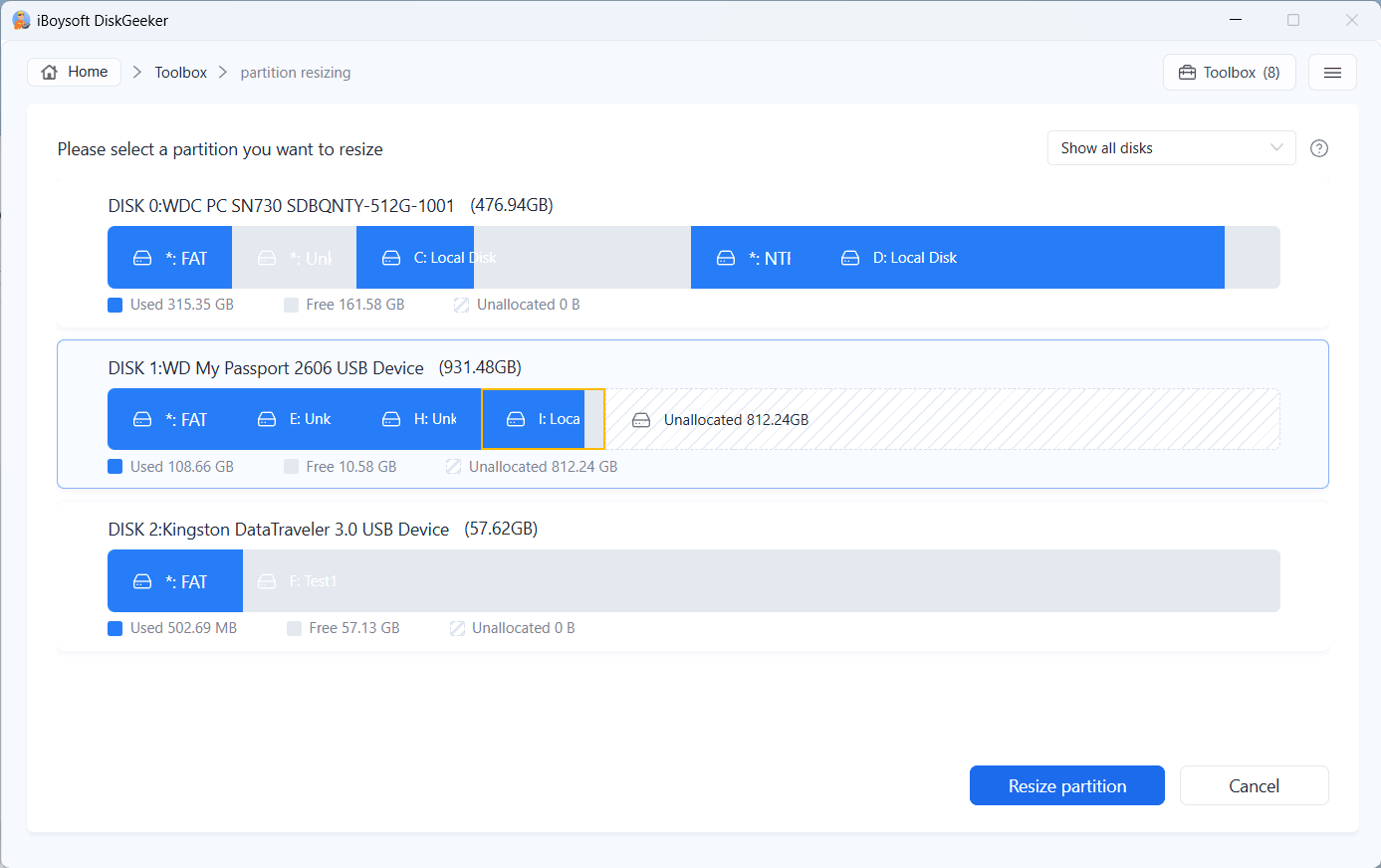
Step 3: Check the partition information.
The dark blue area represents the current range that can be shrunk and the white (transparent) area represents the current range that can be extended.
If it only shows the dark blue area, it represents that the partition can only be shrunk.
If it only shows the white (transparent) area, it means that the partition can only be extended.
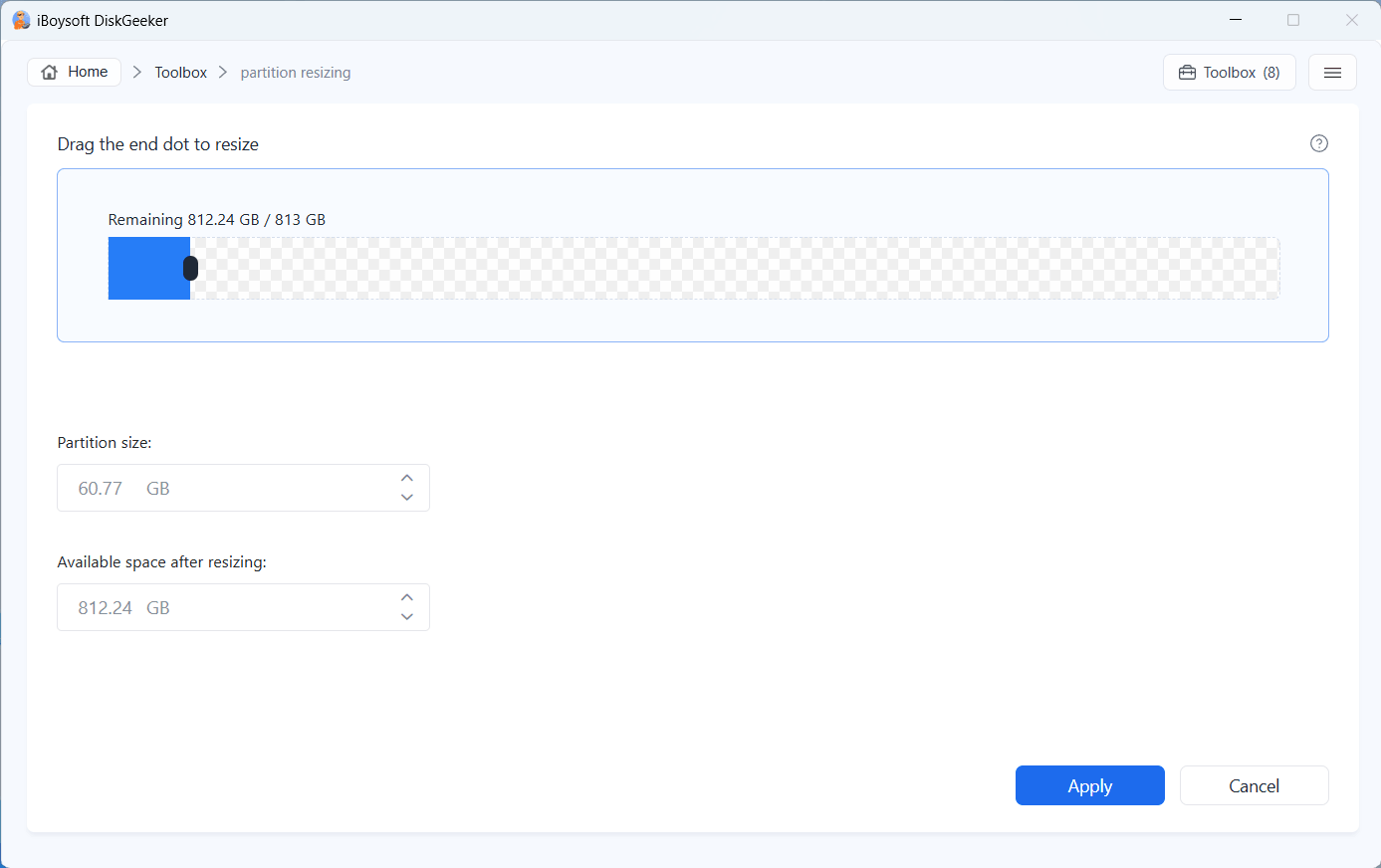
Step 4: Adjust the partition size according to your needs.
Hover over the black square at the end of the dark blue part, hold down the left button of the mouse, and drag the mouse to the left direction to shrink the partition or drag it to the right direction to expand the partition.
As you drag, the partition size below and the available space after resizing will also change, and you can see the specific value after shrinking and extending.
Partition size: The current partition size, and you can click the arrow to shrink or extend the partition size to a desired one.
Available space after resizing: The partition's available space after an adjustment.
Step 5: Click "Apply" to start resizing the partition.
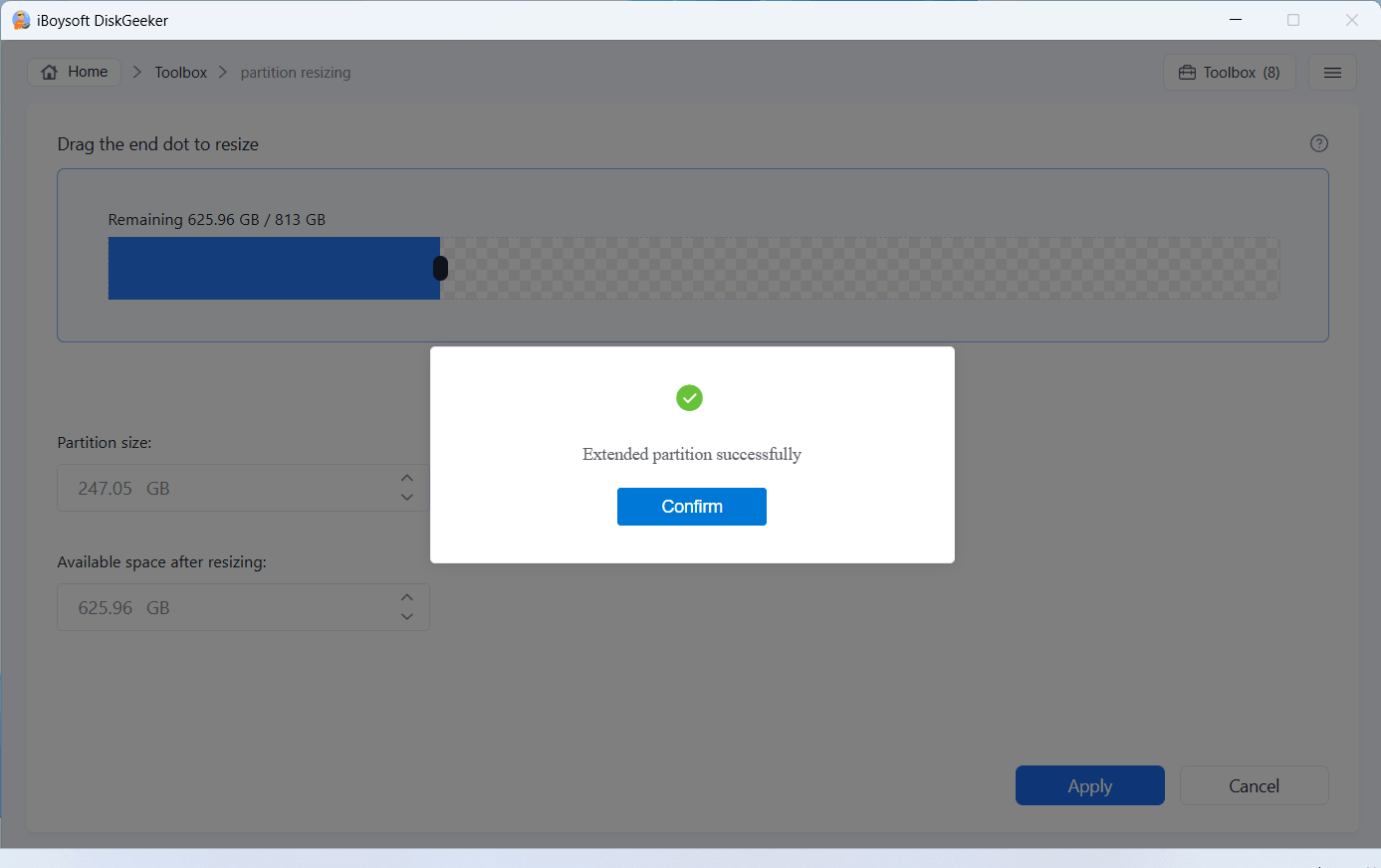
Learn more about iBoysoft DiskGeeker for Windows's Partition Resize
How to Recover a Lost Partition?
Find the lost or accidentally deleted partitions from a hard drive and restore them to be accessible and healthy partitions on a PC.
Note: If a partition became RAW before loss or deletion, it is still a RAW partition after recovery.
Step 1: Click "Toolbox" > "Recover lost partitions."
Step 2: Select the target disk and click "Scan lost partitions."
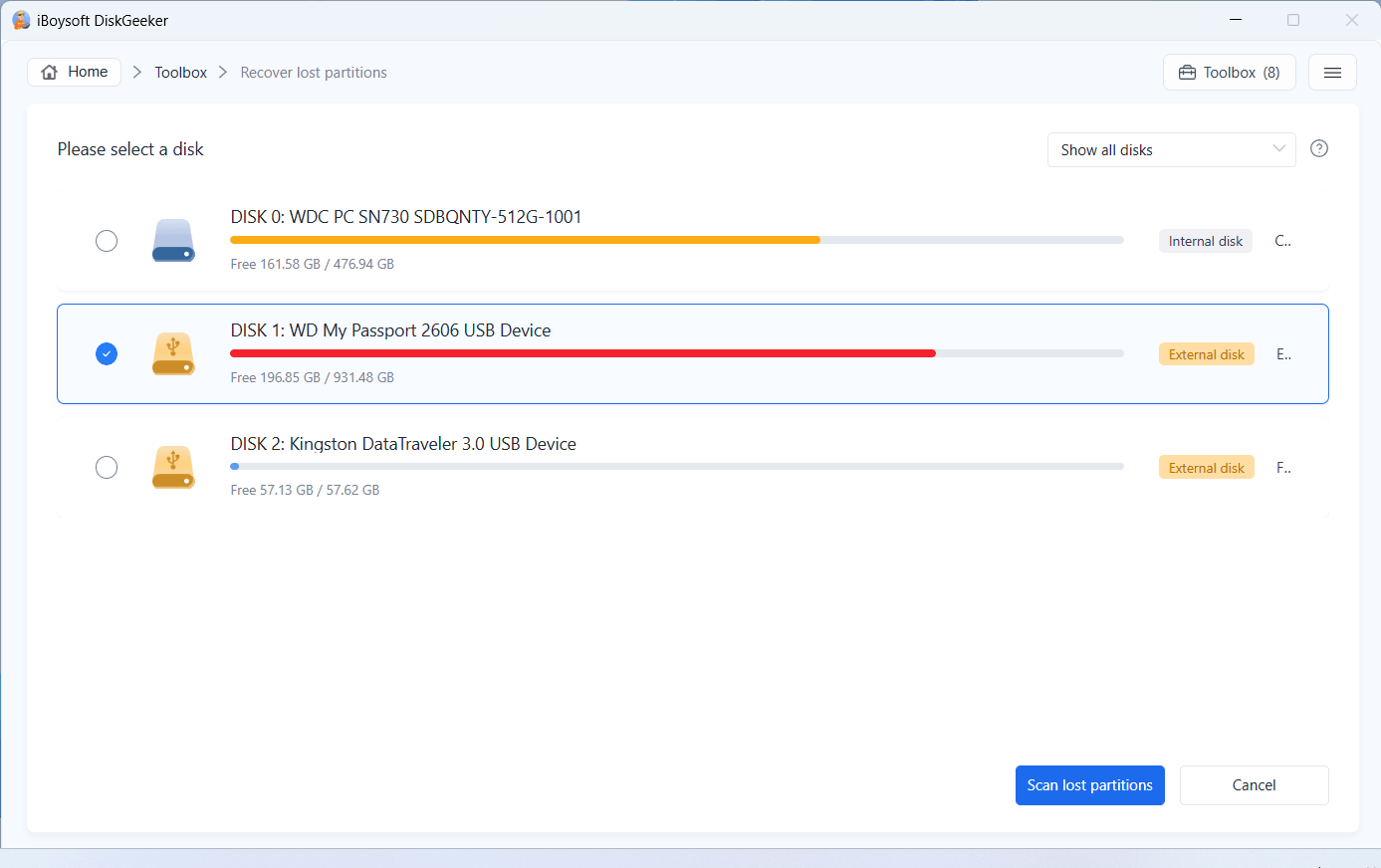
Step 3: Wait for your desired lost partition to be found.
If it finds your desired lost partitions before the scanning process fully completes, click "Skip" to terminate the process. Or, you can wait for the process to finish.
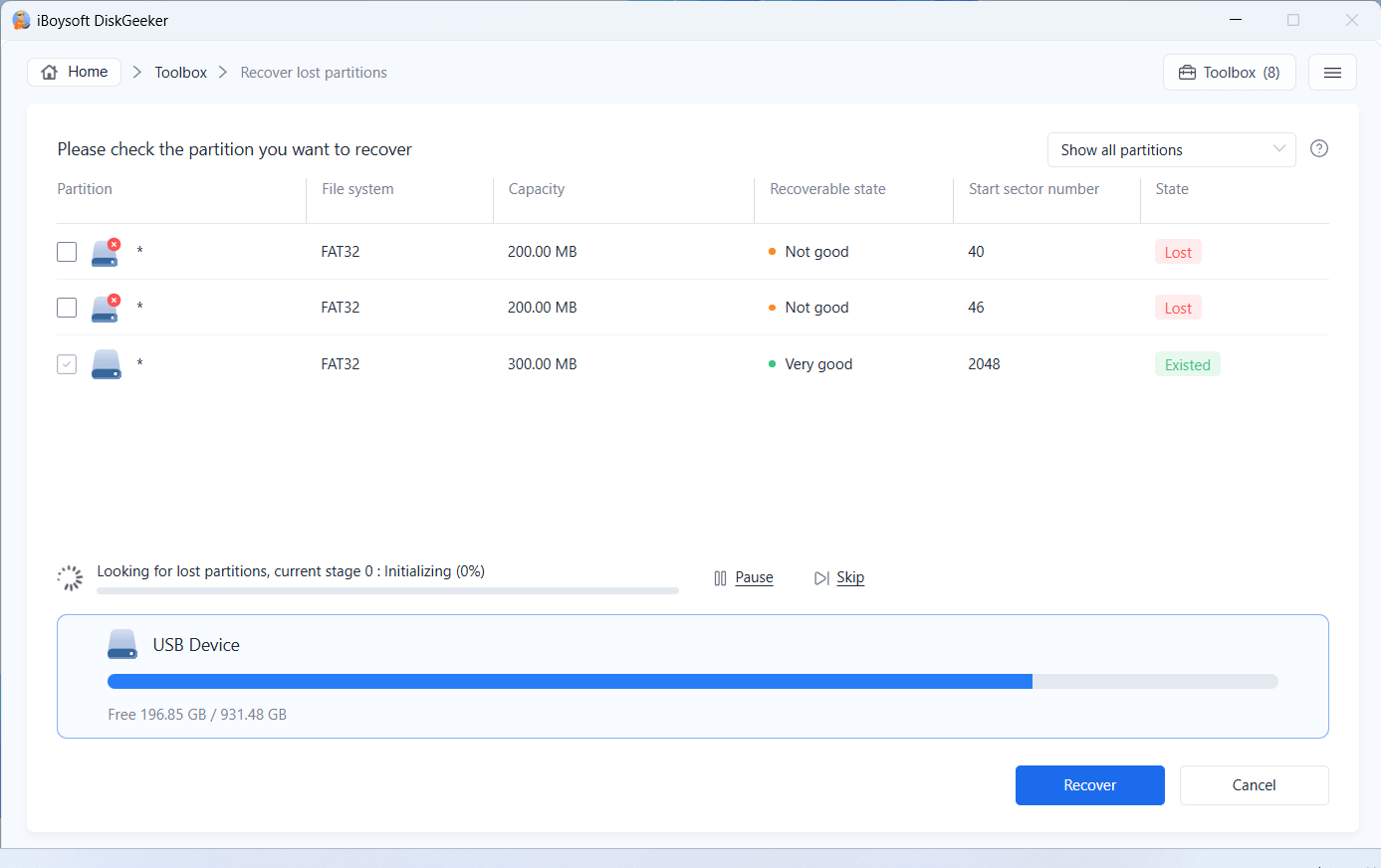
Step 4: Choose the lost partition you want and click "Recover" to restore it.
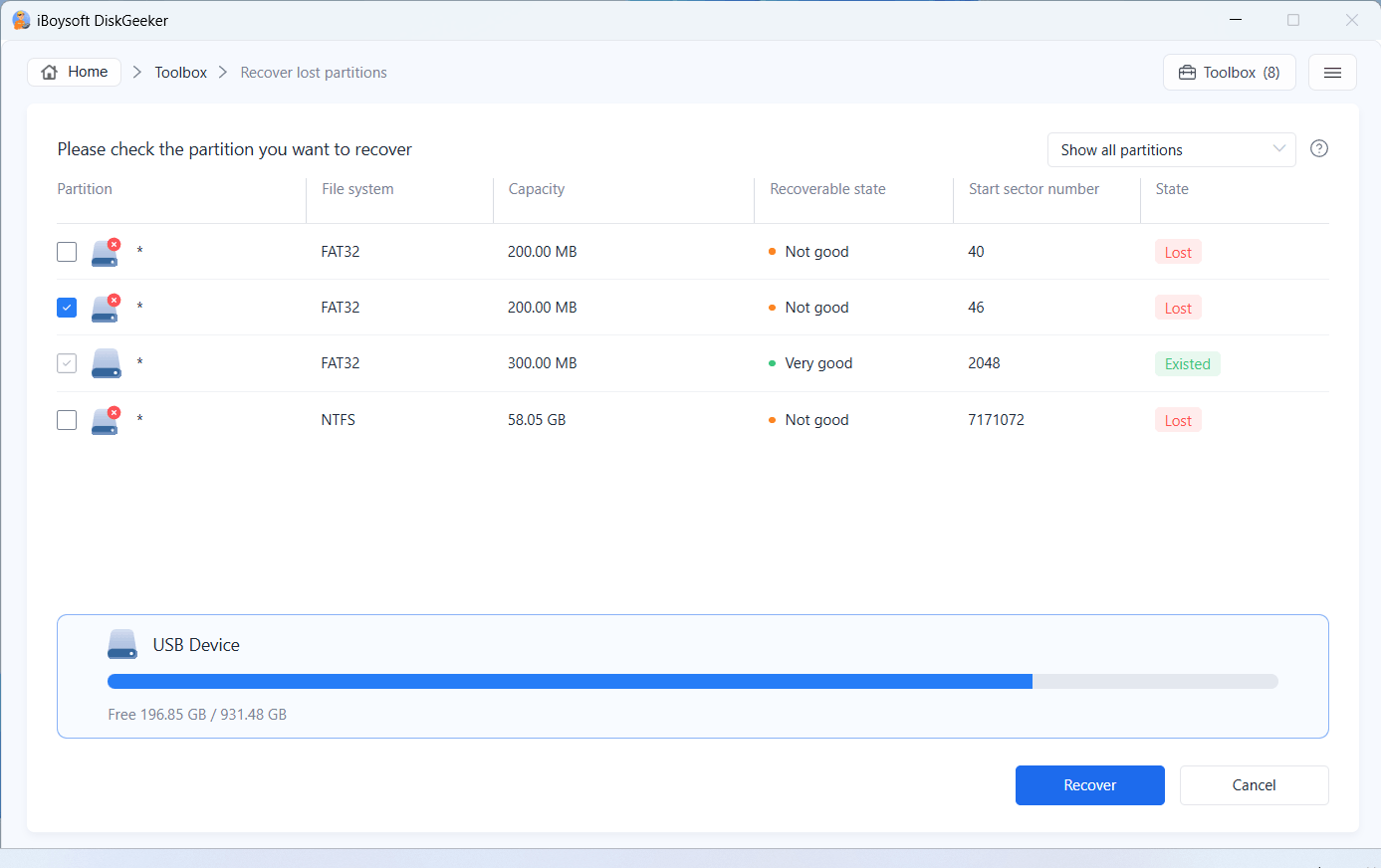
You can only select the lost partitions for recovery.
A message will alert you if the disk where the lost partitions are located is read-only.
The recovered partition is remained in RAW if it was a RAW before loss or deletion. You can try to use iBoysoft Data Recovery for Windows to fix the RAW partition and make it accessible again.
Learn more about iBoysoft DiskGeeker for Windows's Lost Partition Recovery
How to Create a Windows PE Boot Disk?
This tool lets you create a customized Windows PE environment by adding the software and tools you need. It then creates a PE environment where you can run those tools to maintain and troubleshoot and recover data from a specific unbootable computer.
In addition, the tool allows you to export a Windows PE boot disk as an ISO file.
Create a Windows PE boot disk
Step 1: Click "Toolbox" > "Create PE Boot Disk."
Step 2: Select "Create USB boot disk mode."
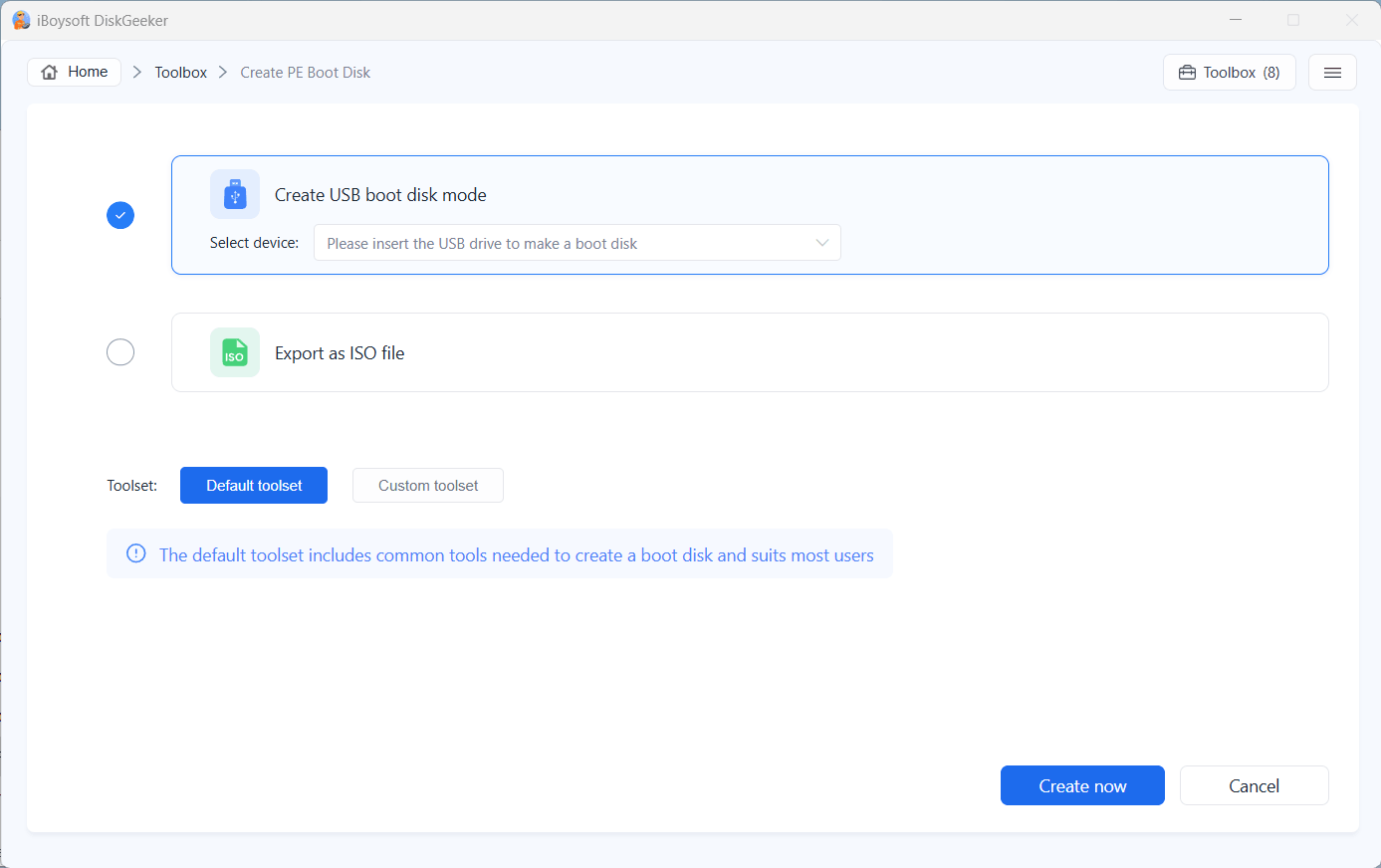
Step 3: Click the drop-down box and select a USB drive you connected.
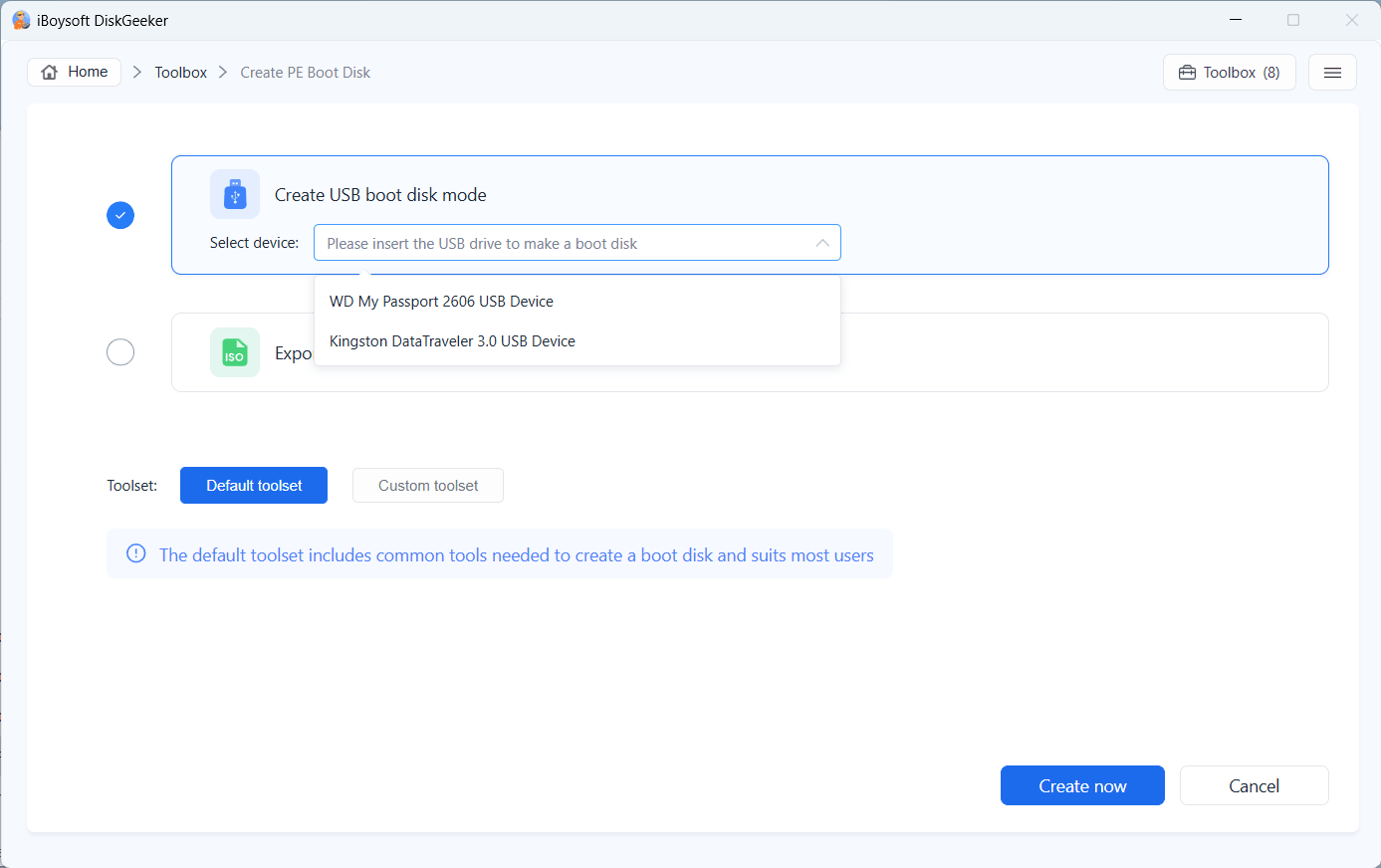
All data on the target drive will be erased while creating the boot disk. Remember to back up the data first.
Usually, this tool will add the default toolset - iBoysoft DiskGeeker to the PE boot disk. If you want to use other software, click "Custom toolset" > "Add file" to upload the software you need.
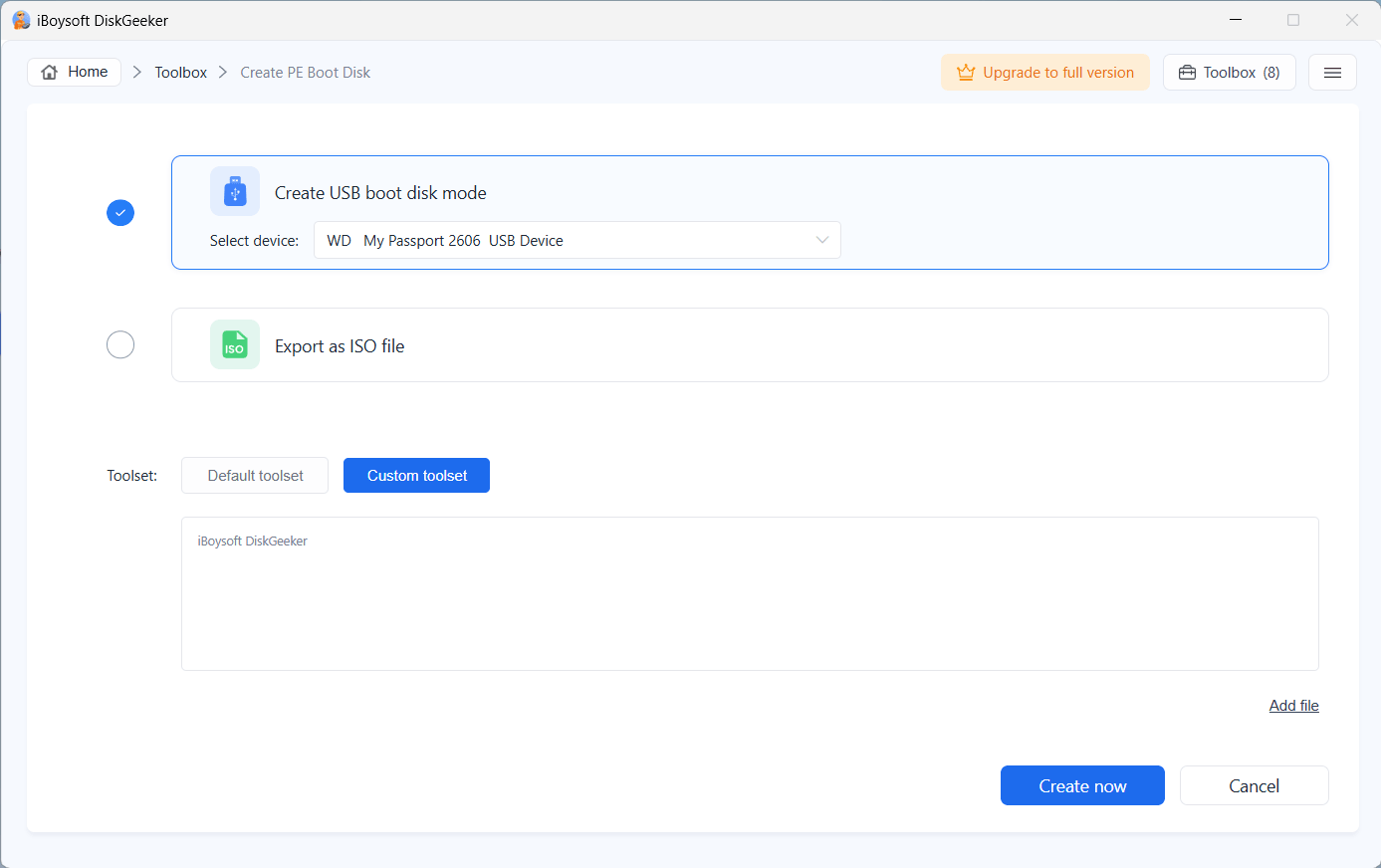
Step 4: Click "Create now."
The software prioritizes using the PE WIM file from the local recovery environment to create the PE; if the WIM file is not found in the local environment, it will prompt you to download the file.
If you agree to download the WIM file, click "Confirm" on the prompt and wait for the process end.
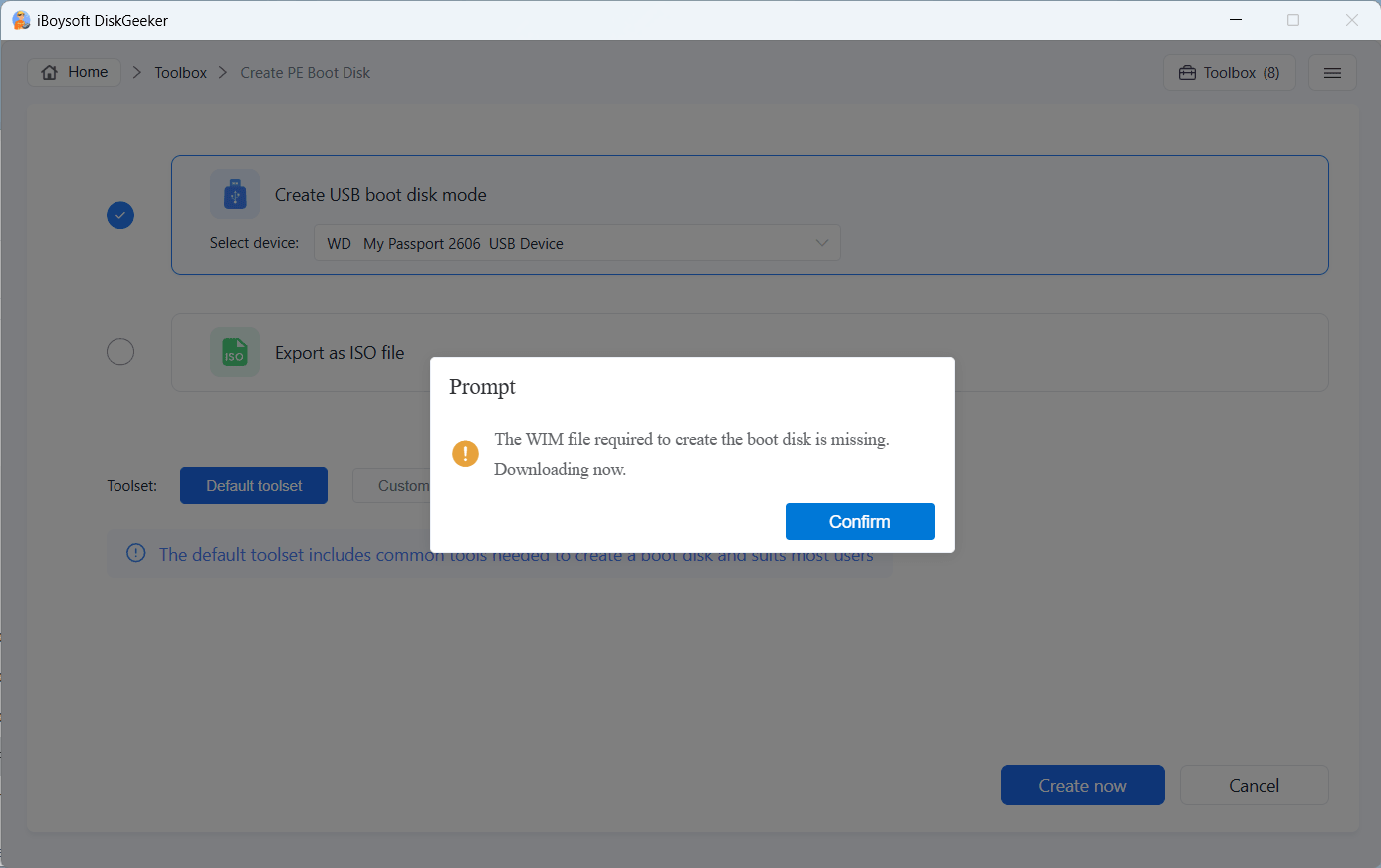
Step 5: Wait for the Windows PE boot disk to be created.
Export a PE boot disk as an ISO file
Step 1: Click "Toolbox" > "Create PE Boot Disk."
Step 2: Choose "Export as ISO file."
Step 3: Click "Export ISO."
Step 4: Choose the PE boot disk from the list and click "Confirm."
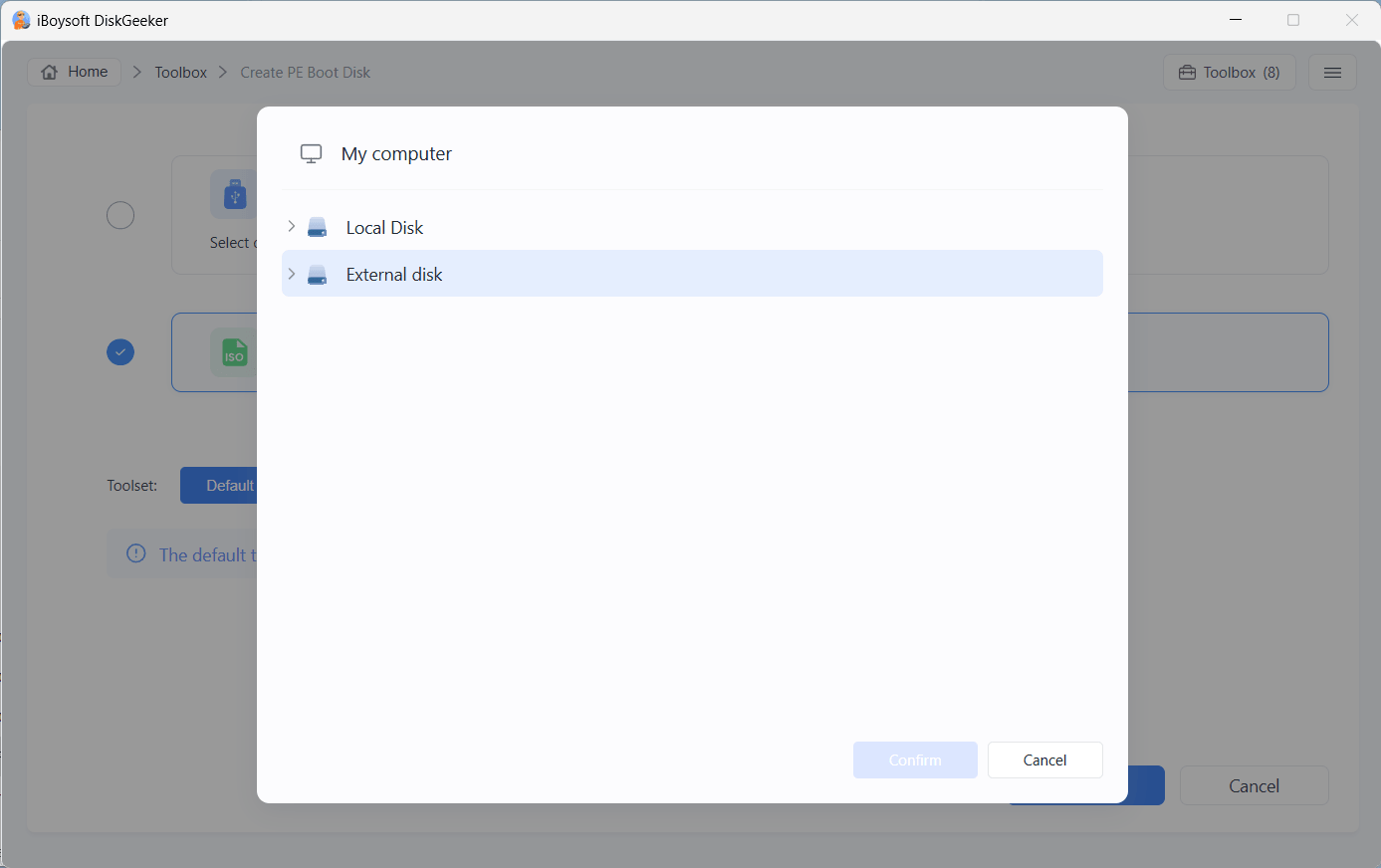
Step 5: Wait for the process to complete.
FAQ
1. What should I do if my license key fails to activate iBoysoft DiskGeeker for Windows?
Restart iBoysoft DiskGeeker for Windows or restart your PC to check if you can activate the application. If not, please send your details to [email protected] for further analysis.
2. Can I recover my data after securely wiping it?
No, the securely wiped data cannot be recovered in any way.
3. Will the process continue in the background if I close the main interface of iBoysoft DiskGeeker for Windows?
No, if you close the window of iBoysoft DiskGeeker for Windows, your ongoing process will stop.