
Written by
Wilsey YoungSummary: This post revolves around external hard drive invalid B-tree node size error in Mac OS X and offers proven solutions. To recover lost data from external hard drive, download iBoysoft Data Recovery for Mac. -From m3datarecovery.com
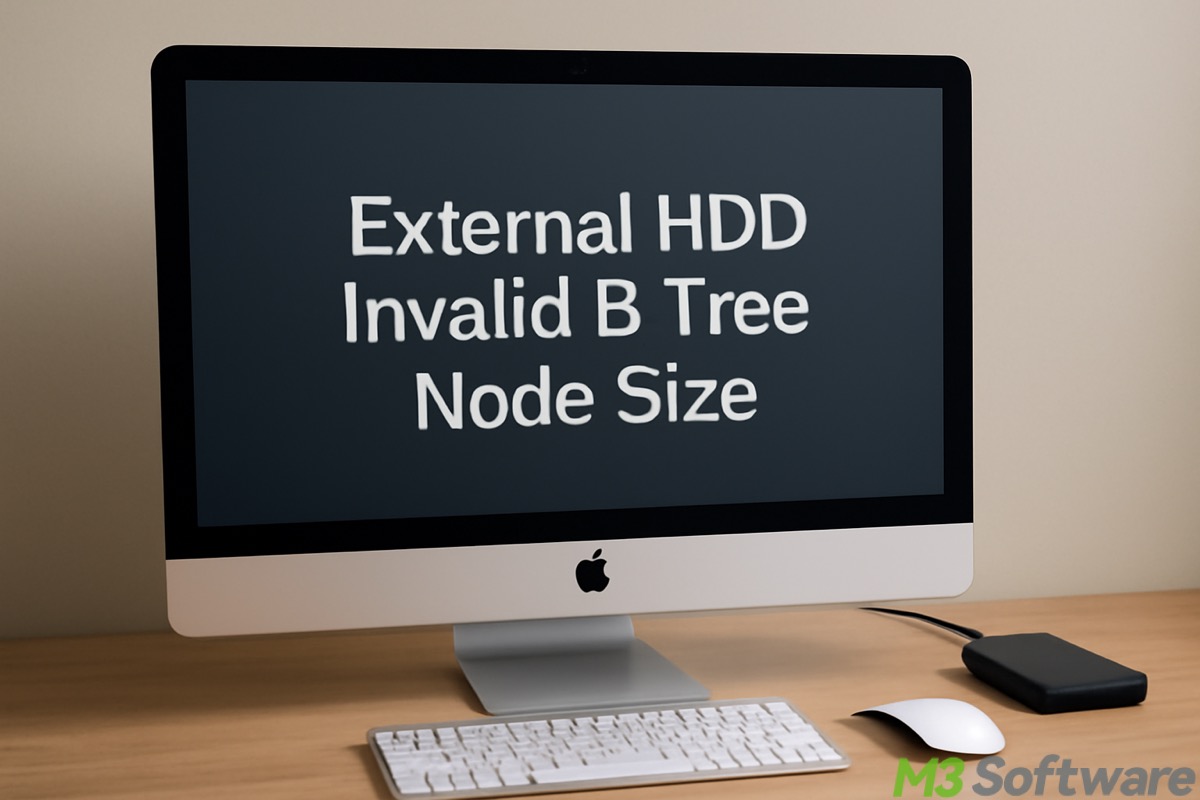
"Invalid B-tree node size" means the Mac hard drive volume is corrupted. This causes data inaccessibility or data loss.
Each volume on your Mac has certain information (such as files, directories, file threads, and directory threads) associated with it. Every single file that you save on your Mac has its unique entry in the index table with B-Tree format. Every time you access a file on your Mac, Mac OS X has to parse this B-tree to locate the file you want to access. The corresponding error message is displayed when the B-tree is corrupted and Mac OS X fails to parse it.
Here's a real case from the forum:
I have my entire final university project on a brand-new 1.5TB WD external hard drive. I plugged it in into my iMac today, and received an error saying "The disk is not readable by this computer". I tried verifying the external drive with Disk Utility and I got the message "invalid B-tree node size, this disk needs to be repaired. Volume check failed." I am unable to repair it using Disk Utility. How to fix invalid B-tree node size error and restore my data? Please help.
What causes the invalid B-tree node size error?
The invalid B-tree node size error can be caused by:
- Tree structure failure
- Damaged or missing catalog file
- File system corruption
- Virus attack
- Abrupt system shutdown
- Header file corruption
- Operating system malfunctioning
- Boot sector error
The following buttons help you share the post quickly
How to fix the invalid B-tree node size error on Mac?
Invalid B-tree node size error is one of the most common issues in Mac OS X, so it is very important to resolve this problem as soon as possible because any further delay may result in a serious problem, such as a data loss situation. The following are some of the most convenient and effective methods to solve the invalid B-tree node size Mac OS X error.
Solution 1 - Use Disk Utility
Disk Utility is a built-in feature in Mac OS X and is able to fix all the common corruption issues. To use Disk Utility in Mac OS X to fix the invalid B-tree node size error, follow these steps:
- Find Disk Utility in Applications > Utilities > Disk Utility.
- In the Disk Utility window, select the drive or volume that prompts the invalid B-tree node size error, and click on the First Aid button in the top toolbar.
- Tap on the "Run" button when the confirmation window appears.
- First Aid will check the disk for errors, verify the file system, and attempt to fix any issues it finds.
If Disk Utility fails to fix the invalid B-tree node size error, take the actions below
Solution 2 - Use the FSCK command
FSCK command: Like the Disk Utility, the FSCK command is also an inbuilt feature of Mac OS X, but it is a command-line-based utility. You can have a try and run this command on the terminal in order to fix the invalid B-tree node size error.
- Ensure the external hard drive is connected to the computer.
- Power off your Mac OS X computer.
- Turn it back on and immediately press and hold the "Command+S" keys to boot into the Single User Mode. This will boot you into a terminal-like interface.
- You'll see a black screen with white text - the command-line interface.
- Input “/sbin/fsck -fy” and hit the "Enter" key on your keyboard. This will scan the file system and attempt to fix any errors on the disk.
- After the fsck process is finished, type "reboot" and press "Enter" to restart your computer.
You can tap on the buttons below to share the post
Solution 3 - Reformat the hard drive
Step 1 - Recover lost data from the external hard drive
By reformatting the hard drive, you can fix the invalid B-tree node size error, but data recovery is recommended before reformatting the hard drive, because reformatting would cause data loss.
To recover lost data from external hard drive with an invalid B-tree node size error, we need professional data recovery software. iBoysoft Data Recovery for Mac is highly recommended. It is an easy-to-use and professional Mac data recovery software which can recover deleted or lost files under macOS and Mac OS X, including macOS 26, 15, 14, 13, 12, 11, 10.15, 10.14, 10.13, 10.12, Mac OS X 10.11.
More importantly, this Mac data recovery tool can recover lost data from external hard drives that are unreadable, formatted, or corrupted. It supports various storage devices, file types, and formats you can imagine.
Tutorial to recover lost data from an invalid B-tree node size error:
- Download, install, and launch iBoysoft Data Recovery for Mac on your Mac computer.
- Select the volume or the hard drive from the list and tap on "Search for Lost Data."
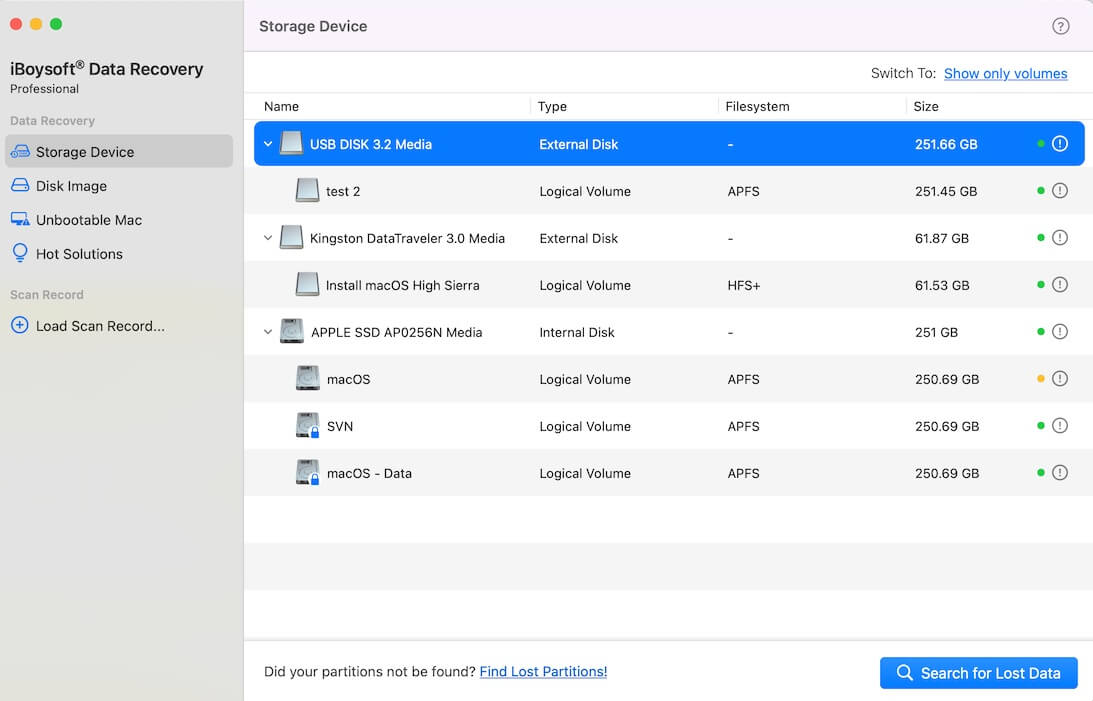
- iBoysoft Data Recovery for Mac is scanning the data from the corrupted external hard drive.
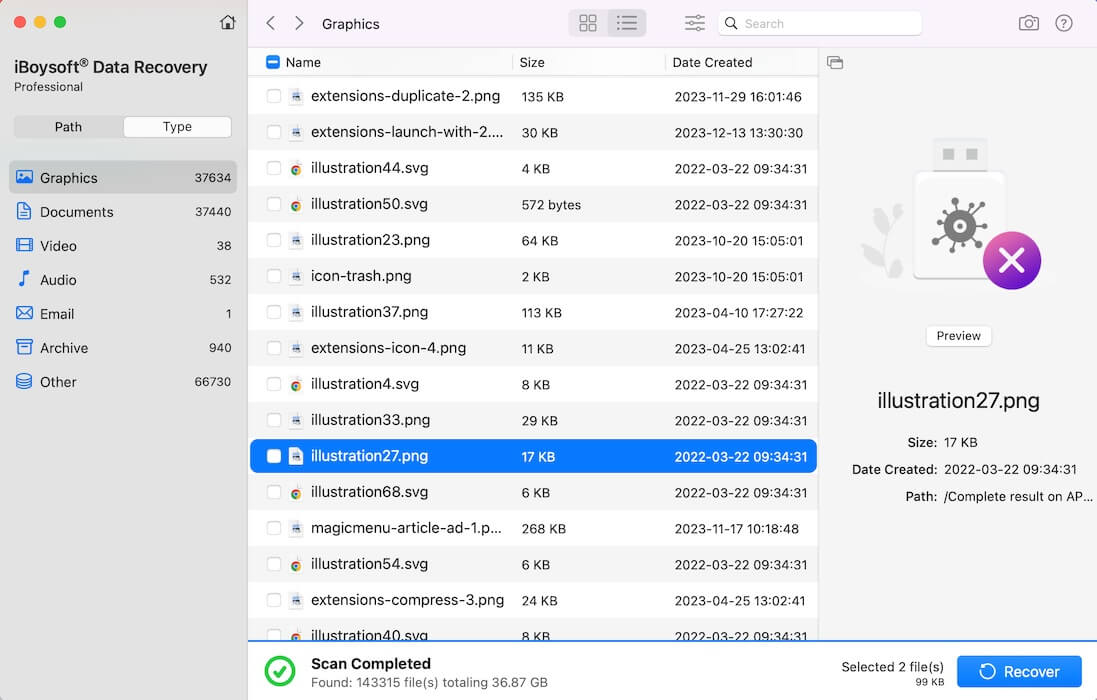
- Select the found files you expect to recover and then click the "Recover" button to save them.
Step 2 - Reformat the external hard drive
After all your important files in the external hard drive are successfully recovered, follow the steps below to reformat the drive:
- Go to Applications > Utilities > Disk Utility.
- Select the external hard drive you want to reformat.
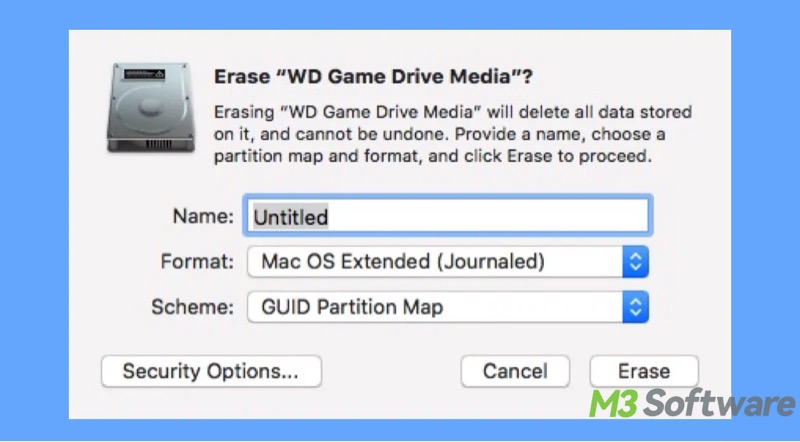
- Click the "Erase" button at the top of the "Disk Utility" window.
- A dialog box will appear with options to choose from.
- Choose a File System Format and click the "Erase" button to start the reformatting process.
You can click the following buttons to share the post quickly
FAQs about invalid B-tree node size
A
This error typically refers to corruption within the B-tree structure of the file system. A B-tree is used by macOS to organize files and directories. When it becomes corrupted, it can prevent the system from reading or accessing files properly.
A
The causes can vary but often include: 1. Tree structure failure. 2. Damaged or missing catalog file. 3. File system corruption 4. Virus attack 5. Abrupt system shutdown 6. Header file corruption 7. Operating system malfunctioning 8. Boot sector error.
A
1. First Aid in Disk Utility: Run Disk Utility > First Aid to attempt a fix on the drive. 2. fsck (File System Consistency Check): Boot into Single User Mode and run the fsck command to check and repair the file system. 3. Reformat the Drive: If repairs fail, back up your data and reformat the drive using Disk Utility.