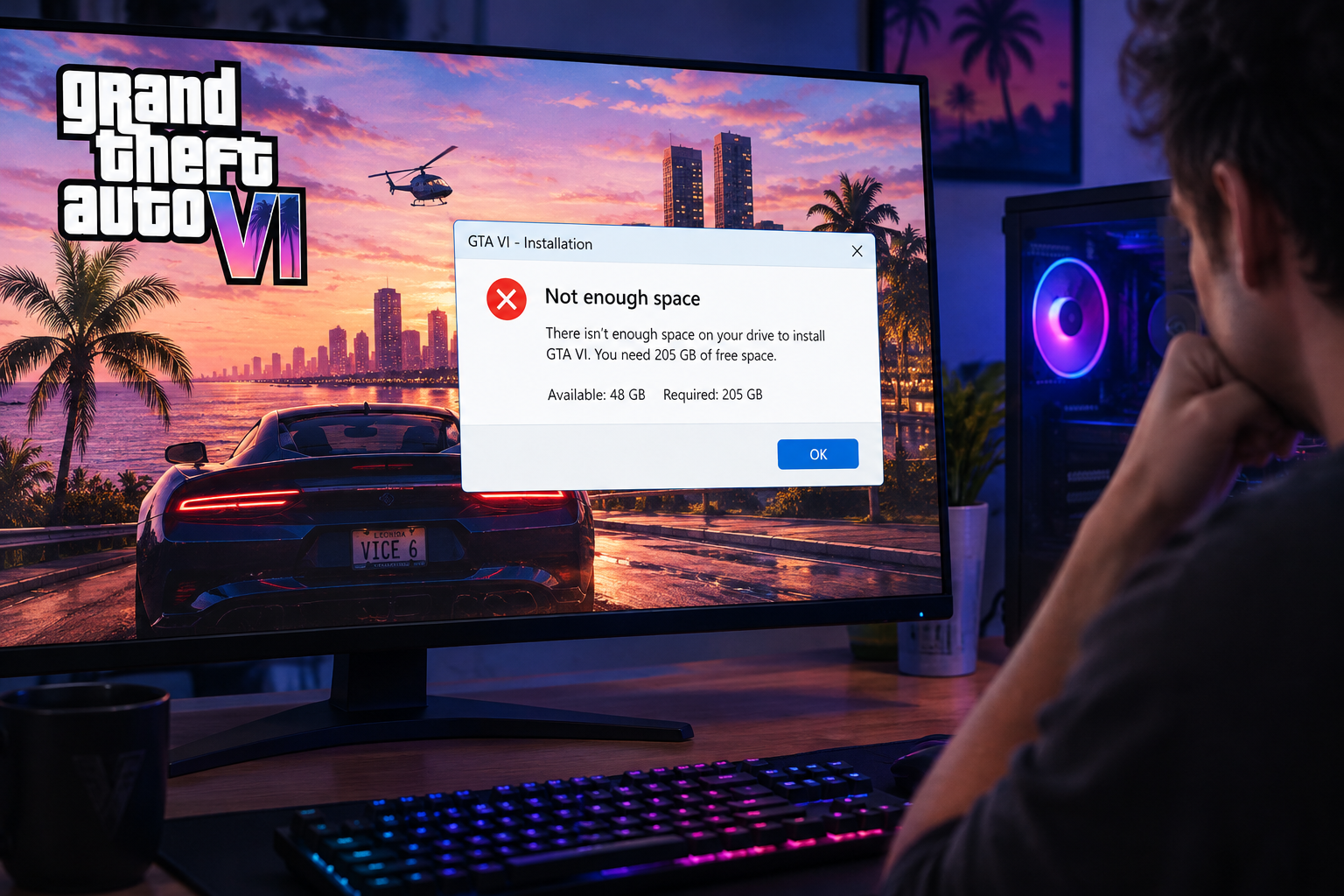
With Grand Theft Auto VI (GTA 6) approaching its highly anticipated release, many players are wondering how much storage space they'll need to install it. Given the game's detailed open world, realistic environments, and cinematic storytelling, it's reasonable to expect it to require a substantial amount of disk space. For PC gamers, this raises another question: Will your computer have enough free storage to install GTA 6 when the PC version becomes available?
Although Rockstar Games has not yet announced an official PC release date or confirmed the game's final installation size, preparing your PC in advance is a practical step. Understanding why modern open-world games require so much storage can help you plan ahead. If your C drive is already running low on space, cleaning up unnecessary files, finding large files you no longer need, and removing unused applications can help you get ready.
In this guide, we'll explain what Rockstar has officially confirmed about GTA 6's storage requirements, why the game may need so much space, and how to free up storage on your Windows PC before installation.
How Much Storage Space Will GTA 6 Require?
As of October 2026, Rockstar Games has not officially announced GTA 6's PC version, installation size, or PC system requirements. Although online estimates suggest the game could require 150 GB, 200 GB, or even more, these figures remain speculative.
Rockstar has confirmed that GTA 6 will launch on PlayStation 5 and Xbox Series X|S on November 19, 2026. However, console storage requirements cannot be used to determine the eventual PC installation size.
For now, PC players should avoid treating any unofficial storage estimate as a confirmed requirement. Once Rockstar announces a PC version, check its official specifications to determine how much free space you'll need.
In the meantime, preparing your computer by removing unnecessary files and reviewing your available storage is a practical way to get ready for other large games, too.
Why Does GTA 6 Take Up So Much Storage Space?
Although the final installation size remains unknown, several aspects of GTA 6 help explain why a modern open-world game of this scale may require substantial storage.
1. A Large, Detailed Open World
According to Rockstar's official descriptions, GTA 6 takes place in the fictional state of Leonida, featuring a return to Vice City and surrounding areas. The game follows Jason and Lucia as they become caught up in a criminal conspiracy extending across the state.
Creating a large, detailed world requires more than building roads and placing buildings on a map. Game developers must also create and store the assets that make the environment feel alive, including buildings, vehicles, vegetation, street furniture, interiors, and environmental details.
A larger or more detailed world can require more assets, but map size alone doesn't determine a game's installation size. Asset reuse, compression, and how the game loads content also affect the final footprint.
2. High-Resolution Textures and Detailed 3D Models
Modern games use textures and 3D models to create realistic characters, vehicles, buildings, and environments.
Textures provide the surface details you see on objects, from the materials used in a vehicle's interior to the appearance of a building's walls. Detailed 3D models define the shape and geometry of those objects.
Higher-resolution textures and more complex models can require additional storage, particularly when a game contains many unique assets.
3. More Character Animations and Environmental Details
A convincing open world needs more than detailed scenery. Characters must move naturally, vehicles must behave appropriately, and the environment must respond to the player's actions.
GTA 6's official trailers showcase detailed characters, busy streets, vehicles, and a variety of activities across Vice City and Leonida. Producing such environments involves many types of game assets, including character models, animations, object models, and related data.
The amount of storage these elements require depends on how the game implements and reuses its assets. It's reasonable to expect detailed environments to contribute to the game's storage demands.
4. Cinematic Cutscenes, Voice Acting, and Music
Audio and video assets can also contribute significantly to a game's installation size.
GTA 6 features a story centered on Jason and Lucia, supported by character dialogue, cinematic sequences, music, and environmental sounds. Rockstar has also highlighted the game's music and in-game radio stations in its official announcements.
A game with extensive dialogue, music, and cinematic content needs to store the corresponding audio and other assets. High-quality audio files can consume considerable space, although compression can reduce their size.
The same applies to video sequences and other presentation assets. Their contribution to GTA 6's final installation size will depend on the formats, resolutions, and compression methods used.
5. Updates and Additional Content
A game's initial installation isn't necessarily the amount of space it will occupy throughout its lifetime.
Developers may release patches, bug fixes, performance improvements, and additional content after launch. Depending on how these updates are delivered, they may require extra temporary installation space or increase the game's overall footprint.
Rockstar has not confirmed the total storage GTA 6 will require after future updates. Nevertheless, leaving some additional free space is a sensible precaution when preparing a drive for a large game.
How to Free Up Storage Space for GTA 6 on Windows
If you're preparing your PC for GTA 6, freeing up storage space in advance can help you avoid low-disk-space warnings and installation problems. You can use a disk cleanup tool to identify unnecessary files quickly or clean up your drive manually with Windows' built-in features.
1. Use iBoysoft DiskGeeker for Windows to Free Up Space
If you want to find unnecessary files without searching through folders one by one, iBoysoft DiskGeeker for Windows combines one-click system junk cleanup, large-file search, app uninstaller, and disk-space analysis in one application.
Its C drive cleaner scans for removable files in categories such as system caches, temporary files, logs and dumps, application caches, old system components, and leftovers from uninstalled applications. It automatically selects supported junk files recommended for removal, while letting you review the results before proceeding.
You can also inspect individual files and manually select or exclude items. This is particularly useful if you want to identify large files in your a specific folder without deleting everything in it.
Other useful features include:
- Find large files: Locate space-consuming files on the C drive, D drive, or other partitions.
- Analyze disk usage: View how storage is distributed across a drive, your user folder, or a specific folder.
- Understand unfamiliar files: Use AI-assisted file analysis to learn what a file does and help assess whether it may be safe to delete.
- Manage applications: Uninstall supported applications and their associated files or move supported applications to another partition.
Take the following steps to free up space on your PC for GTA6:
Step 1: Download and open iBoysoft DiskGeeker for Windows.
Step 2: Tap the Clean button next to your C drive. 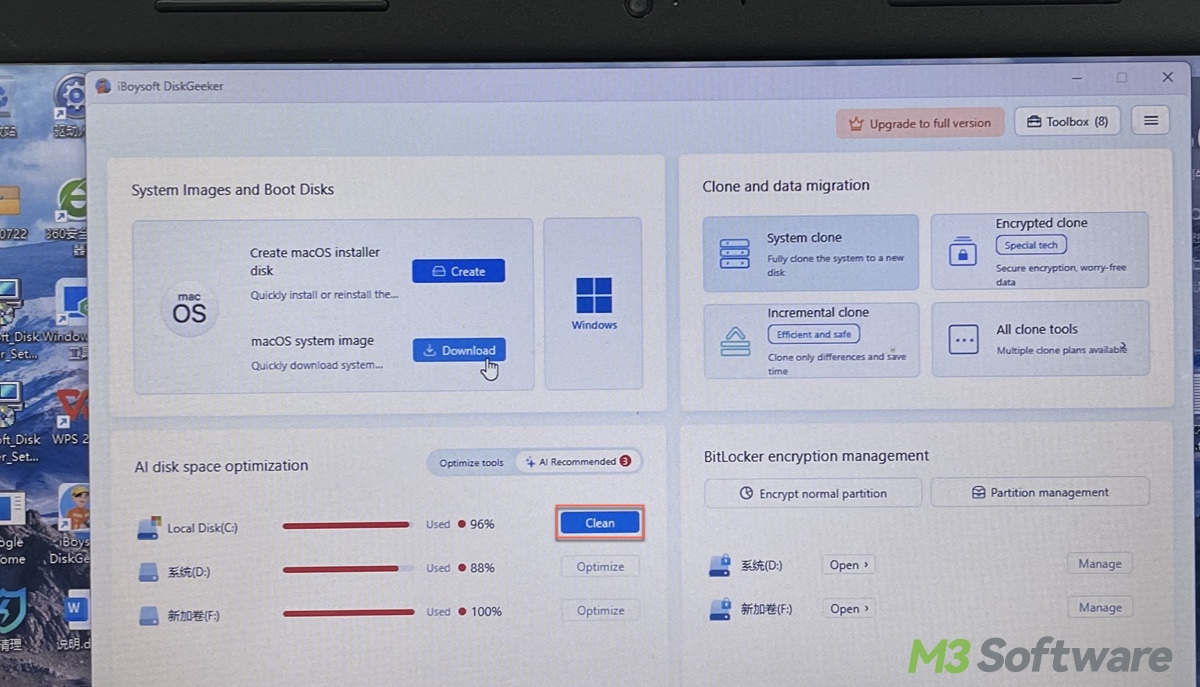
Step 3: After the scan on your C drive is complete, check each category and add unwanted personal files and large files. 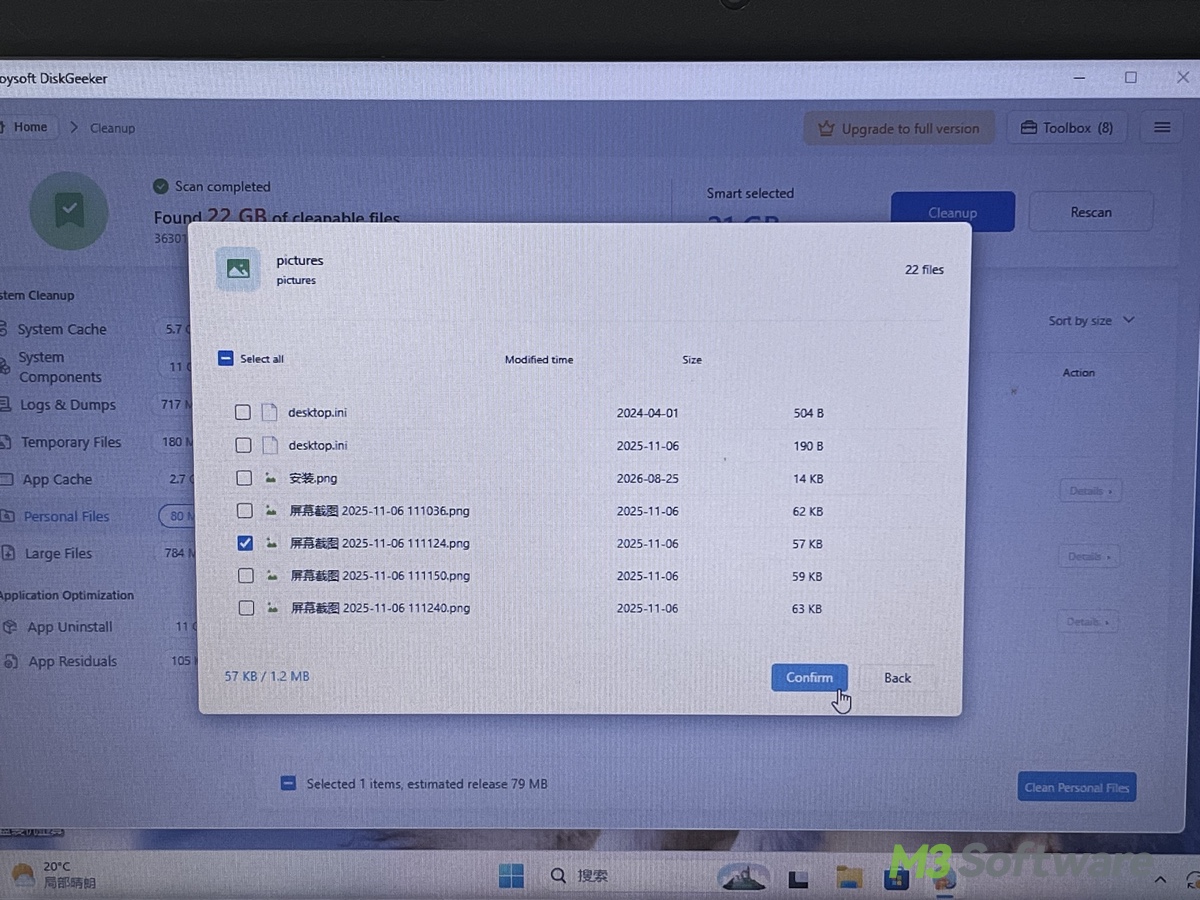
Step 4: Click the Cleanup button to clean the auto-selected junk files that are safe to delete and the personal files you add. 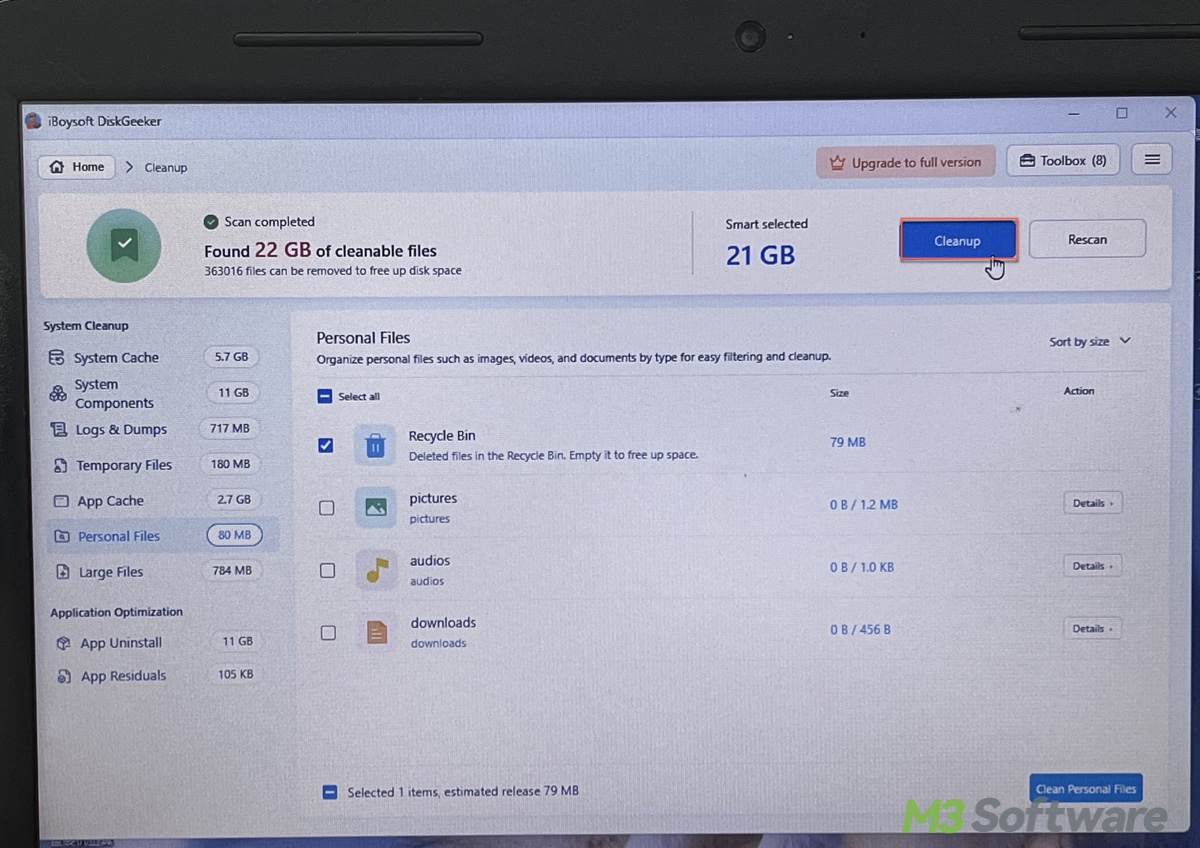
After cleaning your C drive, you can continue to clean large files on your PC by returning to the main page and clicking Optimize tools > Search for large files. 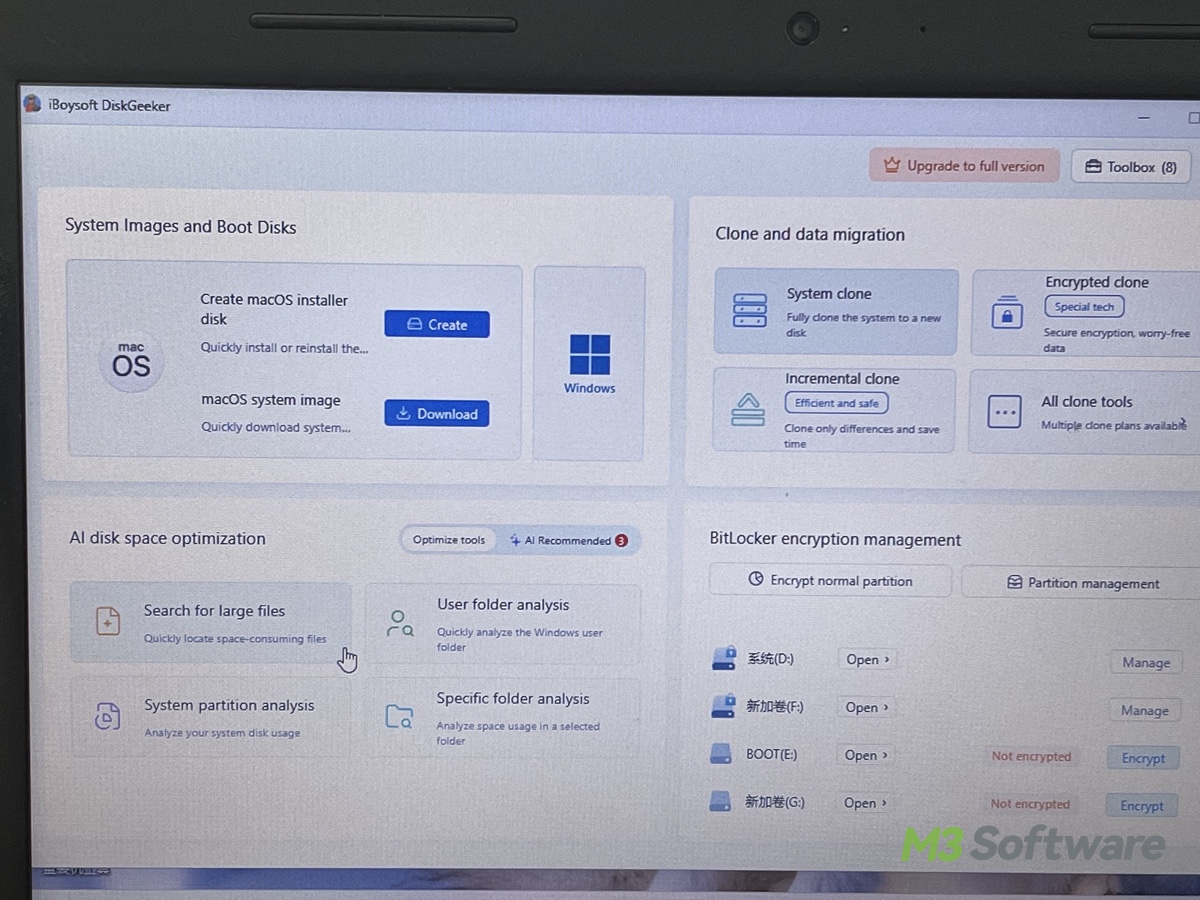
2. Use Windows Storage Sense to Remove Temporary Files
If you prefer a built-in solution, Windows Storage Sense can automatically remove selected temporary files and manage Recycle Bin contents.
To use it:
1. Open Settings > System > Storage.
2. Turn on Storage Sense.
3. Open Storage Sense to review its settings.
4. Configure when it should run and which files it should manage.
5. Run it manually if the option is available, or let it run according to your settings.
Storage Sense is convenient for routine maintenance, but it won't necessarily identify the large files or applications responsible for a full drive. Review its settings carefully, especially if you keep important files in your Downloads folder..
3. Find and Delete Large Personal Files
If removing temporary files doesn't free enough space, large personal files may be responsible.
To find them manually:
1. Open File Explorer.
2. Select This PC and open the C drive.
3. Check folders such as Downloads, Videos, Documents, and Desktop.
4. Change the folder view to Details and sort files by size where available.
5. Review large files and delete only those you no longer need.
You can also move personal files to another drive if you want to keep them. Be careful not to delete unfamiliar files from Windows system folders or application directories simply because they are large.
Find more details: How to Find Big Files on Windows 10?
If manually checking folders takes too long, a disk-space analyzer can provide a clearer overview of which files and folders occupy the most space.
4. Uninstall or Move Applications You No Longer Need
Installed applications and other games can consume substantial storage, especially when several large games share the same system drive.
To review your installed applications:
1. Open Settings > Apps > Installed apps.
2. Sort the list by size if that option is available.
3. Identify applications you no longer use.
4. Select the application's menu and choose Uninstall when available.
Some applications can also be moved to another drive through Windows settings, although the option depends on the application.
Avoid manually moving installed application folders in File Explorer unless the application supports it. Doing so can prevent programs from working correctly.
Which Method Should You Choose?
Choose iBoysoft DiskGeeker for Windows if you want a more centralized way to scan for removable junk, inspect large files, and analyze disk usage.
Choose Storage Sense if you prefer built-in cleanup tools and only need routine maintenance. If your drive remains full after cleaning, investigate large personal files and installed applications rather than repeatedly deleting temporary data.
Remember that freeing up space can help you prepare your PC for a large game, but it doesn't guarantee smoother gameplay. GTA 6's official PC availability, installation size, and system requirements should be confirmed through Rockstar Games before you make game-specific hardware or software decisions.
How Much Free Space Should You Leave for GTA 6?
Because Rockstar has not published the final PC system requirements or installation size, it's too early to recommend a specific amount of free space for a Windows installation.
Once official PC requirements become available, use them as your starting point. Check the required storage capacity, make sure the target drive has sufficient free space, and leave additional room for Windows, temporary installation files, updates, and other applications.
If you plan to install GTA 6 on a console, Windows cleanup tools such as iBoysoft DiskGeeker for Windows will not free up storage on that console. You'll need to manage the console's own storage or use compatible external storage where supported.
FAQs
- QWill GTA 6 Require 200 GB of Storage Space?
-
A
Rockstar Games has not officially confirmed GTA 6's final installation size. Although some online estimates suggest it could require 200 GB or more, these figures remain speculative. Check Rockstar's official system requirements when they become available before deciding how much storage you need.
- QCan I Install GTA 6 on an HDD Instead of an SSD?
-
A
Rockstar has not confirmed the PC system requirements or storage-device requirements for GTA 6. Whether an HDD is supported will depend on the official PC version's requirements, if and when Rockstar announces one. For now, don't assume that an HDD will provide an acceptable experience or that an SSD is an officially confirmed requirement.
- QHow Can I Free Up Space on My PC Without Deleting Important Files?
-
A
Start by removing unnecessary temporary files and uninstalling applications you no longer use. You can also analyze disk usage to locate large files and folders before deciding what to remove. Tools such as iBoysoft DiskGeeker for Windows help you review categorized cleanup candidates, find large files, and analyze storage usage. Always review files before deleting them, especially those in your Downloads and personal folders.
- QWill Cleaning My C Drive Make GTA 6 Run Faster?
-
A
Cleaning your C drive can help if low storage is causing Windows or other applications to struggle. It may also help you make room for a large game and its updates. However, cleanup alone does not guarantee higher frame rates or smoother gameplay. Those depend on factors such as your CPU, GPU, RAM, drive performance, and whether your PC meets the game's official system requirements.