

With reports putting the PS5 version of Grand Theft Auto VI at 210 GB, PC gamers have good reason to check their available storage. Although Rockstar has not confirmed this figure or announced official PC storage requirements, preparing your SSD now can help you avoid a last-minute space shortage.
Our advice: clean up your existing drive before buying a larger SSD. You may be able to free up enough space for GTA 6 without spending money on new hardware.
Quick Selector Table
| Your situation | What you should do |
| Your SSD has plenty of free space | Keep your current drive and monitor official game requirements. |
| Your C: drive is nearly full , but contains old downloads and temporary files | Clean up your existing storage first. |
| You don't know what's consuming your disk space | Use Windows Storage settings or a disk space analyzer such as iBoysoft DiskGeeker for Windows. |
| Your drive remains nearly full after cleanup | Consider upgrading your SSD or adding a compatible secondary drive. |
| You regularly install multiple large games | A larger SSD may be a worthwhile long-term investment. |
| Your PC has limited upgrade options | Prioritize cleanup and investigate compatible external storage. |
The bottom line: Free up existing space first, then upgrade if your storage needs still exceed your available capacity.
How Much Space Could GTA 6 Need?
Why does GTA 6 take so much storage space? Reports suggest GTA 6 may require 210 GB on PS5, but this figure is unconfirmed, and Rockstar has not officially announced a PC version or its storage requirements.
Still, a large game could strain an almost-full SSD. Check your available space now and remove unnecessary files to prepare for future storage needs.
How Much Free Space Should You Keep?
There is no confirmed GTA 6 PC storage requirement to plan around yet. Instead, use your current workload and future storage needs to guide your decision.
| Storage situation | Recommended action |
| Plenty of free space for your current needs | Keep your existing SSD and monitor official requirements. |
| Limited free space and obvious unnecessary files | Clean up first, then reassess. |
| Less free space than a future game's confirmed download requirement | Free up space or use another supported installation location. |
| Enough room for a download but little room for installation operations or updates | Reclaim additional space before installing. |
| Insufficient capacity even after cleanup | Consider a larger SSD or compatible secondary drive. |
Leave enough room for Windows, apps, updates, and everyday file operations. The right buffer depends on your drive capacity and workload, so there is no single free-space number that fits every PC.
When cleaning your existing SSD is enough
If your 1 TB SSD is cramped with old downloads, unused apps, temp files, or forgotten game installers, buying a new drive might be unnecessary.
- Reclaim Space: Deleting unneeded files frees up room for your current workload and upcoming installations.
- Postpone Upgrades: Ideal if you want to delay a hardware purchase and maximize your current drive.
- Assess True Needs: A clean slate lets you measure your actual remaining capacity to determine if an upgrade is truly required.
When upgrading to a larger SSD makes sense
Cleanup cannot solve every storage problem. A larger SSD may be the better option if:
- Your drive remains nearly full after a thorough cleanup.
- You regularly keep several large games installed simultaneously.
- Your video editing, recording, or other creative projects consume substantial storage.
- You need more capacity for future downloads, updates, and personal files.
- Your PC supports a compatible SSD upgrade within your budget.
Desktop PCs often allow users to add a second SSD instead of replacing the existing drive. Laptop options depend on the model, available slots, and whether the original storage is replaceable. Before buying a drive, check your motherboard or laptop specifications, supported SSD form factor, interface, and available connections.
A sensible rule: clean first, assess the remaining capacity, and upgrade if you still need more room.
How to Free Up SSD Space on Windows
Before spending money on a larger drive, try these practical steps.
1. Check what is using your storage
On Windows 11, open Settings > System > Storage. On Windows 10, open Settings > System > Storage as well, although the interface may differ. Review the categories to see how much space is occupied by installed apps, temporary files, documents, and other data.
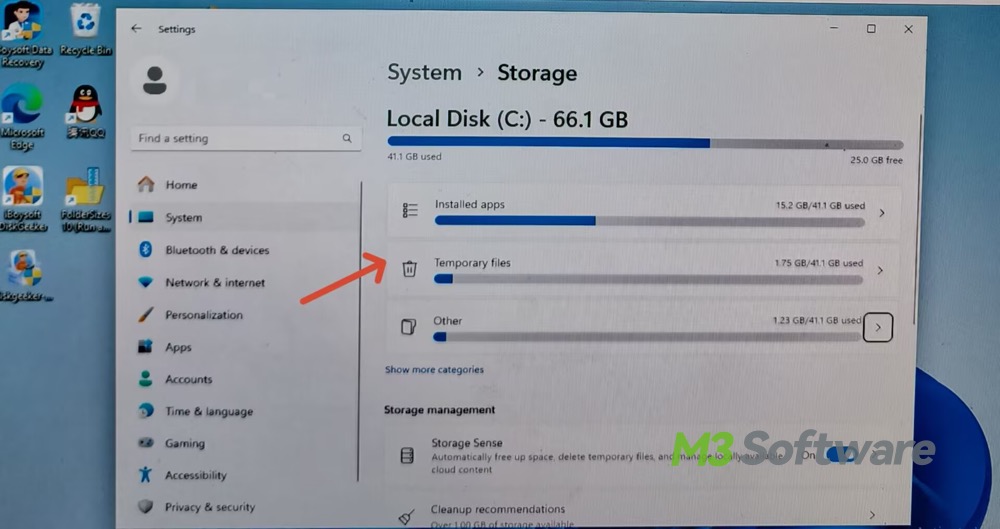
Pay particular attention to temporary files, large applications, and categories that have grown unexpectedly. Do not assume every large file is unnecessary; it could be a game, a personal project, or an important backup.
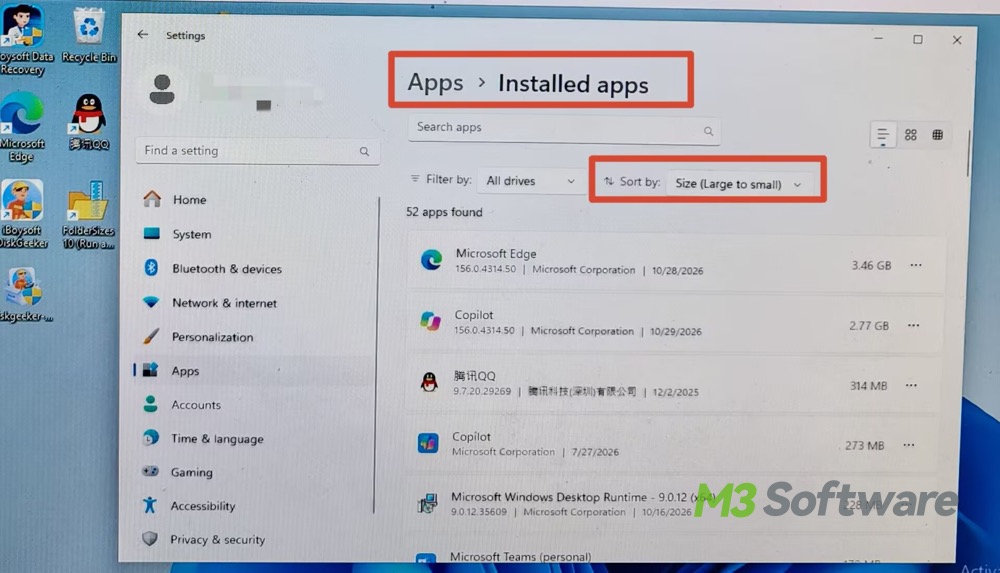
2. Uninstall games and applications you no longer use
Installed games can be among the largest items on your SSD. Review your game library and uninstall titles you have finished or no longer play. If a launcher supports moving games to another library or drive, that may be preferable to downloading them again later.
You can also uninstall applications you no longer need. Avoid manually deleting program folders because doing so may leave components behind or interfere with other software.
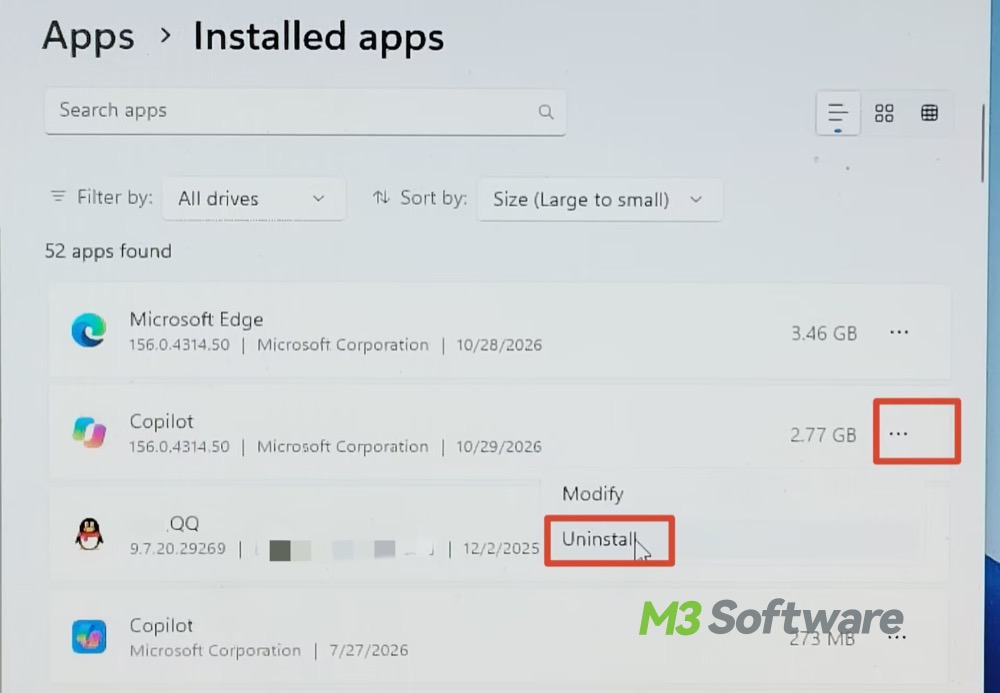
3. Remove unnecessary downloads and temporary files
Check your Downloads folder for old installers, archives, disk images, and duplicate downloads. Sort files by size and review the largest items first. Delete only files you have confirmed are no longer needed.
Windows Storage settings can also help identify temporary files and other cleanup opportunities. Review the categories before confirming deletion, especially if Downloads or the Recycle Bin is included.
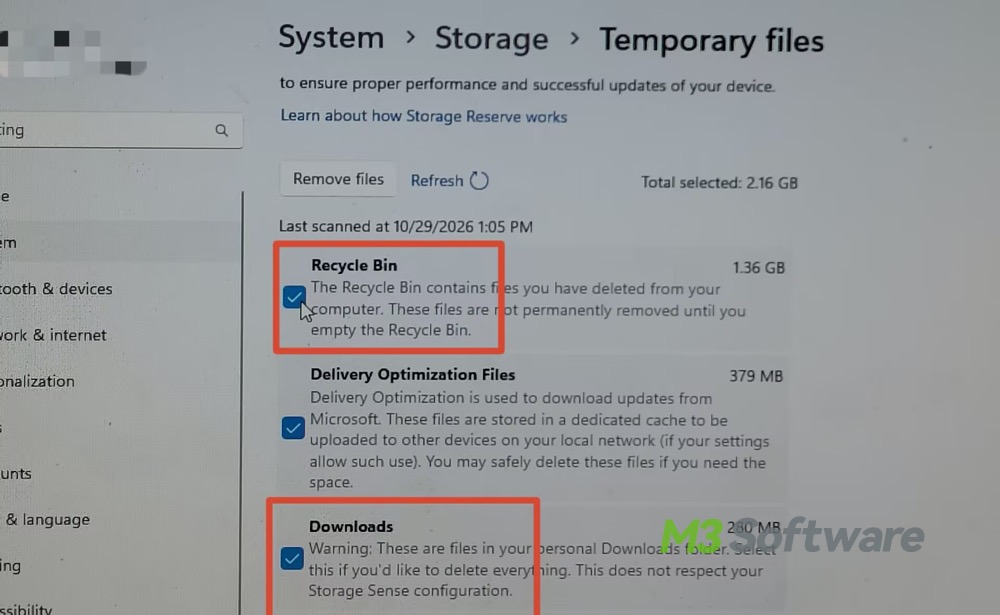
Avoid manually deleting unfamiliar Windows system folders. Removing essential operating system files can cause software or Windows itself to malfunction.
4. Find large files and duplicate data
Forgotten gameplay recordings, videos, archived projects, and duplicate downloads can consume significant storage. Use a disk space analyzer to find large files and identify cleanup opportunities. Before deleting duplicates, verify their contents and ensure they aren't needed backups.
A Simpler Way to Manage Windows Storage: iBoysoft DiskGeeker for Windows
If you want a more organized way to manage your PC's storage, iBoysoft DiskGeeker for Windows is worth considering.
This Windows disk management utility includes disk space cleanup and management features designed to help you identify unnecessary files, analyze storage usage, and find large files. It can be useful when Windows' built-in storage overview doesn't provide enough detail for your cleanup process.
- Clean up your system drive (delete system junk, cache, temporary files, outdated update files, etc.)
- Locate large files, duplicated files, and analyze disk usage
- Uninstall unused apps and manage storage across drives and partitions
- Download, install, and launch iBoysoft DiskGeeker for Windows version 2.0 (the latest version).
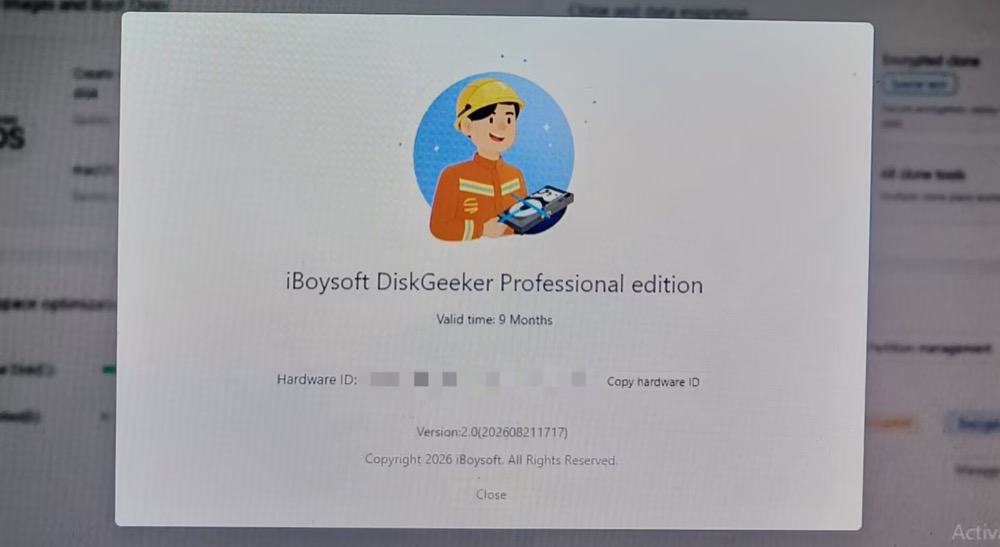
- Click the “Clean” blue button next to Lock Disk (C:) in the AI disk space optimization section.
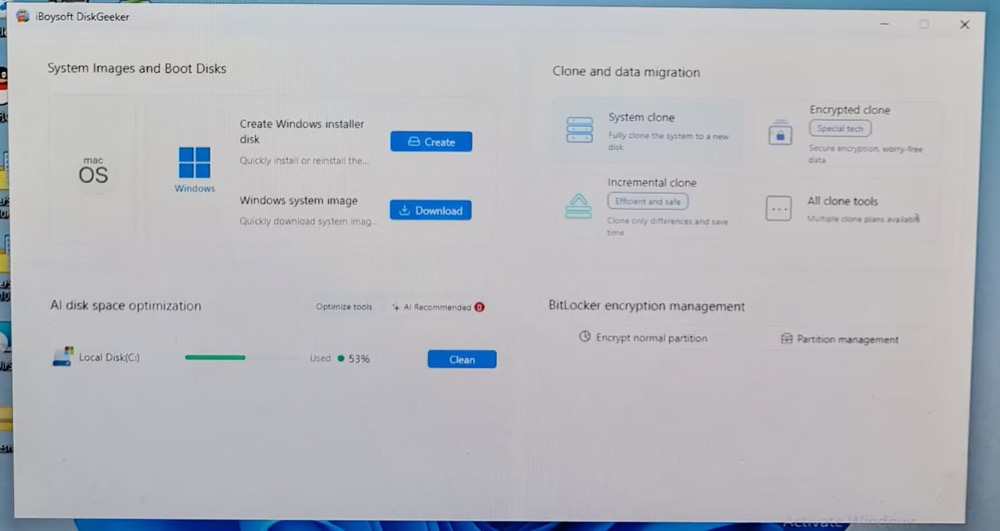
- This feature-rich disk manager will instantly scan your system drive C: and then list out the results in 3 major categories: system cleanup, application optimization, and chat tools.
To clear system update files, target System cleanup, which covers almost all the safe-to-remove files, including system update cache, app update cache, installation cache, logs, temporary files, components, etc.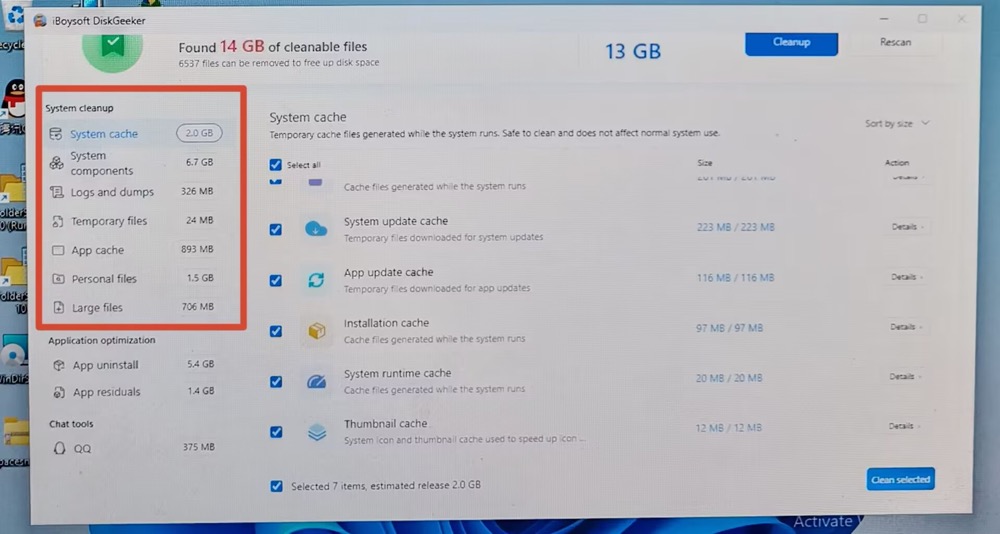
The standard scan results group files by category rather than their original storage paths (e.g., Download, DataStore, or WinSxS).
To inspect a specific directory like WinSxS, simply return to the home screen and click Specific folder analysis. You will then see a targeted list of safe-to-delete update files (see screenshot below):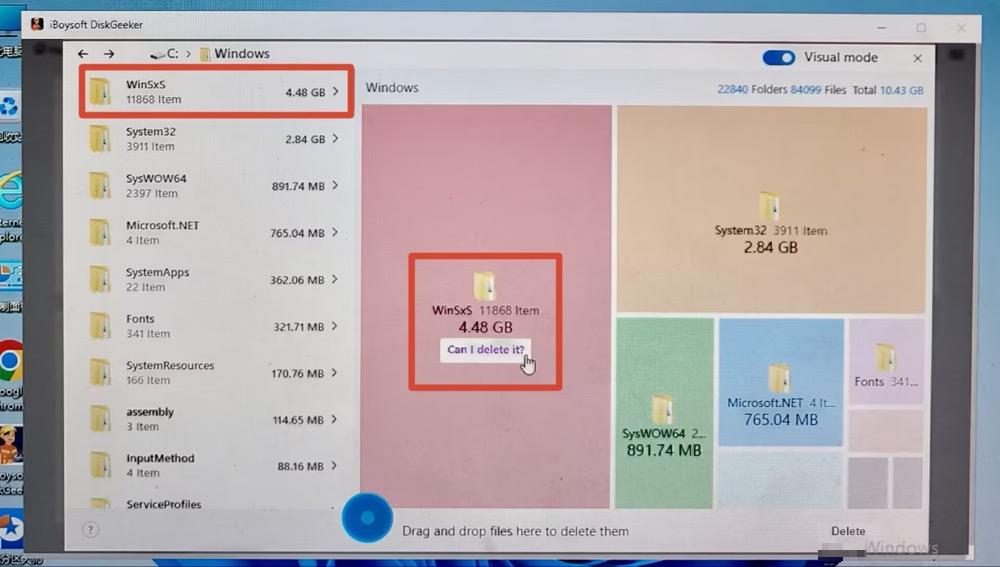
- Click the “Cleanup” button in the top menu or the “Clean selected” button in the lower right corner of the screen to clear unnecessary files.
Final Verdict: Clean First, Upgrade If Necessary
Should you upgrade your SSD before GTA 6 comes to PC? Not necessarily.
Check your Windows storage, remove unnecessary files, and use iBoysoft DiskGeeker for Windows to help identify cleanup opportunities. If your drive is still too full afterward, consider a larger SSD or compatible secondary storage.
With PC requirements still unconfirmed, making better use of your existing storage is a practical first step before spending money on new hardware.
What do you make of this article? You can share it using the buttons below