
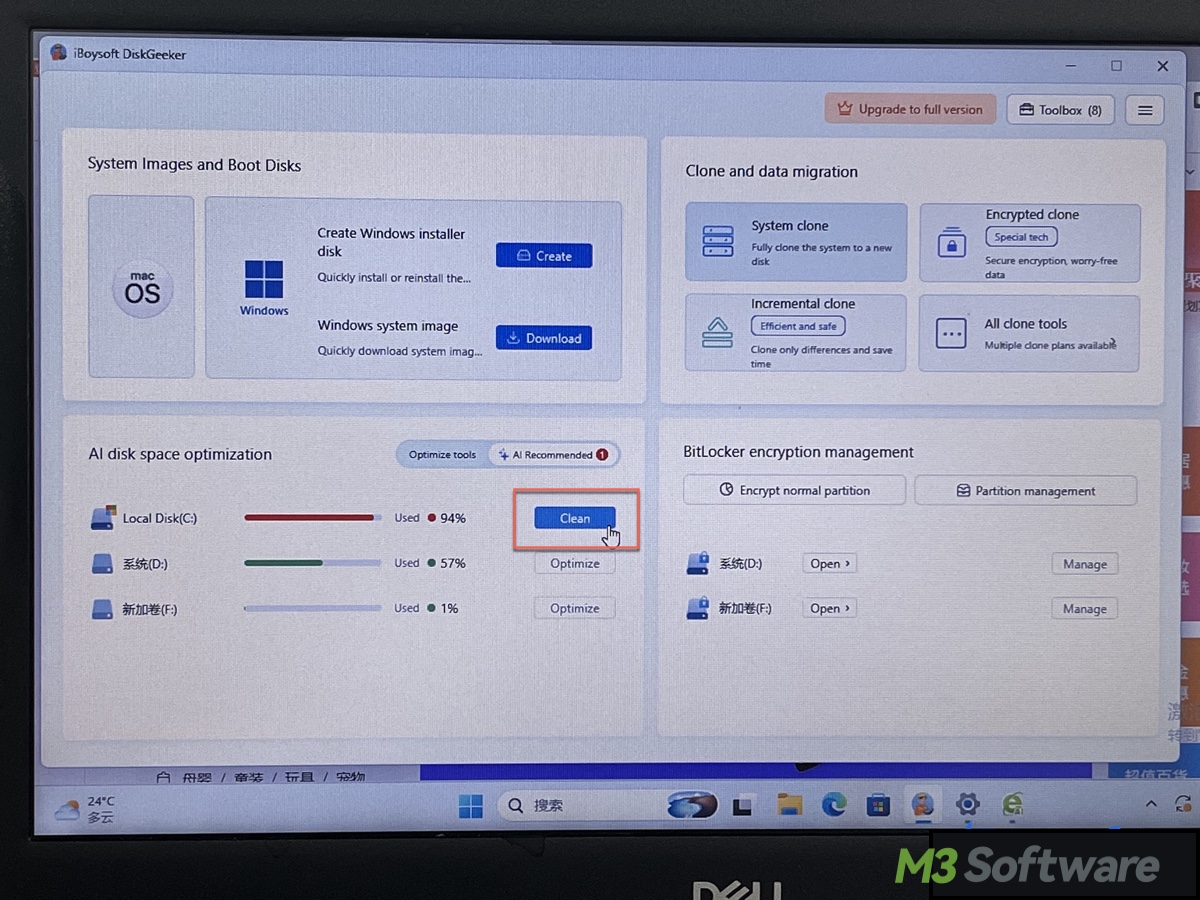
When your C drive runs low on space, your PC may become sluggish, and Windows updates or new applications may fail to install. The good news is that you don't necessarily need to pay for a cleanup tool. The best free C drive cleaner software in 2026 can help you remove unnecessary files, find space-hogging data, and reclaim storage. This guide compares five options, including built-in Windows tools and third-party cleaners, to help you choose the right one for your needs.
How to choose the right cleaner for your C drive?
Before installing software, identify which of these situations best describes your PC.
| Situation | Recommended starting point |
|---|---|
| Windows needs routine temporary-file cleanup | Storage Sense |
| Your C drive is nearly full, and you want immediate C drive cleaning | iBoysoft DiskGeeker for Windows |
| Your C drive is still full after manual cleaning | iBoysoft DiskGeeker for Windows |
| You don't know whether a file is safe to delete | iBoysoft DiskGeeker for Windows |
| You want more control over junk-file categories without paying | Wise Disk Cleaner |
| You prefer an open-source cleaner | BleachBit |
| You want a familiar interface for browser and application cleanup | CCleaner Free |
| You cannot work out which large files or folders are consuming space | iBoysoft DiskGeeker for Windows |
| You want storage analysis combined with broader disk-management features | iBoysoft DiskGeeker for Windows |
Windows Storage Sense — Best for automatic C drive maintenance
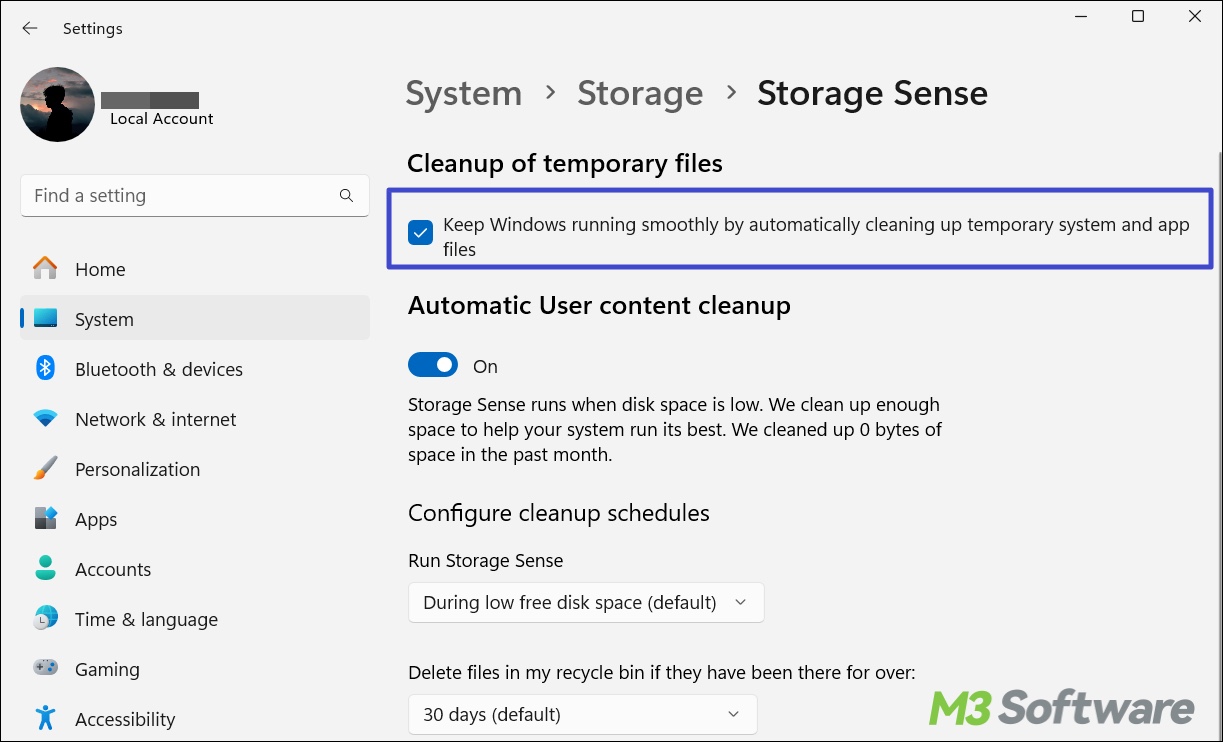
Windows Storage Sense is a built-in Windows feature that frees up disk space by automatically removing selected temporary files and managing items in the Recycle Bin. Depending on your settings, it can also remove locally available cloud files that have not been opened recently.
What sets Windows Storage Sense apart:
Storage Sense requires no additional software and can run automatically on a schedule or when disk space is low. It is a convenient choice for routine maintenance without paying for a third-party cleaner. It matches CCleaner for most everyday cleaning needs by cleaning up old Windows update files, hidden caches, logs, and temporary app data, cloud file hydration, and scheduling cleanups.
Trade-offs to consider:
Storage Sense focuses on predefined cleanup tasks rather than helping you investigate every space-consuming file. It does not provide a comprehensive view of large files and folders, and it generally won't help you decide which personal files or installed applications are safe to remove.
- Pros:
- Built into Windows at no extra cost.
- Can automate routine cleanup.
- Lets you configure when certain cleanup tasks run.
- Cons:
- Limited ability to analyze disk usage and locate large files.
- Does not offer a comprehensive file-by-file cleanup review.
- Requires careful configuration to avoid removing files you want to keep.
What Users Say: Users overwhelmingly praise Windows Storage Sense as a safe, built-in tool that makes third-party cleaners like CCleaner completely obsolete by quietly managing system junk in the background.
While tech communities love its "set-it-and-forget-it" automation and seamless cloud file management, power users occasionally prefer the precision of the legacy Disk Cleanup tool for manual control.
The only major warning from users is to set the "Downloads folder" cleanup option to "Never," as Windows will otherwise purge your downloaded files after a set period.
Choose Storage Sense if: you want a simple, free way to maintain disk space automatically.
iBoysoft DiskGeeker for Windows: Best for investigating storage usage & C Drive cleaning
The built-in cleaning feature and other free C drive cleaners mainly focus on routine cleanup or selected application and browser data. iBoysoft DiskGeeker for Windows is worth considering when you need a more detailed look at your storage and want cleanup functions within a broader disk-management utility.
What sets iBoysoft DiskGeeker for Windows apart:
iBoysoft DiskGeeker for Windows combines one-click C drive cleanup with file-level control, disk-space analysis, and additional disk management tools. It is particularly useful when your C drive is nearly full, and you need to reclaim a substantial amount of space without manually searching through folders.
1. One-click cleanup with control over individual files
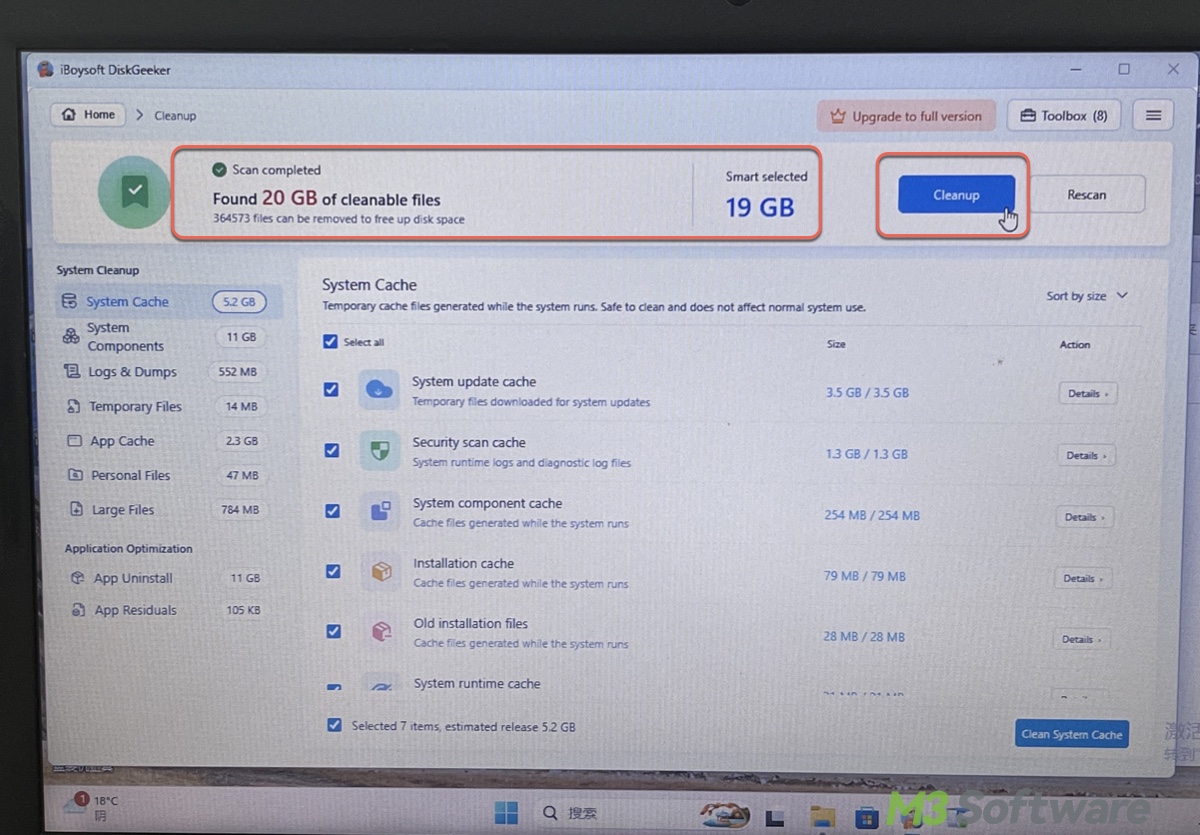
The cleaner organizes files into categories, including System Cache, System Components, Logs and Dumps, Temporary Files, Application Cache, Personal Files, Large Files, App Uninstall, App Residuals, and Chat Tools. After scanning, it automatically selects files considered safe to remove, allowing you to quickly reclaim space without concerns.
Unlike a cleanup tool that only lets you select broad file categories, DiskGeeker also allows you to review the selection and exclude anything you want to keep before cleaning or add individual files. For example, you can include a file in the Large File category or an unwanted document in your Downloads folder for deletion without removing everything else in that folder.
In our test, DiskGeeker identified about 19 GB of cleanable files on a 60 GB C Drive you could remove with one click. By comparison, Wise Disk Cleaner identified less than 5 GB across its three cleanup functions, while CCleaner identified around 400 MB. These figures reflect the results on our test system; the amount of recoverable space will vary depending on the PC and its stored files.
2. App removal and relocation
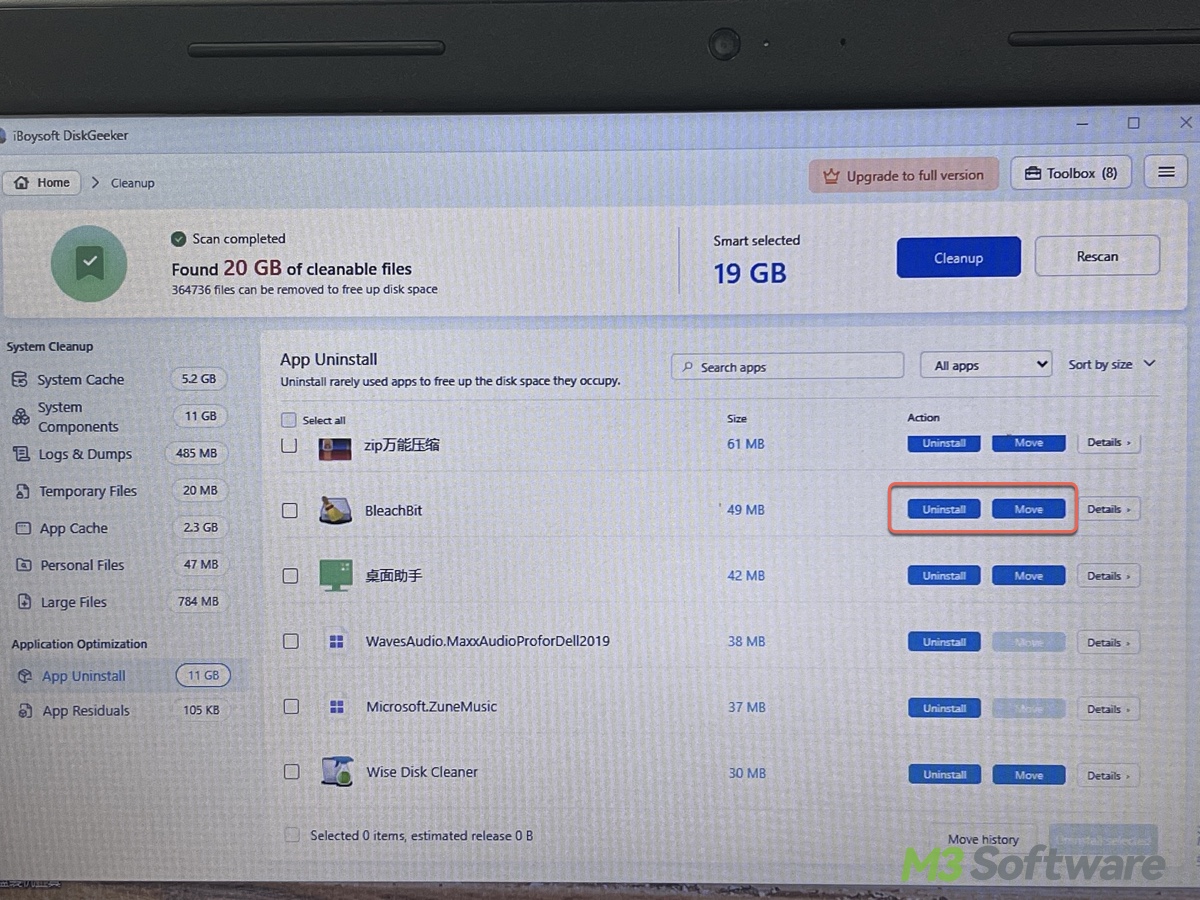
DiskGeeker also helps manage installed applications. You can use it to fully uninstall an application and remove associated files left behind by the uninstall process. It can also move supported applications to another partition, which is useful when the C drive is running out of space but another drive has room available.
3. Disk-space analysis and AI-assisted file explanations
When you need to understand what's consuming storage, DiskGeeker can find large files and analyze disk usage across the C drive, D drive, and other partitions. You can also analyze your user folder or a specific folder to narrow down the search.
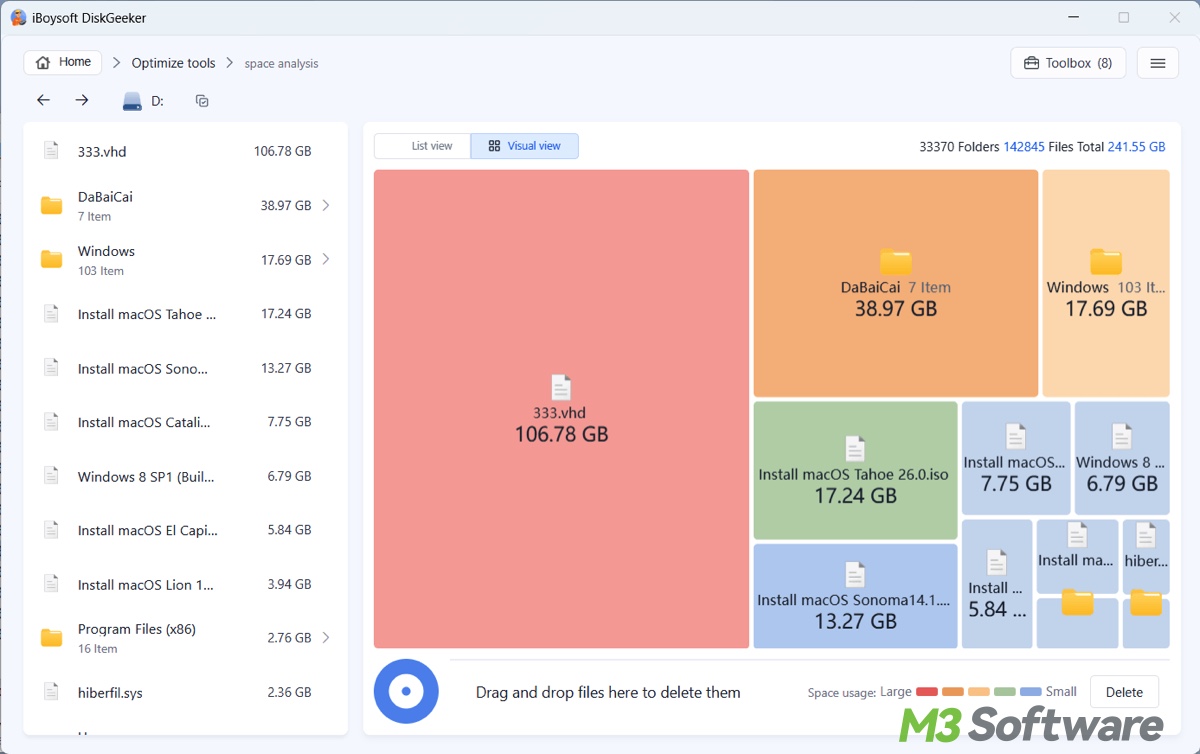
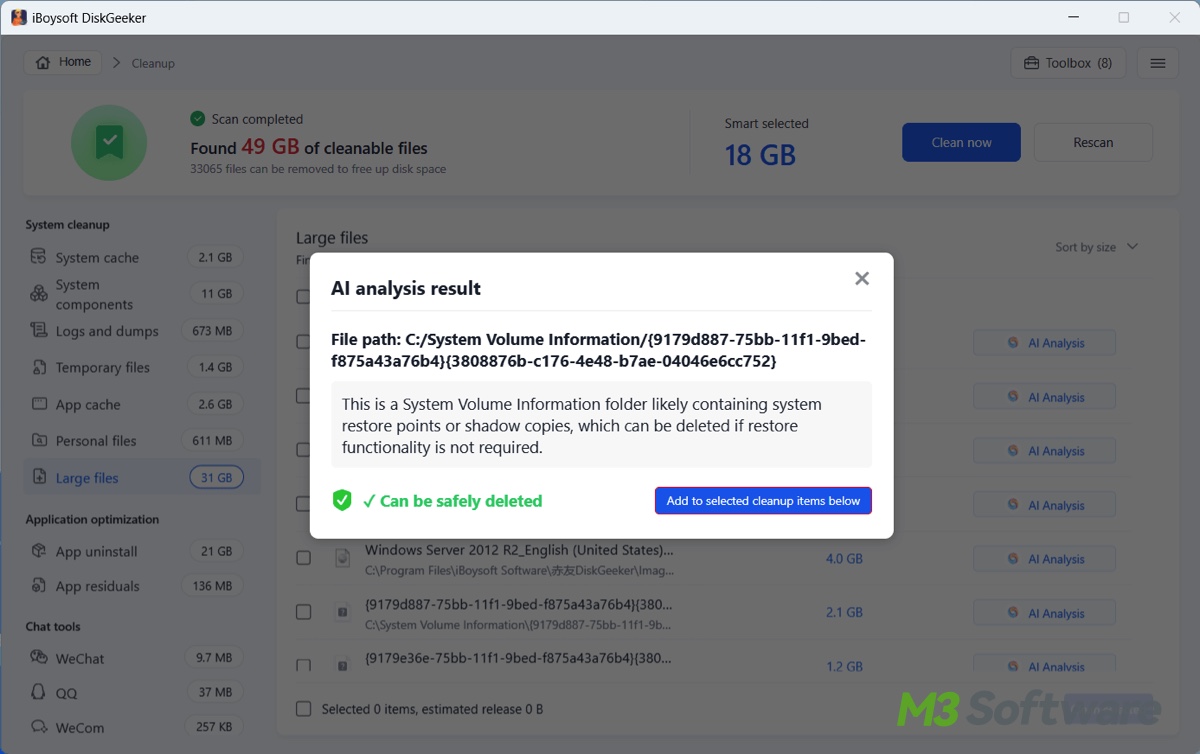
Its AI-assisted feature explains what a file is used for and helps you assess whether it may be safe to delete. This can be useful when a filename or file location is unfamiliar, although you should still review important files carefully before removing them.
4. Additional disk management tools
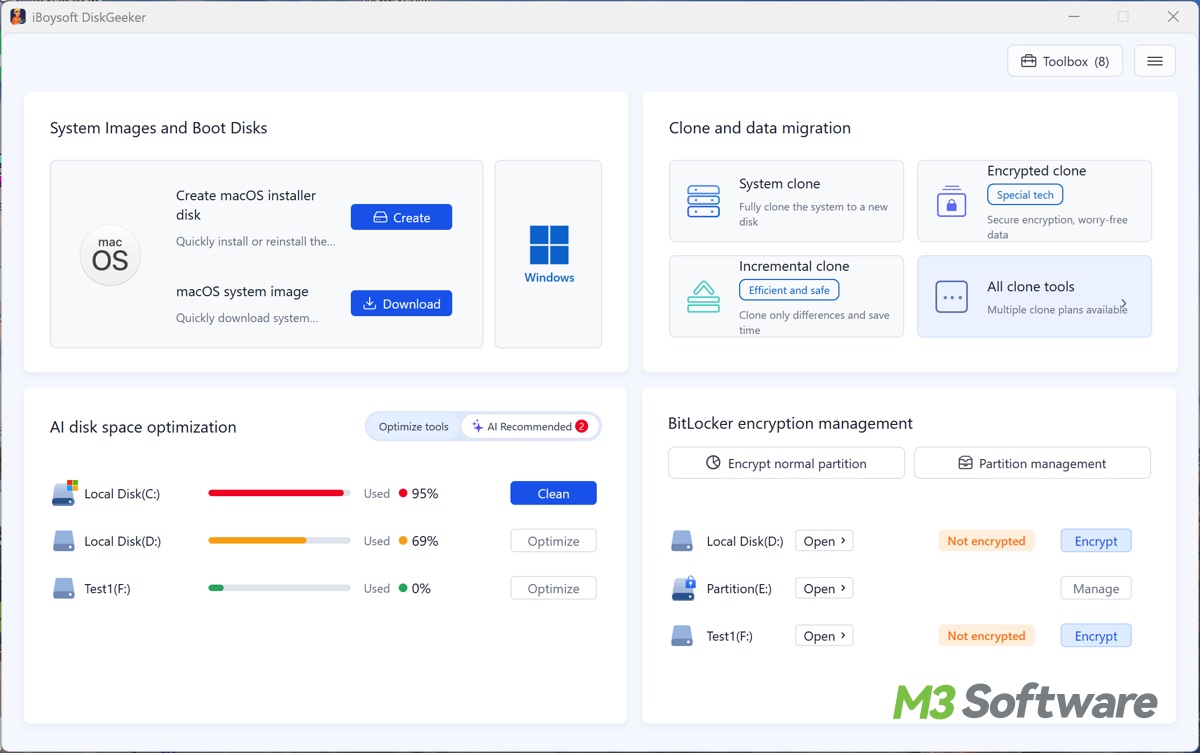
Beyond cleanup, DiskGeeker includes other disk-related utilities, such as creating Windows or macOS installer disks, cloning a system or disk, and encrypting a drive with BitLocker. These extra tools make it more than a dedicated junk-file cleaner, particularly for users who want several disk management functions in one application.
Trade-offs to consider:
Limited browser privacy cleaning: DiskGeeker focuses on removing browser cache files that can be safely cleaned. It does not provide a dedicated browser privacy-cleaning interface for reviewing and selectively deleting items such as cookies and browsing history or managing saved passwords.
Free scanning, paid cleanup: You can use the free scan to identify large files and analyze disk usage, but cleaning up your C drive requires a paid version. The upgrade can be worthwhile if you want a more convenient way to review cleanup candidates and free up space without manually searching through folders.
- Pros:
- Powerful one-click C drive cleaning.
- Easily find large files or visually display the storage usage of a disk or folder.
- AI helps you decide if a file should be deleted.
- Move apps to a different location.
- Fully uninstall an app on your C drive.
- Preview the space you can regain before purchasing.
- Cons:
- Provides only free scans and previews
What Users Say: iBoysoft DiskGeeker for Windows makes freeing up C drive space straightforward. Its intuitive interface automatically selects junk files that are safe to remove while still allowing you to review individual files and exclude anything you want to keep.
Users also appreciate that it combines cleanup with a visual disk space analyzer, which shows how storage is distributed across the drive instead of simply deleting files blindly. Together with its large-file search and AI-assisted file explanations, these features make it easier to quickly reclaim a considerable amount of space, identify what's taking up space, and decide what to remove.
Choose iBoysoft DiskGeeker for Windows if: Your C drive is critically low on space, and you want to identify removable junk files quickly, review individual files before deletion, or investigate which folders and applications are consuming the most storage.
BleachBit: Best for cleaning support files & privacy control
BleachBit is a free, open-source utility designed to remove support files and clear selected traces of computer activity. It's designed to remove only unnecessary files: caches, logs, and temporary files, without touching important settings or personal documents.
Its appeal is not that it automatically solves every storage problem. Rather, it gives users direct control over the cleanup operations they choose to run. If you have a critically full C drive, BleachBit can only help you recover a small percentage of space consumed by hidden system tracks, but not the real space hog.
What sets BleachBit apart:
BleachBit is a powerful tool designed for thorough system cleanup and data privacy. It supports cleanup rules for a range of applications, especially web browsers like Firefox, Google Chrome, Internet Explorer, and Microsoft Edge. For users concerned about online tracking or sensitive data, it excels at protecting browser privacy and permanently destroying unneeded files.
Using specialized features such as Shred Files, Shred Folders, and Wipe Free Space, BleachBit ensures deleted content cannot be recovered—first hiding the file name, truncating the file, and then overwriting its raw binary data with random characters multiple times to permanently eliminate lingering digital traces.
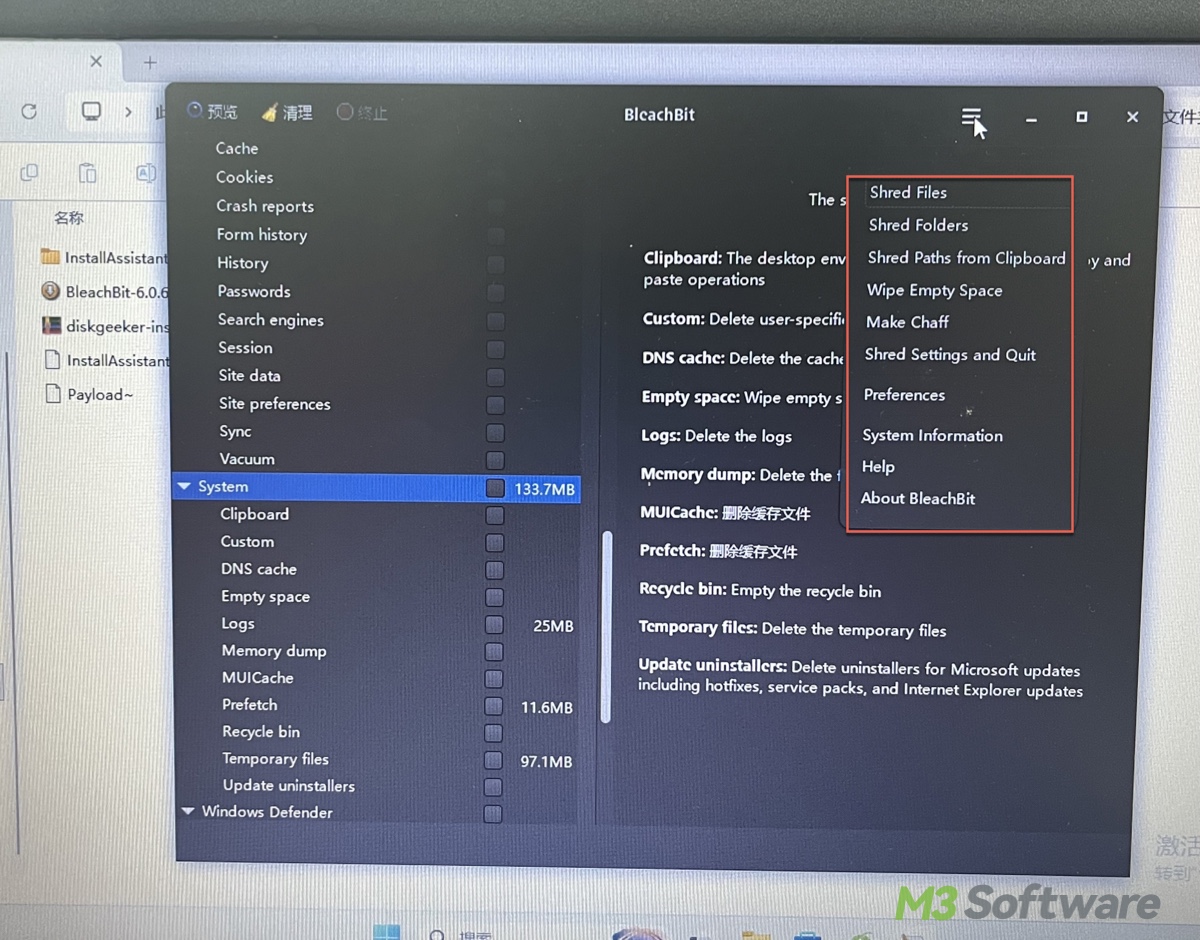
To prevent accidental deletions, BleachBit includes a Preview function that lets you inspect exactly which files and registry entries a selected cleaner intends to remove before any action is taken. You can also abort a deletion if something goes wrong.
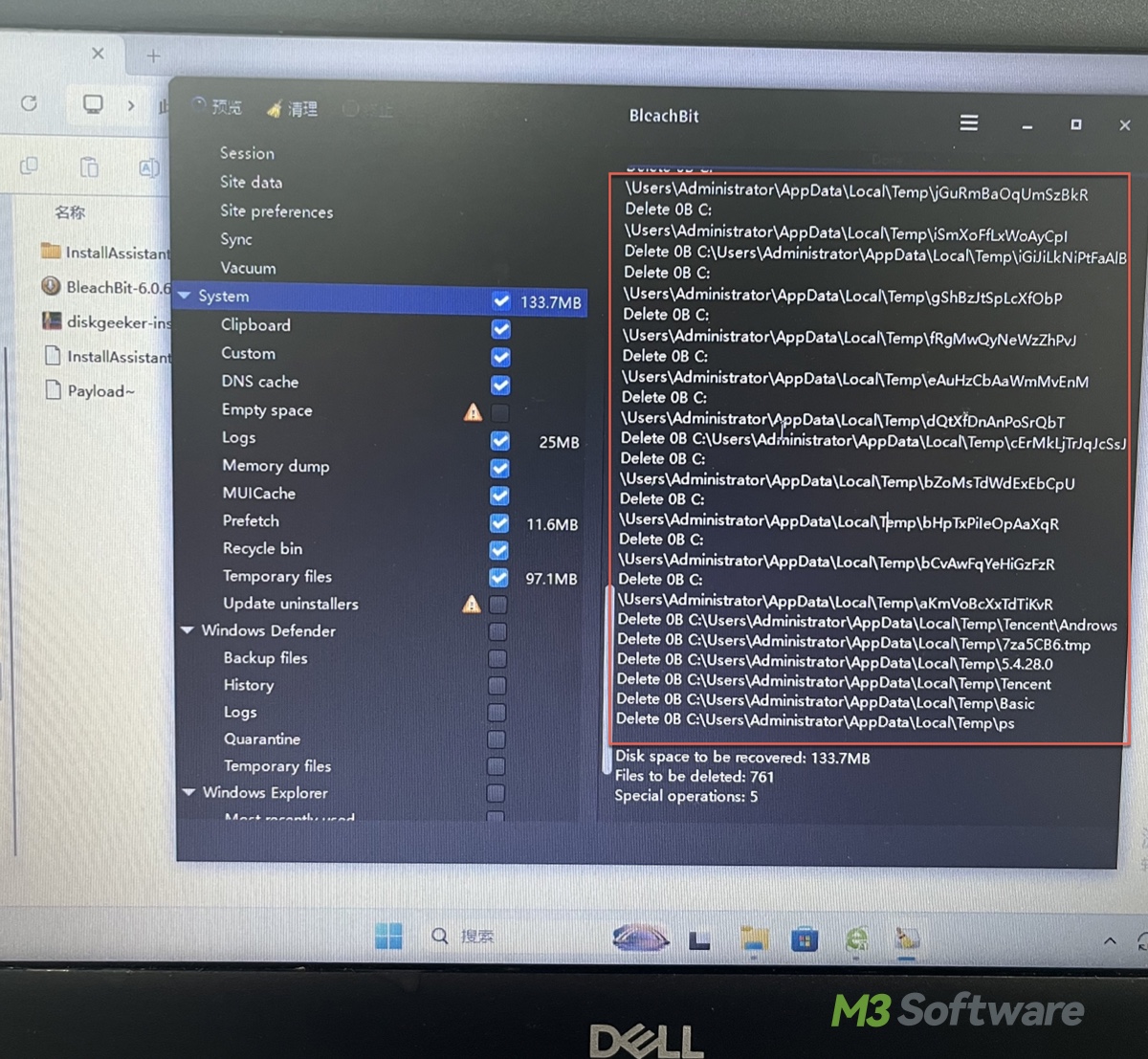
Unlike proprietary, subscription-based optimization suites, BleachBit is completely free and open-source. The project is publicly developed and fully accessible to everyone without hidden costs.
Additionally, it supports command-line operations, making it an ideal choice for advanced users looking to automate cleanup tasks or integrate maintenance procedures into custom scripts.
Trade-offs to consider:
BleachBit is more focused on file cleanup and privacy than on guiding beginners through a complete storage-management process. It does not provide the same kind of comprehensive visual storage investigation that a dedicated disk-space analyzer would.
The app's built-in rules are very limited. While you can unlock additional app cleaners by enabling "Download and update cleaners from community (winapp2.ini)" in Preferences, it doesn't detect all the apps on your PC as a commercial cleaner does.
Although it has a preview function, the text-only checklist is not visual. It tells you what file is being deleted and how much space you recover, but it doesn't show you where your space went.
Its detailed controls (e.g., Shred Files) can also make it easier to select an inappropriate cleanup option if you do not understand the files involved.
- Pros:
- Completely free and open source.
- Cleans browser traces collectively.
- Offers granular control over supported cleanup categories.
- Includes a preview before deletion.
- Supports command-line use.
- Shred files or folders for permanent deletion.
- Cons:
- Requires care when selecting advanced cleanup options.
- Not a complete visual disk-space analyzer or true disk space recovery utility.
- Aimed at privacy or data sanitization rather than ordinary storage recovery.
- Limited app support
What Users Say: Users generally praise BleachBit as a trustworthy, open-source utility that is completely free of the annoying ads and premium paywalls found in tools like CCleaner.
It is highly respected for its deep privacy features, excelling at vacuuming browser databases and securely shredding data so it can never be recovered.
However, experienced users heavily caution beginners against checking settings blindly, as its aggressive cleaning can easily corrupt app files or break system shortcuts. Additionally, tech-savvy users note that its "Wipe Free Space" feature is mostly ineffective on modern Solid State Drives (SSDs) and can cause unnecessary hardware wear and tear.
Choose BleachBit if: You prefer open-source software and want detailed control over the supported files you clean.
CCleaner Free: Best for Routine Browser and Application Cleanup
CCleaner is a popular system maintenance utility designed to declutter your computer, optimize startup speeds, and protect privacy by deleting unwanted digital trash. The files CCleaner targets include browser histories, cookies, and web caches; temporary system files, log files, and Windows crash dumps; memory dump files; leftover installer caches; invalid shortcut files; and redundant Windows Registry entries.
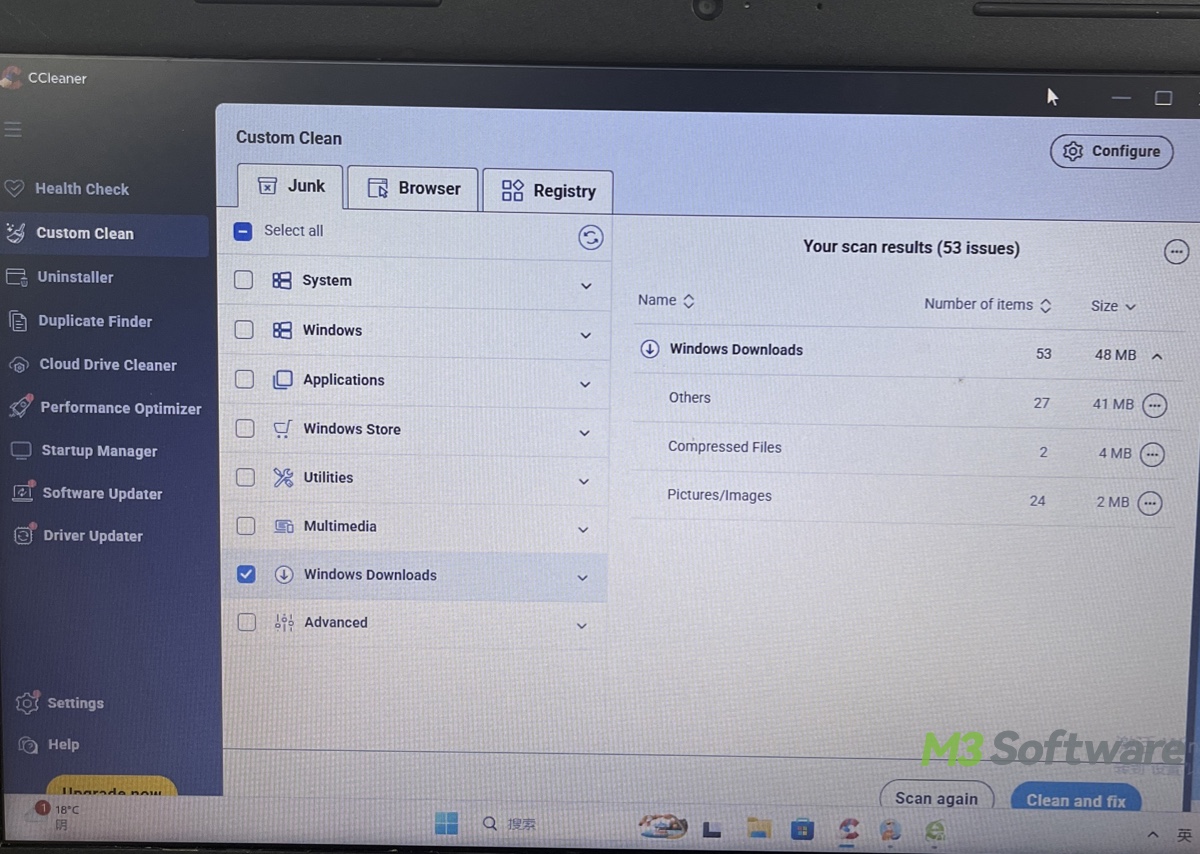
What sets Cleaner apart:
What primarily distinguishes CCleaner is its all-in-one approach to desktop maintenance, combining tasks that Windows normally scatters across different menus. Instead of opening separate utilities to manage startup applications, uninstall software, or scan for duplicate files, CCleaner brings these tools together into a single, beginner-friendly interface.
It also excels at cross-browser privacy management. CCleaner can simultaneously sweep away tracking cookies, caches, and browsing histories across all major web browsers (Chrome, Edge, Firefox, and Opera). Its built-in cookie-filtering feature lets you whitelist essential login sessions, like your bank or email, while purging all other tracking data in a single run.
Finally, CCleaner sets itself apart through its brand recognition and expanded maintenance toolkit. Beyond basic file cleaning, modern versions include tools like an automated Software Updater and Driver Updater. These features help fix system stability issues and close security vulnerabilities, transforming CCleaner from a simple trash collector into a broader PC management utility.
Trade-offs to consider:
Most of CCleaner's core cleaning functions (e.g., purging temp files, managing startup apps) are largely redundant, as they can already be performed natively in Windows using Storage Sense, Task Manager, or Disk Cleanup without installing extra software.
Beyond redundancy, the tool suffers from poor usability: unlike dedicated file managers or specialized utilities, CCleaner operates on an "all-or-nothing" basis that deletes everything inside a category or nothing at all, making it unsafe and inconvenient for managing personal files where you want to pick and choose.
Furthermore, utilizing the software introduces unnecessary system risks and overhead. Its included "Registry Cleaner" promises stability, but deleting registry entries carries an inherent risk of breaking Windows, meaning the minor performance gains rarely justify the danger. Meanwhile, the paid version offers convenient real-time background monitoring and automated cleaning; it continuously consumes background RAM and system resources just to track files.
- Pros:
- Multiple standard maintenance tasks in an accessible interface.
- Cleans supported temporary files and browser data.
- Includes extra utilities like an App Uninstaller, Startup Manager, and Duplicate File Finder.
- Cons:
- Does not provide a visual breakdown of disk space.
- Can't exclude files in a category. Either delete a whole category or nothing at all.
- Most of CCleaner's bulk cleaning can be replaced by Windows Storage Sense.
What Users Say: User sentiment on CCleaner is sharply divided: casual users appreciate its approachable, "one-click" dashboard for clearing multi-browser caches and managing startup apps, while tech enthusiasts criticize its aggressive upsells, risky registry cleaner, and rigid "all-or-nothing" folder deletion.
Consequently, most power users consider CCleaner redundant on modern Windows, preferring safer and more transparent alternatives like built-in Storage Sense for automated cleanup.
Choose CCleaner if: you want an "All-in-One Dashboard" for basic tasks.
Wise Disk Cleaner: Best for Free Junk-File Cleanup and Scheduling
Wise Disk Cleaner focuses on removing unnecessary files rather than offering a broad collection of unrelated PC optimization functions. It is particularly relevant to users who want more cleanup options than the basic Windows interface provides.
What sets Wise Disk Cleaner apart:
Its main strength is the combination of standard junk-file cleaning, browser-trace cleanup, and scheduled maintenance.
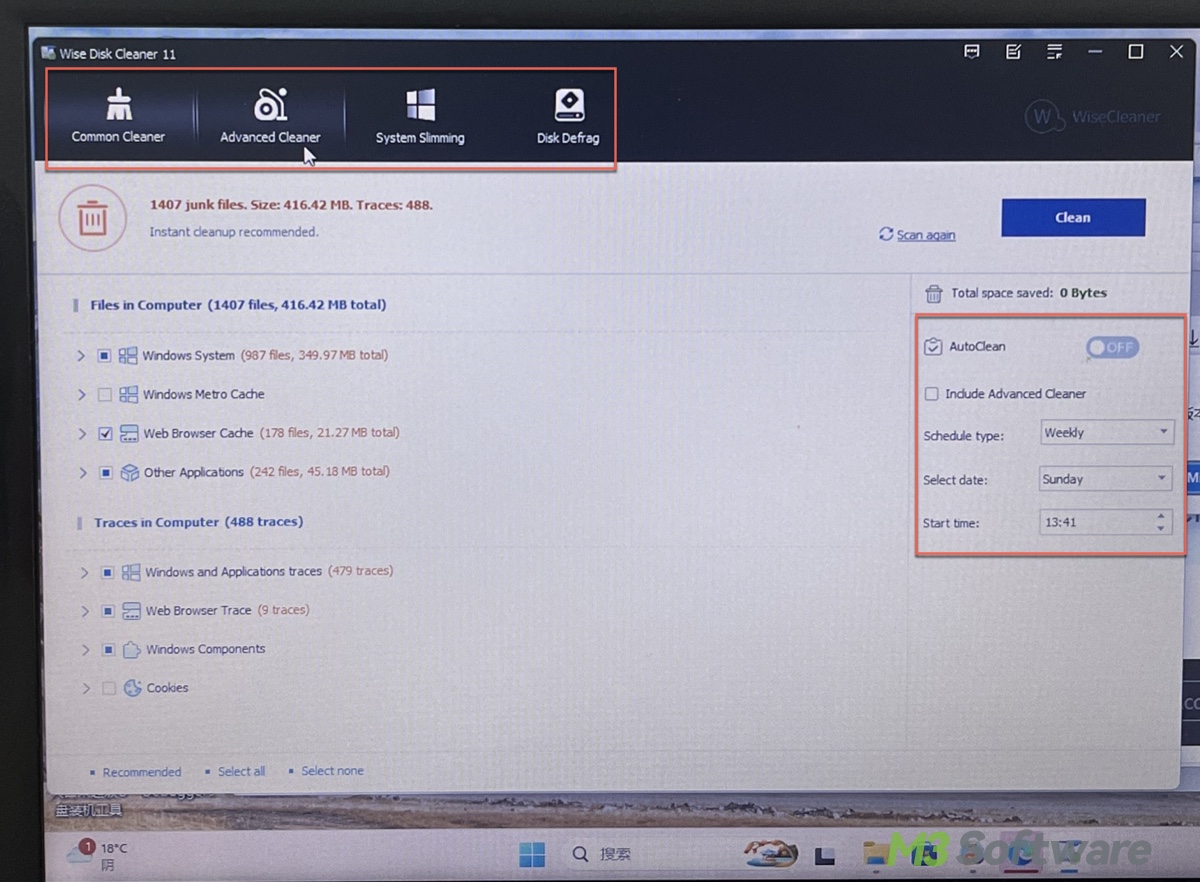
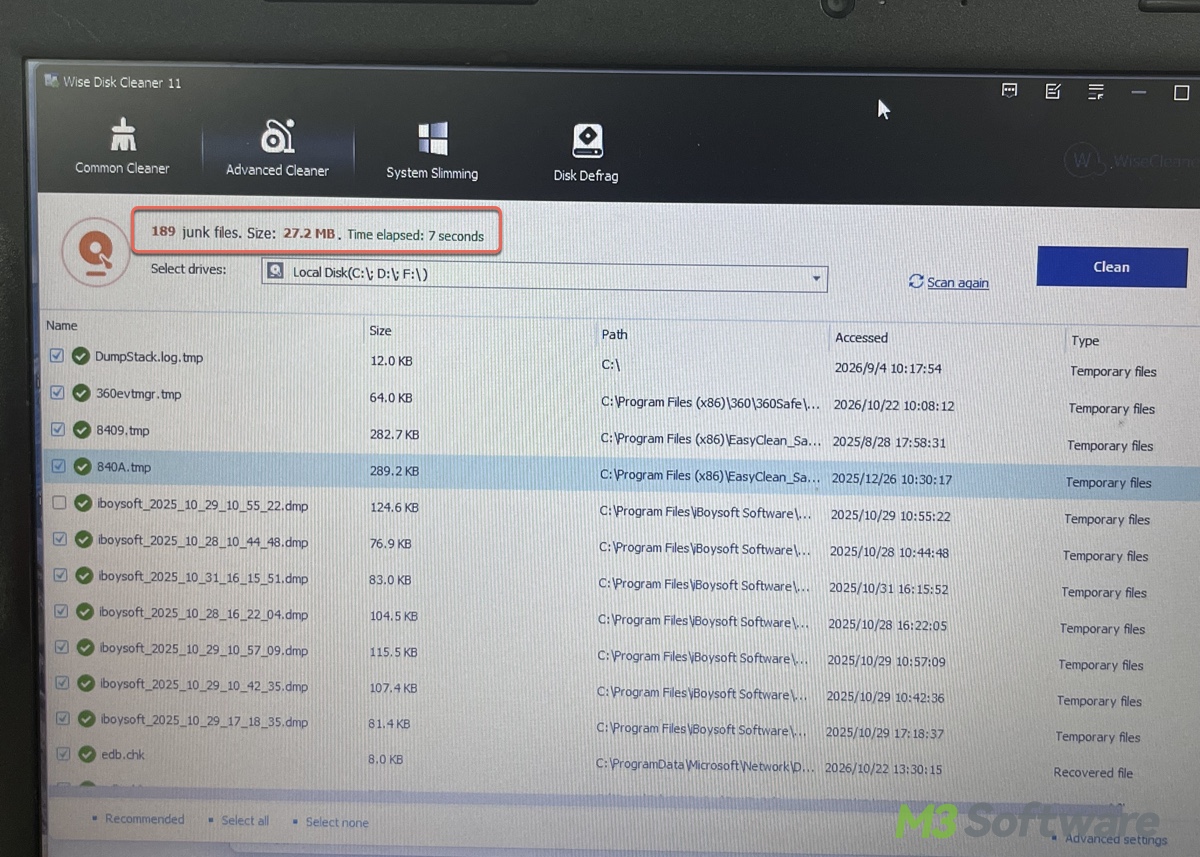
Its Advanced Cleaner also allows users to select additional file types and locations.
This gives you more flexibility than a cleanup utility limited to a fixed set of Windows categories. If you regularly accumulate temporary files from applications and browsing, you can configure the cleaner around the categories you actually use.
Wise Disk Cleaner also advertises a system-slimming function and drive optimization features. These should be treated as separate capabilities rather than assuming every option is necessary for freeing C drive space.
Trade-offs to consider:
Wise Disk Cleaner is primarily a cleanup utility, not a comprehensive disk-space visualization tool. It can help remove supported junk files, but it is not a substitute for examining large folders when you do not know what is consuming your storage.
Its advanced options also require judgment. A file extension or folder is not safe to delete merely because you can add it to a cleanup rule. Besides, it doesn't reclaim much space.
- Pros:
- Free to use
- Offers more cleanup categories and customization than basic Windows cleanup.
- Supports scheduled maintenance.
- Includes an Advanced Cleaner for selected file types and locations.
- Cons:
- Does not replace a dedicated large-file analyzer.
- Custom cleanup rules require care.
- Removing temporary files does not guarantee a noticeable performance improvement.
Note: Users consider Wise Disk Cleaner a fast, lightweight, and genuinely free alternative to bloated maintenance tools, praising its built-in automated scheduler, thorough junk removal, and lack of paywalled core features.
While non-technical users appreciate its clean interface and quick disk defragmentation, more experienced users note that its aggressive scanning requires reviewing checked items before cleaning to avoid deleting harmless temporary files, though they consistently prefer its non-intrusive nature.
Choose Wise Disk Cleaner if: You want a free, configurable cleaner for routine junk removal and do not need an all-in-one disk-management product.
Which C drive cleaner is best for your needs?
| Pain point | iBoysoft DiskGeeker for Windows | CCleaner Free | Wise Disk Cleaner | BleachBit | Windows Storage Sense |
|---|---|---|---|---|---|
| C drive remains full after cleaning | ✅Combines junk cleanup with large-file search and disk-space analysis to help find what still occupies space. | Cleans supported junk and browser data, but may not free enough space if large files are the main problem. | Cleans junk files and other supported data, but large personal files may require separate investigation. | Removes supported temporary files and application data, but does not replace a full disk-space investigation. | Automates selected cleanup tasks, but may not resolve a shortage caused by large personal files or applications. |
| Cannot identify what is consuming disk space | ✅Analyzes partitions and specific folders, with visual and list views to help locate space-consuming files. | Primarily focuses on cleaning and PC maintenance rather than visualizing disk usage. | Focuses on cleanup rather than comprehensive visual disk-space analysis. | Focuses on cleaning supported files rather than providing a dedicated visual disk-space analyzer. | Offers storage settings and cleanup recommendations, but not a detailed visual breakdown of disk usage. |
| Need to preview files before deleting them | ✅Lets you inspect individual cleanup candidates and manually select or exclude files, including personal files. | Uses cleanup categories and settings; it may not offer the file-by-file review workflow you want for personal files. | Provides cleanup options by category, but its workflow differs from a dedicated file-level disk analyzer. | Allows users to review supported cleanup options, but is not designed primarily for browsing all large personal files before deletion. | Lets you configure cleanup categories, but offers limited control over inspecting individual files in a folder such as Downloads. |
| Want to remove system junk in one go | ✅Automatically selects supported junk categories, such as caches, temporary files, logs, dumps, and certain application leftovers, for one-click cleanup. | Cleans supported Windows, application, and browser data through its available cleanup features. | Offers several cleaning functions for junk and temporary files. | Cleans supported system and application files, with options depending on the selected cleaner. | Automatically removes selected temporary files and manages Recycle Bin contents according to your settings. |
| Repeated low-storage warnings | ✅Helps identify further cleanup candidates and large files after routine junk removal. | Can recover space from supported junk and browser data, but may not identify the largest storage consumers. | Can recover space from supported junk files, but may require another tool to locate large files. | Can reclaim space from supported files, but may require separate analysis to find large files and folders. | Can run automatically, but its cleanup scope may not be enough when storage is dominated by large files or applications. |
| Want to remove leftover files from uninstalled apps | ✅Includes a category for certain residual files left by previously uninstalled applications. | Can clean supported application data, but is not equivalent to a dedicated scan for every application's leftovers. | Can clean supported junk and application-related files; coverage depends on the selected categories. | Can remove supported application data, but results depend on the applications and cleanup options selected. | Does not provide a dedicated application-leftover scanner. |
| Need to uninstall or move apps to free C drive space | ✅Provides app-uninstall and app-relocation functions for supported applications, helping free C drive space without necessarily deleting an app. | Offers software-uninstall functionality. | Primarily a disk cleaner, not a dedicated application relocation tool. | Does not provide a dedicated application uninstaller or relocation workflow. | Relies on Windows' app-management options rather than providing a dedicated app-relocation tool. |
| Unsure whether a large or unfamiliar file is safe to delete | ✅Offers AI-assisted file explanations to help you understand a file and assess whether it may be removable. | Does not provide the same AI-assisted file-explanation workflow. | Does not provide the same AI-assisted file-explanation workflow. | Does not provide the same AI-assisted file-explanation workflow. | Does not provide AI-assisted explanations for individual files. |
| Want browser privacy cleanup | Focuses on system cleanup and selected browser cache files, not comprehensive browser privacy management. | Supports browser cleanup, including options for cookies and browsing history; review the selected settings carefully. | Offers browser-related cleaning options, depending on the supported browsers and selected settings. | ✅Supports cleaning selected browser data, depending on the browser and available cleaner. | Is designed for Windows storage maintenance, not comprehensive browser privacy cleaning. |
| Need additional disk-management tools | ✅Combines cleanup and disk analysis with other utilities, including disk cloning, installer-disk creation, and BitLocker-related functions. | Offers additional PC-maintenance features, but is not a comprehensive disk-management suite. | Primarily focuses on disk cleanup and defragmentation-related utilities. | Primarily focuses on file cleanup and privacy-related data removal. | Provides built-in Windows storage management without a broader suite of disk utilities. |
| Prefer a free solution | Free scanning helps identify large files and analyze disk usage; C drive cleanup requires a paid version. | Has a free edition, with some features reserved for paid plans. | ✅Offers a free version for supported cleaning functions. | Free and open-source. | Built into Windows at no additional cost. |
Note: ✅ is the one most recommended to deal with the pain point.
FAQs about best free C drive cleaners
- QIs there a free C drive cleaner available?
-
A
Yes. Windows includes Storage Sense and Disk Cleanup, which can remove selected temporary files and other eligible data without installing additional software. Free third-party options also exist, such as BleachBit, Wise Disk Cleaner.
- QIs CCleaner any good in 2026?
-
A
CCleaner remains a reasonable option for users who prefer a dedicated cleanup interface. Whether it is the right choice depends on what you need. For routine Windows cleanup, Storage Sense and Disk Cleanup may already be sufficient. If the main problem is locating large files, look for a tool with appropriate disk-space analysis features instead of choosing a cleaner solely for its number of optimization options.
- QIs there a better free cleaner than CCleaner?
-
A
Windows Storage Sense is a good choice if you want built-in cleanup without installing additional software.
Wise Disk Cleaner is worth considering when you prefer a dedicated cleanup utility.
BleachBit may appeal to users who want more control over cleanup categories, while iBoysoft DiskGeeker for Windows is relevant when quickly freeing up the C drive or identifying and reviewing space-consuming files is the priority.
- QWhat is the best free PC cleaner for Windows 11?
-
A
For basic maintenance, begin with Storage Sense. For identifying large files & folders and automatic C drive cleaning, consider a disk-space analyzer like iBoysoft DiskGeeker for Windows.
- QShould I pay for a C drive cleaner?
-
A
Not necessarily. Start with Windows' built-in tools and free alternatives. Consider a paid tool only when its additional capabilities solve a specific problem that your current tools cannot address conveniently.