
Freeing up disk space is very crucial for your PC, especially when the disk space is reaching its limit, and you wonder what takes up the space on your PC. Furthermore, low disk space often causes a lot of trouble to your PC, thus seriously affecting the operating speed and smooth running of the Windows operating system. Also, your computer could run slowly after Windows update.
This post mainly talks about how to free up disk space on Windows 10 in different ways, and it also lists the potential problems you may encounter when your PC contains many unnecessary files on Windows 10 and runs out of disk space, including the full external hard drive.
You can download iBoysoft DiskGeeker for Windows to perform a detailed disk space analysis on your PC. This wonderful disk management tool can assist you in analyzing the storage usage of the computer's hard disks to locate and delete unnecessary files or folders quickly.
You can share different ways below to show your friends how to free up disk space on Windows 10.
Use a comprehensive Windows disk cleaner
If you've ever tried following online tricks only to regain a few disappointing megabytes, you're not alone. Most Windows users face two major roadblocks: not knowing where to start and fear of deleting something that might crash their PC.
Manual cleaning is time-consuming and often misses the real space hogs, such as hidden update backups, corrupted system caches, app caches, or forgotten installer files buried deep in system directories.
Using a dedicated disk space analyzer or cleaner like iBoysoft DiskGeeker for Windows changes the game. It visually maps out your partition or folder in seconds, instantly reveals the exact files eating your storage, and lets you safely wipe gigabytes of useless clutter without the guesswork.
The C drive on my old PC is full and shows a red bar even with Storage Sense enabled. After a scan, the iBoysoft cleaner automatically selected 23 GB of files that I can safely delete with one click. Then, I checked the installed apps and used it to uninstall the unwanted apps completely. Within a few minutes, I reclaimed 30 GB of space on my C drive. I then searched for large files on the PC and cleaned the unwanted ones, regaining
Here's how to easily free up hard disk space on Windows 10:
Step 1: Free download, install, and launch iBoysoft DiskGeeker for Windows.
Step 2: Click Clean next to your C drive in the AI disk space optimization section.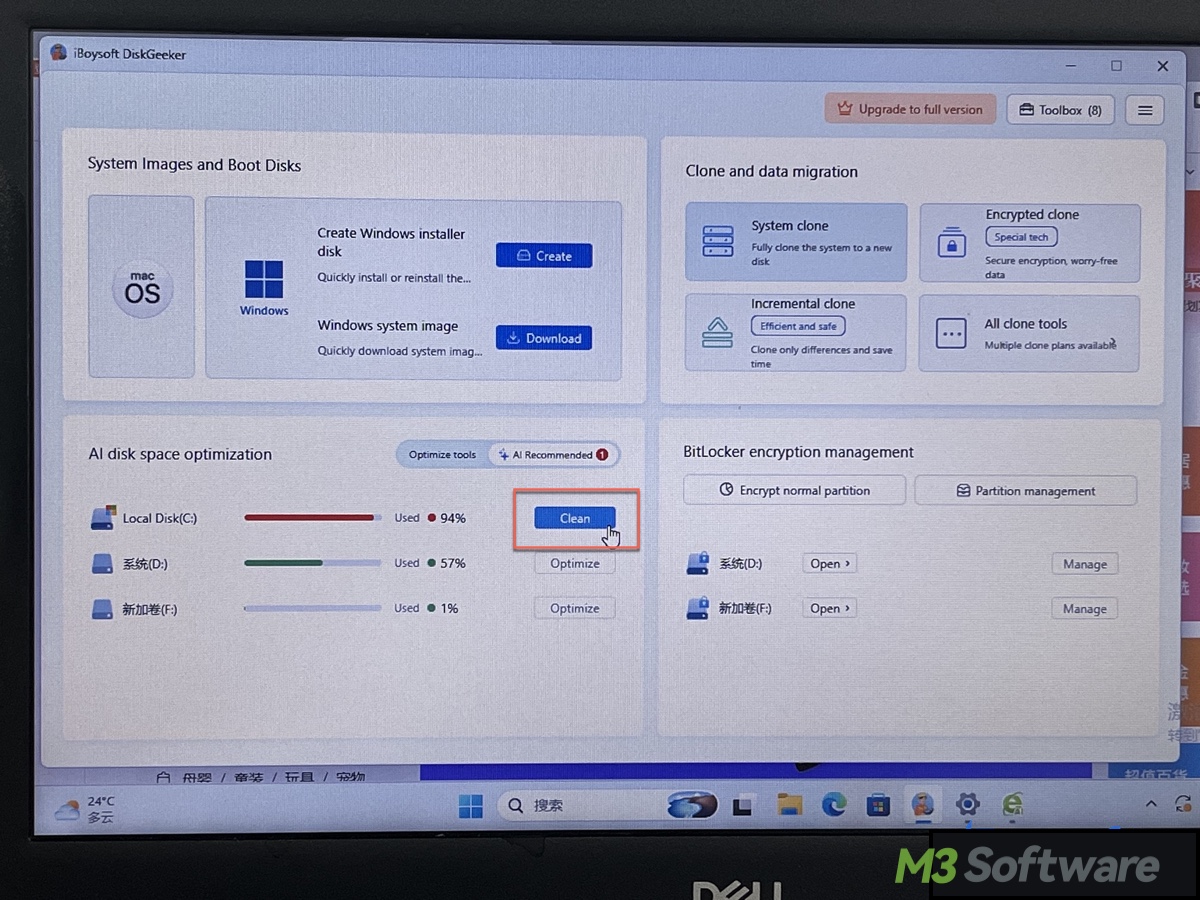
Step 3: Wait for the scan to complete.
Step 4: Check auto-selected files and manually add unwanted personal files.
Open Personal Files and click Details to add unwanted files for deletion.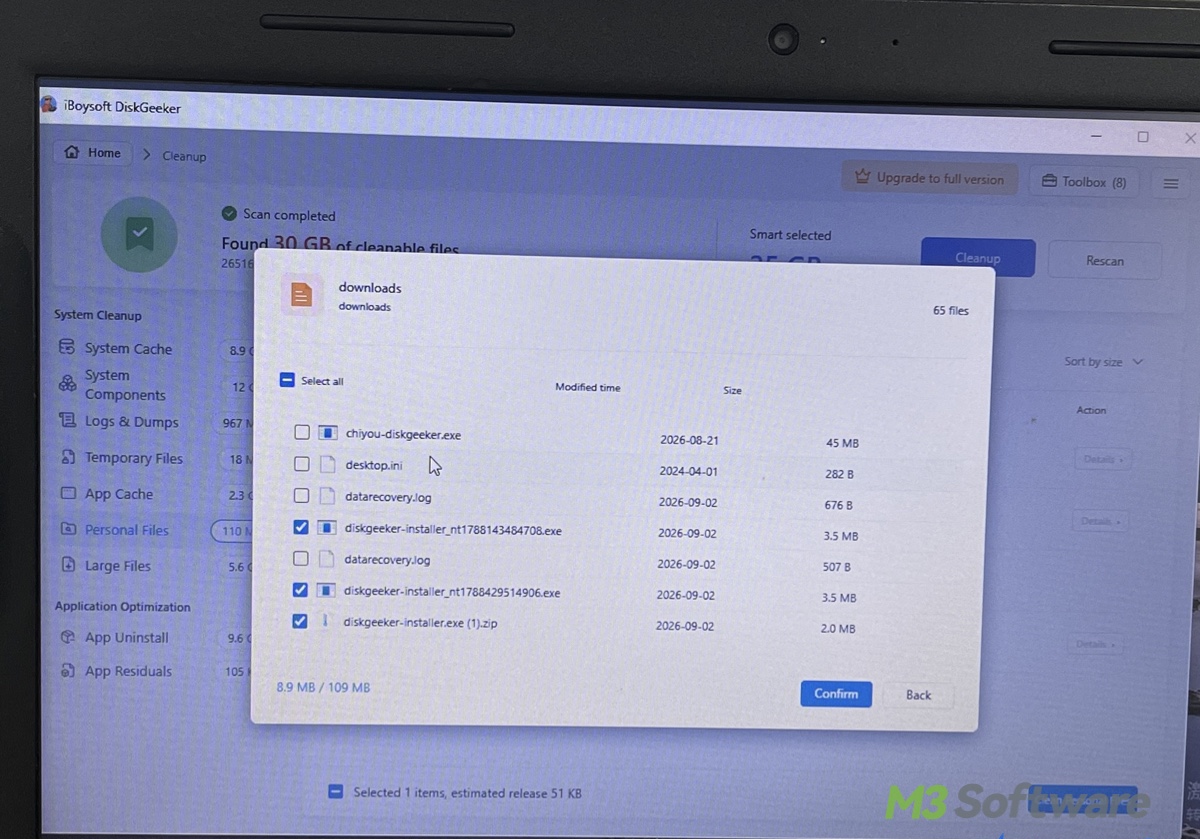
Open Large Files and click AI Analysis to learn what a file does before selecting it.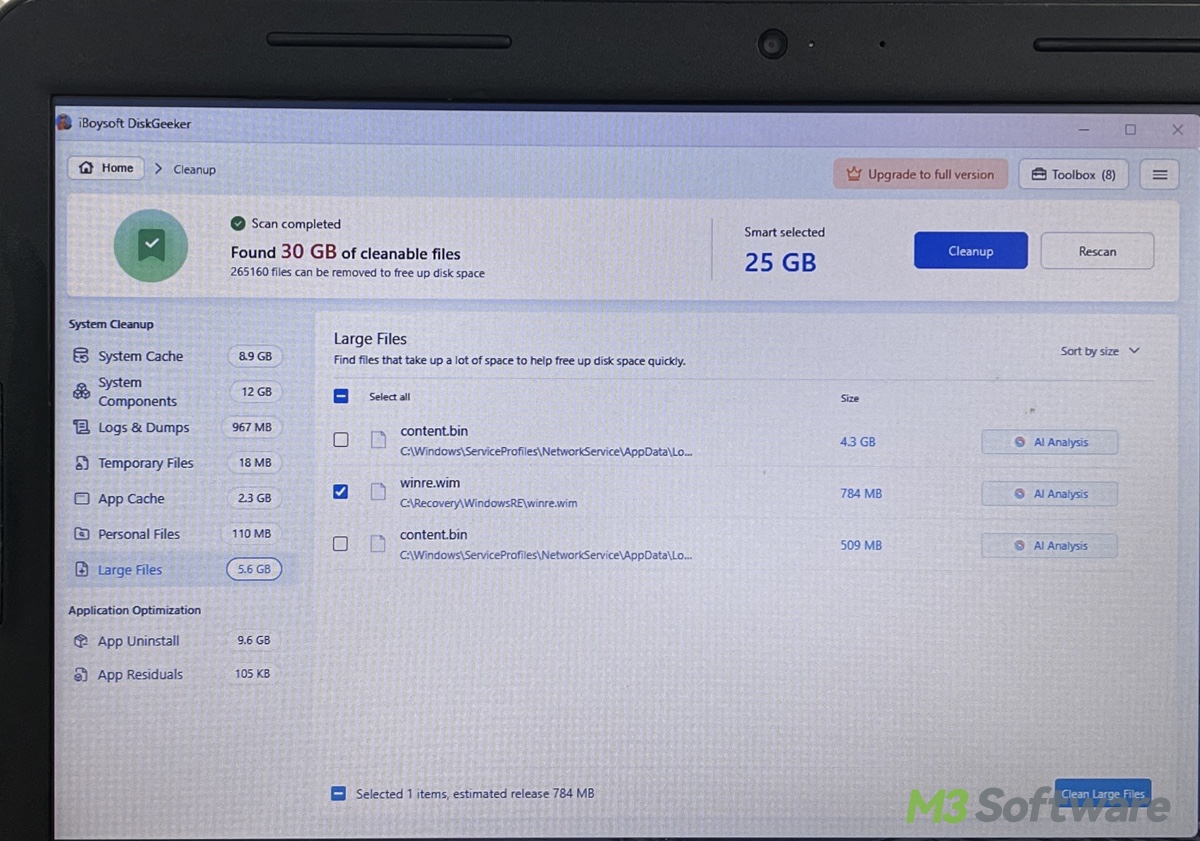
Step 5: Click Cleanup > Clean to remove cleanable files immediately.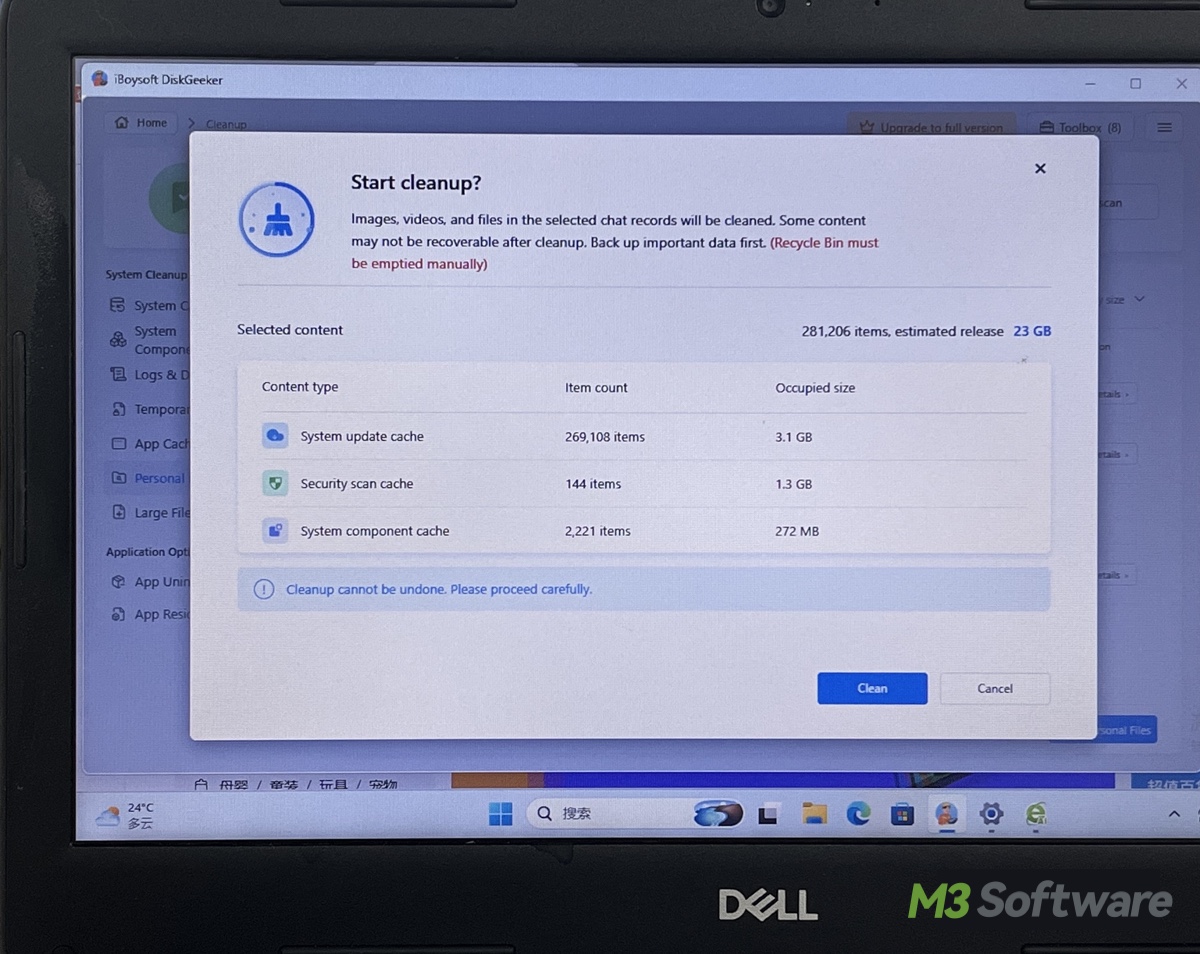
Step 6: Delete or move unnecessary apps.
Click Uninstall to uninstall an app fully with all associated files. Click Move to move the app to a different location or partition.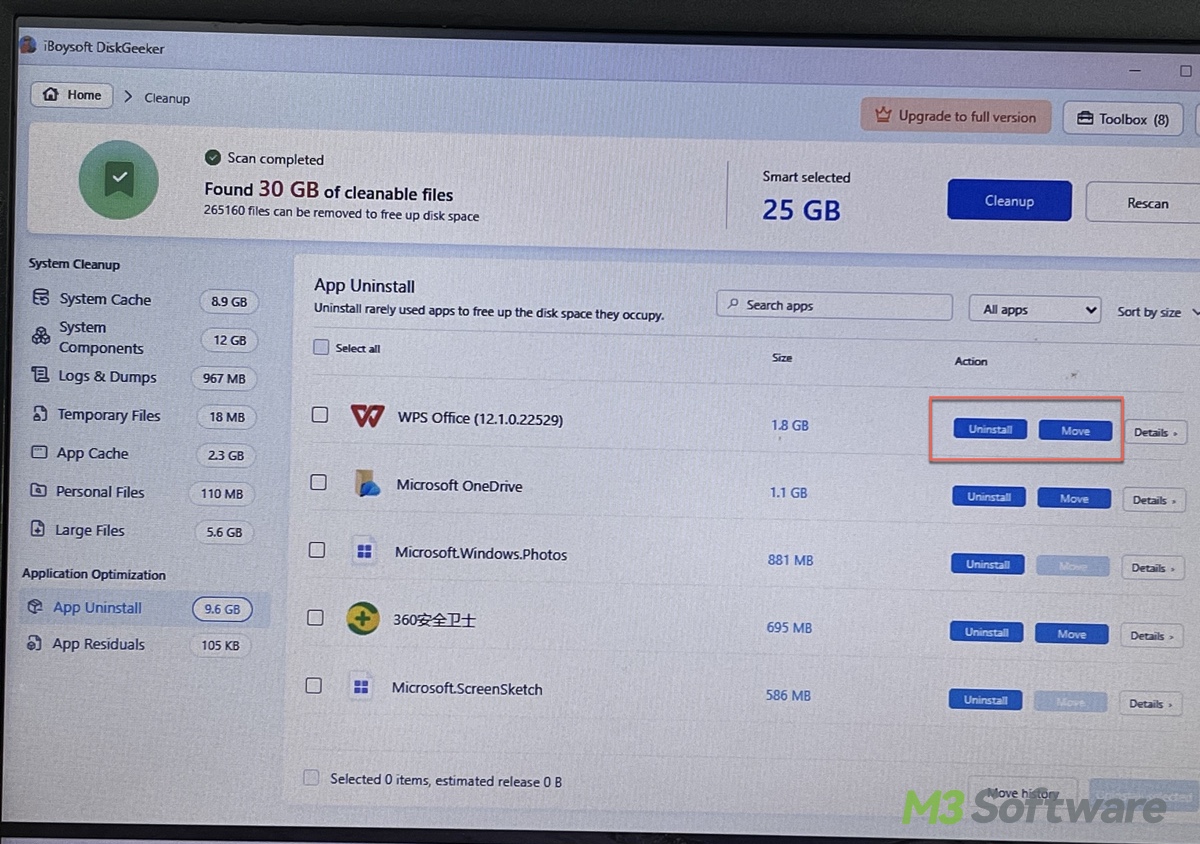
To find large files on another partition, click Search for large files, then select it and click Search for large files again. After the scan is finished, choose the unwanted files to quickly free up space.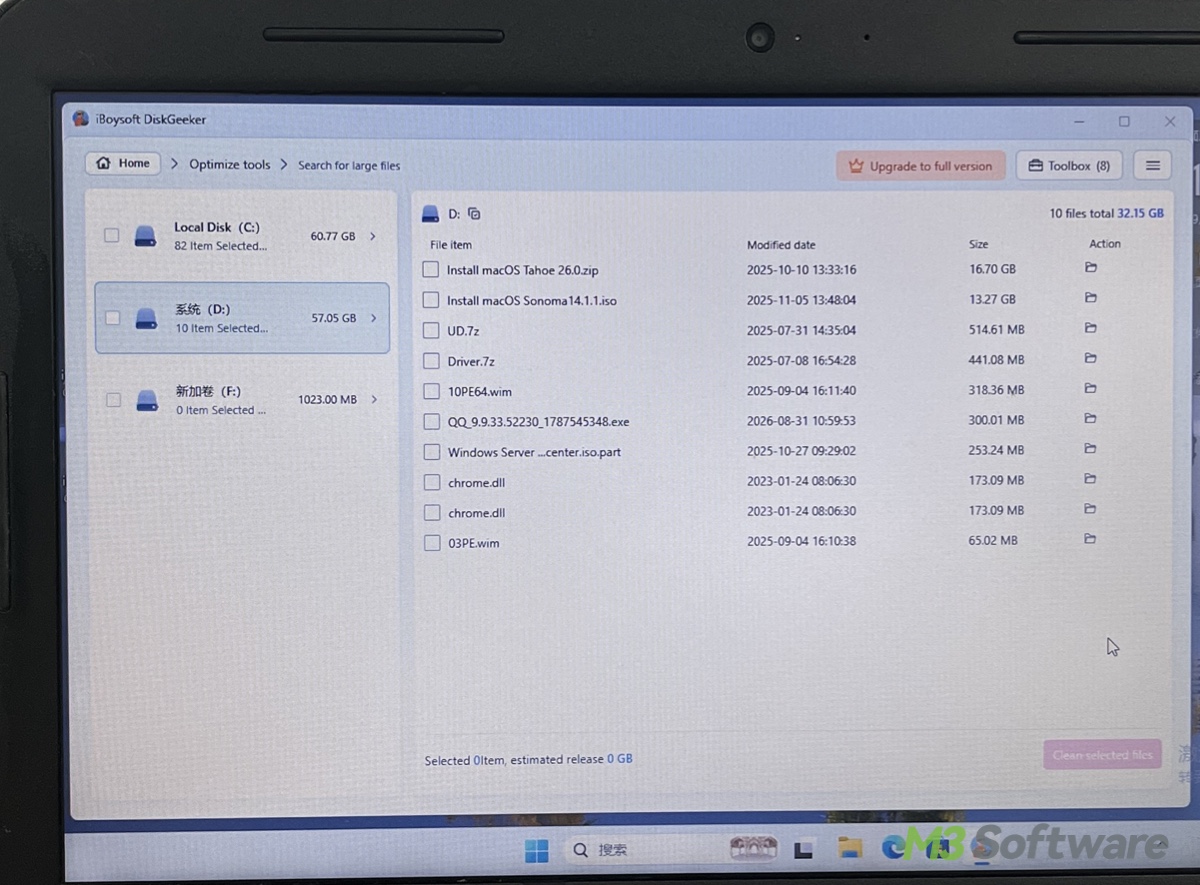
To free up space on the D drive or other partitions, return to the interface and click Optimize next to the drive.
How to free up disk space on Windows 10 manually?
Here we list some practical and helpful ways to help you free up disk space on Windows 10. Some common and easiest approaches are not mentioned in this article, such as emptying the Recycle Bin, saving files to a Cloud account, transferring files to an external hard drive, etc.
As a side note, Windows Reserved Storage can take several GB on your hard drive.
Delete unnecessary files to free up disk space on Windows 10
The piled-up unnecessary or junk files take up a large amount of space on your PC disks, so deleting unnecessary files should be at the top of the list. Here's how:
- Click the “Start” menu and open “Settings.”
- Choose “System” and “Storage.”
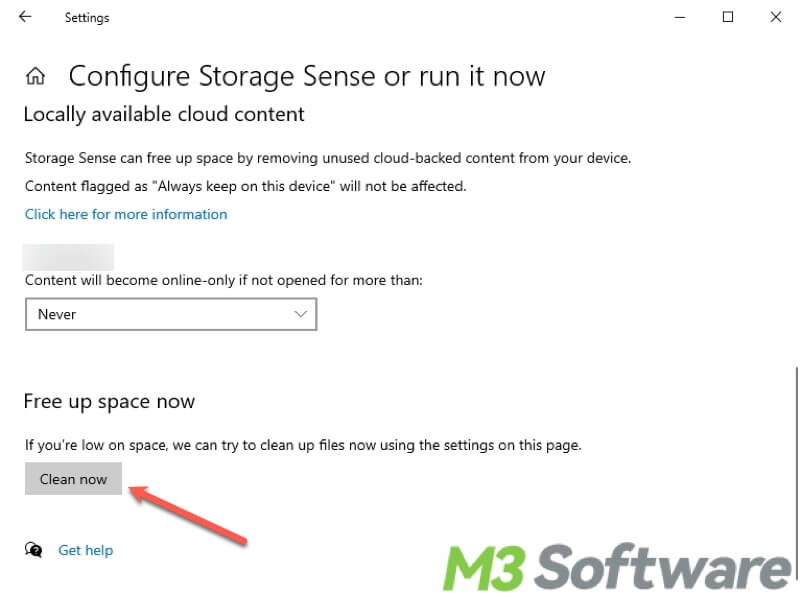
- Turn on the “Storage Sense” feature and click the option “Configure Storage Sense or run it now” or “Change how we free up space"(the option may vary depending on the system versions).
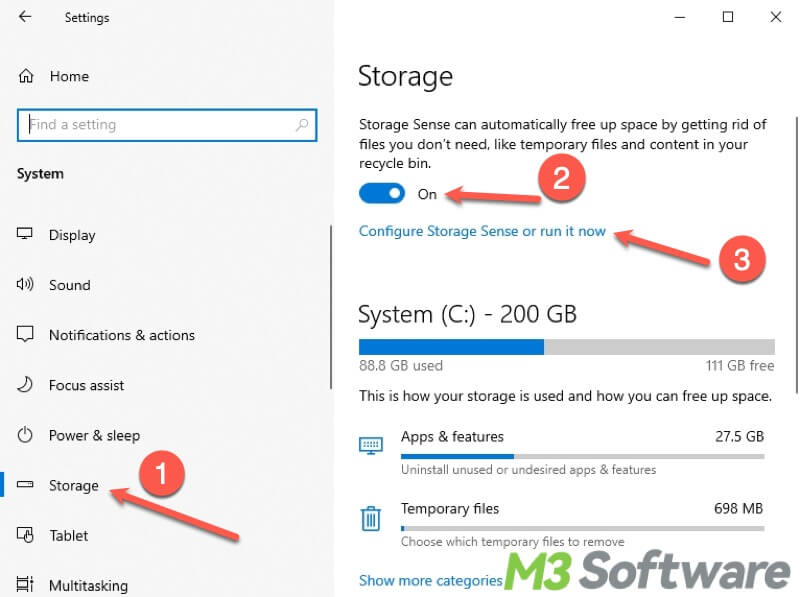
- You can scroll down and click “Clean now” to free up disk space Windows 10.
Uninstall unused software or apps to free up disk space on Windows 10
Does your PC have some software or applications you haven't launched for quite a long time? Especially the big ones. You can follow the simple steps below to uninstall them.
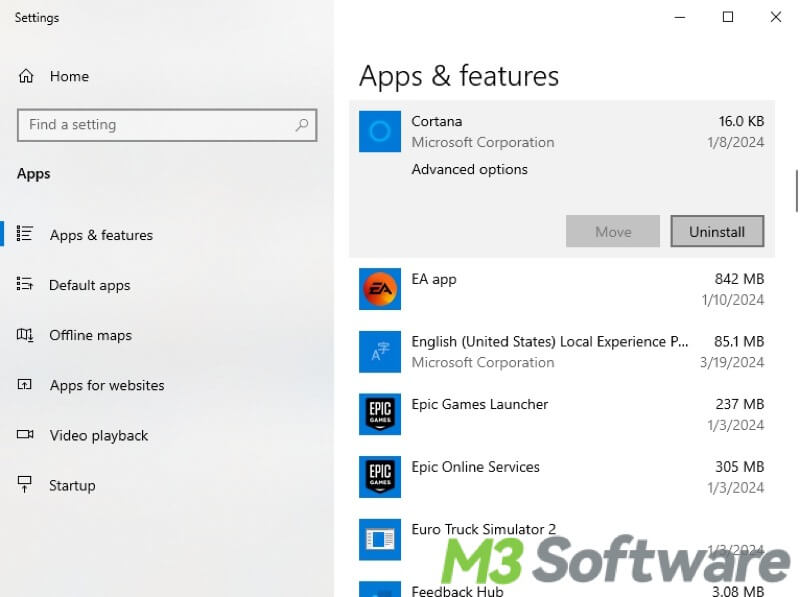
- Right-click on the Start menu at the bottom left and select “Apps and Features.”
- Right-click on the software or applications you want to remove and click “Uninstall.”
You can click the buttons below to share these solutions for insufficient disk space on Windows.
Run Disk Cleanup to free up disk space on Windows 10
Disk Cleanup is a utility built into the Windows operating system that helps users free up disk space. Its primary function is to scan your computer's hard drive for unnecessary files that can safely be deleted.
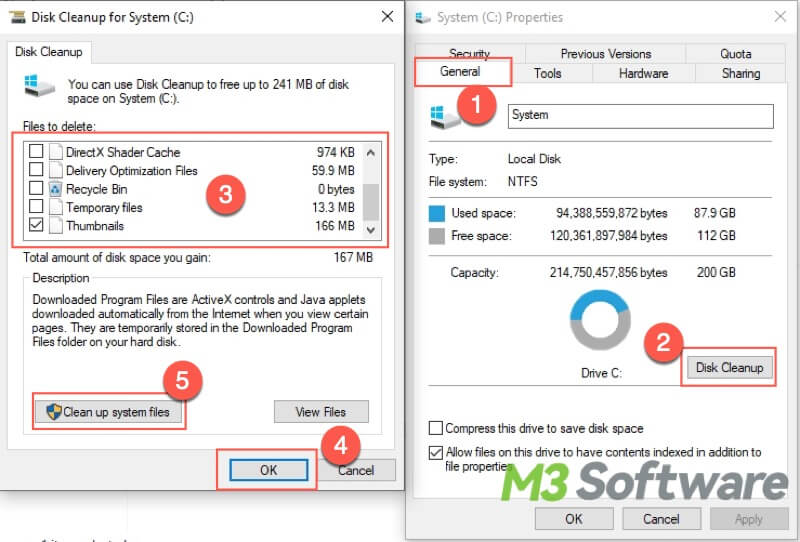
- Open “File Explorer”, right click on the Local Disk C, and choose “Properties.”
- Click “Disk Cleanup.”
- Select the Thumbnail cache, temporary files, Recycle Bin file, or other files you want to remove. Click “OK” to start cleaning.
- You can choose “Clean up system files” and clean more files.
Disable hibernation mode to free up disk space on Windows 10
When a computer is put into hibernation mode, hibernation mode saves the current state to the hard drive, so much space on the disk will be taken up. You can disable hibernation mode via Windows Command Prompt(cmd).
- Press the “Windows+S” keys to open the Windows search bar.
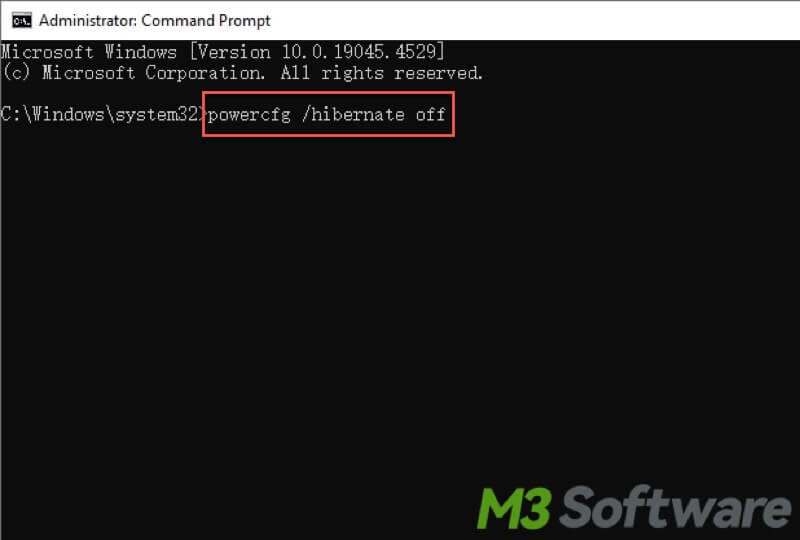
- Type “cmd” in the search bar and select “Run as administrator.”
- Input the following command and hit the “Enter” key on your keyboard. Running this command means deleting the hibernation files.
Powercfg /hibernate off
Run system component cleanup to free up disk space on Windows 10
Windows system components may take up a lot of disk space. The steps below help you clean up unnecessary files made by system components.
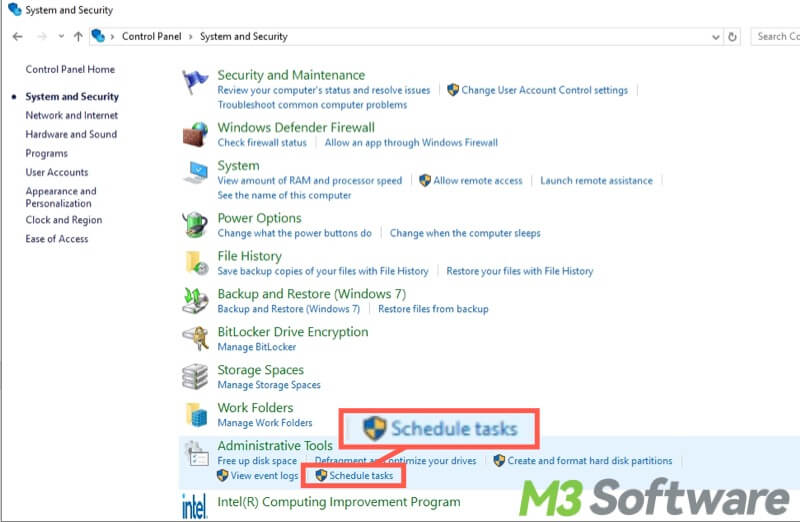
- Open “Control Panel.”
- Select “System and Security.“
- Choose “Schedule tasks” under “Administrative Tools.”
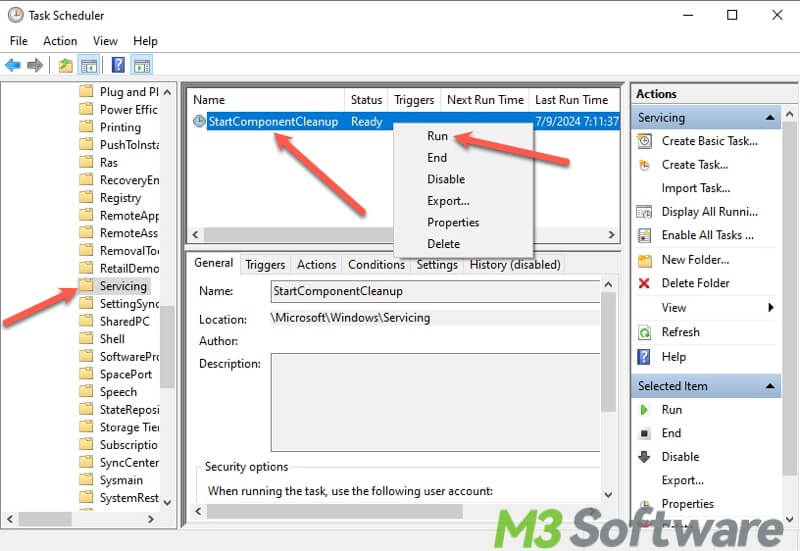
- In the left panel, navigate to “Task Scheduler Library > Microsoft > Windows > Servicing.”
- In the middle panel, right-click “StartComponentCleanup” and choose “Run.“
Configure System Restore settings to free up disk space on Windows 10
System Restore requires saving snapshots of system files to the Local Disk C, so it may occupy a large amount of disk space. Adjusting its Disk Space usage or disabling System Restore contributes to freeing up disk space.
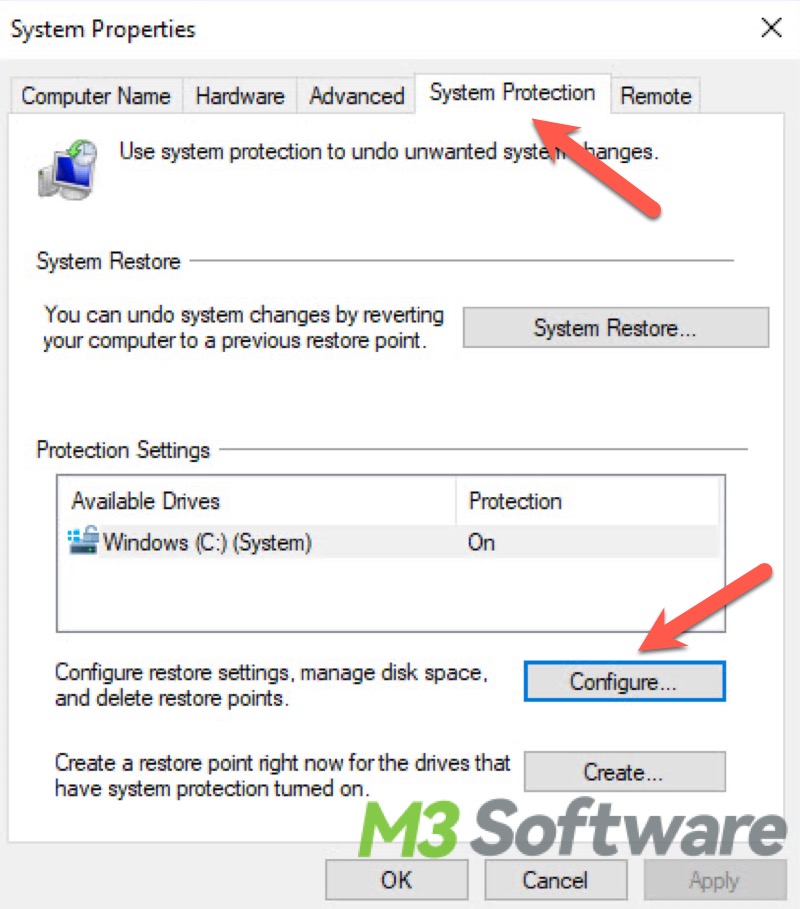
- Type “create a restore point” in the Windows search bar, and click the result to open.
- Choose “Configure…” under the “System Protection” tab.
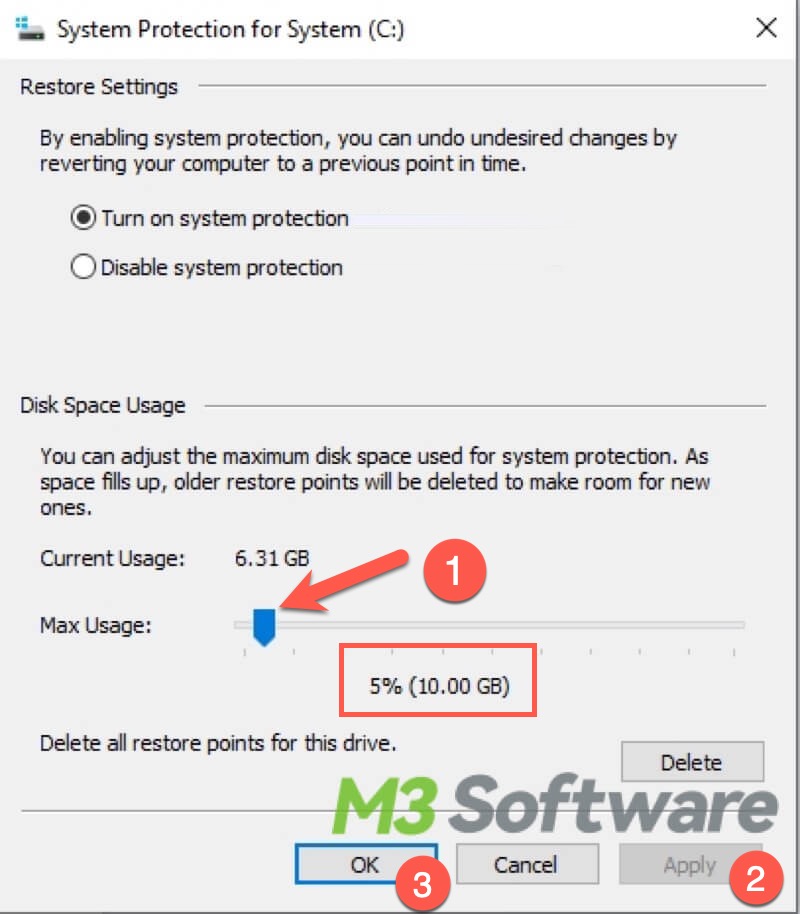
- You can adjust the slider to increase or decrease the percentage of disk space that will be reserved for System Restore points.
- Click “Apply” and “OK.”
What would happen if you run out of disk space on your PC?
Low disk space on your PC may put you in the following situations. Freeing up disk space could be a great solution whenever you encounter the computer or system issues mentioned below.
- The system slows down: As disk space reaches the limit, the system may slow down significantly due to increased file fragmentation and difficulty in finding contiguous space for new files.
- Unstable system processes: Critical system processes may fail or become unstable due to insufficient disk space. This could result in crashes, freezes, or errors in running applications.
- System fails to update: Insufficient disk space may cause the updates to fail to apply, as Windows updates often require significant amounts of disk space to download and install.
- Programs encounter errors: Programs may run into errors or fail to save data if they cannot write to disk properly. Some applications may even crash if they attempt to write temporary files and encounter disk full errors.
- Unable to create or modify Files: Users may be unable to save documents, download files, or perform other tasks that require disk space.
- The risk of file corruption increases: When disk space is critically low, the risk of file corruption increases. This happens because there may not be enough space to save files appropriately.
- Harder to recover data: If the system crashes or experiences a serious error due to low disk space, recovery and troubleshooting become harder and more complicated.
If you find this post helpful, share this post with your friends!