
Written by
Yuri ZhangSummary: Since macOS lacks native BitLocker support, third-party software is required. We explain the process using tools like iBoysoft BitLocker for Mac, covering both accessing existing BitLocker encrypted drives and creating new ones that work across Windows and Mac.
BitLocker is a disk encryption technology built into Windows. macOS does not natively support BitLocker drives. As a result, when you connect a BitLocker-encrypted USB drive to a Mac, the system typically reports “The disk you inserted was not readable by this computer”.
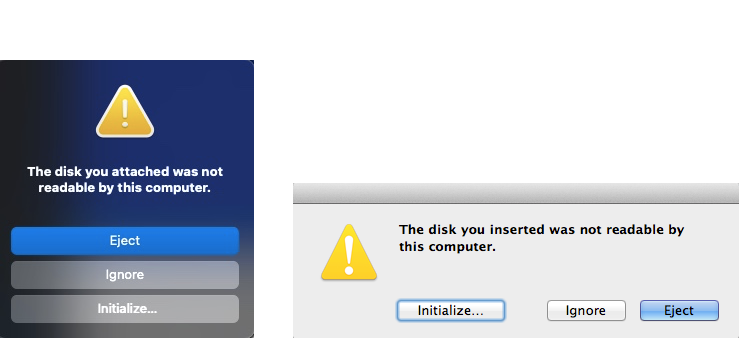
This does not necessarily mean the drive is damaged. In most cases, macOS simply lacks the capability to decrypt BitLocker drives on its own.
This guide explains what is and is not possible, and under which conditions a BitLocker-encrypted USB drive can be accessed on a Mac.
Can macOS Open BitLocker Drives?
By default: No.
macOS cannot natively read or write BitLocker-encrypted drives. BitLocker is a Windows-specific encryption layer, and Apple does not include a built-in BitLocker decryption component.
With third-party software: Yes, with limitations.
Some third-party utilities implement BitLocker read-write on macOS. These tools rely on the same cryptographic principles as Windows BitLocker but operate outside Apple's native storage stack.
Before proceeding, it is important to understand the constraints:
1. You must have either: BitLocker password or 48-digit recovery key.
2. A corrupted BitLocker drive cannot be mounted reliably.
3. Full read-write access is usually not free.
Preconditions You Should Check First
Before installing any software, verify the following:
1. The USB drive works on Windows
If the drive cannot be unlocked on a Windows machine, macOS tools will not help.
2. You still have credentials
Without a password or recovery key, unlocking is not possible—this is a design feature of BitLocker, not a software limitation.
3. Your macOS version is supported
iBoysoft BitLocker for Mac requires macOS High Sierra (10.13) or later. Earlier versions, including macOS Sierra (10.12) and older releases of OS X, please contact [email protected] for old version.
Accessing a BitLocker-Encrypted USB Drive on macOS
The general workflow for accessing a BitLocker USB drive on macOS is as follows.
Step 1: Install a BitLocker-Compatible Utility.
You need a macOS application capable of unlocking BitLocker drives. One commonly used example is iBoysoft BitLocker for Mac.
At installation time, macOS may request permission to load system extensions. This is required because disk-level access is involved.
> How to enable system extensions on Intel-based Mac?
> How to enable system extensions on Apple Silicon M1/M2/M3/M4/M5 Mac?
Step 2: Connect the BitLocker-Encrypted USB Drive
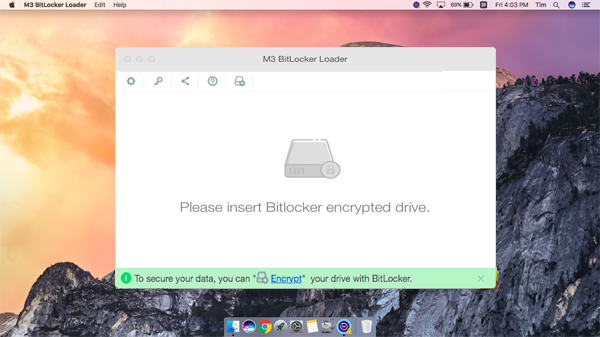
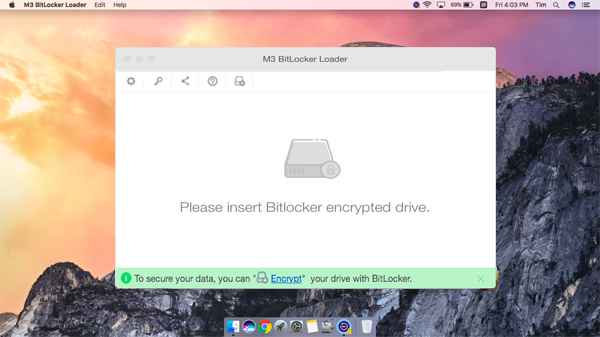
After connecting the USB drive, the BitLocker utility should detect the encrypted drive directly.
Step 3: Unlock the Drive
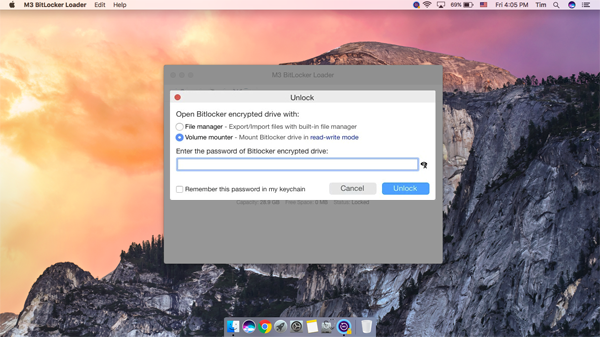
You will be prompted to provide one of the following: BitLocker password or 48-digit recovery key.
iBoysoft BitLocker for Mac offers two access modes:
- File manager: Trial users can use File Manager to browse and preview files on the BitLocker-encrypted drive. This mode is intended for inspection only and does not mount the drive as a writable volume.
- Volume mounter: To mount the BitLocker-encrypted drive in Finder with read-write access, select Volume Mounter. This option requires a paid license.
Choose based on your needs. If you only need to copy files off the drive, read-only access may be sufficient.
Step 4: Work With the Files
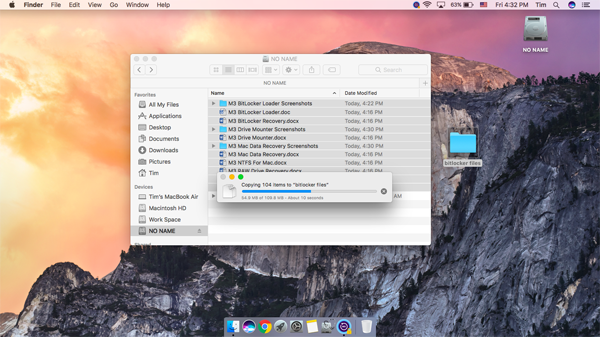
Once unlocked, the drive appears in Finder as a mounted drive. You can copy files to your Mac, edit and write back to the drive.
Step 5: Safely Disconnect the Drive
To reduce the risk of data corruption:
1. Lock or unmount the BitLocker drive in the utility.
2. Eject the drive from Finder.
3. Physically disconnect the USB drive.
Encrypting a USB Drive With BitLocker on macOS
macOS itself cannot create BitLocker-encrypted drives.
However, some third-party tools allow you to apply BitLocker encryption to a USB drive from macOS, producing a drive that is compatible with: Windows (BitLocker-supported editions) and macOS (via the same tool).
The encryption process typically includes:
Step 1: Connect the USB drive to your Mac.
Step 2: Open iBoysoft BitLocker for Mac.
Step 3: In the toolbar, select "Encrypt" (+) symbol to begin the encryption process.
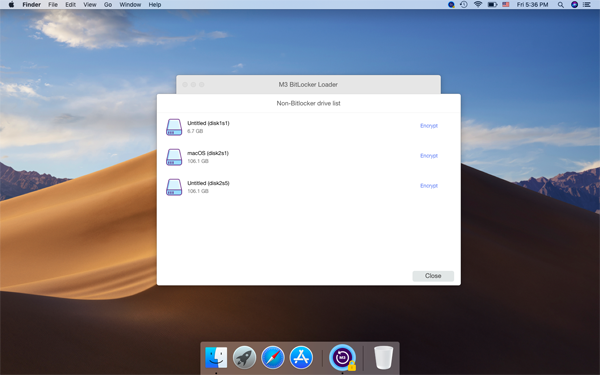
Step 4: The main interface displays all detected drives. Locate the target drive and select Encrypt next to it.
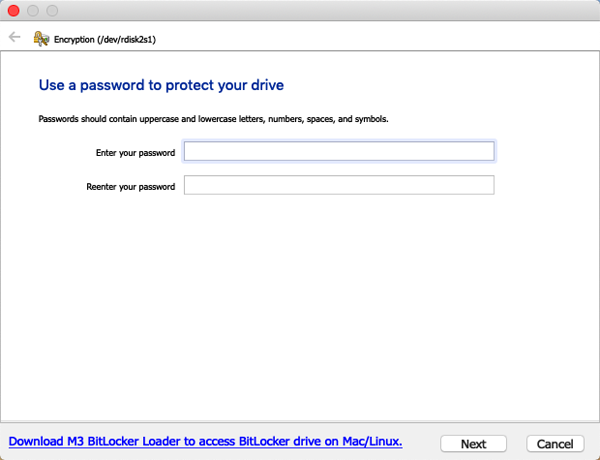
Step 5: Set a password as prompted. Store it securely, as it is required to unlock the BitLocker-encrypted USB drive.
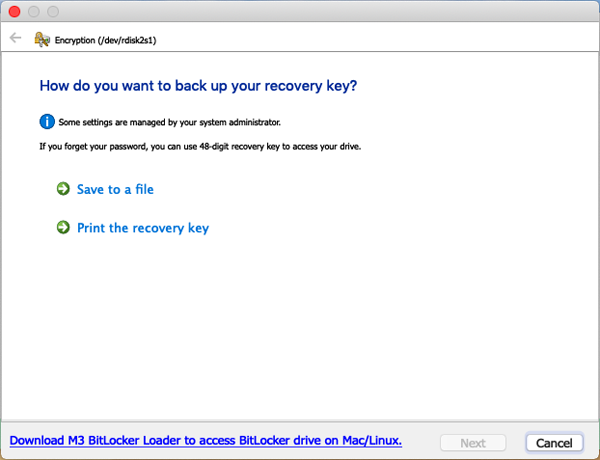
Step 6: Generate the 48-digit recovery key and save it to a file or print it when prompted. This key is required to unlock the USB drive if the password is unavailable.
Step 7: Encrypting the entire drive (this may take time)
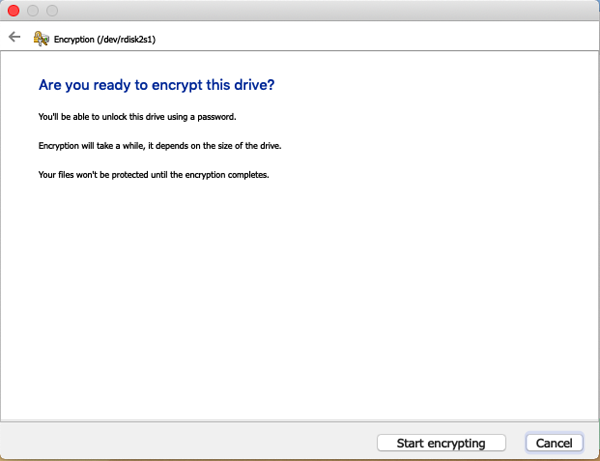
No additional software is written onto the USB drive itself.
Removing BitLocker Encryption on macOS
BitLocker encryption cannot be "turned off" in place on macOS.
The practical method is:
Step 1: Unlock the BitLocker drive
Step 2: Back up all data to another location
Step 3: Use Disk Utility to erase and reformat the drive
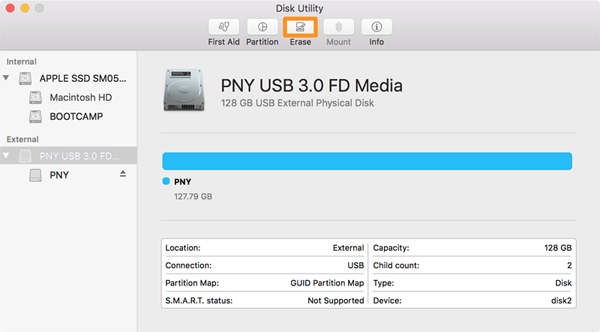 This
This
This process permanently removes BitLocker encryption and erases all data on the drive.
Common Misunderstandings
macOS should be able to open BitLocker by default
It cannot. This is a platform limitation, not a missing setting.
Data recovery software can bypass BitLocker
False. Without a password or recovery key, decryption is mathematically infeasible.
Formatting fixes BitLocker issues
Formatting deletes data. It does not recover access.
When This Approach Does Not Work
You should not expect success if:
- The BitLocker drive is corrupted.
- You have lost both password and 48-digit recovery key.
- The USB drive has physical hardware damage.
In these cases, the limitation is cryptographic or physical, not software-related.
Final Perspective
Accessing a BitLocker-encrypted USB drive on macOS is possible, but it is never frictionless. The process depends on third-party tools, proper credentials, and a healthy drive.
If you frequently move BitLocker encrypted drives between Windows and macOS, planning your encryption strategy in advance—especially 48-digit recovery key management—matters more than the choice of tool.