M3 BitLocker Loader for Mac Online Help
Help Documents
- Getting Started
- Supported Operating Systems
- Supported file systems
- Supported storage devices
- How to activate M3 BitLocker Loader for Mac
- How to open BitLocker encrypted drive on Mac
- How to enable system extension
- How to encrypt an external drive with BitLocker on Mac
- Preferences
- How to quit M3 BitLocker Loader for Mac?
- How to remove/uninstall M3 BitLocker Loader for Mac from Mac computer?
- FAQ
Getting Started
M3 BitLocker Loader for Mac is a utility tool that allows you to unlock, read, write BitLocker-encrypted drive and encrypt external drives with BitLocker on macOS. This tool is necessary because macOS does not natively support BitLocker encryption.
Supported Operating Systems
This software is compatible with these versions of macOS: macOS 27 (Golden Gate), macOS 26 (Tahoe), macOS 15 (Sequoia), macOS 14 (Sonoma), macOS 13 (Ventura), macOS 12 (Monterey), macOS 11 (Big Sur), macOS 10.15 (Catalina), macOS 10.14 (Mojave), macOS 10.13 (High Sierra)
Supported file systems
M3 BitLocker Loader for Mac supports these file systems: NTFS, FAT32 and exFAT file systems.
Supported storage devices
This software works with various storage devices, including: Hard drive, external hard drive, USB drive, flash drive, pen drive, memory card, CF card, etc.
How to activate M3 BitLocker Loader for Mac?
Step 1: Click the Activate button (key icon) in the toolbar.
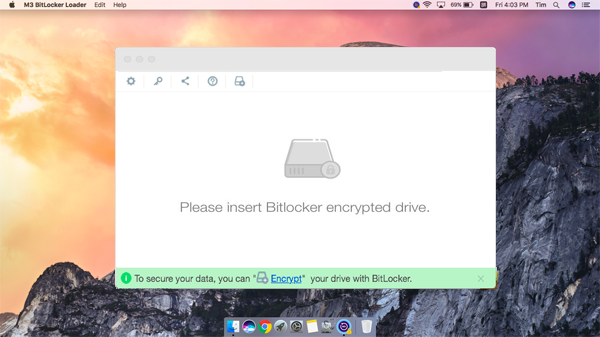
If the main UI has not started, open Terminal and type the following command, press Enter
sudo '/Applications/M3 BitLocker Loader.app/Contents/MacOS/M3 BitLocker Loader
Then, enter your Mac password to launch the application.
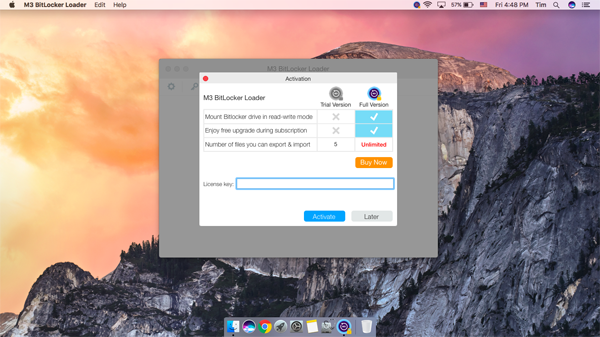
Step 2: Enter the license key and click Activate.
How to open BitLocker encrypted drive on Mac?
Step 1: Insert a BitLocker-encrypted drive into your Mac.
Step 3: Open M3 BitLocker Loader for Mac
If the main UI has not started, open Terminal and type the following command, press Enter
sudo '/Applications/M3 BitLocker Loader.app/Contents/MacOS/M3 BitLocker Loader
Then, enter your Mac password to launch the application.
Step 4: Click "Open" icon in M3 BitLocker Loader for Mac.
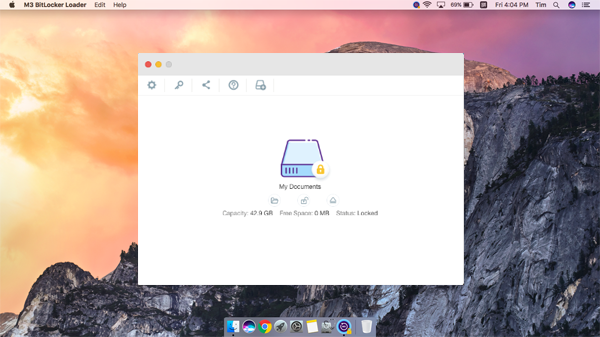
Step 5: Choose one of the following access modes:
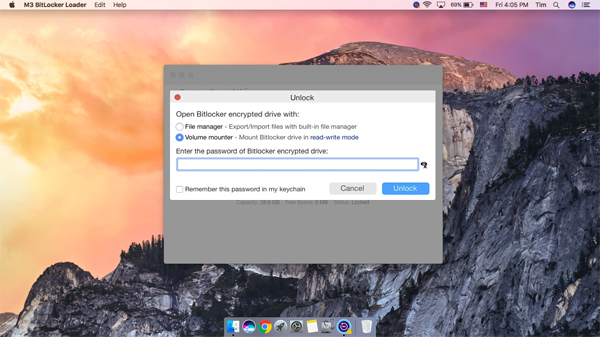
Volume mounter mode: Mount the drive in Finder as a native macOS drive. This allows read, write, delete and modify operations. You will be prompted to allow a system extension if it is not enabled, just like all BitLocker for Mac utility tools in the industry.
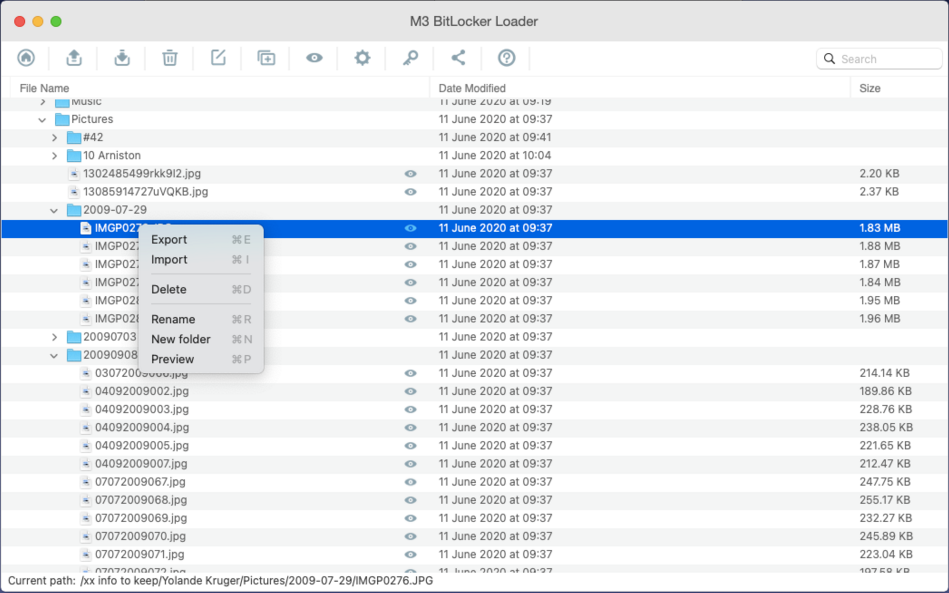
File manager mode: Open the drive using the built-in file explorer. You can preview, import, export, delete, create new folders and rename files.
Volume mounter mode VS File manager mode
| Functions | File manager mode | Volume mounter mode |
| Available in trial version | ||
| Available in full version | ||
| Unlock and open BitLocker drive | ||
| Mount BitLocker drive as a Mac's native drive | ||
| View, preview, rename, delete files | ||
| Import and export files | ||
| Directly open, edit files from the unlocked BitLocker drive |
How to open BitLocker drive with Volume mounter mode of M3 BitLocker Loader for Mac
Step 1: Insert a BitLocker encrypted drive into your Mac.
If the main UI has not started, open Terminal and type the following command, press Enter
sudo '/Applications/M3 BitLocker Loader.app/Contents/MacOS/M3 BitLocker Loader
Then, enter your Mac password to launch the application.
Step 2: Click "Open" icon in M3 BitLocker Loader for Mac.
Step 3: Select "Volume mounter" option.
If you have not enabled a system extension before choosing this option, you will be prompted to allow system extension.
Step 4: Enter the password (or 48-digit BitLocker recovery key) and click "Unlock" to mount BitLocker encrypted drive on your Mac.
If the password and recovery key are lost or unknown, M3 BitLocker Loader for Mac cannot break into BitLocker encrypted drive and access data, please refer to how to unlock BitLocker encrypted drive without password and recovery key?
"Remember this passoword in my keychain" option would save the password in an encrypted file so that you can retreive the password after forgetting it.
Step 5: After mounting the BitLocker encrypted drive on your Mac, it will be automatically opened in Finder, you can operate this BitLocker encrypted drive as same as your Mac's native drive, including open, preview, read, write, edit, delete, tag files, airdrop files, sync files, drag files, etc.
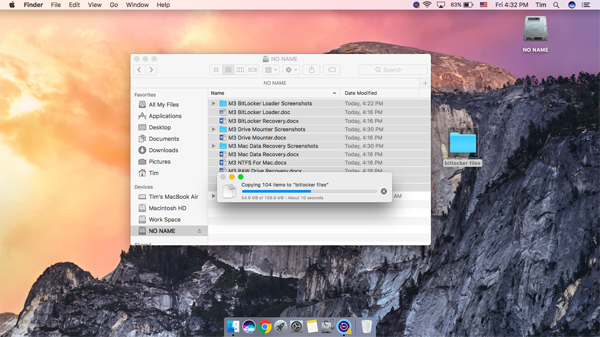
Step 6: After completing any operations with M3 BitLocker Loader for Mac, please click "Lock" button in M3 BitLocker Loader for Mac main interface to lock the BitLocker encrypted drive and then click "Eject" button to safely remove it from your Mac.
How to open BitLocker drive with File manager option
Step 1: Insert a BitLocker encrypted drive into your Mac.
If the main UI has not started, open Terminal and type the following command, press Enter
sudo '/Applications/M3 BitLocker Loader.app/Contents/MacOS/M3 BitLocker Loader
Then, enter your Mac password to launch the application.
Step 2: Click "Open" icon in M3 BitLocker Loader for Mac.
Step 3: Choose "File manager" option.
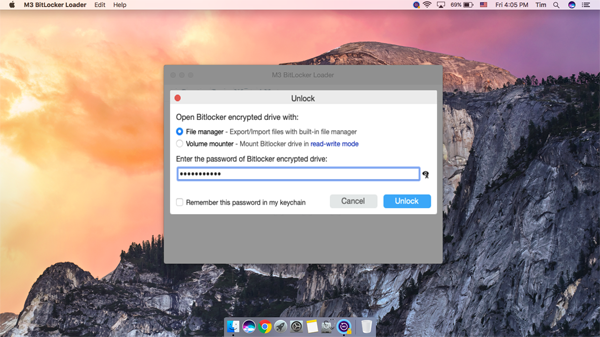
Step 4: Enter the password (or 48-digit BitLocker recovery key) and click "Unlock" to open BitLocker encrypted drive.
If the password and recovery key are lost or unknown, M3 BitLocker Loader for Mac cannot break into BitLocker encrypted drive and access data, please refer to how to unlock BitLocker encrypted drive without password and recovery key?
"Remember this passoword in my keychain" option would save the password in an encrypted file so that you can retreive the password after forgetting it.
Step 5: After opening BitLocker drive, M3 BitLocker Loader for Mac will list the files stored in your BitLocker drive.
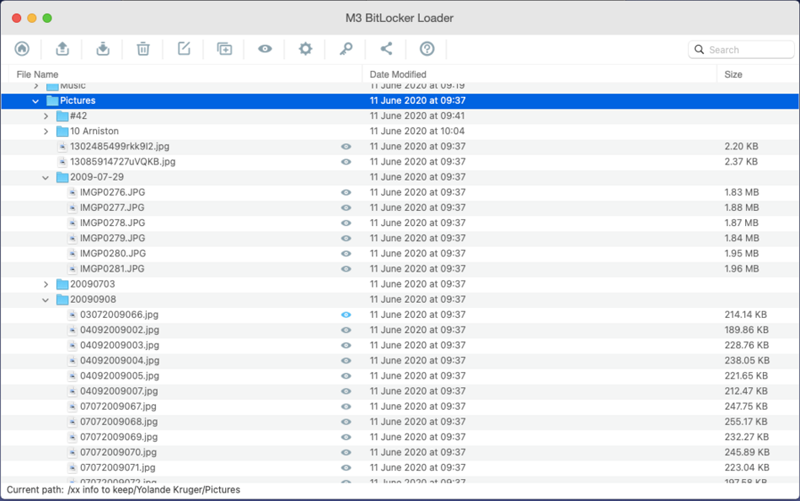
Step 6: After seeing the files, you can preview, import, export, delete, rename files, create a new folder. If you want to open files you expect, please export them and then open them in Finder.
How to enable a system extension?
To mount the BitLocker drive on macOS 10.13 and later version, you need to manually enable a system extension to install the file system driver for M3 BitLocker Loader for Mac. If you are using Apple Silicon M5, M4, M3, M2, M1 Mac, refer to our article: How to enable a system extension on Apple Silicon Mac.
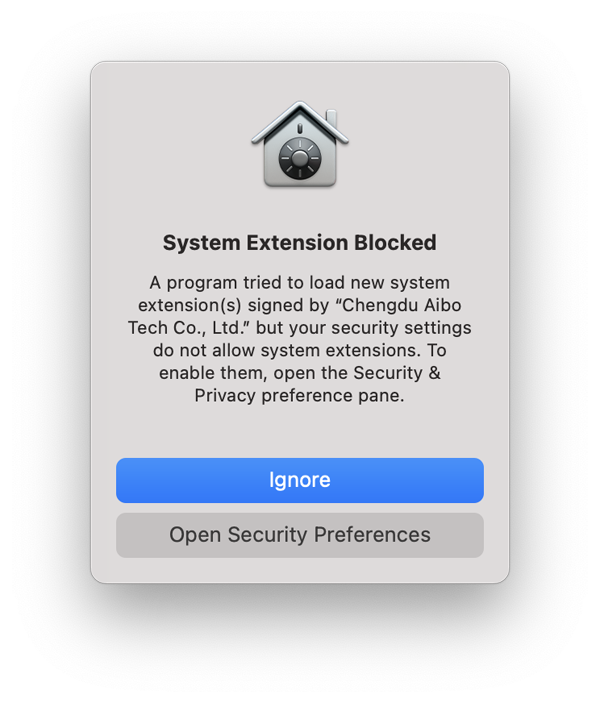
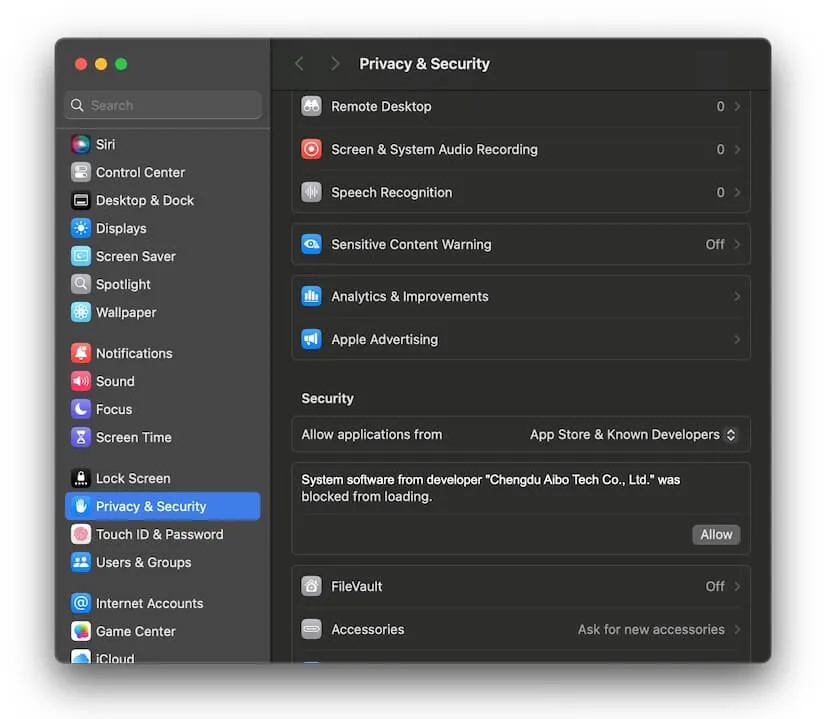
Open System Preferences or System Settings > Security & Privacy > Security.
Click the lock to make the changes.
Click the Allow button to enable a system extension when seeing "System software from developer "Chengdu Aibo Tech Co., Ltd." was blocked from loading"
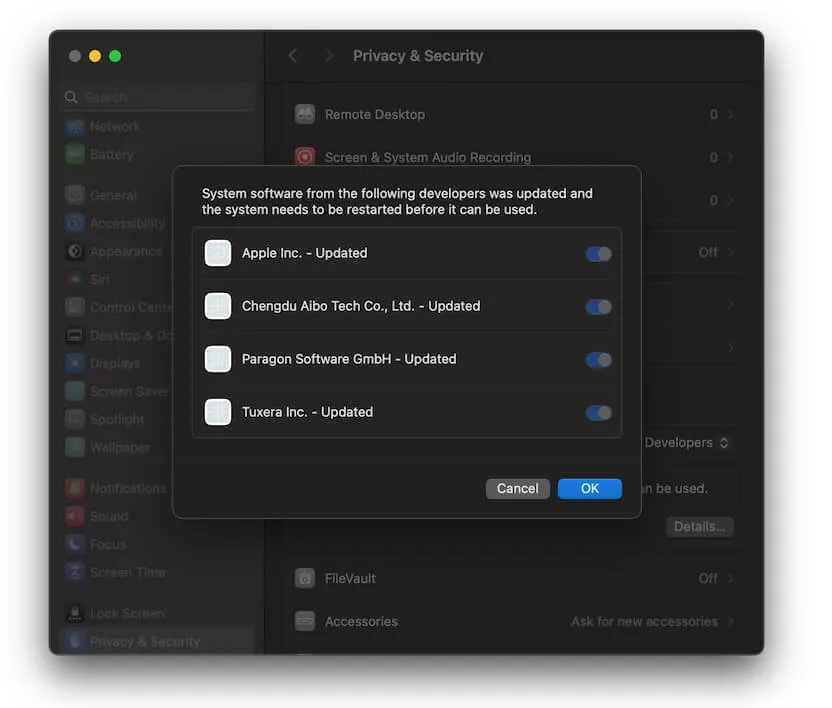
If you have multiple system extensions to be enabled or updated, you will see the Details.. button instead, click it, and switch on the system extensions you want to allow, and click OK.
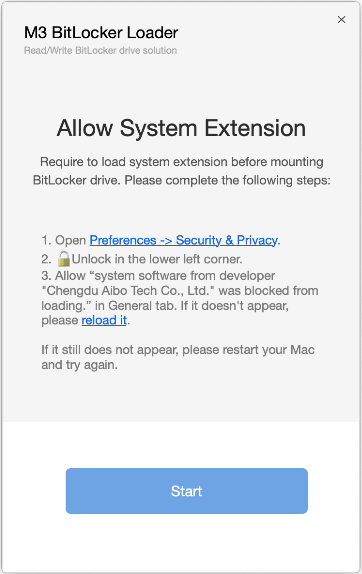
If you don't see allow option, please click "Reload it" in the setup window to reload system extension and then check if allow option appears.
If the "Allow" option is still not appeared, please open /Library/Extensions/ folder, manually delete the drivers that are not in use and then reinstall M3 BitLocker Loader for Mac to try again.
Restart your Mac to complete the setup.
How to encrypt an external drive with BitLocker on Mac?
Preconditions for using BitLocker drive encryption on Mac
1. Prepare for an external drive, such as USB drive, flash drive, external hard drive.
2. The file system of the external drive must be NTFS, FAT32 or exFAT.
3. BitLocker drive encryption requires macOS 10.13 and later version.
Tutorial to encrypt drive with BitLocker on Mac.
Step 1: Download and install M3 BitLocker Loader for Mac latest version.
Step 2: Insert an external drive (such as external hard drive, USB drive, flash drive) into Mac computer.
Step 3: Launch M3 BitLocker Loader for Mac.
Step 4: Click "Encrypt" button in toolbar.
Step 5: Select the partition which you want to encrypt and click Encrypt.
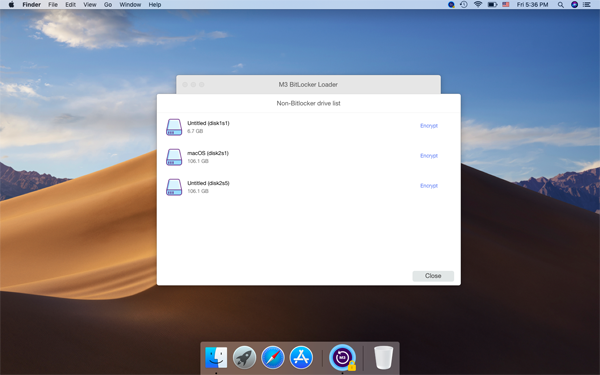
Step 6: Enter the password.
Step 7: Save the recovery key.
Step 8: Complete BitLocker drive encryption.
Preferences:
General tab - Check for updates automatically; Show program icon in status bar; Automatically open drive after unlocking; Language setting.
Notification tab - Notify when locking BitLocker encrypted drive; Notify when ejecting BitLocker encrypted drive; Notify when unlocking BitLocker encrypted drive; Notify when detecting BitLocker encrypted drive.
Advanced tab - Lock BitLocker encrypted drive on sleep; Automatically unlock drive after password is saved; Default volume mount mode: read-write mode (read-only mode).
How to quit M3 BitLocker Loader for Mac
Click "M3 BitLocker Loader" on the left top of the menu bar and then select "Quit".
How to remove/uninstall M3 BitLocker Loader for Mac from Mac computer?
Open Applications folder, find M3 BitLocker Loader, drag it to Trash and complete the uninstallation.