Step 1. Scan the System Drive
Click Start Scan or Junk Cleanup to start scanning junk files on your C drive and wait for the process to complete.
— All in one place.
Free Trial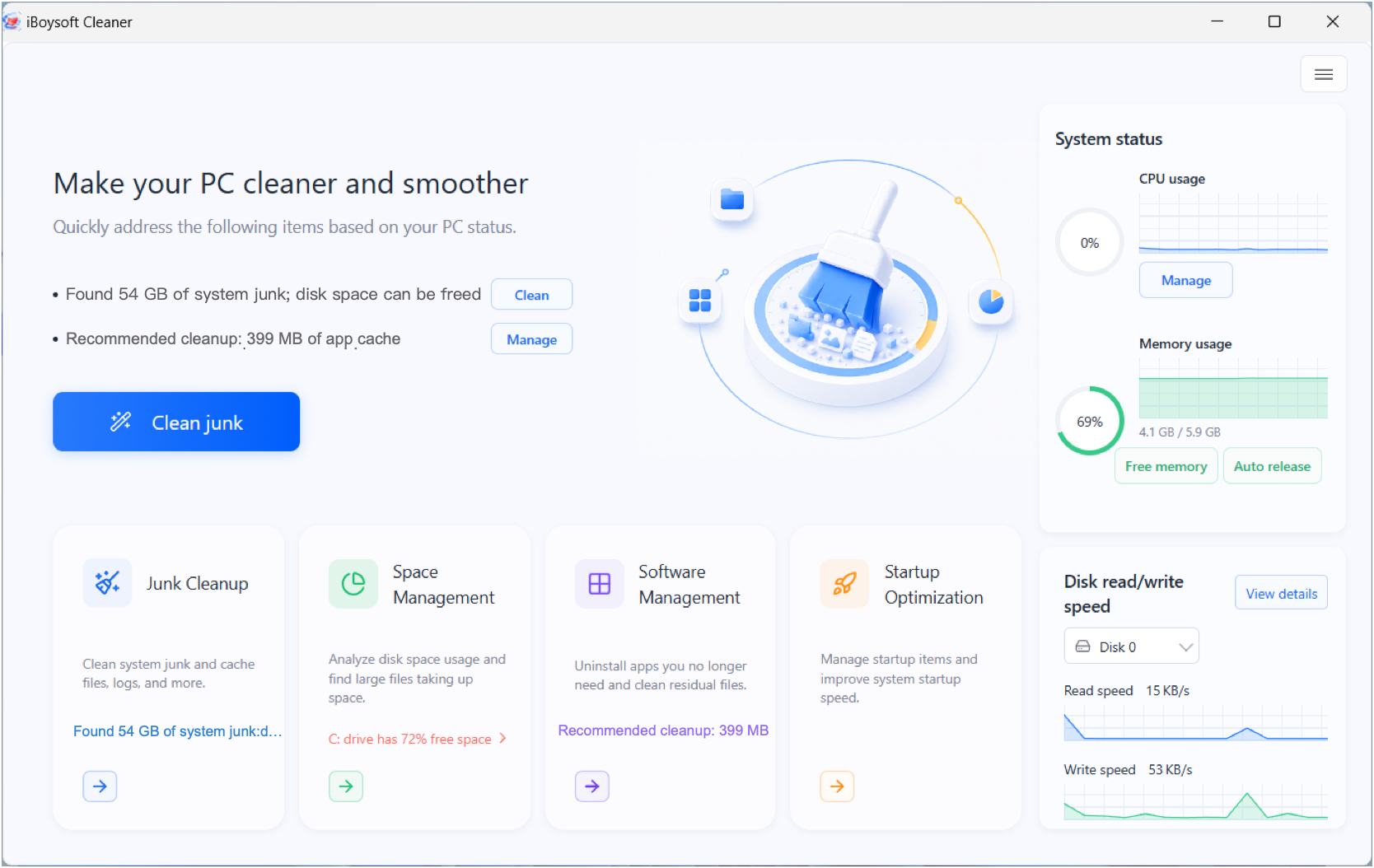
Deep scanning finds junk files across your C: drive and groups them into understandable categories. AI-powered selection automatically identifies files that can be safely deleted, while leaving the final choice to you. Review your selections and remove system junk with one click.
Windows Update cache, Prefetch files, thumbnail cache, system restore point-related files, and more.
System and application logs, crash dumps, Windows error reports, temporary files, and more.
Browser caches, chat app caches, third-party application caches, and residual cache and configuration files from previously uninstalled apps.
Recycle Bin contents, selected personal files and large files (such as useless images and audio files).
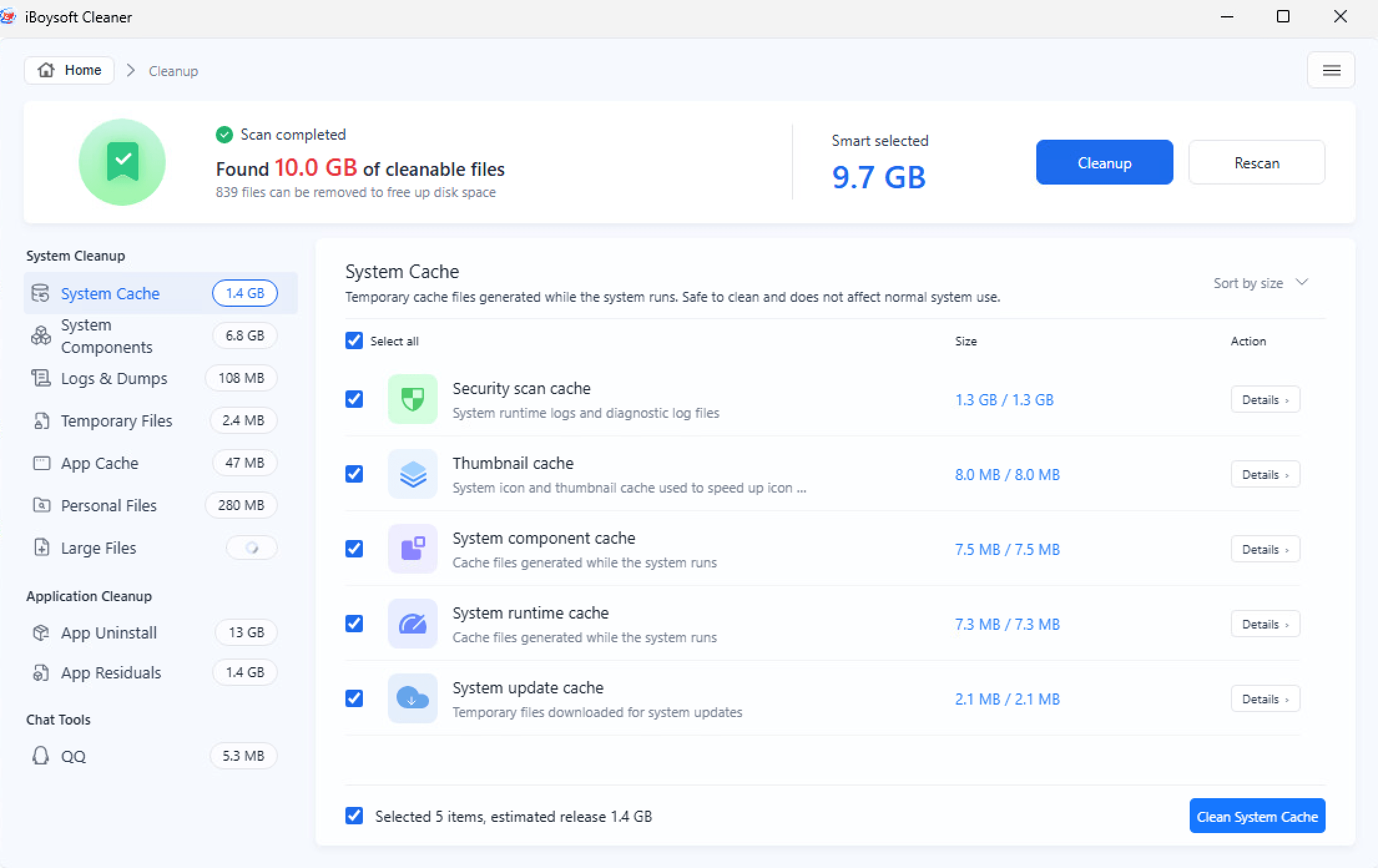
Click Start Scan or Junk Cleanup to start scanning junk files on your C drive and wait for the process to complete.
The scanning results are grouped in categories.
Recommended system junk files are auto-selected, while sensitive files, like personal files and large files, remain for your decision.
Check the results by category and confirm what you want to delete.
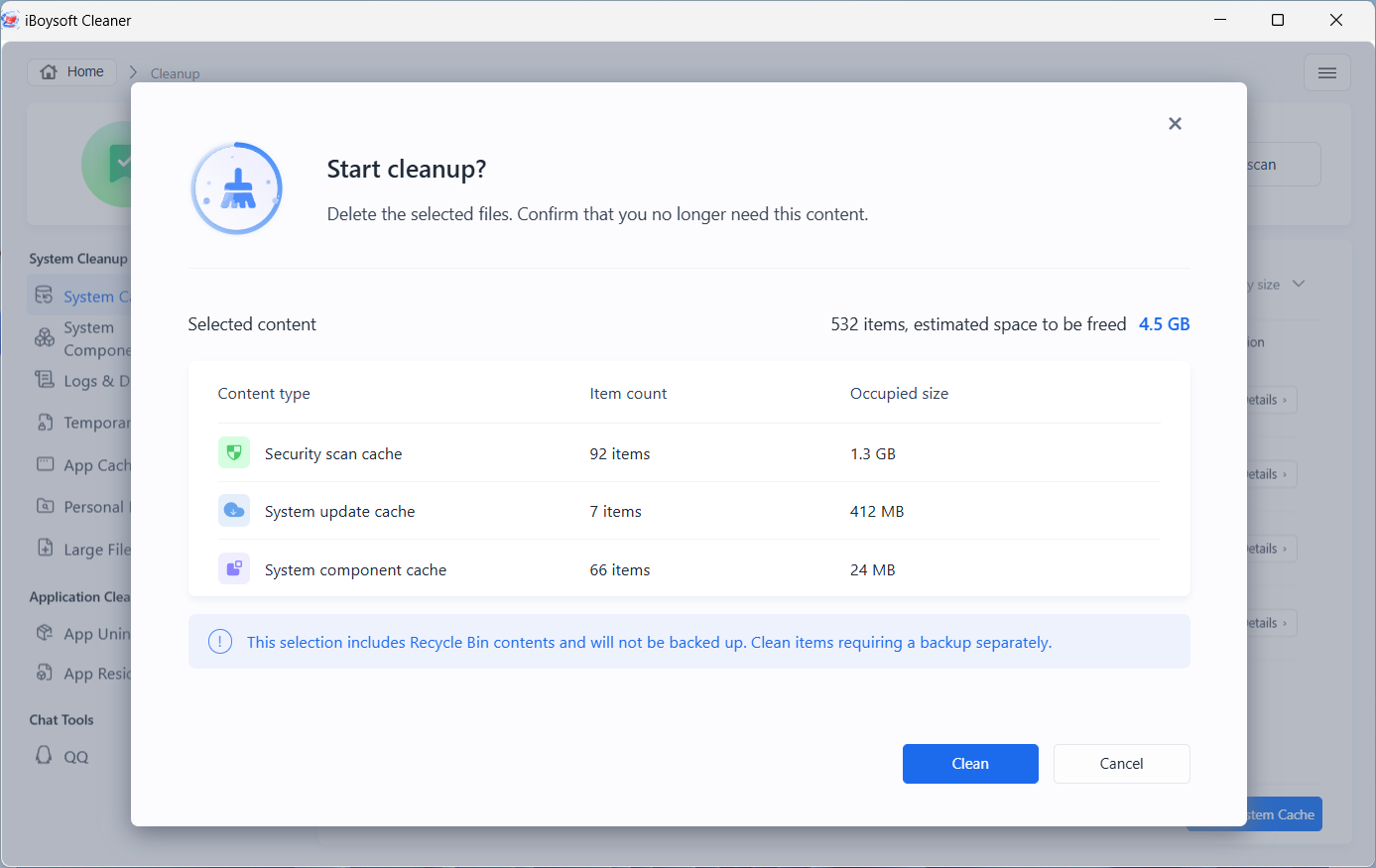
After confirmation, click Cleanup to delete all selected files at a time.
Or, delete files by category.
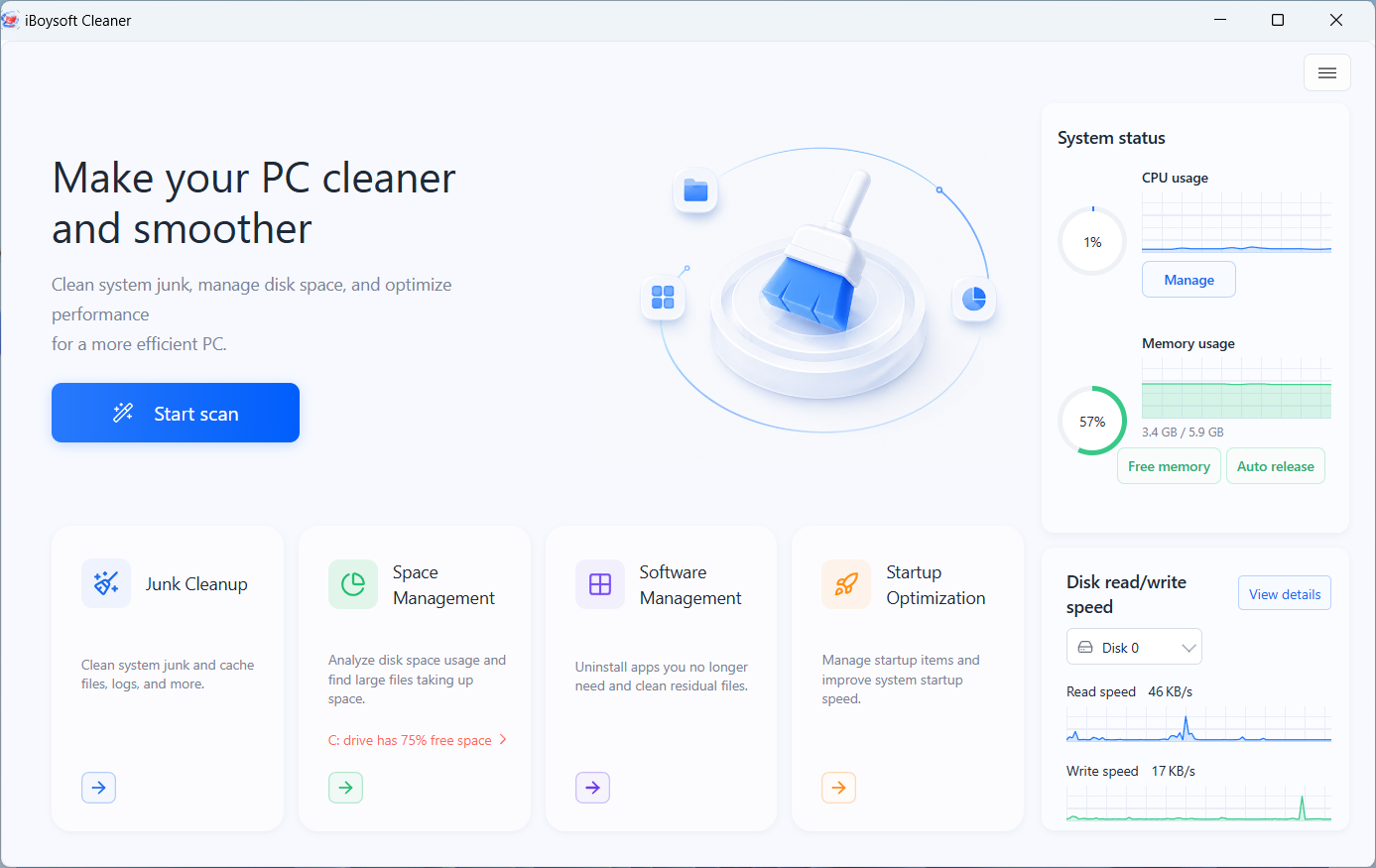
Analyze disk space usage, manage apps, and control startup items—transforming guesswork-based cleanup into a targeted, systematic one to maximize your PC's speed and performance.
See what's taking up disk space, explore files and folders, and use AI insights to make more informed cleanup decisions.
Manage all installed apps in one place — completely uninstall unwanted software, delete leftovers, or move apps to free up space on your C: drive.
Manage apps, scheduled tasks, context-menu entries, and Windows services that start with your system or remain active in the background to reduce unnecessary startup overhead. Reduce unnecessary startup overhead while keeping essential services enabled.
Get more than junk cleanup. Monitor CPU, memory, and disk activity to spot performance bottlenecks and keep your PC running smoothly.
Monitors CPU usage and helps users identify and manage resource-intensive processes and running applications.
Monitors memory usage, allows manual one-click memory release, and also supports setting a memory usage threshold (80%) to trigger automatic memory cleanup.
Test real-time disk read/write speeds to evaluate disk throughput and identify potential storage performance bottlenecks.
No. iBoysoft Cleaner for Windows uses direct deletion by default. The deleted files are usually unrecoverable. Review selected files carefully before cleaning or perform a backup when needed.
In the system junk scanning results, you can review these files, but they are unselected by default. Because they may contain valuable data, they are treated as cautious items and require your confirmation. If these files are useless for you, you can delete them.
It helps reduce unnecessary system clutter, startup overhead, and background resource usage. Results depend on your system, installed software, and the items you choose to manage.
Relocation is available for supported applications. Permissions, storage space, active processes, and application design can affect whether a move succeeds.
The AI analysis feature in Space Management requires an internet connection and a valid license.
The Free Trial lets you scan and explore the core cleaning and management experience. An approximate 1 GB/day cleaning allowance applies while the product is unlicensed.
Clear system junk, free up storage space, manage apps, and optimize startup items with one Windows PC cleaner — iBoysoft Cleaner for Windows.