
Windows 7 Home is a consumer-focused edition of Microsoft's Windows 7 operating system, containing the Windows 7 Home Premium and Windows 7 Home Basic editions. It is designed primarily for home users who need a simple, fast, and user-friendly computing experience.
If you need it, focus on this Windows 7 Home edition download center to get Windows 7 Home Premium and Basic 64-bit and 32-bit ISO files for free.
Need other editions of Windows 7? Get them from: Windows 7 ISO Download
Need Windows 7 Pro? Here it is: Windows 7 Pro ISO Download
Download Windows 7 Home Premium ISO with a specific tool (Safe way)
Since Microsoft no longer provides official Windows 7 Home Premium ISO download options for us, you can use the professional Windows downloader - iBoysoft DiskGeeker for Windows to download the full installer of Windows 7 Home Premium ISO safely.
Steps:
- Install and open iBoysoft DiskGeeker.
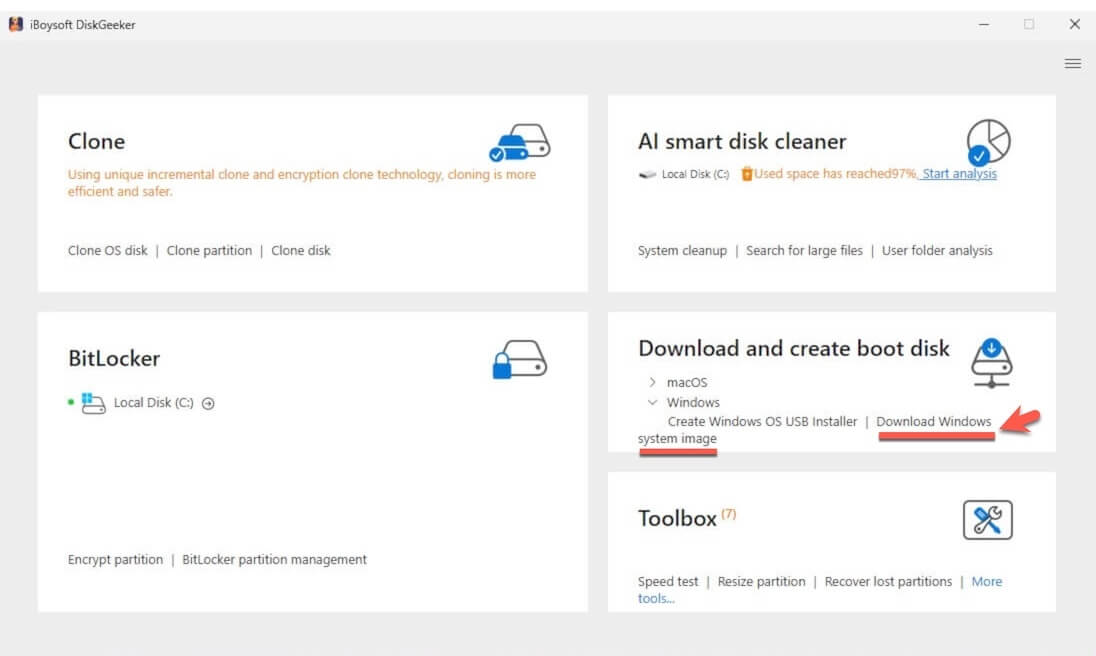
- Move to the Download and create boot disk module; just click "Windows" > "Download Windows system image."
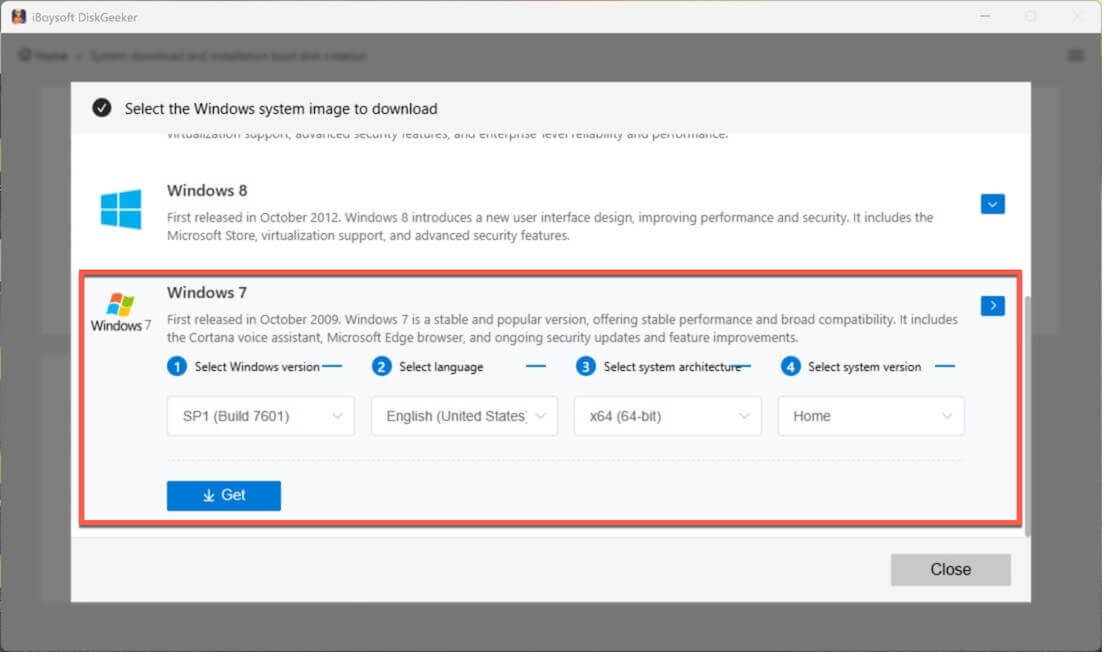
- Click on "Windows 7," and select the Home edition to quickly get Windows 7 Home Premium.
Windows 7 Home Basic ISO download 64-bit & 32-bit (Direct links)
Windows 7 Home Basic is a lite edition of Windows 7 Home designed for users in specific regions with lower hardware requirements. It has only essential functions and lacks the visual and multimedia enhancements of Home Premium.
If you are a user from the specific region or just want to try this edition, follow these direct links to download Windows 7 Home Basic ISO.
✅ Windows 7 Home Basic 64-bit ISO download
Size: 3.1 GB
Language: English
Checksum (SHA 256): E2764CF9C06FC51E4F556BB6675A840D0E8E6BD507C938CAAC4EBCCDF0AD771B
✅ Windows 7 Home Basic 32-bit ISO download
Size: 2.4 GB
Language: English
Checksum (SHA 256): E63637B39CAF187EE3F7DD68C51CC0509157D58C498002933735992760FA4DFB
Note: Since Home Basic was only sold in certain emerging-market regions, most global or retail Windows 7 installation media use Home Premium. When installing, which edition (Home Basic or Home Premium) you see depends on how the ISO is configured, not strictly your geographic location.
Windows 7 Home system requirements
Before downloading Windows 7 Home, check the minimum system requirements for the right version selection, for a smoother installation and performance.
| Component | Windows 7 Home Premium (64-bit) | Windows 7 Home Premium (32-bit) | Windows 7 Home Basic (64-bit) | Windows 7 Home Basic (32-bit) |
| Processor | 1 GHz or faster | 1 GHz or faster | 1 GHz or faster | 1 GHz or faster |
| RAM | 2 GB | 1 GB | 2 GB | 1 GB |
| Installation Storage | 20 GB | 16 GB | 20 GB | 16 GB |
| Graphics | DirectX 9 graphics device with WDDM 1.0 driver | DirectX 9 graphics device with WDDM 1.0 driver | DirectX 9 graphics device with WDDM 1.0 driver | DirectX 9 graphics device with WDDM 1.0 driver |
| Display | 800×600 minimum | 800×600 minimum | 800×600 minimum | 800×600 minimum |
Create a Windows 7 Home bootable USB installer
Windows 7 is an old Windows operating system. If you want to install it on a modern PC running Windows 11, 10, or a clean installation of Windows 7 Home, or troubleshoot an unbootable Windows, you need a Windows 7 Home bootable USB installer.
To quickly and effortlessly create a Windows 7 Home bootable USB installer, you can use iBoysoft DiskGeeker for Windows. This tool lets you get a Windows 7 Home bootable USB installer within a few clicks, without complicated steps involved.
Here's how:
- Free download, install, and open iBoysoft DiskGeeker for Windows on your computer.
- Connect an empty USB drive or external disk with at least 32 GB of storage space to your computer.
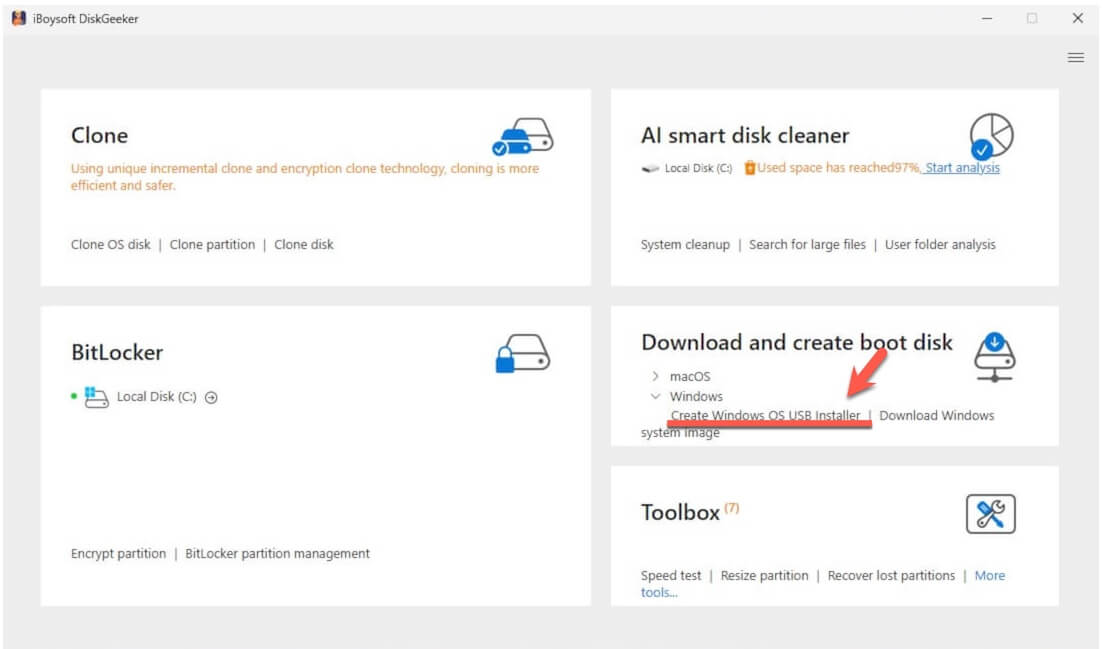
- Click "Windows" > "Create Windows OS USB Installer" from the Download and create boot disk module.
- Select your USB drive or external disk as the target disk.
- Click on "Windows 7," select "Home," and click "Start creating boot disk."
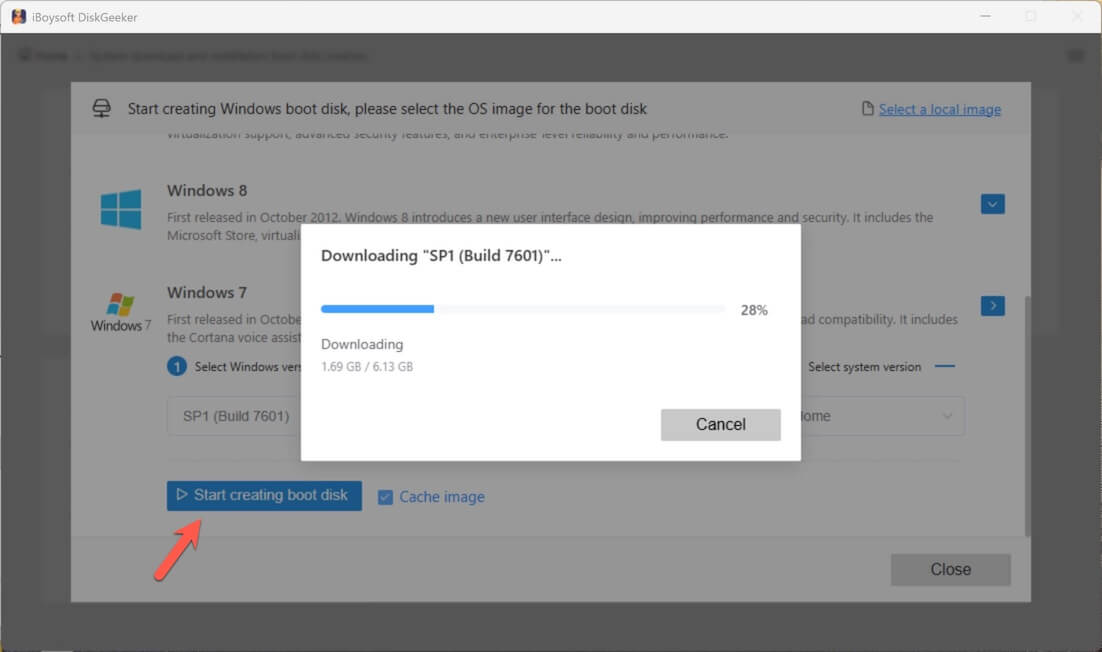
Now, just wait for a moment to let the tool download the Windows 7 Home ISO, and then it will automatically create a Windows 7 Home bootable USB installer.
FAQ
- QWhere can I download a Windows 7 ISO file?
-
A
You can search and download a Windows ISO file from online archives. If you need a more secure way to download the Windows 7 ISO file, you can also use iBoysoft DiskGeeker for Windows. This disk management tool offers options for downloading Windows 7 and other editions and can help you create a Windows 7 bootable USB installer.
- QCan I still download Windows 7 ISO from Microsoft?
-
A
No. Microsoft removed the official Windows 7 ISO download page after ending support for Windows 7 on January 14, 2020. Now, you can download Windows 7 ISO from Internet Archive or iBoysoft DiskGeeker for Windows.