
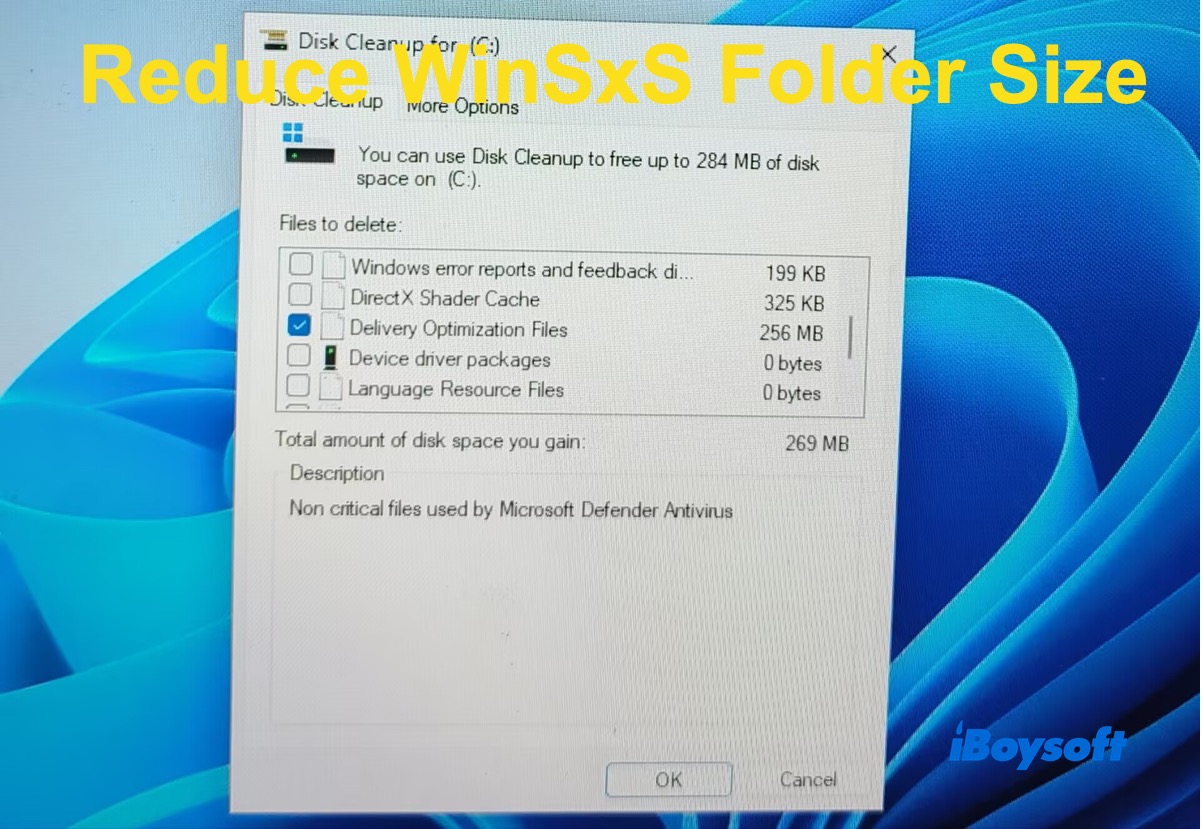
Can I delete the WinSxS folder? No, you can't delete the WinSxS folder on Windows. Because these files are managed by Windows and are required for system integrity. Removing them manually may corrupt system components, disrupt Windows Update, or cause boot failures.
Instead, use Windows tools, such as the DISM command, Disk Cleanup, Task Scheduler or iBoysoft Cleanup, to safely reduce their size. Have a quick look at the following table to determine which tool is most suitable for you.
| Tools | Best for | WinSxS Folder Cleanup Items |
| DISM | Advanced users (command lines) | Superseded Windows components, outdated component versions, store metadata, previous Windows update files (limited) |
| Disk Cleanup | Beginners | Superseded Windows components, outdated component versions, store metadata (limited), previous Windows update files, update cache, temporary Windows installation files, temporary files, Delivery Optimization files |
| Task Scheduler | Users who prefer automatic maintenance | Superseded Windows components, outdated component versions, store metadata, previous Windows update files (limited) |
| iBoysoft DiskGeeker for Windows | Users who want an all-in-one Windows cleaner | Superseded Windows components, outdated component versions, previous Windows update files, update cache, temporary Windows installation files, temporary files, Delivery Optimization files, app cache, browser junk |
How to Safely Clean Up and Reduce the WinSxS Folder Size?
1. Use DISM in Command Prompt
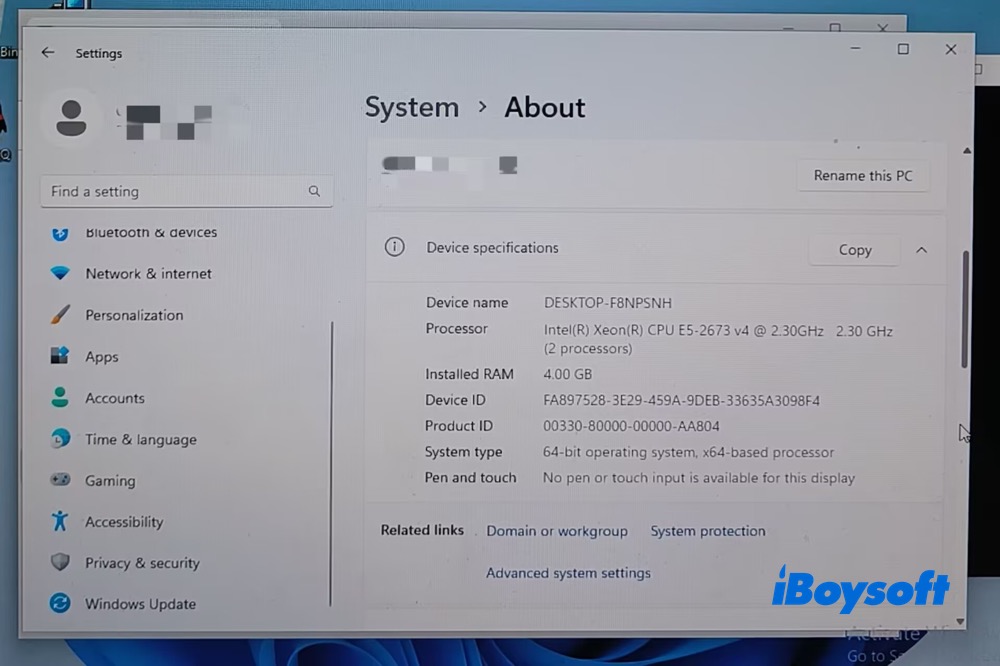
DISM is the most recommended way for cleanup. I'm running on an x64-based Intel(R) Xeon(R) CPU E5-2673 v4 @2.30 GHz 2.30 GHz (2 processors) Windows 11 PC with 4GB RAM. And I'll share with you my personal experience to safely shrink the WinSxS folder size on Windows 11 using DISM.
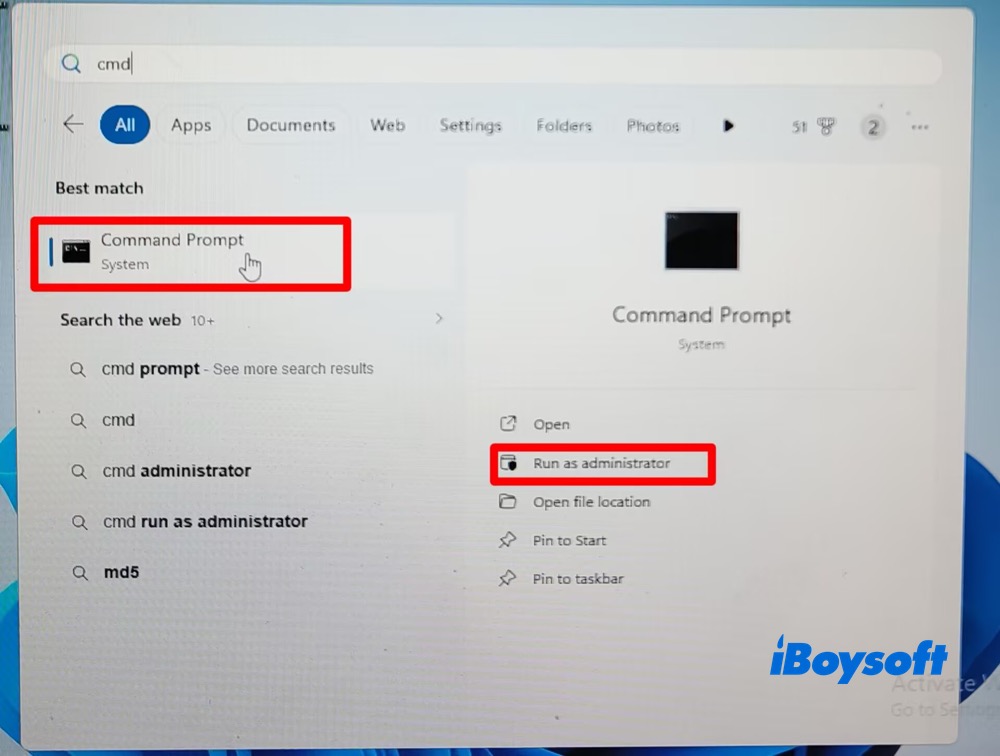
Step 1. Click the Start icon at the bottom menu > type "cmd" in the top search bar.
Step 2. Find Command Prompt and click "Run as administrator" on the right-hand panel.
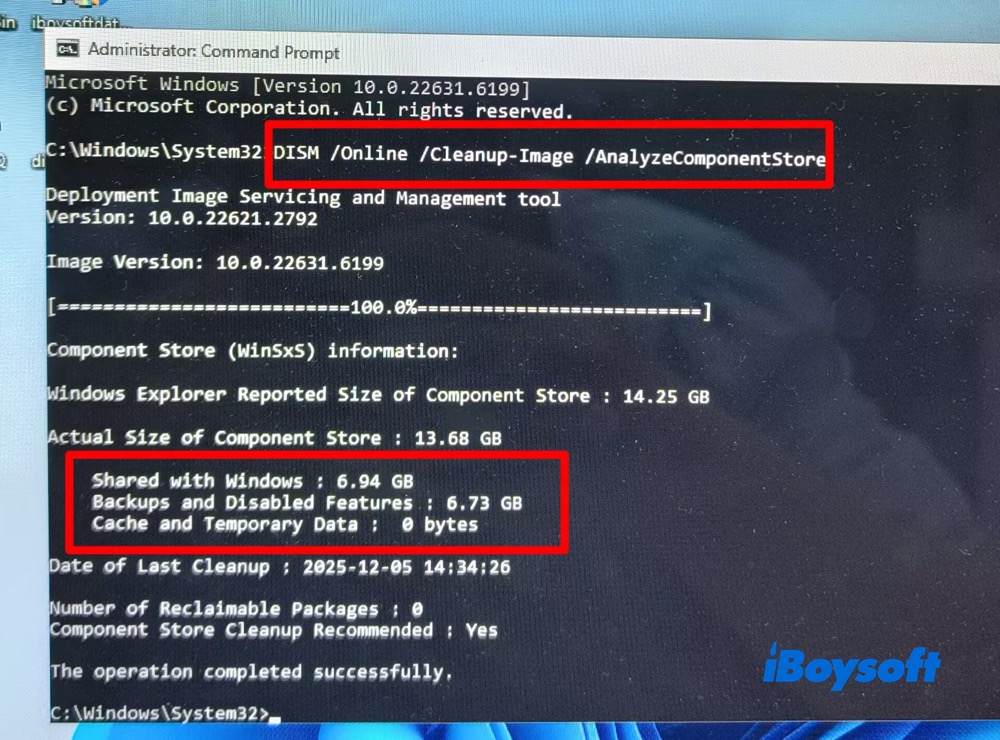
Step 3. Run the following command:
DISM /Online /Cleanup-Image /AnalyzeComponentStore
Now, I can see the component store information, and the cleanup is recommended.
- The Windows Explorer reported size: 14.25 GB
- The actual size: 13.68 GB
- Shared with Windows: 6.94 GB
- Backups and Disabled Features: 6.73 GB
- Cache and temporary data: 0 bytes
Step 4. I perform a standard cleanup by running the command below:
DISM /Online /Cleanup-Image /StartComponentCleanup
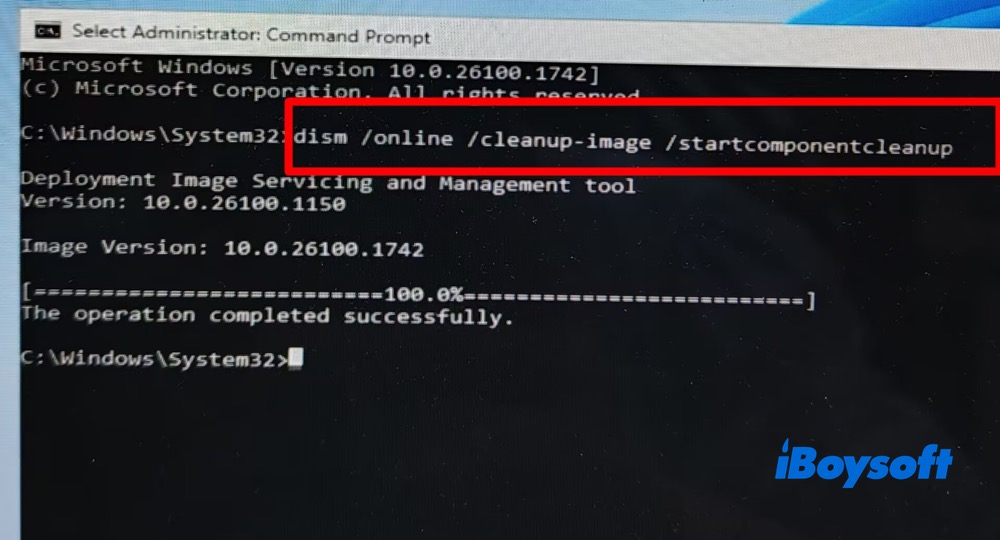
When the notice "The operation completed successfully" displays, it means the WinSxS cleanup is done. If you encounter the error report: Error 87, an error occurred while processing the command, it means you did not run the Command Prompt as an administrator, you made a space error in the text, or the Windows 11 version is compact, not full.
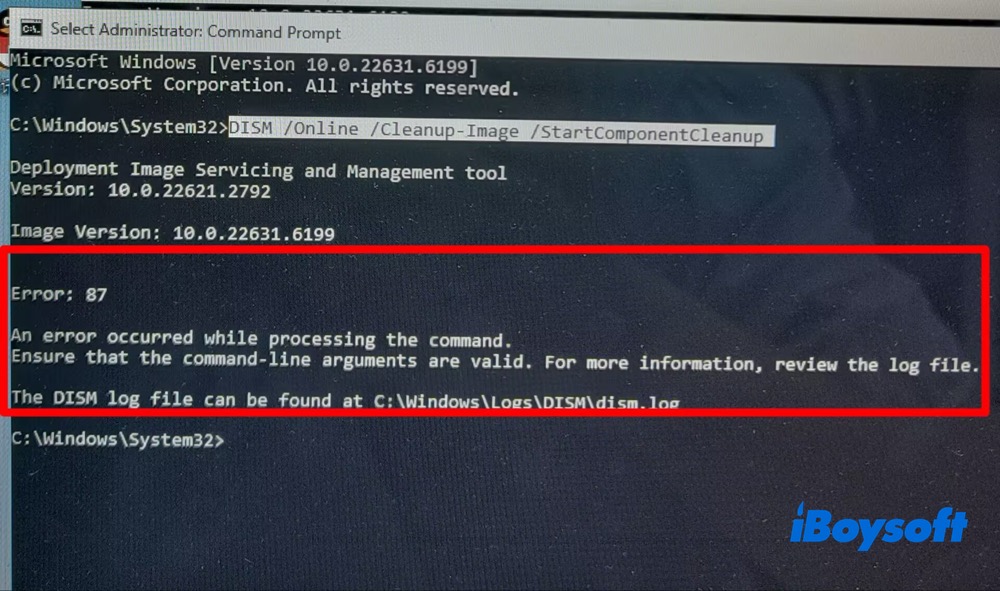
If you want to reclaim the maximum amount of space, run:
DISM /Online /Cleanup-Image /StartComponentCleanup /ResetBase
Warning: Use this command with caution! After this finishes, you cannot uninstall any currently installed Windows updates. Future updates will still work normally.
If AnalyzeComponentStore reports that cleanup is not recommended but the folder is still extremely large (40-100+ GB), it may indicate:
- Old Windows features or language packs
- A failed or incomplete Windows update
- Component store corruption
In that case, run:
DISM /Online /Cleanup-Image /RestoreHealth
Continue:
sfc /scannow
2. Run Windows Disk Cleanup
Step 1. Go to Start on Windows 11 > Disk Cleanup > Choose “Clean up system files".
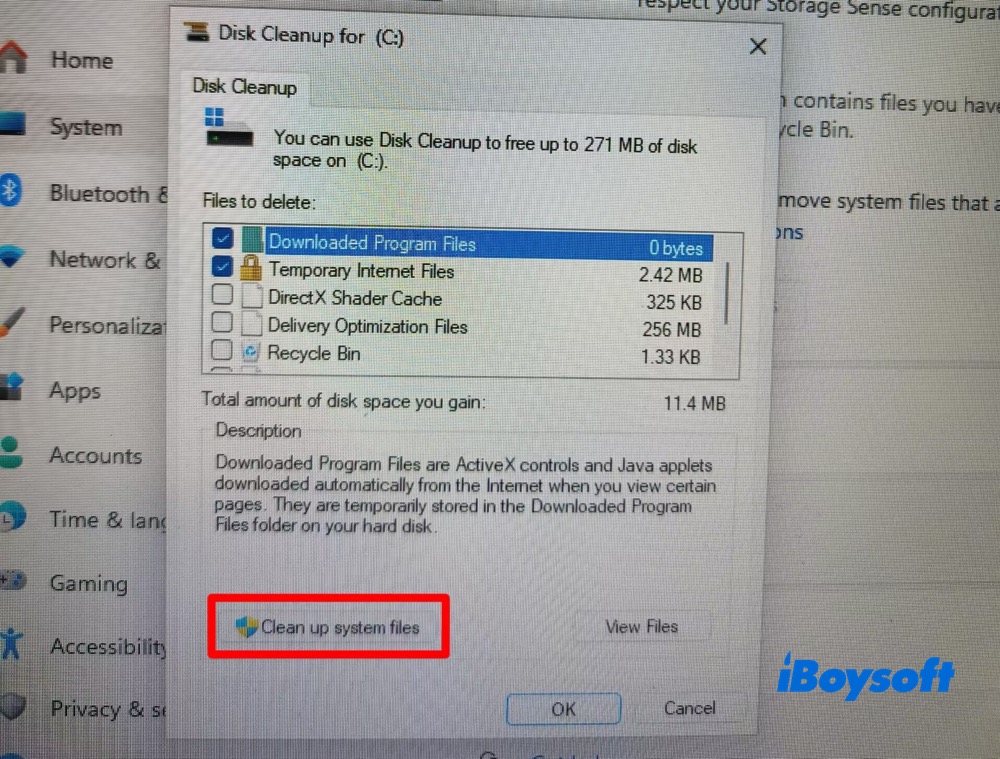
Step 2. Check items such as: Windows Update Cleanup, Temporary Windows installation files, Delivery Optimization Files, etc. Click OK.
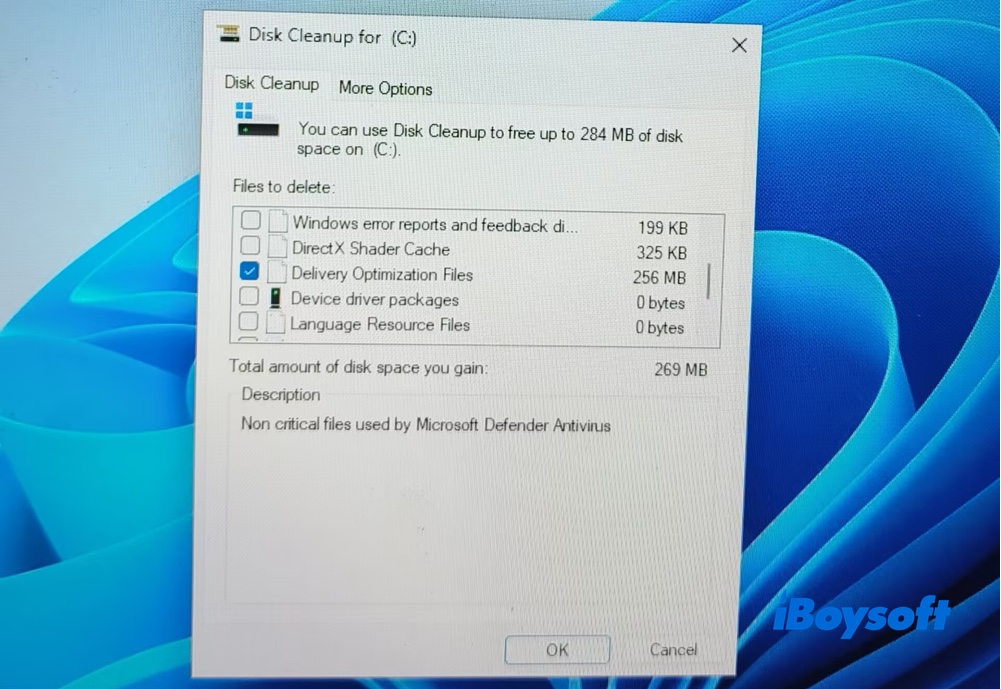
This helps me free up disk space by several GBs after a major Windows update.
3. Reclaim WinSxS Folder Storage via Task Scheduler
To safely reduce WinSxS folder size, I also think of Task Scheduler, which lets Windows 11/10 clean up automatically. Here's how I manually trigger it:
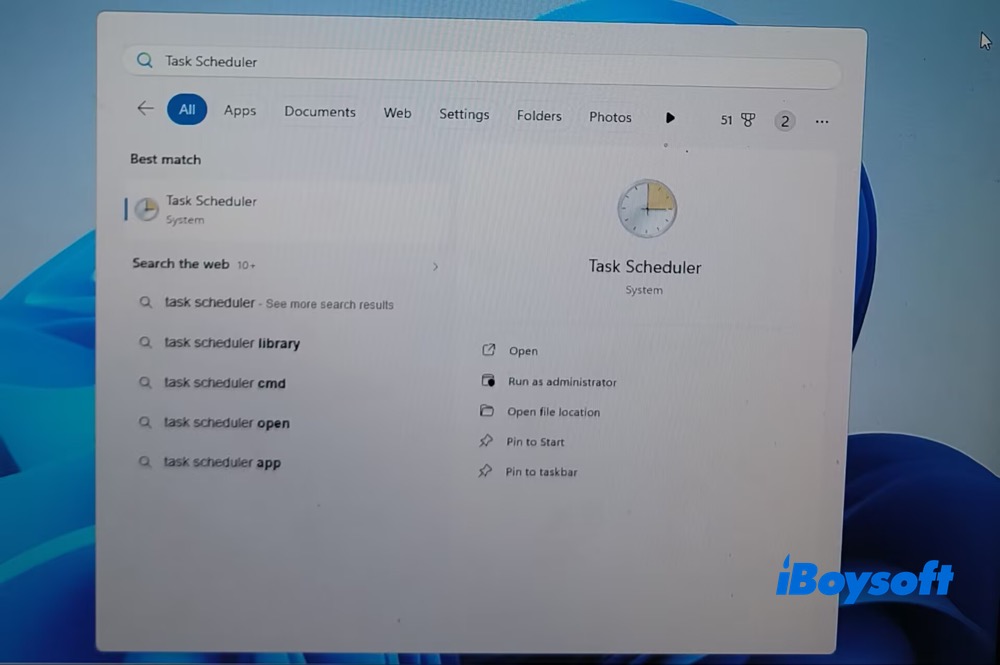
Step 1. Access to Start menu > type "Task Scheduler" and open it.
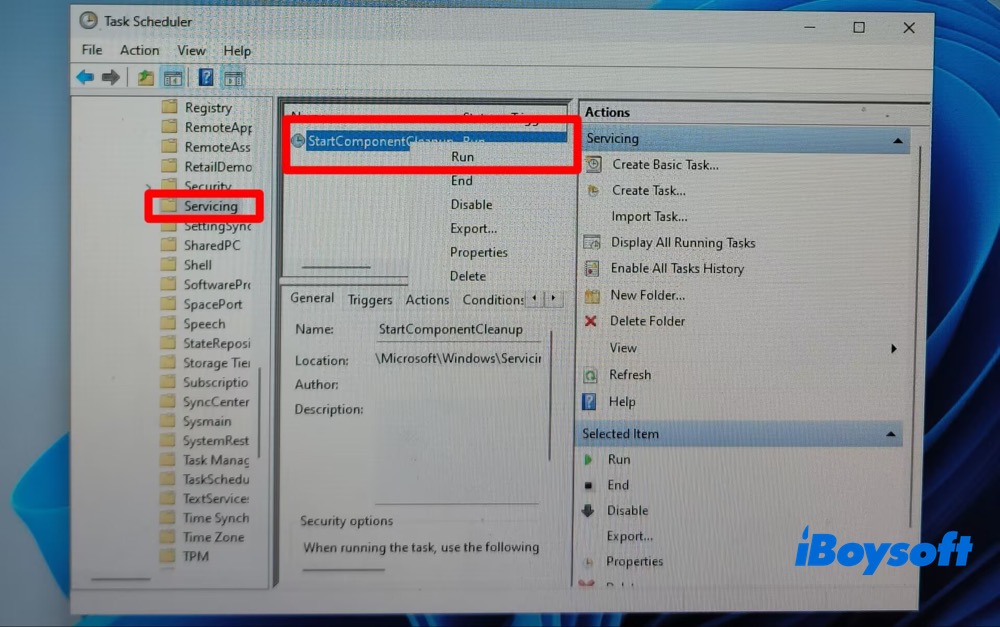
Step 2. Find Task Schedule Library > expand it and target on Microsoft > Windows > Servicing.
Step 3. Find StartComponentCleanup in the middle panel > right-click it > tap Run.
Alternatively, you can also use the command line to enable automatic component cleanup by running:
schtasks /Run /TN "\Microsoft\Windows\Servicing\StartComponentCleanup"
Warning: Don't disable Component Cleanup. Microsoft recommends keeping it enabled.
4. Use iBoysoft DiskGeeker for Windows
In most cases, DISM and Disk Cleanup can safely reduce WinSxS growth. However, these Windows built-in tools only clean up limited WinSxS folder items. Other items like app cache, update cache, and browser junk are beyond their capability.
iBoysoft DiskGeeker for Windows fills that gap and simplifies this process by automatically analyzing system storage, showing which Windows components and update files can be safely removed, and combining multiple cleanup tasks into one easy workflow. It is designed for users who want the safety of Windows' built-in maintenance with a simpler, more transparent experience.
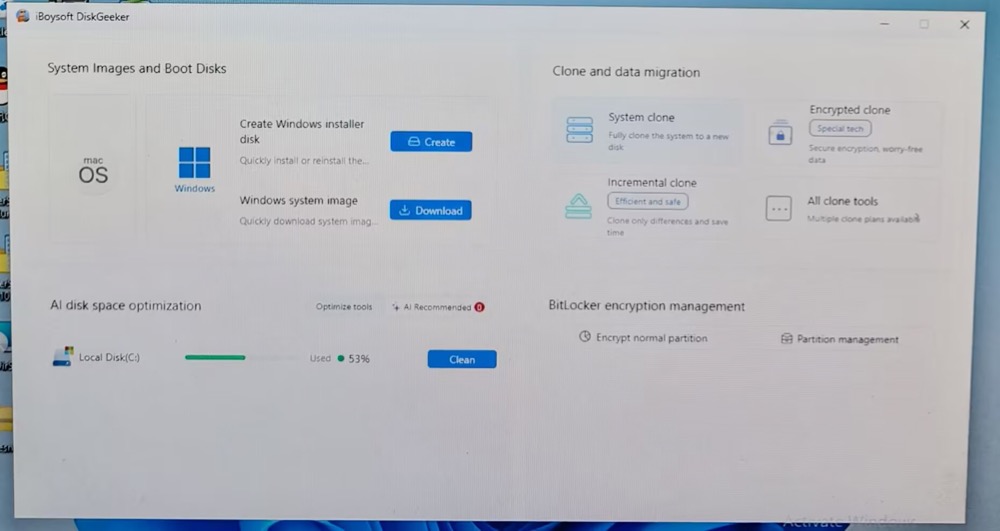
Step 1. Download and install iBoysoft DiskGeeker for Windows. Launch it then.
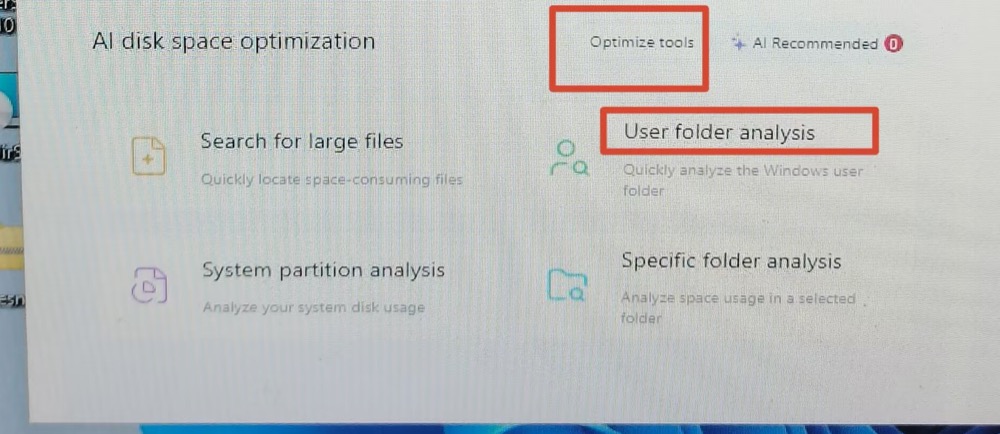
Step 2. Move your mouse to AI disk space optimization zone, which contains Optimize tools and AI Recommended. Click Optimize tools.
Choose User Folder Analysis.
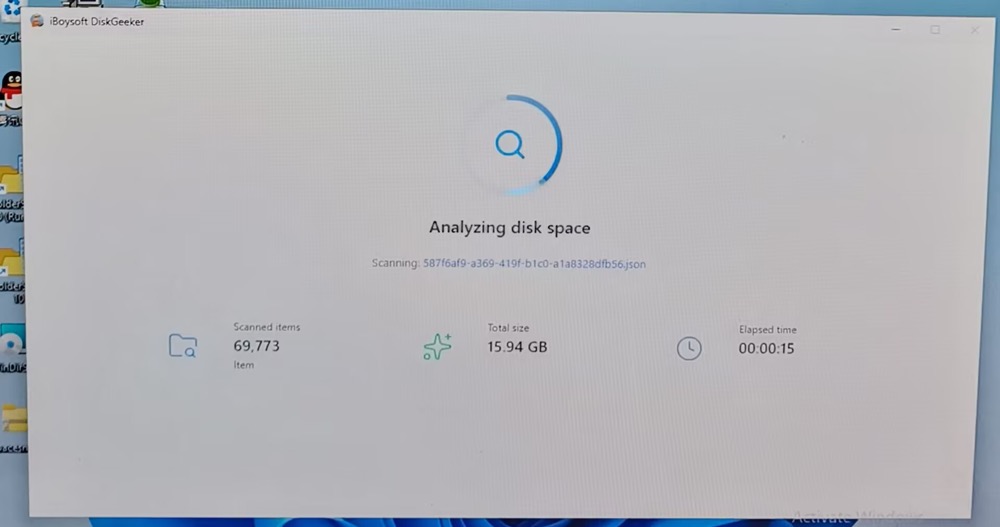
Step 3. Wait for its AI smart disk scanning and analyzing.
Step 4. Find WinSxS folder under the “Windows" folder. It's clear to see the total items and folder size of the WinSxS folder, 11868 items and 4.48 GB in size.
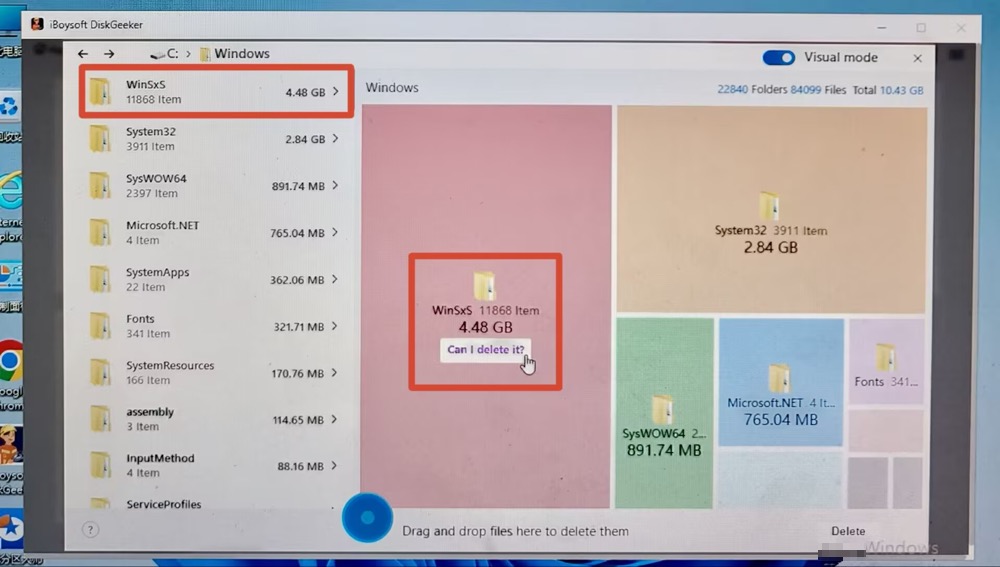
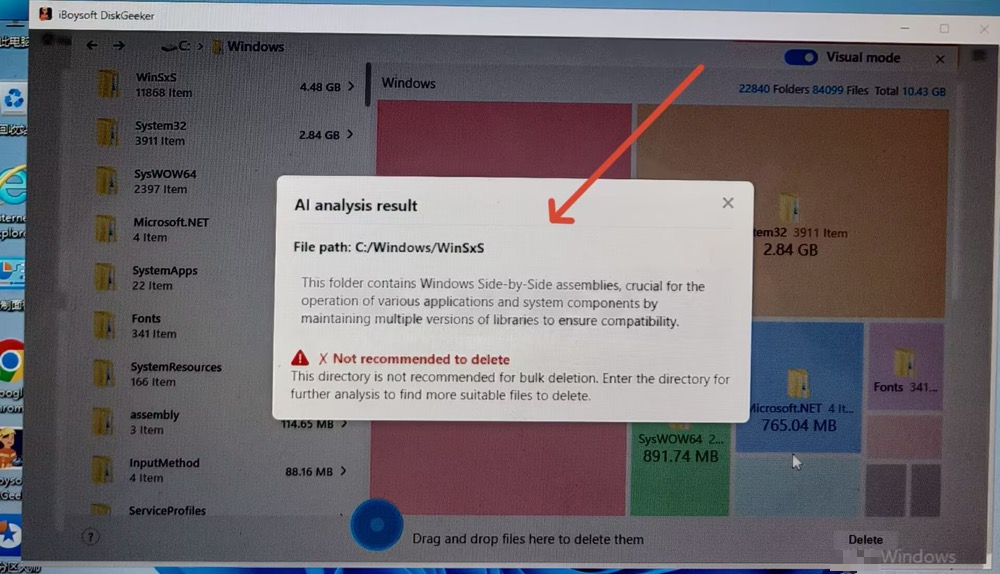
Click "Can I delete it?" (the AI-powered analysis module) when you want to know if it's safe to clear a specific folder or file. As for WinSxS folder, it's Not recommended to delete it. The AI analysis result displays the reason for you.
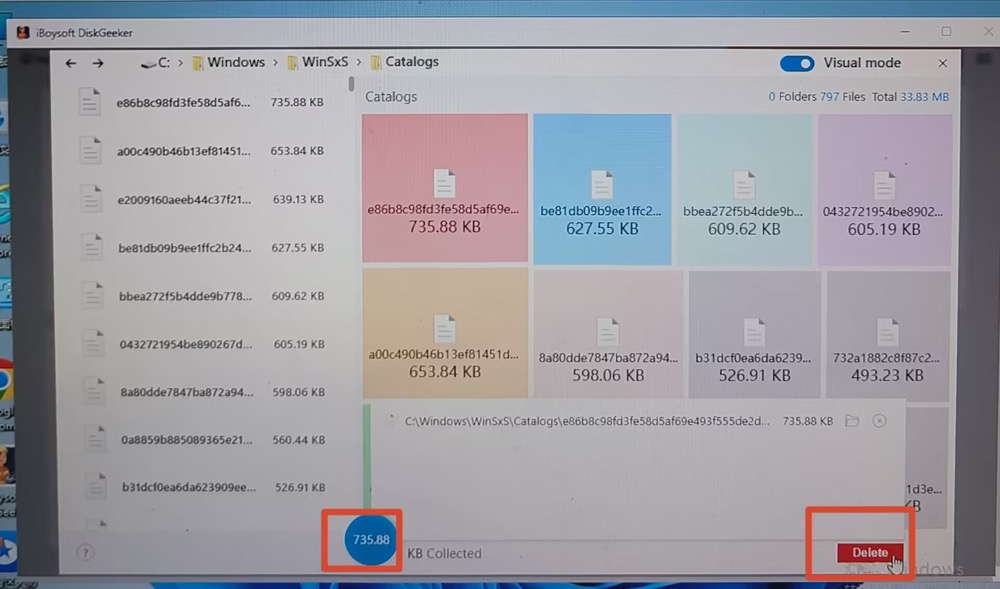
Step 5. Select the files from WinSxS folder > drag and drop them to the center blue button > tap the red Delete button at the lower right corner of the interface to clear unnecessary WinSxS files from your Windows.
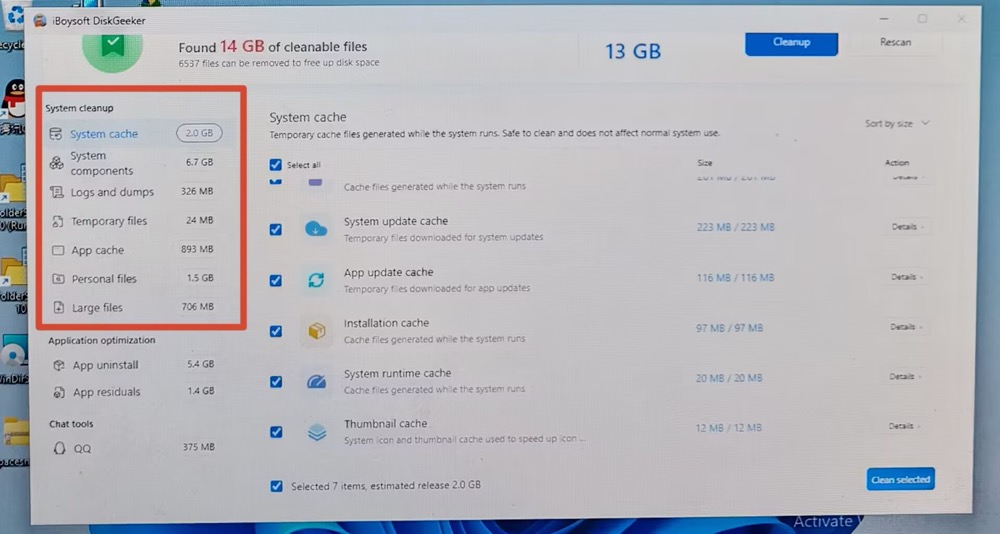
If you're a beginner or don't want to manually select WinSxS files for deletion, return to the main screen and click Clean next to Local Disk (C:). The cleaner will automatically scan the C: drive and select system junk that is safe to remove, including unnecessary WinSxS files. Then, simply click the blue Cleanup button at the top to remove the selected files safely.
If WinSxS still Seems Huge
Remember File Explorer often overstates the size of the WinSxS folder cuz many files are hard-linked elsewhere in Windows. A folder that appears to be 20–40 GB is often normal. If AnalyzeComponentStore reports no cleanup is recommended, the folder is likely already in a healthy state.
FAQs about WinSxS Folder Cleanup
- Q1. Is WinSxS necessary?
-
A
Yes, the WinSxS (Windows Side-by-Side) folder is an essential part of Windows. It acts as the system's component store, maintaining the files required for Windows Updates, feature rollbacks, system recovery, and application compatibility by keeping multiple versions of shared DLLs and other system components. You should never delete the WinSxS folder manually, as doing so can corrupt Windows, break updates, or even make the system unbootable.
- Q2. Why is the WinSxS folder so large?
-
A
Although the WinSxS folder may seem unusually large, much of its reported size is misleading. As Windows' component store, it preserves multiple versions of system files to support updates, feature changes, rollbacks, and recovery. Additionally, File Explorer includes hard-linked files in its size calculation, even though they do not consume extra disk space. Never delete files from the WinSxS folder manually, as this can corrupt Windows, break updates, or leave the system unbootable.
- Q3. Can I delete the WinSxS folder in Windows 11?
-
A
No, you can't.
- Q4. How can I safely clean up the WinSxS folder?
-
A
Use Windows built-in Disk Cleanup, Task Scheduler or run the DISM command-line tool. You can also take advantage of the 3rd party cleanup tool. Never delete the folder directly, as this will break your operating system.