
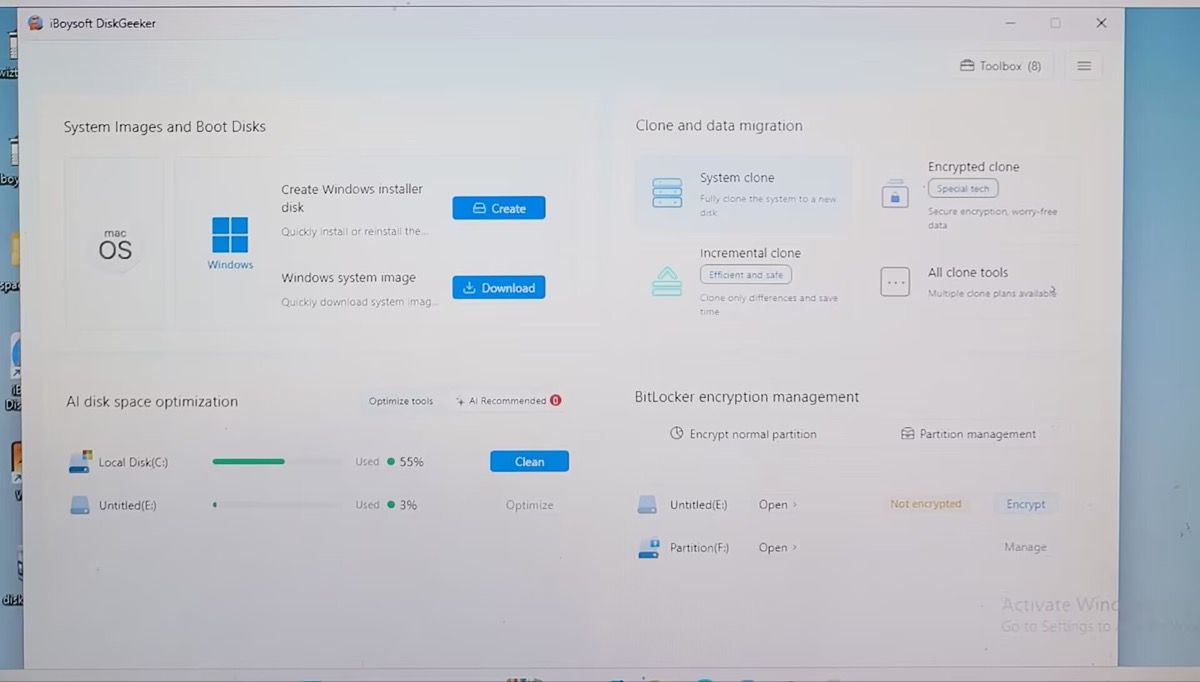
TreeSize is a powerful Windows disk space analyzer, but some users still hunt high and low for alternatives to TreeSize. Different users have different reasons. There is no need to elaborate on them here. Instead, you prioritize which TreeSize alternative suits you most. Check the following selection reference table.
| TreeSize Alternatives | Best For | Main Advantages | Free Version | Suitable Users |
| WizTree | Faster disk space analysis | Fast NTFS scanning | Yes | Home users, IT technicians |
| WinDirStat | Free open-source alternative | Free; a wide selection of cleanup options | Yes | Budget-conscious users |
| iBoysoft DiskGeeker for Windows | Cover-all cleanup features with AI smart recommendations | Powerful cleanup features; AI recommendations to free up space safely | Yes | Home users, IT technicians |
| SpaceSniffer | Visual storage analysis | Interactive live block view; no installation required | Yes | Users who prefer visual cleanup |
| DiskSavvy | Enterprise storage reporting | Enterprise analysis, deep file classification, and reporting | Yes | IT admins, businesses |
WizTree – Best TreeSize Alternative for Fast Disk Scanning
Best for:
- Users who want speed
In my actual testing, WizTree runs faster than other TreeSize alternatives. It only takes 2.74 seconds to finish my 66.2 GB C: drive scanning. That's because WizTree pulls data straight from the Master File Table created by the NTFS system instead of searching through every folder one by one.
In addition, traditional tools ask Windows for folder contents one step at a time. WizTree skips this slow process. It uses high-speed sorting algorithms designed to process massive amounts of file records instantly. All these together make WizTree the best TreeSize alternative for fast disk scanning.
WizTree claims on its official website that it's 46× faster than WinDirStat, but my real-world testing didn't show such a dramatic difference. On my 66.2 GB C: drive, WizTree completed the scan in 2.74 seconds, compared with 3.41 seconds for WinDirStat—making WizTree about 20% faster in my test.
Of course, scan speeds can vary significantly depending on the amount of disk space being analyzed and your hardware configuration. It's worth testing both tools on your own system to see how much of a difference you get.
How to Use WizTree to Fast Analyze Disk Space Visually?
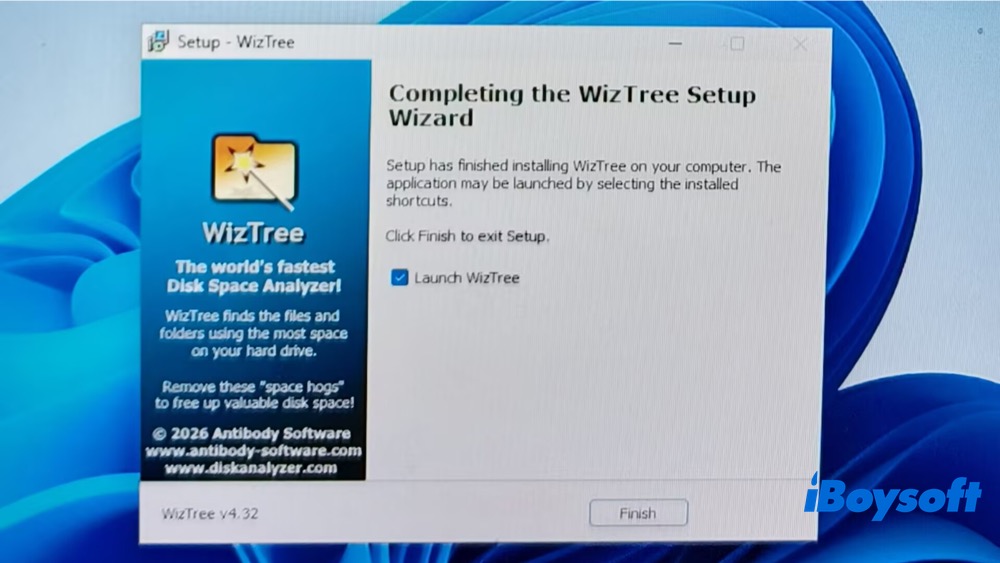
Step 1. I've downloaded the latest version of WizTree ver. 4.32 on my Windows 11 PC. Follow its on-screen instructions to install it.
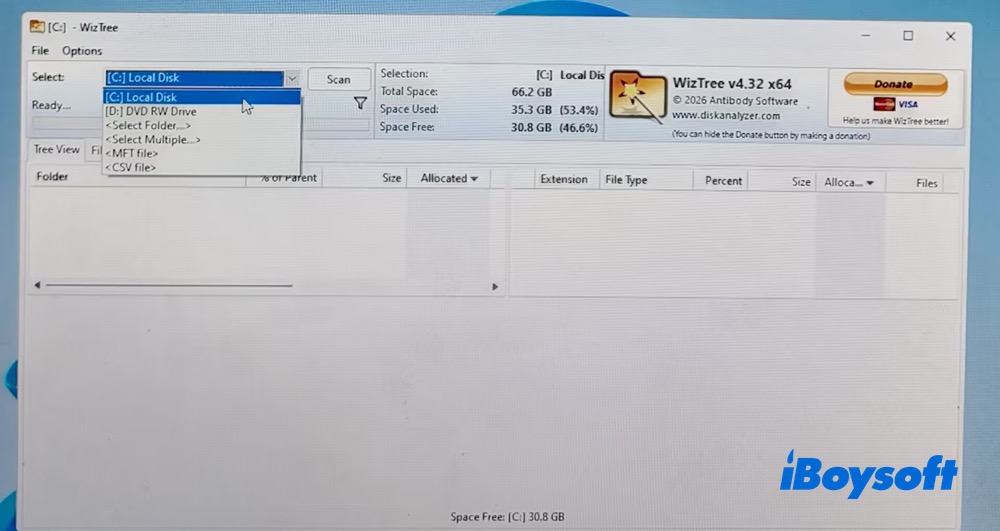
Step 2. Select C: Local Disk and tap the Scan button to begin scanning my drive C.
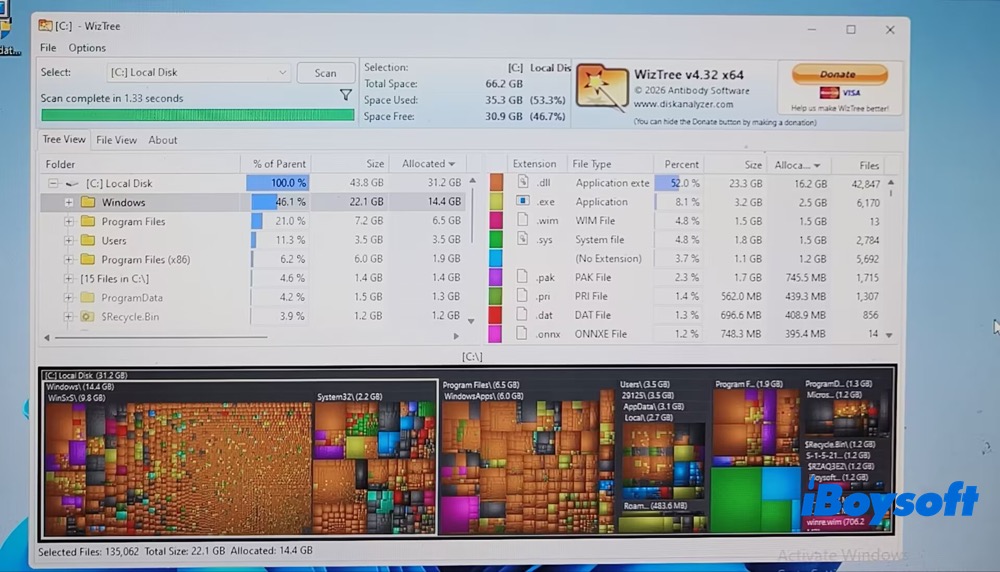
Step 3. It only takes 2.74 seconds to finish scanning my 66.2 GB C: drive (I tested the scanning time using the stopwatch on my mobile phone). That's really nice for those who seek faster scanning speed.
Now I can see what takes up space on Windows PC at one glance via Tree view or File view (details).
Step 4. Select the files you want to clear via the Delete shortcut in the right-click menu. Or you can resort to Windows native Disk Cleanup Utility, task scheduler, or the 3rd party Windows cleaner software to bulk remove unnecessary files.
WinDirStat - Best Free and Open-source TreeSize Alternative
Best for:
- Personal users who want a free open-source disk usage analyzer
- Cleanup actions
Unlike the free versions of many other TreeSize alternatives, which often come with feature limitations, WinDirStat is completely free and open-source. You get access to all of its features without any restrictions.
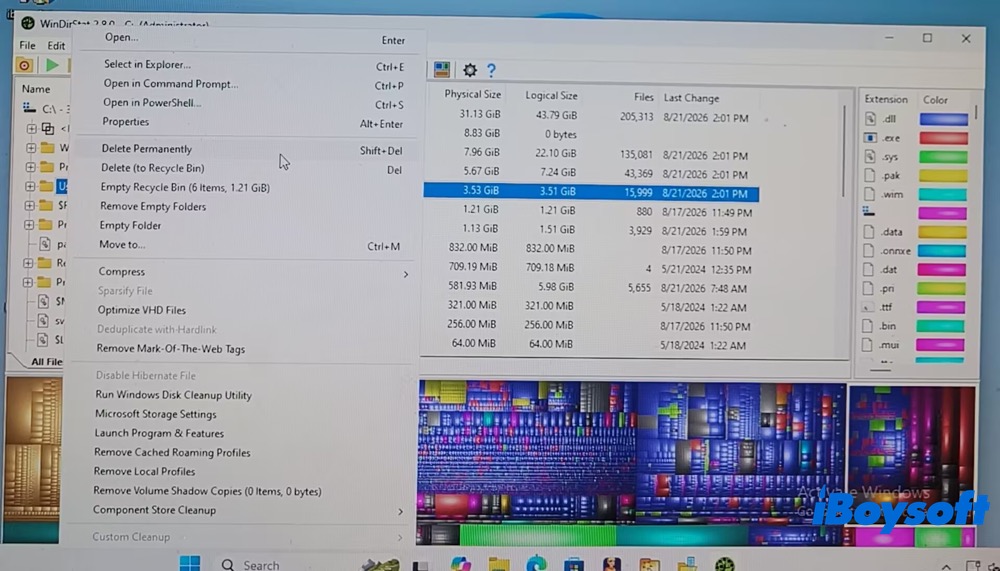
WinDirStat is an excellent choice if you're looking for a free disk space analyzer that can also help you find large files. It offers a useful range of cleanup options, including Delete Permanently, Move to Recycle Bin, Empty Folders, and Run Disk Cleanup Utility. However, it may not be the best fit for IT professionals or enterprise administrators because it lacks built-in export and reporting capabilities.
How to Free Analyze Disk Space in Windows using WinDirStat
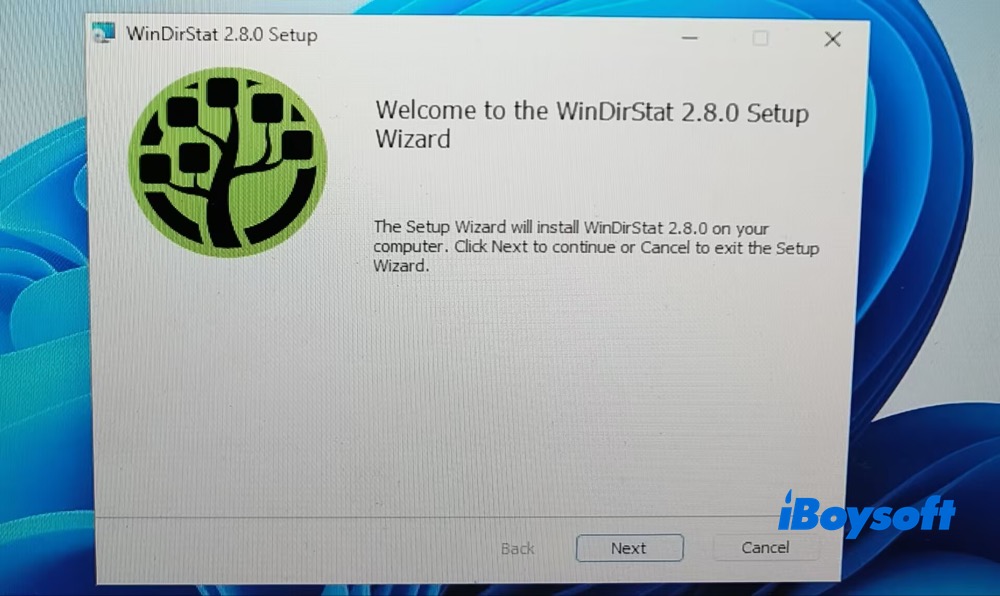
Step 1. Free download and install WinDirStat version 2.8.0. It offers you a couple of installers like x64 installer, x86 installer, ARM 64 installer. Select the one based on your Windows configuration.
Step 2. Select Drives after launch. I choose C: drive under "Individual Drives" option > tap OK and it begins scanning and analyzing my drive C space usage instantly.
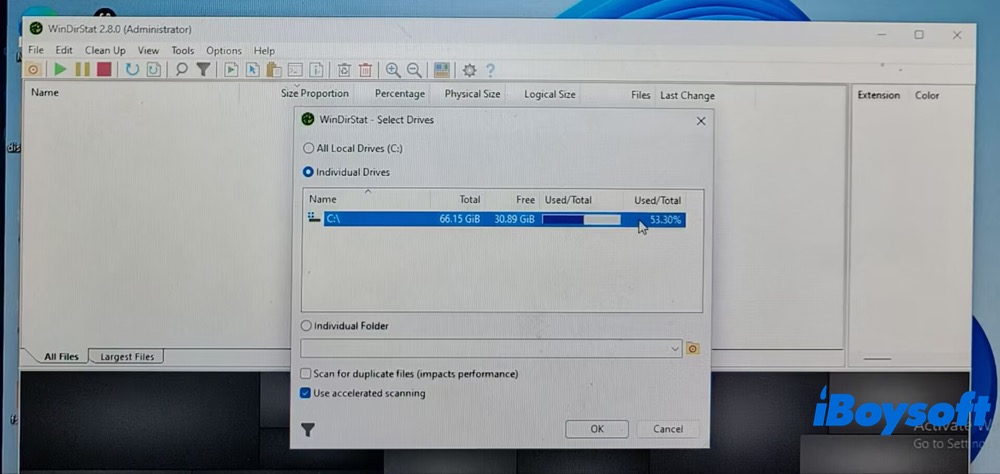
As for my 66.15GB C drive, it runs fast, only 3.41 seconds to complete the drive scanning. Compared with WizTree, its large drive scanning can be slower.
Step 3. Clean up drive space if needed. Beyond its free open source attribute, the cleanup feature is another shining point. You can leverage its cleanup tools like Delete Permanently, empty folder, empty recycle bin, clear caches, run Windows Disk Cleanup Utility, etc. to free up Windows drive space.
iBoysoft DiskGeeker for Windows - Best TreeSize Alternative for Disk Analysis and Cleanup with AI Assistance
Best for:
- Home users and IT technicians
- Drive analysis and safe cleanup with AI recommendations
iBoysoft DiskGeeker for Windows is a powerful TreeSize alternative for both home users and IT professionals, combining fast disk space analysis and cleanup with AI-powered assistance. It handles the essential task of storage analysis in a simple, fast, and intelligent way. In my test, it took just 3.01 seconds to complete a full storage analysis of the C: drive.
Cleanup is just as straightforward. If you only need to remove a small number of specific files, use Optimize tools to analyze your storage first, then review the results and manually select files for deletion with the help of AI recommend.
For a deeper C: drive cleanup without the hassle of manually reviewing and judging each file, simply open the Cleanup window and remove the AI-selected unnecessary files with one click.
How to Use iBoysoft DiskGeeker to View Disk Space and Safely Clean Up Space
Step 1. I download and install the latest version of iBoysoft DiskGeeker v2.0 in Windows. Launch it.
Step 2. On the home screen, move the mouse to "AI disk space optimization" zone > click "Optimize tools".
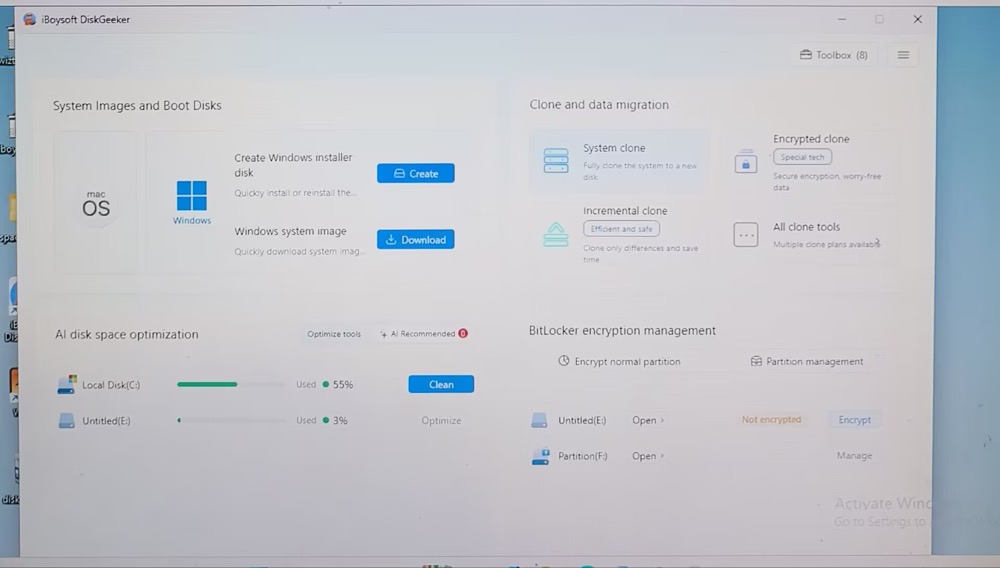
Step 3. Choose "User folder analysis". And this Windows folder size analyzer quickly scans all the folders on my drive and shows me how much space they're using in a directory structure. The entire scan takes only 3.01 seconds.
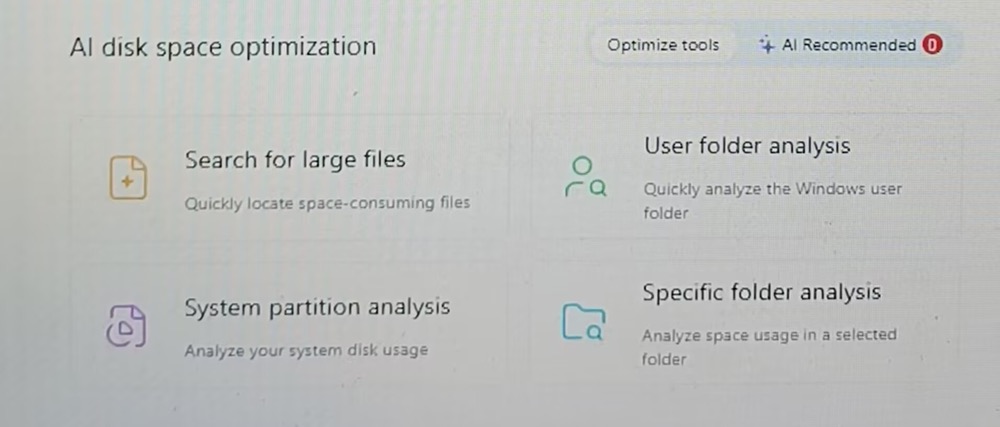
If you only want to check the size of a specific folder, select "Specific Folder Analysis". It scans only the folder you choose, so the analysis is much faster than scanning the entire drive.
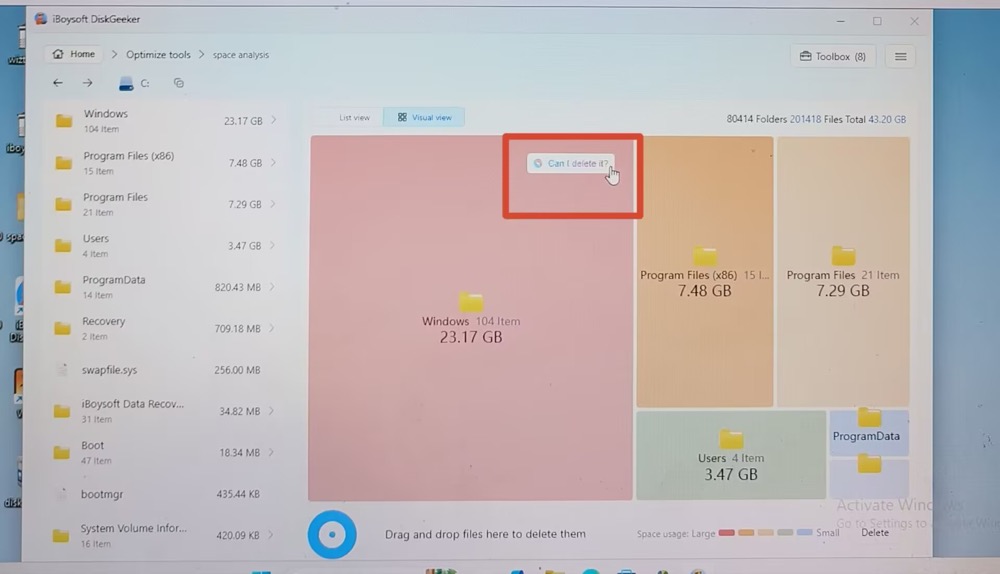
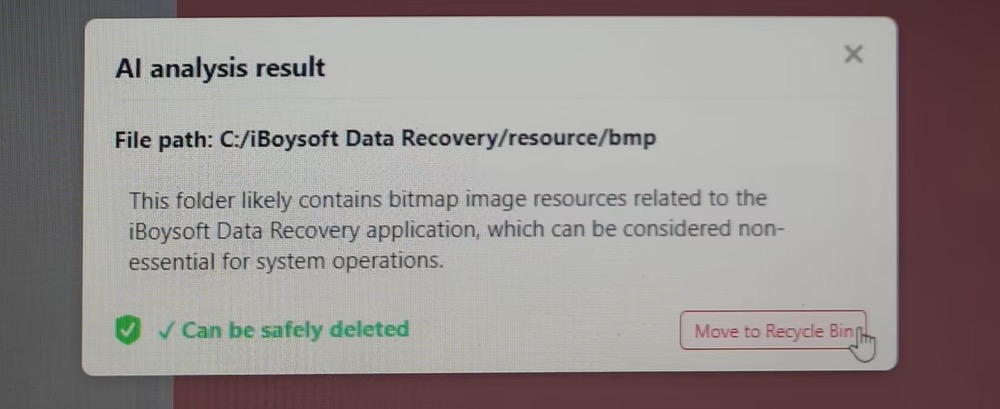
Step 4. Click "Can I delete it?" to get an AI-powered cleanup recommendation if you're unsure whether it's safe to delete the files.
If the file is safe to remove, you'll see a green "Can be safely deleted" message along with a "Move to Recycle Bin" option next to the recommendation. If it's not safe to remove, a red "Not recommended to delete" message will appear in the AI analysis window.
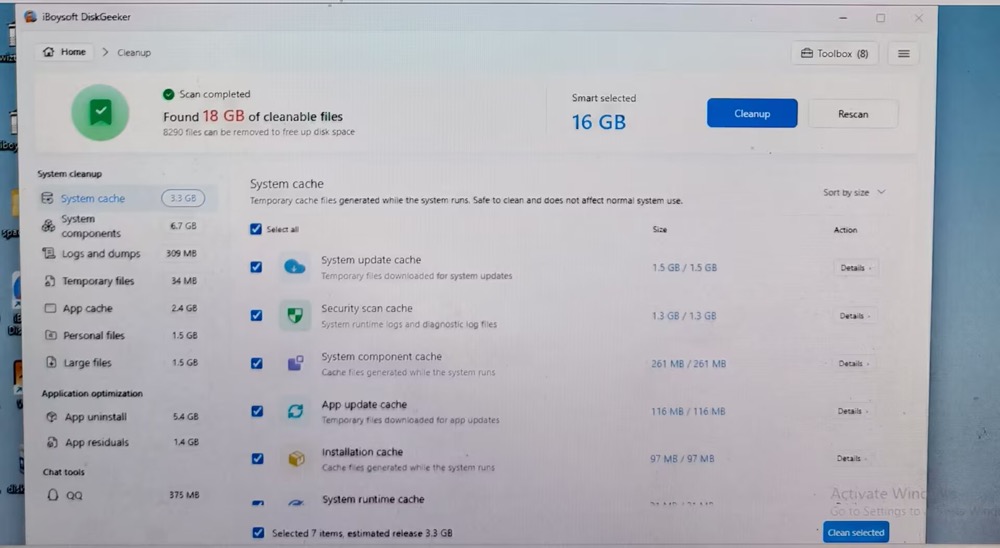
Optional: If your local disk C is almost full and you're using this TreeSize alternative mainly to free up disk space, simply click the Clean option next to the C: drive. You'll then be taken to the cleanup window, where the tool automatically identifies files that are safe to remove—in this case, about 18 GB of cleanable files.
The automatically selected files can be safely cleared without affecting your system or normal operations. Simply click the blue Cleanup button to delete junk files and free up space on your C: drive.
SpaceSniffer - Best TreeSize Replacement for Better Visual Storage Analysis
Best for:
- Users who prefer live block treemap view for folders, filters
- Portable archive; no installation
TreeSize's treemap view displays folders and files as nested, proportionally sized blocks, with the size of each block representing how much disk space it occupies. Each block is also assigned a different color, which can make the interface feel somewhat cluttered. At a glance, it can be difficult to tell which block or color corresponds to a specific folder or file.
SpaceSniffer handles treemap visualization more effectively. Its disk space analysis results primarily use two colors: blue and brown. Blue blocks represent individual files, while folders are typically displayed in shades of brown. When I hover my mouse over a specific folder, it is highlighted in white, making it much easier to identify. Overall, this simpler color scheme makes the treemap cleaner, easier on the eyes, and less distracting.
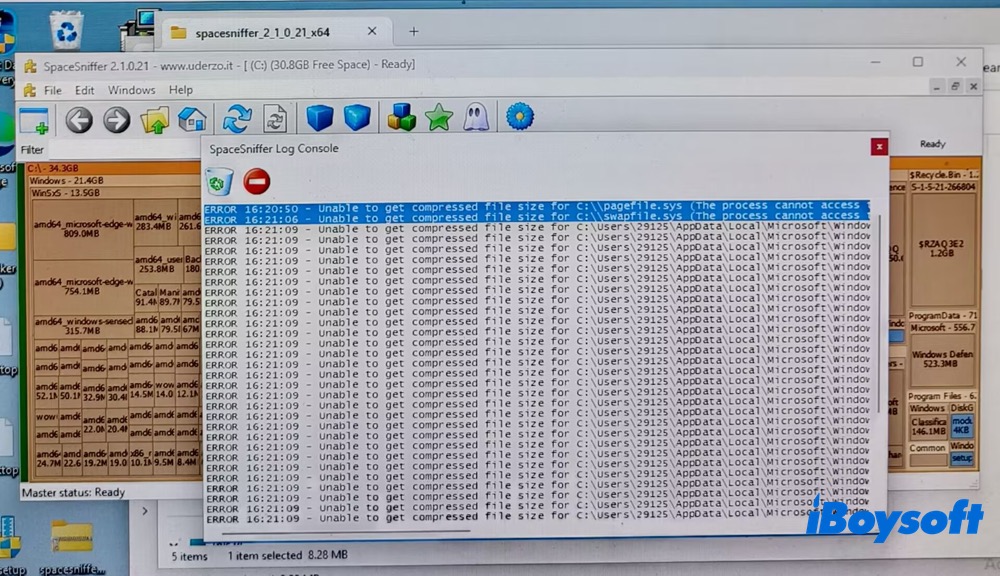
Its drawbacks are equally clear: it was the slowest alternative in my test, taking 1 minute and 52.38 seconds; no built-in cleanup tools are offered; and it's unable to get a compressed file size for my C: drive (check the details below).
How to Use SpaceSniffer Live Block Treemap View to Analyze Disk Space
Step 1. Download SpaceSniffer v2.1.0.21 for Windows 11. For older Windows 7, download SpaceSniffer x64 package. Or download the previous version 2.0.5.18 SpaceSniffer zip for a portable archive and fallback build.
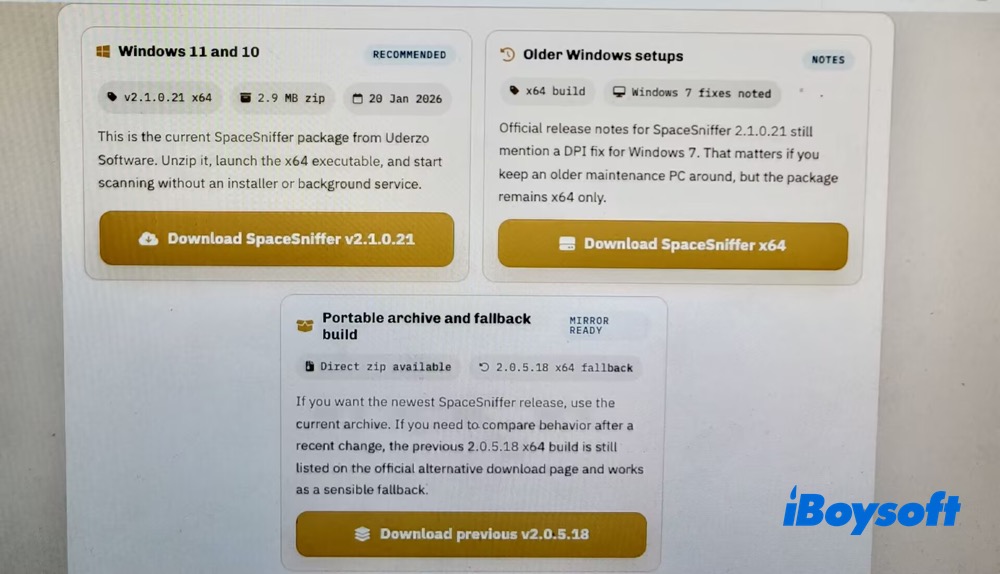
Note: You'd better avoid relying on SpaceSniffer video tutorials on YouTube, as many of them were created 3 or even 10 years ago. These outdated videos may not accurately reflect the features and interface of the current version, making them less suitable as a reference.
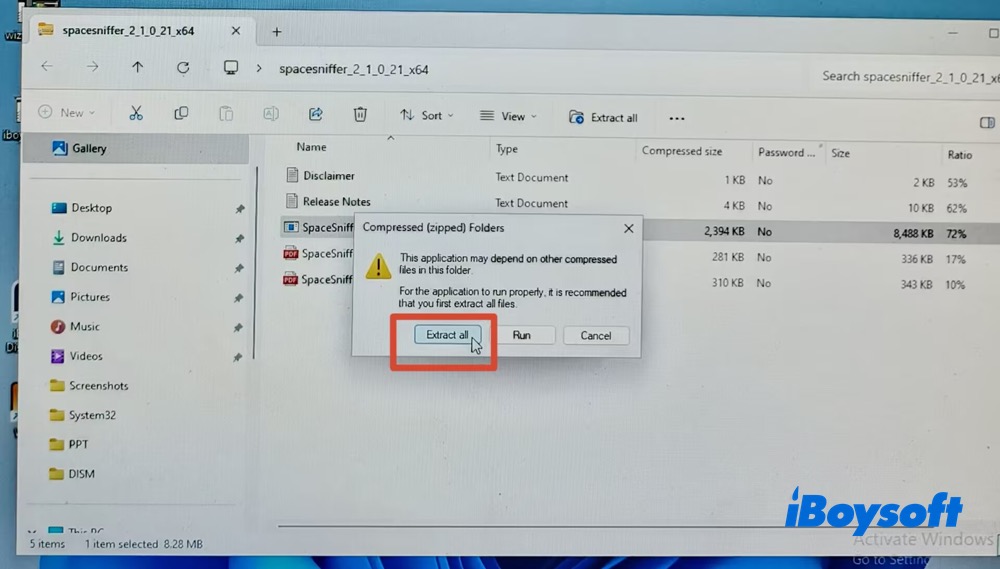
Step 2. When I tried to install SpaceSniffer on my Windows 11, it asked me to extract the compressed folders first. Tap Extract all and it instantly completed the installation, lightning-fast speed.
Step 3. I chose drive C: for analysis. It also supports typing the path or directly dragging folder for space scanning. Click “Start" to begin scanning my local disk C.
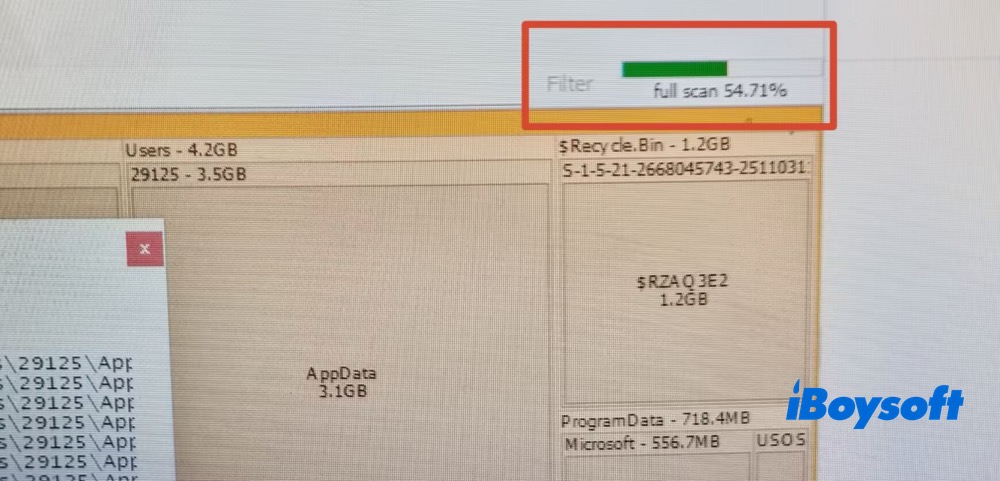
Scanning was significantly slower compared with the other TreeSize alternatives tested. It took 1 minute and 52.38 seconds to complete the same C: drive scan, the longest scanning time among all the tools tested so far.
Meanwhile, it popped up error message during scanning - "Unable to get compressed file size for C:\\pagefile.sys". There are dozens of the similar error messages. In short, this alternative to TreeSize is unable to analyze the compressed file size. If you care about this, pick up other TreeSize alternatives.
Step 4. The scanning treemap uses a brick-like layout across different subsections, offering a visual breakdown of the files and folders that occupy my C: drive space.
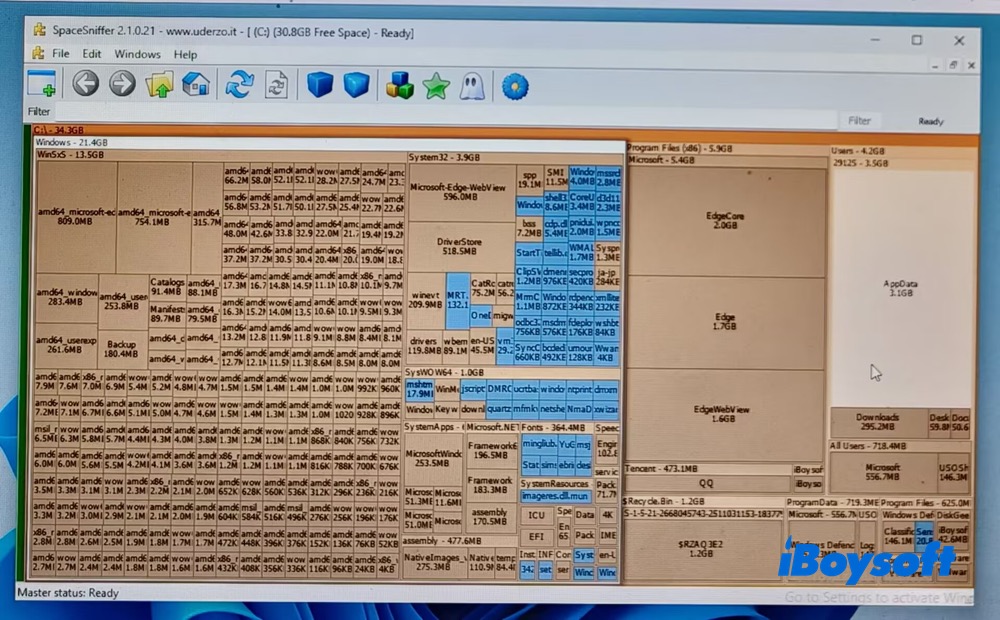
The treemap makes it easy to see which files and folders are consuming the most space on my C: drive. The Windows folder takes up 21.4GB in total, with WinSxS being the largest contributor at 13.5GB. It is followed by System32, which occupies 3.9GB of storage. So, the next step I need to take to free up disk space is to reduce the WinSxS folder size.
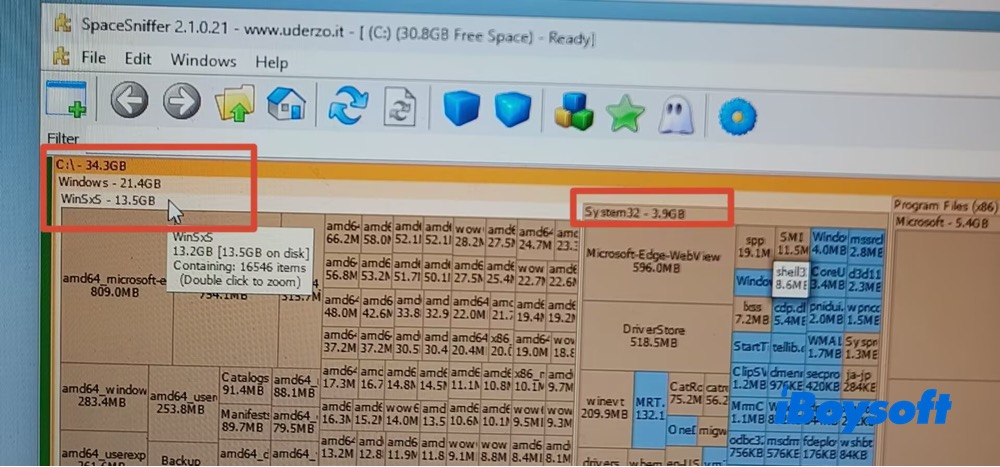
Step 5. Simply select the files you want to remove, then right-click and choose Delete. That's about as far as the cleanup functionality goes—this TreeSize alternative doesn't offer any additional cleanup features. If you're looking for more comprehensive cleanup options, WinDirStat or iBoysoft Cleaner may be better choices.
DiskSavvy - Best Alternative to TreeSize for Enterprise Analysis Reporting
Best for:
- IT administrators and power users
- Enterprise/network analysis and excellent reporting to numerous formats
DiskSavvy is an advanced disk, server, network shares, and enterprise storage analyzer. Thus, for IT administrators and enterprise users, they can choose its built-in “View server" or "Analyze network server" option to deep scan how their brobdingnagian space is used.
In addition, DiskSavvy offers built-in file classification capabilities, with multiple plug-ins that can recognize and categorize more than 3,500 file types. It also provides detailed disk space usage insights based on file type, category, extension, user name, creation date, last modified date, last access time, and more.
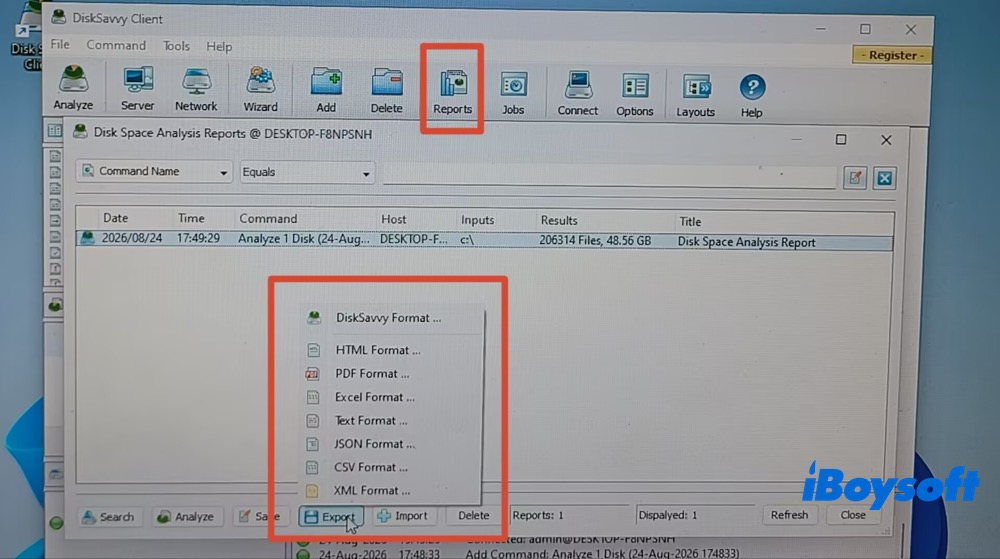
For business users, the export feature is a must-have. This TreeSize alternative provides you with more export formats than TreeSize, including PDF, Excel, Text, HTML, etc. at your disposal.
One minor shortcoming is that it takes 1 minute and 00.41 seconds to scan the whole C: drive. It would take more time when it comes to scanning and analyzing your enterprise-level storage system.
How to Use DiskSavvy to Visualize Enterprise Storage
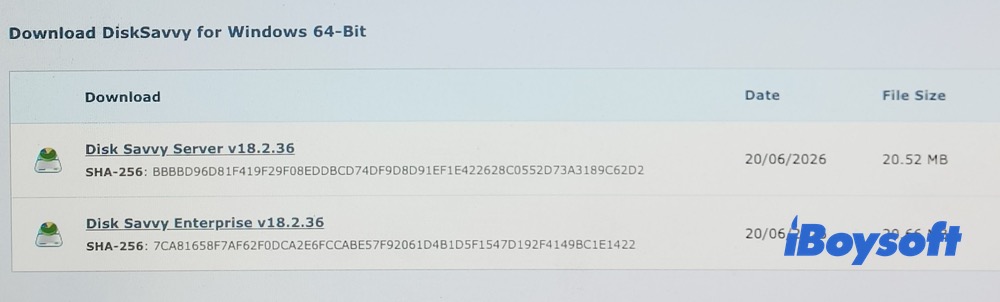
Step 1. Download DiskSavvy installer based on your needs. It offers you DiskSavvy server and enterprise versions. I downloaded DiskSavvy Server v18.2.36 for Windows 64-bit. The file is 20.52 MB.
Step 2. Follow its on-screen setup wizard to install. Launch it after installation is completed. I can find its main features listed on the top menu, including Analyze Disk Space, View Server, Analyze Network Server, Delete, Reports, etc. For business use, choose "View Server" or "Analyze Network Server".
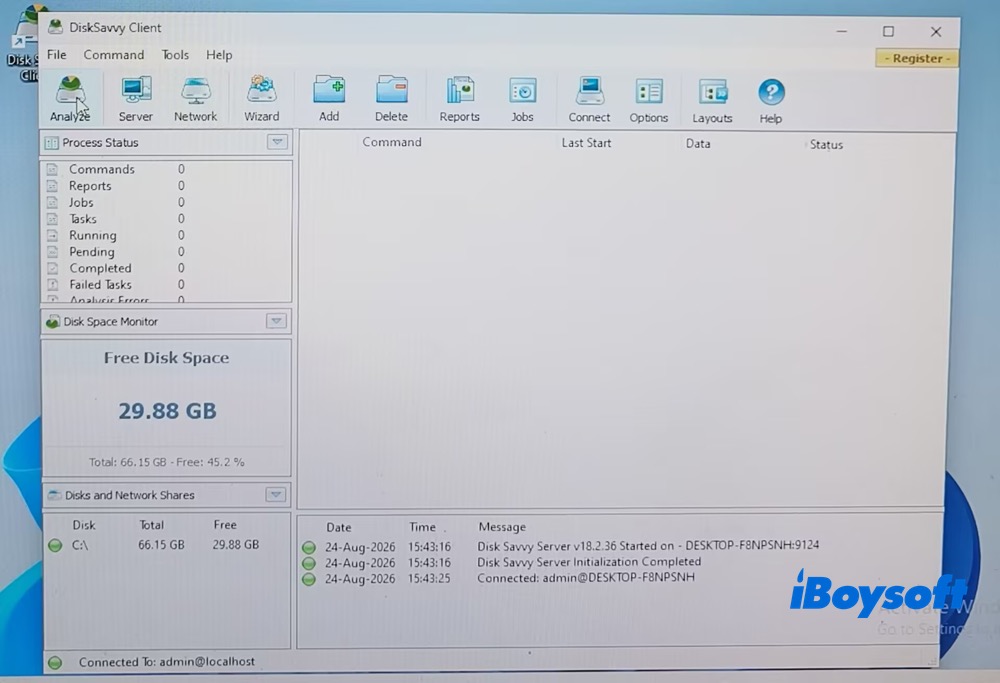
Step 3. Here I choose Analyze Disk Space (I don't have a server for a demonstration) > tap the plus icon "+" > tap the 3-dot icons on the Add Directory window to choose C: drive > click OK.
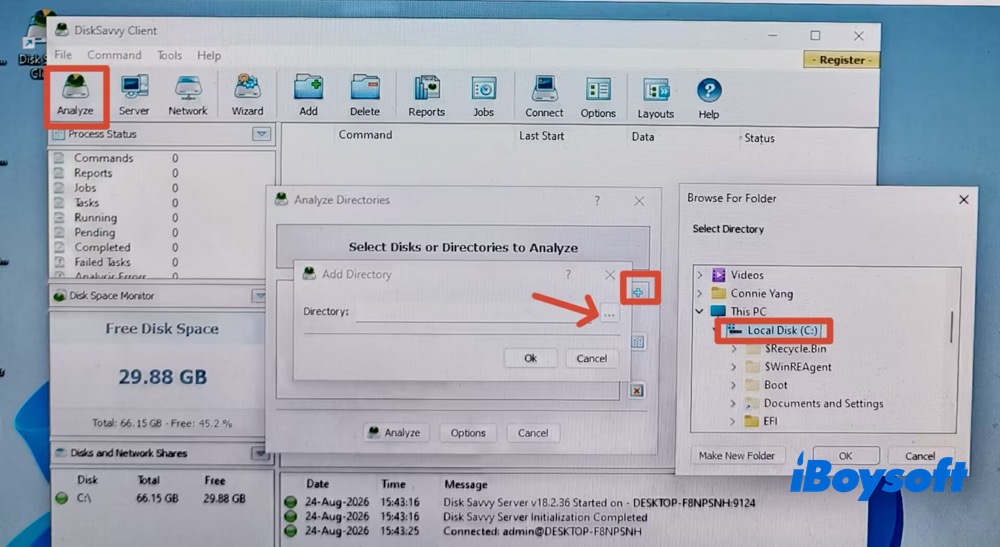
Step 4. Click "Analyze" and it begins scanning my C: drive.
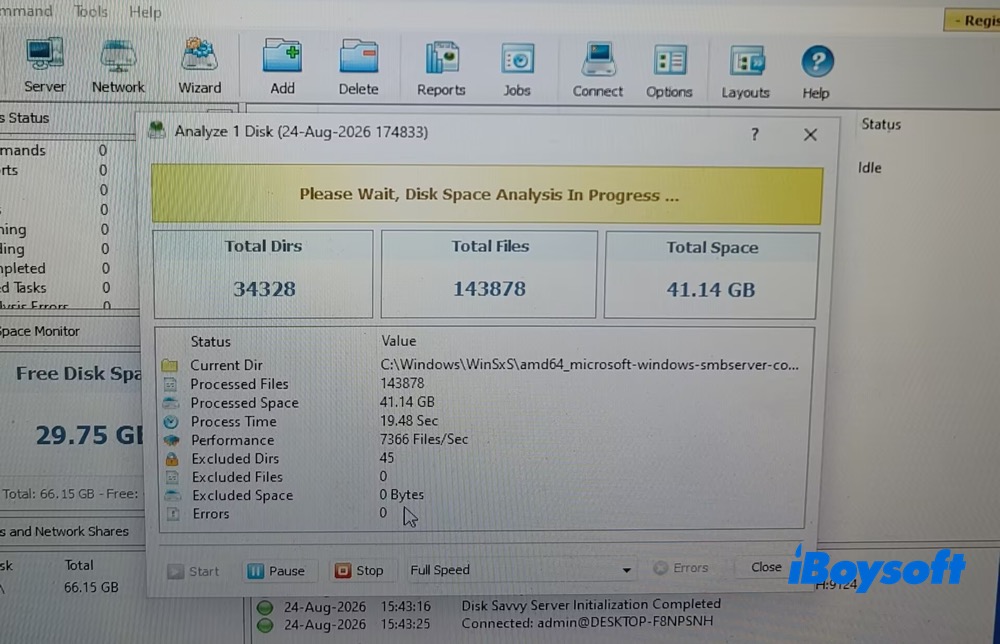
Step 5. It takes 1 minute and 00.41 seconds to scan the whole C: drive. And the drive analysis is displayed in a Windows Explorer mode with detailed info listed.
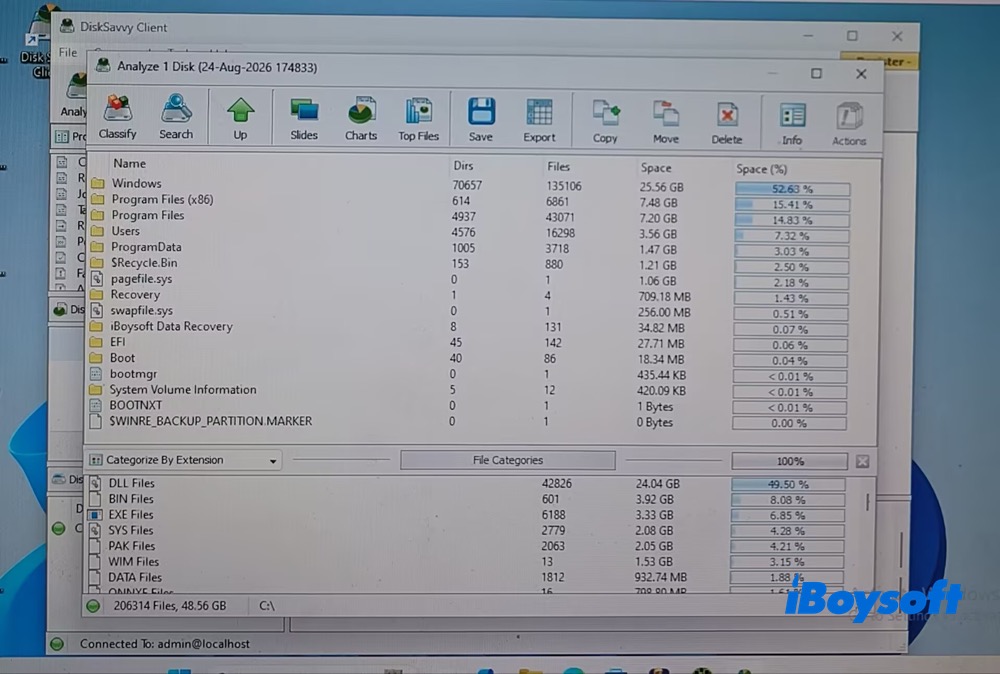
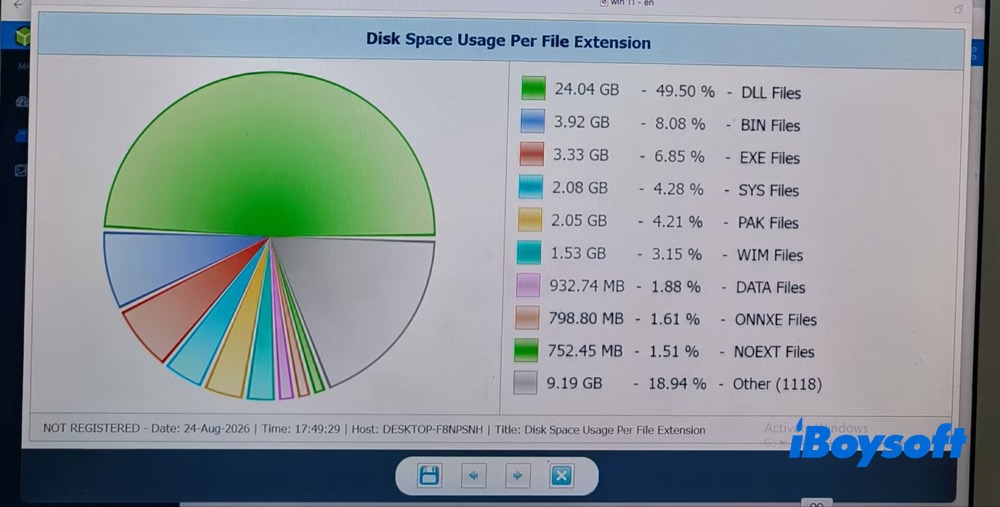
Step 6. I also view my C: drive space usage using the Slides feature, which displays disk usage by file extension in a pie chart.
Step 7. Select the specific folder or file > click Delete on the top banner > click Delete again in the confirmation pop-up to remove the unwanted item.
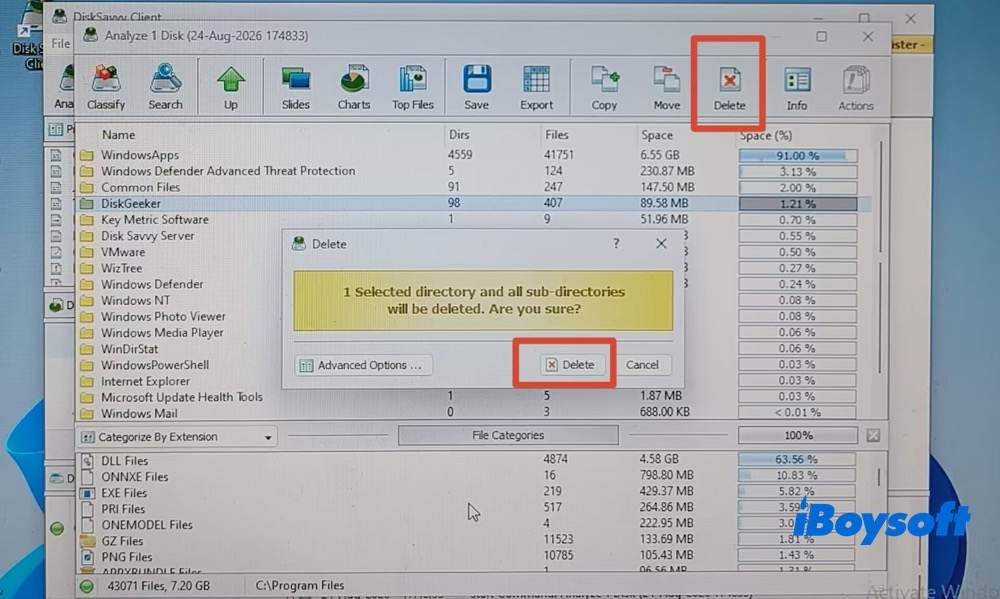
This action requires you to determine whether the selected file or folder is safe to delete, as there's no AI-powered analysis to assist you. If you're unsure, return to iBoysoft DiskGeeker for Windows to safely clean up caches, junk files, and other unnecessary data.
Step 8. Click "Reports" on the upper menu > hit "Export" on the pop-up window > choose the export format, including HTML format, PDF, Excel, Text, CSV, etc.
Summary
Overall, there is no single TreeSize alternative that fits every user equally well. WizTree is a practical choice for users who prioritize fast disk space analysis, while WinDirStat is a truly free and open source disk storage analyzer with useful cleanup options. iBoysoft DiskGeeker for Windows provides AI-powered smart disk space analysis and cleanup features, making it suitable for users who need safe and AI smart recommendations on 1-click cleanup.
SpaceSniffer focuses on visualizing disk usage through an intuitive interface, whereas DiskSavvy offers more advanced analysis, file classification and reporting capabilities, friendly to business users.
The best alternative ultimately depends on whether you value speed, freebie, AI smart cleanup functionality, visualization, or enterprise-level analysis and reporting.
FAQs
- Q1. Is TreeSize or WinDirStat better?
-
A
TreeSize is generally better than WinDirStat when it comes to faster disk space scanning and analysis. While WinDirStat is a better choice if you need a truly free open-source disk space analyzer for Windows.
- Q2. What is the best storage manager for PCs?
-
A
Best disk space analyzers: WizTree, Disksavvy, and TreeSize.
Best disk space cleaner & manager: iBoysoft DiskGeeke for Windows and WinDirStat.
- Q3. What is the best app to clean storage on my PC?
-
A
For a safe and free disk space cleaner for Windows, you can choose the Windows built-in tools like Disk Cleanup and Storage Sense.
For a dedicated app, iBoysoft DiskGeeker for Windows (version 2.0) is worth your consideration. It supports you safely and quickly cleaning up space at one click by courtesy of AI smart analysis and auto selection. You don't need to manually identify files and select files one by one.